
Are you struggling with slow website performance on WordPress? Or perhaps you’ve encountered the dreaded “Fatal error: Allowed memory size” message?
You might be wondering, “What should I change my PHP memory to? ” You’re not alone. Many WordPress users face this issue and are unsure how to optimize their PHP memory settings. Understanding the right PHP memory limit is crucial for ensuring your website runs smoothly.
If it’s too low, your site might crash under the pressure of plugins and themes. Too high, and you could risk server issues. This blog will guide you through the ideal PHP memory settings for WordPress, helping you achieve a seamless user experience while keeping your website robust and efficient. Dive in to uncover the secrets to a faster, more reliable WordPress site.

Credit: www.liquidweb.com
Importance Of Php Memory In WordPress
PHP memory is vital for WordPress sites. It helps your site run smoothly. When your site has enough memory, pages load faster. Visitors stay longer. Low memory can slow down your site. It can cause errors. These errors frustrate users.
Most sites need at least 256 MB of PHP memory. This allows plugins and themes to work well. More memory can be required for bigger sites. E-commerce sites might need more. They handle many products and users.
Increasing PHP memory is simple. You change it in the wp-config.php file. It’s a crucial step for improving performance. Always check your site’s needs. Adjust memory based on activity and plugins.
Memory impacts speed and reliability. Regular checks ensure optimal functioning. Keep your site efficient and user-friendly. Your visitors will have a better experience.
Default Php Memory Limit
The default PHP memory limit is often set at 128MB. This might not be enough for big sites. If your site is slow, check the memory limit. Increasing it can make your site faster. But be careful. Setting it too high can cause problems. Always start with small changes. Try 256MB first. If still slow, you can try 512MB. Remember, more memory is not always the answer. Keep your plugins and themes updated. This can help too.
Signs You Need More Php Memory
Frequent error messages can be frustrating. They often mean not enough PHP memory. You might see errors during simple tasks. This can stop your website from working well.
A slow website drives visitors away. They won’t wait long for pages to load. More PHP memory can make your website faster. This helps users stay and explore more.
Trying to install new plugins? But they fail? This could be a memory issue. Plugins need enough memory to work. Without it, they can’t install properly.
Credit: www.liquidweb.com
How To Check Current Php Memory Limit
PHP memory is vital for your WordPress site. Check it to ensure smooth operation. Knowing your current limit helps in deciding changes.
Access your WordPress dashboard first. Go to the Tools section. Click on Site Health. Here, you will find Info. Click it. Scroll down to the Server section. Look for PHP memory limit. It shows your current limit.
Another method uses the cPanel. Go to the cPanel dashboard. Find PHP info in the Software section. Click to see details. Check for memory_limit.
Understanding your PHP memory limit is crucial. It ensures your site runs efficiently. Adjust if necessary.
Recommended Php Memory Settings
Basic WordPress sites usually need 64MB of PHP memory. This amount is good for simple blogs and portfolios. It helps in running plugins and themes smoothly. Increasing to 128MB can improve speed. Especially if your site gets many visitors. Always check your server limits before changing settings.
E-commerce sites need more memory. 128MB is a good start. For media-rich sites, 256MB is better. This helps in managing images, videos, and products. Higher memory boosts performance. It reduces loading time for users. Always ensure your server can handle the increase.
Large websites need more memory. 512MB or more is ideal. These sites have many pages and heavy content. More memory ensures fast operation. It helps in handling user requests efficiently. Always check server compatibility for higher settings.
Steps To Increase Php Memory Limit
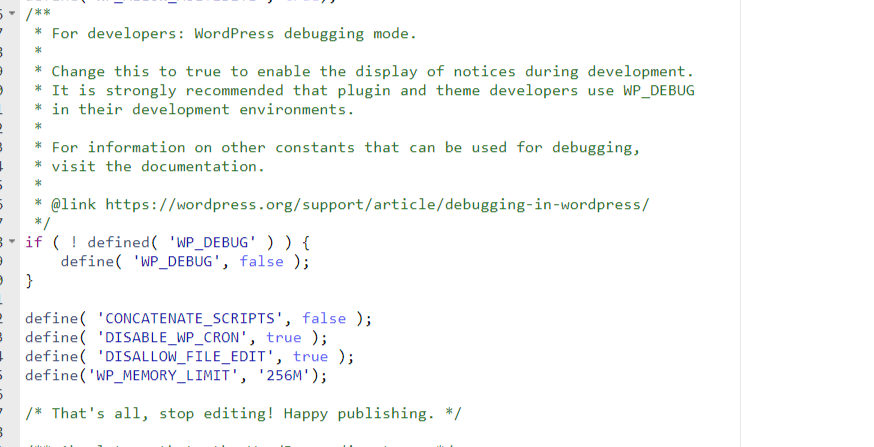
Open your wp-config.php file. Look for the line that says define(‘WP_MEMORY_LIMIT’). Change the number to a higher value. For example, you can set it to 256M or 512M. Save the file and upload it back to your server. This will increase your memory limit for WordPress.
The php.ini file controls PHP settings. You can find it in your server’s root directory. Open the file and search for memory_limit. Change the value to something like 256M. Save your changes. This method is useful if you have access to server files.
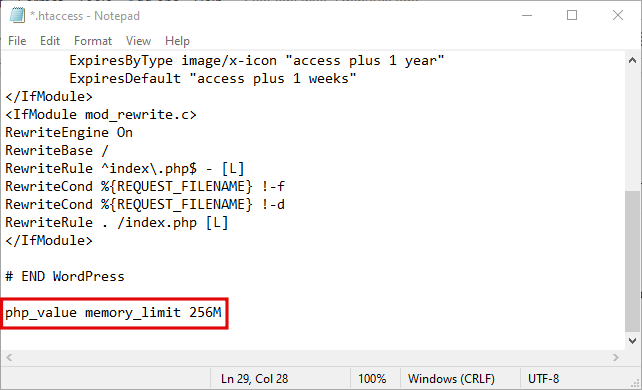
The .htaccess file can also increase memory. Open it and add a line that says php_value memory_limit 256M. Save the file. This change can help if other methods do not work. It is important to handle the file carefully. Incorrect changes can cause errors.
Potential Risks And Considerations
Increasing PHP memory can affect server performance. More memory means less for other tasks. High memory usage can slow down other processes. Always check your server’s limits.
Some plugins may not like high memory settings. They might crash or not work well. Always update plugins to avoid problems. Double-check if they support your PHP version.
Hosting providers often set memory limits. These limits can be strict. Check with your provider before changing anything. Exceeding limits may result in extra fees or service interruptions.
Troubleshooting Memory Limit Changes
Memory errors can slow your site. Common signs include slow page loading and unexpected errors. PHP memory limits help manage resources. Increasing memory can improve performance. But be careful. Too much memory may cause server issues.
- Find the wp-config.php file.
- Open it with a text editor.
- Look for define(‘WP_MEMORY_LIMIT’, ’64M’);
- Change the 64M to a higher number.
- Save the file.
- Check your site.
Your server settings matter. Check if your host allows changes. Some hosts have strict rules. They may limit memory adjustments. Contact support for advice. Make sure changes align with server limits.
Check your site’s speed after making changes. Use online tools. They show how fast your pages load. Adjust the memory limit again if needed. The right balance is key. Faster sites mean happier visitors.
Best Practices For Php Memory Management
Choosing the right PHP memory limit is important. It helps your website run smooth. Too little memory can make it slow. Too much memory can waste resources. Many sites use 128MB or 256MB. This is usually enough. Check your site needs before you decide. Monitor your site’s performance. Adjust the memory if needed.
Keep your plugins updated. Old plugins can use more memory. Remove plugins you don’t need. They take up space. Clean your database often. A tidy database uses less memory. Use caching to save memory. It stores data for quick access. This helps your site load fast.
Credit: www.hostinger.com
Frequently Asked Questions
What Is The Default Php Memory Limit In WordPress?
The default PHP memory limit for WordPress is usually set to 64MB. However, this can vary based on your hosting provider. Increasing the memory limit can help with performance issues, especially if you are running multiple plugins or a resource-heavy theme.
How Can I Increase Php Memory In WordPress?
To increase PHP memory, edit the `wp-config. php` file in your WordPress root directory. Add the line `define(‘WP_MEMORY_LIMIT’, ‘256M’);` before the `/* That’s all, stop editing! */` comment. Make sure to set a value that your hosting provider supports.
Why Is Php Memory Important For WordPress?
PHP memory is crucial for WordPress performance and stability. It allows WordPress to execute scripts smoothly, especially when handling large plugins or themes. Insufficient memory can lead to errors and slow site performance, affecting user experience and SEO rankings.
What Are The Risks Of Increasing Php Memory?
Increasing PHP memory can lead to resource overuse on shared hosting. This might impact other sites on the server. If set too high, it can also mask underlying issues with plugins or scripts that require optimization.
Conclusion
Choosing the right PHP memory limit is crucial for WordPress. It ensures your site runs smoothly and efficiently. Assess your website’s needs before deciding. A higher limit might be necessary for complex sites. Smaller blogs often require less. Always monitor your site’s performance after changes.
This helps maintain optimal speed and functionality. Regularly updating and optimizing your setup is important. It keeps your site healthy and fast. Consult with your hosting provider if unsure. They can offer guidance specific to your setup. Remember, every website is unique.
Tailor your settings accordingly for best results.


