
Are you looking to make your WordPress posts more dynamic and engaging? Adding shortcodes in the Classic Editor can help you do just that—quickly and easily.
Whether you want to insert galleries, buttons, or custom content, shortcodes save you time and effort. In this guide, you’ll discover simple steps to add shortcodes without any hassle. By the end, you’ll be able to enhance your posts and grab your readers’ attention like a pro.
Ready to unlock the power of shortcodes in your WordPress Classic Editor? Let’s dive in!
Credit: docs.gravityforms.com
Classic Editor Basics
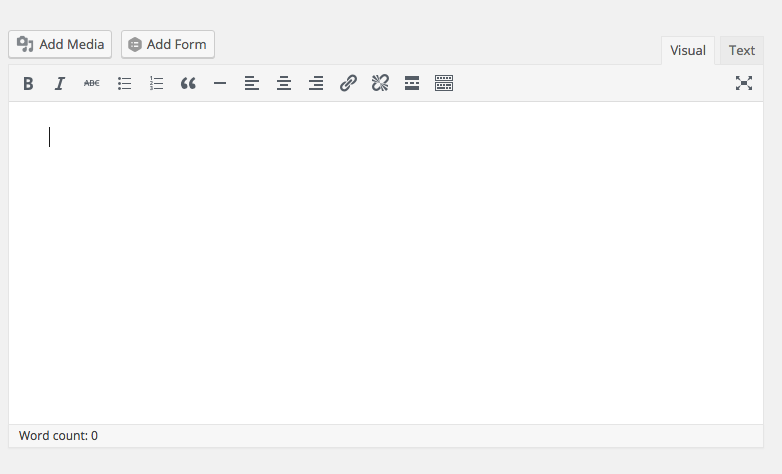
The Classic Editor is a simple tool for writing and editing posts in WordPress. It looks like a regular text editor with buttons for bold, italics, and lists. This editor is easy to use for beginners and those who prefer a straightforward interface.
Understanding the Classic Editor helps you work faster and create better content. You can add text, images, and special features using shortcodes. Shortcodes are small codes that add extra functions without complicated steps.
What Is The Classic Editor
The Classic Editor is the old WordPress editor before Gutenberg. It has a text box and a toolbar with basic options. You type and format your content here. It shows the text as you write, making it clear and simple.
This editor lets you switch between Visual and Text modes. Visual mode shows formatted content. Text mode shows HTML code. It helps users who want more control over their post design.
Why Use Shortcodes
Shortcodes are shortcuts to add special content. They save time and avoid writing complex code. You can add buttons, galleries, videos, and more with one line of code.
Using shortcodes makes your posts look professional. You do not need to know programming. Just copy and paste the shortcode into the editor. The editor will show the final content on your website.
Credit: kubiobuilder.com
Finding The Right Shortcode
Finding the right shortcode is key to enhancing your WordPress content. Shortcodes help you add special features without coding. They save time and make your posts interactive. Understanding where to find these shortcodes helps you use them wisely.
Common Shortcodes In WordPress
WordPress has several built-in shortcodes you can use right away. These include galleries, audio players, and video embeds. For example, displays image galleries easily. Another is which plays sound files. These shortcodes work well for many websites. They add functionality without plugins or extra setup.
Using Plugin Shortcodes
Many plugins come with their own shortcodes. These extend your site’s features further. For instance, contact form plugins often include shortcodes to insert forms. After installing a plugin, check its documentation for shortcode details. Use these codes by copying and pasting them into your post. This method lets you add complex functions simply.
Adding Shortcodes Manually
Adding shortcodes manually in the WordPress Classic Editor is simple and fast. Shortcodes let you insert dynamic content like galleries, forms, or buttons. You do not need to write any code. Just place the shortcode in the editor, and WordPress handles the rest.
This method works well for both posts and pages. You can add shortcodes exactly where you want the content to appear. It gives you control over your site’s layout and features.
Inserting Shortcodes In Posts
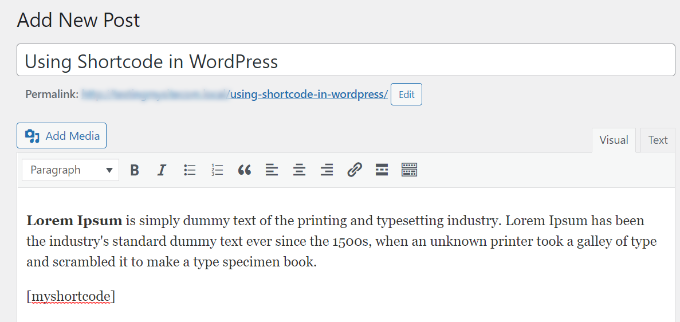
Open the Classic Editor and go to the post where you want to add a shortcode. Click inside the text area where the shortcode should appear. Type or paste the shortcode exactly as you want it to work. For example, adds a gallery.
Make sure the shortcode is on its own line for best results. You can also add parameters to customize it. For example, shows three columns. Save or update your post to see the shortcode in action.
Placing Shortcodes In Pages
The process for pages is the same as for posts. Open the page in the Classic Editor. Click in the content area to place the shortcode. Type or paste the shortcode there. It can be a contact form, a slider, or any other feature.
Shortcodes work well inside page content. You can mix text and shortcodes freely. Always update the page to save your changes. Preview the page to check how the shortcode looks on the front end.
Using Shortcodes With Widgets
Shortcodes in WordPress let you add special features without coding. Using them in widgets helps place these features in sidebars or footers. This makes your site more interactive and functional. Widgets are easy to use and manage in the Classic Editor.
Adding shortcodes to widgets can show galleries, forms, or custom content anywhere on your site. This section explains how to use shortcodes with text widgets and display them in sidebars.
Adding Shortcodes To Text Widgets
Go to Appearance > Widgets in your WordPress dashboard. Find the Text widget and drag it to the desired widget area. Paste your shortcode directly into the text box. Save the widget to activate the shortcode.
By default, WordPress may not run shortcodes in text widgets. To fix this, add add_filter('widget_text', 'do_shortcode'); in your theme’s functions.php file. This lets all shortcodes work inside text widgets.
Displaying Shortcodes In Sidebars
Sidebars are common widget areas on your site’s pages. After adding a shortcode to a widget, it will appear in the sidebar automatically. Check your site’s front end to see the shortcode output.
Use shortcodes to show contact forms, recent posts, or custom buttons in sidebars. This improves user experience by placing useful features where visitors often look.
Troubleshooting Shortcode Issues
Troubleshooting shortcode issues in the WordPress Classic Editor can be simple. Many users face problems when shortcodes do not work as expected. Understanding common issues helps fix them quickly. This saves time and improves your site’s functionality.
Shortcodes may not work due to plugin conflicts, syntax errors, or theme issues. Knowing how to identify these problems is key. The following sections explain typical problems and easy fixes.
Shortcodes Not Working
Shortcodes may show as plain text instead of content. This happens if WordPress does not recognize the shortcode. Sometimes, plugins that add shortcodes are not active. Check if the required plugin is installed and turned on.
Using the Visual editor can break shortcode formatting. Switch to the Text editor to add shortcodes. Make sure the shortcode is typed correctly, with no extra spaces or missing brackets.
Some themes do not support certain shortcodes. Test by switching to a default theme like Twenty Twenty-One. If the shortcode works, the problem is theme-related.
Common Errors And Fixes
One common error is missing brackets. Shortcodes must start with [ and end with ]. Without these, WordPress shows the shortcode as text.
Another error is using uppercase letters in shortcodes. Shortcodes are case-sensitive and should be lowercase. For example, use , not [Gallery].
Plugin conflicts can cause shortcode failure. Deactivate other plugins one by one. Check if the shortcode works after each deactivation. This helps find the conflicting plugin.
Clear the site and browser cache after fixing shortcode issues. Cached pages may still show the old, broken shortcode. Refreshing cache shows the updated shortcode content.
Credit: www.wpbeginner.com
Tips For Managing Shortcodes
Managing shortcodes well makes your WordPress site easier to maintain. It helps keep content clean and reduces errors. Good practices save time and improve site performance. Below are some useful tips for managing shortcodes efficiently.
Organizing Shortcodes Efficiently
Create a list of all shortcodes you use on your site. Group them by purpose or page type. Use clear and simple names for each shortcode. Store shortcode details in a document or a note-taking app. This helps you find and reuse them quickly. Avoid cluttering posts with too many shortcodes. Instead, use templates or widgets for repeated content.
Keeping Shortcodes Updated
Check shortcode functionality after WordPress updates. Update shortcode code if you change themes or plugins. Test shortcodes in a staging environment before applying changes. Remove any shortcodes that are no longer needed. Outdated shortcodes can cause errors or slow down your site. Regular updates keep your content running smoothly.
Frequently Asked Questions
How Do I Add Shortcode In WordPress Classic Editor?
To add a shortcode, open the Classic Editor, place the cursor where you want it, and type or paste the shortcode. Then, update or publish the post. The editor processes the shortcode when displaying the page or post.
Can I Use Multiple Shortcodes In One WordPress Post?
Yes, you can use multiple shortcodes in a single post. Just insert each shortcode in the desired location within the Classic Editor. WordPress will render each shortcode’s content when the post is viewed.
Does Classic Editor Support All WordPress Shortcodes?
The Classic Editor supports all standard WordPress shortcodes and most plugin shortcodes. If a shortcode doesn’t work, check for plugin conflicts or syntax errors in the shortcode itself.
How To Preview Shortcode Output In Classic Editor?
Classic Editor does not preview shortcode output directly. To see the result, you must save the draft and use the preview button to view the rendered page or post.
Conclusion
Adding shortcodes in the WordPress Classic Editor is simple. Just copy the shortcode and paste it where you want it to show. This method saves time and helps add features easily. You don’t need to know coding to use shortcodes.
Practice a few times to get comfortable. Soon, adding content will feel natural. Keep your site fresh by using shortcodes often. This small skill can improve your posts quickly and clearly. Try it today and see the difference yourself.



