
Curious about the theme running your WordPress site? You’re not alone.
Many site owners want to know what’s behind the look and feel of their website. Whether you’re aiming to make design tweaks, enhance functionality, or simply satisfy your curiosity, understanding your current WordPress theme is essential. Imagine the possibilities when you know exactly which theme you’re working with.
It could open doors to creativity, customization, and a more engaging user experience for your visitors. Stick with us, and we’ll guide you through the simple steps to uncover your WordPress theme, unlocking a world of potential for your site.
Identifying Your Current WordPress Theme
Finding your current WordPress theme is easy. First, log in to your WordPress dashboard. On the left side, find Appearance and click it. Then click on Themes. Here, you’ll see the theme name at the top. It’s usually highlighted.
Another way is to check the source code of your site. Right-click on your homepage and select View Page Source. Look for wp-content/themes in the code. The folder name after this path is your theme name.
There are plugins to help you. Install a plugin like What The File. This shows theme info in the admin bar. These methods are simple and quick. You can do it easily!

Credit: make.wordpress.org
Why Knowing Your Theme Matters
Themes help make your website look special. Knowing your theme helps you change colors, fonts, and layout. You can make your site look just how you want. Sometimes you may want to add a new feature. Knowing your theme can help you find the right tool or plugin. This makes your website work better for your needs. A customized theme helps your website stand out. It also gives a personal touch to visitors.
Sometimes, things don’t work right on your site. Knowing your theme can help fix problems. If you ask for help, people will need to know your theme. They can find solutions faster this way. Many theme makers offer support. They can guide you in solving specific issues. Knowing your theme helps them help you better. Troubleshooting becomes easier and quicker. Your site will be back to normal in no time.
Methods To Find Your Theme
The WordPress Dashboard is the easiest way. Log into your WordPress site. Look for Appearance in the menu. Click on it. You will see the active theme at the top. This section shows all themes installed. But the first one is your current theme.
Open your website. Right-click anywhere. Choose Inspect. A side panel will open. Look for style.css or theme folder name. Often, it will show the theme name. This method is a bit technical. But it’s useful if you can’t access the dashboard.
Many tools online can help. These tools detect themes easily. Enter your website URL. Click search. The tool will show your theme name. Tools are fast and simple. They give extra details about your theme. Some tools may show plugins too.
Exploring Theme Information
Knowing your theme’s name is very helpful. It tells you which design you are using. The theme name is usually found in the WordPress dashboard. The version is also important. It shows how new or old your theme is. New versions often have better features. They also have more security updates. Always keep your theme updated.
The developer of your theme is the person or team who made it. This information is also in the dashboard. Developers often give support for their themes. This helps you fix problems quickly. They might have a website with tutorials and guides. This helps you learn more about using the theme. Knowing the developer can help you trust the theme more.
Switching WordPress Themes
Curious about your WordPress theme? Discovering your current theme is easy. Access your WordPress dashboard, select “Appearance,” and find “Themes. ” Your active theme will be displayed. This helps you manage and switch themes effortlessly, keeping your website fresh and dynamic.
Backup Considerations
Backing up your website is very important. It protects your content. Before switching themes, make a copy of your site. Use a plugin for this task. Some popular plugins are UpdraftPlus and BackupBuddy. They save your files safely. If something goes wrong, you can restore your site. Backups save time and headaches.
Testing New Themes
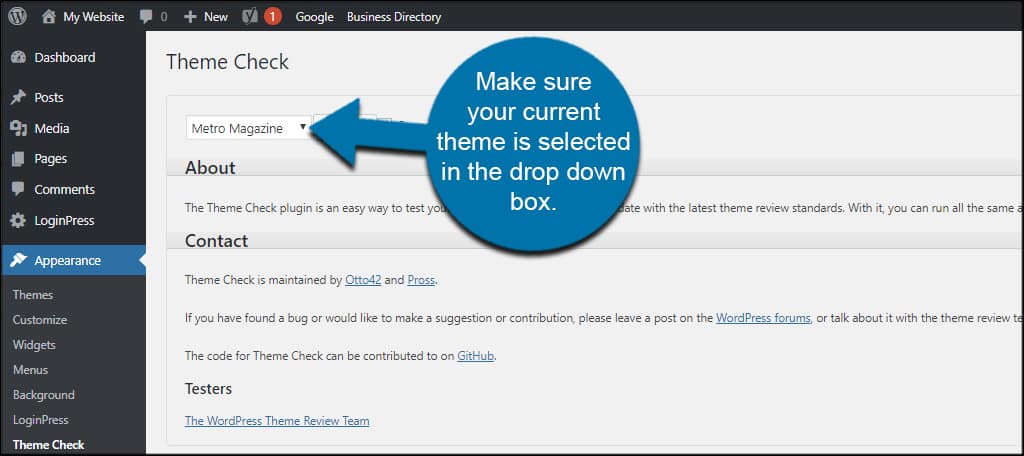
Testing new themes helps you find the best look. Try different themes on a test site first. This way, your live site stays safe. Check if the theme matches your style. See how it looks on phones and tablets. Make sure it loads quickly. A slow site loses visitors. Choose a theme that is easy to use. Your site should be easy to read and navigate.
Credit: www.greengeeks.com
Common Issues With Themes
Some themes may not work well with plugins. This can cause errors or make your site look strange. Updates might help but not always. Themes can be made by different people. They might not check for compatibility. This can lead to broken features. Using too many plugins can add to the problem. Choose themes that have good reviews. Check if they work with popular plugins.
Theme updates can change features. Sometimes they remove useful tools. This can confuse users. Old themes might not get updates. Security risks can happen without updates. New updates might not work with old WordPress versions. It’s good to check the theme before updating. Save a copy of your site before updates. This helps if anything breaks. Regular updates are important for a safe site.
Enhancing Your Theme
Plugins can help change your WordPress theme. They add new features and styles. Some plugins let you change colors and fonts. Others give you new layouts. These plugins are easy to use. You can find them in the WordPress Plugin Directory. Always check that a plugin works with your theme. This keeps your site running well.
A child theme is like a backup. It saves your changes from the main theme. This is good if your theme gets updated. Updates won’t erase your changes. Making a child theme is simple. You need a new folder and two files. These files are style.css and functions.php. With a child theme, you can change anything. Your site stays safe and flexible.

Credit: totalwptheme.com
Frequently Asked Questions
How Can I Find My Current WordPress Theme?
To find your current WordPress theme, navigate to the WordPress dashboard. Go to “Appearance,” then click on “Themes. ” Your active theme will be highlighted. You can also check the theme’s name in the website’s source code by searching for “wp-content/themes” in the HTML.
Why Is Knowing My WordPress Theme Important?
Knowing your WordPress theme helps in managing and customizing your website. It provides insights into your site’s design and functionality. Understanding your theme can aid in troubleshooting issues and making updates. It also helps ensure compatibility with plugins and other tools.
Can I Change My WordPress Theme Easily?
Yes, changing your WordPress theme is simple. Go to your dashboard, click on “Appearance,” then “Themes. ” Browse available themes and click “Activate” on your chosen theme. Always backup your website before making changes to avoid data loss and ensure compatibility.
Will Changing My Theme Affect My Website?
Changing your theme can impact your website’s design and layout. Some functionalities may be affected or lost. Always preview the new theme before activating it. Ensure essential features are supported. Backup your website to safeguard against any potential data loss.
Conclusion
Discovering your WordPress theme can be simple. Use the tips provided to find out. Knowing your theme helps in customization. It ensures your site looks great and works well. Regularly check for theme updates. They keep your site secure and fresh.
Explore different themes if needed. A suitable theme enhances user experience. Always choose a theme that suits your brand. A good theme reflects your style and goals. Keep your website engaging and user-friendly. Remember, a well-chosen theme is vital. It impacts your site’s success.
Happy blogging!


