

Are you looking to make your WordPress content more engaging and useful? Adding a link to a PDF can be a game-changer for your website.
Whether you want to share a report, a brochure, or a helpful guide, linking a PDF lets your visitors access important information with just one click. You’ll learn exactly how to add a PDF link to your WordPress site quickly and easily.
Keep reading, and by the end, you’ll have a simple skill that can boost your site’s professionalism and keep your audience coming back for more.
Credit: kaydee.net
Prepare Your Pdf File
Preparing your PDF file before uploading it to WordPress is important. A well-prepared file ensures fast loading and better user experience. Small, accessible PDFs work best for websites. Follow these simple steps to get your PDF ready.
Optimize Pdf Size
Large PDF files slow down your website. Reduce the file size without losing quality. Use online tools or software like Adobe Acrobat. Compress images and remove unnecessary elements. Aim for a file size under 5 MB. This helps your site load faster and keeps visitors happy.
Check Pdf Accessibility
Make your PDF easy to read for everyone. Use readable fonts and clear headings. Add alternative text for images inside the PDF. Ensure the text is selectable, not just an image. Use accessibility checkers to find issues. Accessible PDFs improve user experience and SEO.
Upload Pdf To WordPress
Uploading a PDF to WordPress is a simple process. It helps you share documents, guides, or brochures with your visitors. The platform offers tools to store and manage PDF files easily. Proper organization keeps your site clean and efficient.
Use Media Library
Start by logging into your WordPress dashboard. Go to the Media section and click “Add New.” Select the PDF file from your computer. WordPress will upload and save it in the Media Library. You can now use this file in posts or pages. The Media Library holds all your files in one place. This makes it easy to find and reuse PDFs later.
Organize Pdf Files
Keep your PDFs organized by naming files clearly. Use folders or categories if your theme supports them. Create separate folders for different types of documents. This helps you find files fast and improves site management. Good organization reduces mistakes and saves time. Regularly check your Media Library and delete old files you no longer need.
Get The Pdf Link
Getting the PDF link is a key step in adding a PDF to your WordPress site. This link lets you connect visitors directly to your PDF file. You need the correct URL to make the link work properly.
Follow easy steps to find and test your PDF link. This ensures your visitors can open the file without issues. Let’s start by locating the URL in the Media Library.
Copy Url From Media Library
Go to your WordPress dashboard and open the Media Library. Find the PDF file you uploaded. Click on the file to open its details. On the right side, you will see the “File URL.”
Highlight the URL and copy it. This is the direct link to your PDF. Keep this link handy for adding it to your posts or pages.
Test The Link
Paste the copied URL into a new browser tab. Check that the PDF opens without errors. The file should load quickly and display correctly.
If the PDF does not open, check if you copied the full URL. Also, confirm the PDF is uploaded properly in the Media Library.
Add Link In Posts Or Pages
Adding a link to a PDF in WordPress posts or pages helps share documents easily. Readers can click the link to open or download the PDF. WordPress offers simple ways to do this using different editors. Choose the editor you use and follow clear steps to insert your PDF link correctly.
Use Block Editor
Open the post or page in the WordPress block editor. Click the plus (+) button to add a new block. Select the “File” block from the options. Upload your PDF file or select it from the media library. The block will show a download button by default. You can change the button text or add a link to the file. Save or update the post to publish the PDF link.
Add Link In Classic Editor
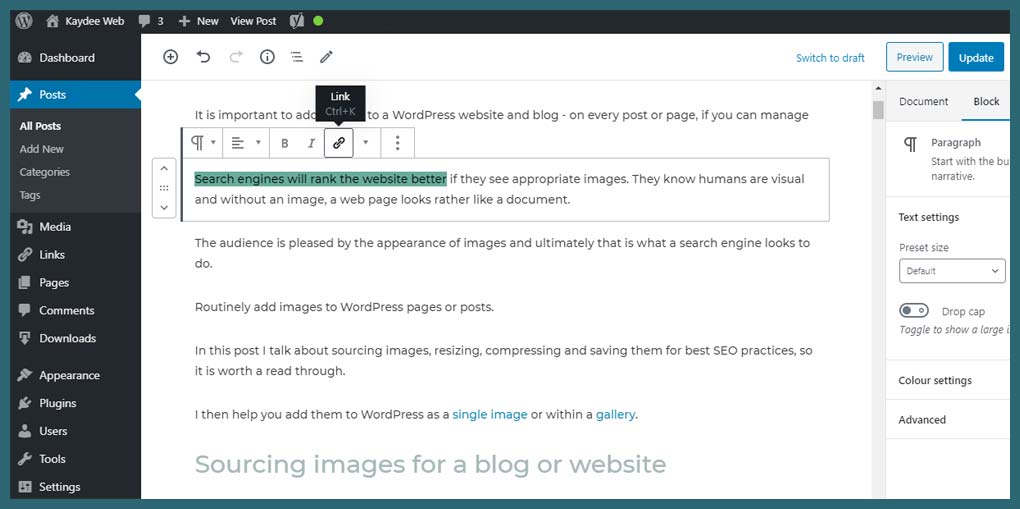
Open your post or page in the classic editor. Highlight the text where you want the PDF link. Click the “Insert/edit link” icon in the toolbar. Paste the PDF URL into the link field. You can find the URL by uploading the PDF to the media library first. Click “Add Link” to set it. Update or publish the post to make the link live.
Add Link In Widgets Or Menus
Adding a link to a PDF in WordPress can help visitors access important documents easily. You can place these links in widgets or menus. This method improves site navigation and user experience. It also keeps your PDFs visible and easy to find.
Link In Sidebar Widgets
To add a PDF link in a sidebar widget, open the WordPress dashboard. Go to Appearance > Widgets. Choose a Text or Custom HTML widget.
Drag the widget to the sidebar area. Paste the URL of your PDF inside the widget content box. Use a clear label, like “Download PDF.”
Save the widget. The link now shows in the sidebar. Visitors can click and view or download the PDF directly.
Add Link To Navigation Menus
Navigate to Appearance > Menus in the WordPress dashboard. Select the menu where you want the PDF link to appear.
Click “Custom Links” on the left side. Enter the full PDF URL in the URL field. Type a menu label, such as “PDF File.”
Press “Add to Menu.” Drag to reorder if needed. Click “Save Menu.” The PDF link appears in your site’s main navigation.
Credit: formidableforms.com
Customize Link Appearance
Customizing the link appearance helps make your PDF links clear and inviting. It guides visitors to click and view your documents. Small changes can improve user experience and page design. Simple tweaks in link text and behavior make a big difference.
Use Anchor Text
Anchor text is the visible, clickable part of a link. Choose words that describe the PDF content clearly. Avoid generic phrases like “click here.” Instead, use specific text like “Download Our Annual Report.”
This approach helps visitors understand what to expect. It also improves SEO by using relevant keywords. Keep anchor text short and direct for easy reading.
Open Link In New Tab
Setting the PDF link to open in a new tab keeps visitors on your site. They can view the PDF without leaving your page. This reduces bounce rates and improves user experience.
To do this, check the option “Open link in new tab” in your WordPress link settings. It is a simple step that keeps users engaged with your content longer.
Troubleshoot Common Issues
Troubleshooting common issues helps keep your PDF links working smoothly. Problems like broken links or upload errors can stop visitors from accessing your files. Fixing these issues quickly improves user experience and keeps your site professional.
Fix Broken Links
Broken links happen when the PDF file moves or deletes from your server. Check your PDF URL to make sure it matches the file location. Use the WordPress media library to confirm the file is still there.
Update the link in your post if the PDF location changes. Test the link by clicking it to see if the file opens. Clear your browser cache if changes do not show immediately.
Resolve Upload Errors
Upload errors stop you from adding new PDFs. These can occur due to file size limits or server restrictions. Check your file size and try to reduce it if it is too large.
Verify your hosting server allows PDF uploads. Contact your hosting provider if errors continue. Use a reliable internet connection to avoid interruptions during upload.
Credit: www.youtube.com
Frequently Asked Questions
How Do I Add A Pdf Link In WordPress?
To add a PDF link, upload your PDF to the Media Library. Copy its URL and insert it as a hyperlink in your post or page editor. This method makes your PDF accessible to visitors with a clickable link.
Can I Link A Pdf In WordPress Without A Plugin?
Yes, you can link a PDF without plugins by uploading the file to the Media Library. Then, copy the file URL and insert it as a hyperlink in your content manually. This keeps your site lightweight and simple.
How To Open Pdf Links In A New Tab?
When adding your PDF link, select the option to open it in a new tab. This is usually done by editing the link settings and enabling “Open in new tab. ” It improves user experience by keeping your site open.
Is It Possible To Track Pdf Link Clicks In WordPress?
Yes, you can track PDF clicks by using Google Analytics with event tracking. Alternatively, some plugins offer PDF click tracking features. This helps you understand user engagement with your downloadable files.
Conclusion
Adding a PDF link in WordPress is simple and useful. It helps visitors find important documents fast. Just follow the steps carefully to avoid mistakes. Keep your links clear and easy to find. This small task improves your website’s value and user experience.
Practice a few times to feel confident. Your site will look more professional with helpful links. Start adding PDFs today and see the difference yourself.


