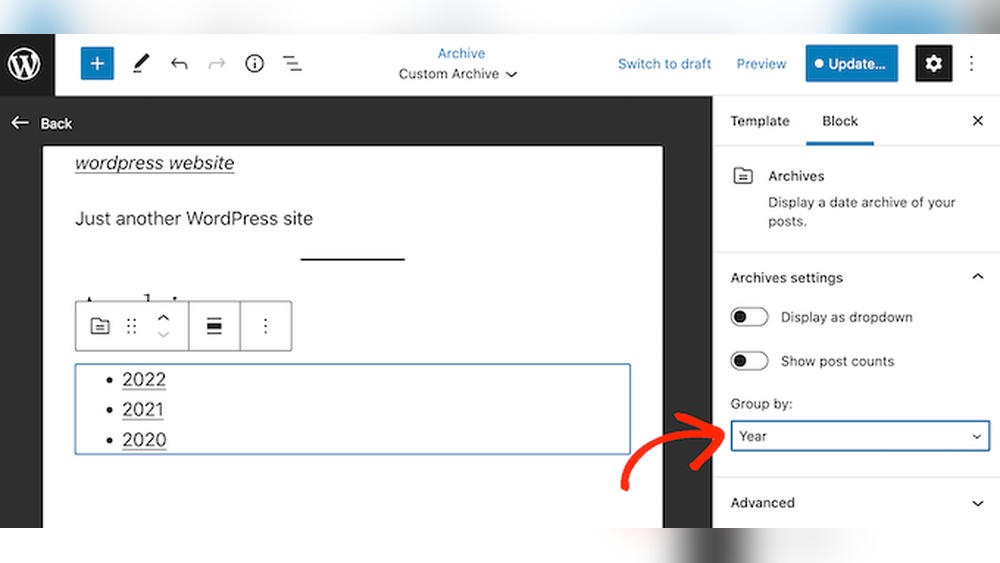
Are you worried about losing your WordPress site’s valuable content? Archiving your site is the smartest way to protect everything you’ve worked hard to create.
Whether you want to keep a backup, free up space, or preserve your work for the future, knowing how to archive your WordPress site is essential. In this guide, you’ll learn simple, step-by-step methods to archive your site quickly and safely.
Keep reading to discover how easy it is to safeguard your digital treasure and never lose your content again.
Credit: roconpaas.com
Reasons To Archive Your Site
Archiving a WordPress site is useful for many reasons. It helps keep a copy of your content safe. You may want to save your site for future use or reference. Archiving also frees up space on your hosting server. It can protect your website from data loss and hacking. Understanding why you might archive your site can help you decide the best time to do it.
Preserve Content For Future Use
Archiving keeps your posts, pages, and media safe. You can access old content anytime without needing the live site. This is helpful if you plan to reuse or update your material later.
Free Up Server Space
Old websites can take up a lot of space on your hosting. Archiving removes this burden by storing your site offline. This keeps your hosting clean and can improve performance.
Protect Against Data Loss
Sites can be lost due to hacking, errors, or technical issues. An archive acts as a backup. You can restore your site quickly if something goes wrong.
Maintain Seo Value
Keeping an archive helps preserve your site’s SEO rankings. Search engines can still find your content in the archive. This avoids losing traffic from old posts.
Legal And Compliance Reasons
Some businesses must keep records for legal reasons. Archiving your site can meet these requirements. It keeps a clear record of published content and changes.
Choosing The Right Backup Method
Choosing the right backup method for your WordPress site is important. It keeps your data safe and helps you recover quickly from problems. Different methods suit different needs. Some are simple and manual, while others use tools or services. Pick a method that fits your skills and website size.
Manual Backup
Manual backup means copying your website files and database yourself. You use a file manager or FTP to download files. You also export the database from your hosting control panel. This method gives full control over what you save. It takes more time and care to do correctly. Good for small sites or learning purposes.
Using Plugins
Backup plugins automate the process. They create copies of files and databases easily. Many plugins offer scheduled backups and cloud storage options. Plugins save time and reduce errors. Some popular choices include UpdraftPlus and BackWPup. Ideal for users who want quick and regular backups without technical steps.
Hosting Provider Options
Many hosting providers include backup services. These may run automatically on their servers. Some offer daily or weekly backups with easy restore options. This method is simple and reliable. It depends on your hosting plan and provider features. Best for those who want hassle-free protection without extra tools.
Preparing For Backup
Preparing for backup is an important step before archiving your WordPress site. It helps avoid errors and saves time. A clean, organized site makes the backup process smoother. Taking time to prepare ensures you get a complete and reliable copy of your website.
Check Site Size
Knowing your site size helps plan the backup properly. Large sites need more storage and time to back up. Check the total size of your WordPress files and database. Use tools like your hosting control panel or a plugin to find this information. This step helps avoid backup failures due to size limits.
Deactivate Unnecessary Plugins
Plugins can slow down your site and backup process. Deactivate plugins that you do not use or need. This reduces the data size and prevents conflicts during backup. After backup, you can reactivate these plugins. Keeping only essential plugins active ensures a cleaner backup.
Create A Backup Schedule
Set a regular time to back up your site. A schedule keeps your data safe and updated. Choose daily, weekly, or monthly backups based on how often you update your site. Use backup plugins or hosting services to automate this task. Consistent backups protect your site from data loss.
Step-by-step Manual Backup
Creating a manual backup of your WordPress site is important. It protects your content and settings from loss or damage. This process takes a few steps but is easy to follow. You can do it without special tools or plugins.
Follow these steps to save your entire site. The backup includes your database and all WordPress files. Keep your backup safe to restore your site anytime.
Export Database
The database holds all your posts, pages, and settings. Export it first. Log in to your hosting control panel. Open phpMyAdmin. Select your WordPress database from the list. Click the Export tab. Choose the “Quick” export method and SQL format. Click “Go” to download the database file. Save this file on your computer.
Download WordPress Files
Next, download all WordPress files from your server. Use an FTP client or your hosting file manager. Connect to your website’s root folder. Select all files and folders, including wp-content, wp-includes, and wp-admin. Download them to your computer. These files include themes, plugins, and uploads.
Save Backup Securely
Store your backup in a safe place. Use an external hard drive or cloud storage. Label your backup with the date. Keep multiple copies if possible. Protect your backup from unauthorized access. This ensures you can restore your site easily later.
Using Popular Backup Plugins
Using popular backup plugins is a simple way to archive your WordPress site. These tools help you save your site’s data easily. They create copies of your files and database. You can restore your site fast if something goes wrong.
Many backup plugins have user-friendly interfaces. They guide you through the backup process step-by-step. You do not need technical skills to use them. Below are key steps for using these plugins effectively.
Installing The Plugin
Go to your WordPress dashboard. Click on “Plugins” and then “Add New.” Type the plugin name in the search box. Choose a popular backup plugin like UpdraftPlus or BackWPup. Click “Install Now” and then “Activate.”
Configuring Backup Settings
Open the plugin settings from your dashboard. Select what to back up: files, database, or both. Choose how often backups happen. Pick a storage location like Google Drive or Dropbox. Save your settings before moving on.
Running The Backup
Start the backup process by clicking “Backup Now.” The plugin will save your site data automatically. You can watch the progress on the screen. Wait until the backup finishes completely. Check for any error messages.
Restoring From Backup
To restore, go to the plugin’s restore section. Select the backup file you want to use. Click “Restore” and confirm your choice. The plugin will replace your current site with the backup. Your site will be back to the saved state.
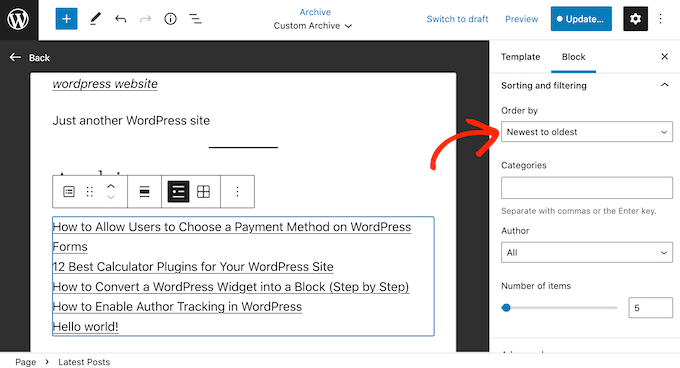
Credit: www.wpbeginner.com
Automating Backups For Safety
Automating backups is key to keeping your WordPress site safe. It saves time and prevents data loss. Regular backups protect your site from errors, hacks, and crashes.
Setting up automatic backups means your site is backed up without you doing anything. This makes recovery easy if something goes wrong. Let’s explore how to automate your WordPress site backups effectively.
Setting Up Scheduled Backups
Choose a reliable plugin or tool that supports scheduled backups. Most popular WordPress backup plugins have this feature. Set the time and days for backups to run automatically. Usually, early morning or late night works well to avoid site slowdowns. Confirm the backup process runs smoothly by testing the first backup.
Choosing Backup Frequency
Decide how often to back up your site based on its update rate. For sites updated daily, daily backups are best. Less active sites may need weekly or bi-weekly backups. Frequent backups reduce data loss risks. Match your backup frequency to your site’s content changes and traffic.
Storing Backups Offsite
Keep backups in a safe place away from your website server. Use cloud storage options like Google Drive, Dropbox, or Amazon S3. Offsite storage protects backups from server failures or hacking attacks. Ensure backups are easy to access for quick site restoration.
Verifying Backup Integrity
Verifying backup integrity is essential to keep your WordPress site safe. A backup is only useful if it works correctly. Checking backup files and your database ensures you can restore your site without problems. This step saves time and stress later.
Testing Backup Files
Start by testing your backup files. Open the backup folder and check for all important files. Look for files like wp-content, themes, plugins, and uploads. Try to unzip the backup file to see if it opens without errors. A good backup should extract easily.
Next, upload the backup files to a test server. This test shows if the files work well together. If the site loads correctly, your backup is reliable. If not, you need to create a new backup.
Checking Database Consistency
The WordPress database holds all your content and settings. Check the database backup for any errors. Use tools like phpMyAdmin to open the SQL backup file. Look for any signs of corruption or missing tables.
Run simple SQL queries to check table structure and data. Fix any errors before relying on the backup. A clean database backup ensures your site will restore fully and correctly.

Credit: blogvault.net
Tips For Secure Backup Storage
Backing up a WordPress site is important. Storing backups securely protects your data from loss and theft. Follow these tips to keep your backups safe and easy to access.
Use Cloud Storage
Cloud storage offers safe and reliable backup space. It keeps your files off your local device. This reduces the risk of losing backups due to hardware failure. Choose a trusted cloud provider with strong security features.
Encrypt Backup Files
Encryption protects your backup files from unauthorized access. It changes your data into a code that only you can unlock. Use encryption tools to secure your backups. This step adds a strong layer of protection.
Maintain Multiple Backup Copies
Keep several copies of your backups in different places. This prevents total data loss if one backup fails. Store copies on cloud, external drives, or other secure locations. Regularly update your backups to keep them current.
Troubleshooting Backup Issues
Backing up a WordPress site is vital for safety. Sometimes, backup processes face issues that stop them from working right. Troubleshooting these problems helps protect your data and keeps your site secure.
This section covers common problems, how to fix plugin conflicts, and when to seek help.
Common Backup Errors
Errors happen during backup due to server limits or wrong settings. A frequent issue is running out of storage space. Another is timeout errors caused by large files. Sometimes, incorrect file permissions block access. Checking error messages helps identify the exact problem.
Resolving Plugin Conflicts
Plugins can clash and break backups. Disable all plugins except the backup tool to test. If backups work, turn plugins on one by one. This finds the plugin causing the issue. Updating all plugins and themes also prevents conflicts. Keep plugins updated for smooth backups.
Contacting Support
If problems stay after troubleshooting, ask for help. Contact your hosting provider or backup plugin support team. Provide details like error messages and steps taken. Support teams offer clear advice and quick fixes. Don’t hesitate to reach out for expert help.
Frequently Asked Questions
What Is The Best Way To Archive A WordPress Site?
The best way to archive a WordPress site is by creating a full backup. Use plugins like UpdraftPlus or manually export files and databases. This ensures you keep a complete copy for future restoration or offline access.
How Can I Export WordPress Content For Archiving?
You can export WordPress content using the built-in Export tool under Tools > Export. This exports posts, pages, and media into an XML file for easy import or storage.
Should I Backup WordPress Files Or Database First?
Both files and database are crucial for archiving. Files contain themes and plugins; the database holds your content. Always backup both to ensure a complete archive of your site.
Can I Archive My WordPress Site Without Plugins?
Yes, you can archive without plugins by manually downloading your WordPress files via FTP and exporting the database using phpMyAdmin. This method requires technical knowledge but is effective.
Conclusion
Archiving your WordPress site keeps your data safe and organized. You can revisit old content anytime you want. This process helps free up space on your server. It also protects your site from accidental loss. Follow simple steps to create a backup archive.
Regular archiving supports smooth website management. Keep your digital history clear and easy to access. Start archiving now to avoid future problems. It’s a smart way to care for your website.