

Backing up your WordPress site on GoDaddy is one of the smartest moves you can make right now. Imagine losing all your hard work—posts, images, settings—just because something went wrong.
You don’t want to face that stress. The good news is, backing up your site is easier than you think. In this guide, you’ll discover simple, step-by-step instructions to secure your website and keep your content safe. Stick with me, and you’ll never have to worry about losing your site again.
Ready to protect your online presence? Let’s get started!
Choosing Backup Methods
Choosing the right backup method for your WordPress site on GoDaddy is important. It protects your website data from loss or damage. Different methods suit different needs and skill levels. Some are simple, while others offer more control and options.
Understanding these methods helps you pick the best one. You can save time and avoid problems later. Here are three common ways to back up your WordPress site on GoDaddy.
Manual Backup Process
Manual backup means saving your website files and database yourself. You start by accessing your GoDaddy hosting account. Use the file manager or FTP to download WordPress files. Next, export your database using phpMyAdmin. Keep these files safe on your computer or cloud storage.
This method takes effort and basic knowledge. It gives full control over what you save. Good for those who want to learn more about WordPress.
Using Plugins For Backup
Backup plugins automate the process. Install a plugin like UpdraftPlus or BackWPup from your WordPress dashboard. These tools create backups of your files and database with one click. Some plugins can also store backups on cloud services like Google Drive or Dropbox.
Plugins save time and reduce errors. They are easy to use for beginners. Regular backups can run automatically on a schedule you set.
Godaddy Backup Options
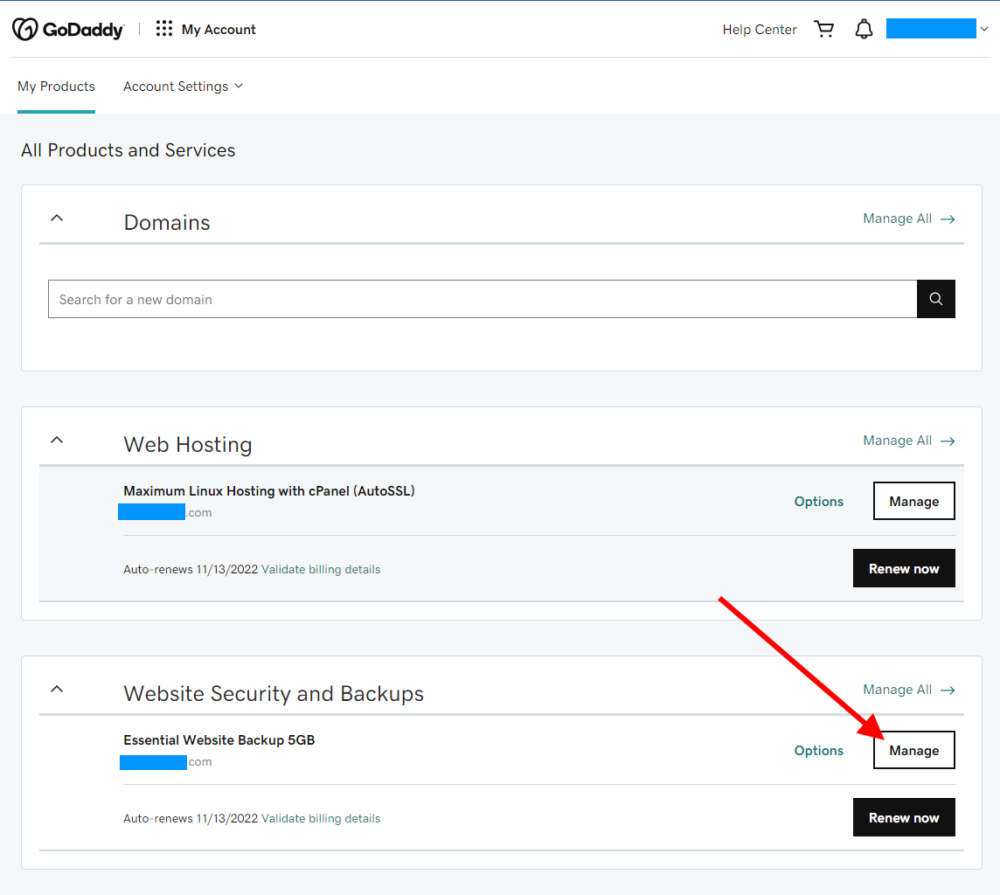
GoDaddy offers built-in backup solutions for hosting plans. Some plans include automatic daily backups. You can restore your site quickly from the GoDaddy control panel. This option is reliable and needs little effort.
Check your GoDaddy plan details to see if backups are included. You can also buy backup add-ons for extra protection. This method suits users who want simple, hands-off backups.

Credit: www.godaddy.com
Preparing For Backup
Preparing your WordPress site for backup is an essential first step. It ensures all important data is ready and safe. Taking time to prepare reduces errors during the backup process. This preparation involves accessing key areas of your site and gathering necessary information.
Accessing Your WordPress Dashboard
Start by logging into your WordPress dashboard. Use your admin username and password. The dashboard is where you manage your site’s content and settings. Here, you can check if your site is up to date. It helps confirm everything is ready for backup.
Locating Hosting Control Panel
Next, find your hosting control panel on GoDaddy. This panel is where you manage your hosting account. Look for sections like cPanel or Plesk, depending on your hosting type. The control panel gives access to files and databases needed for backup.
Gathering Ftp And Database Details
Collect your FTP login details from the hosting control panel. FTP allows you to download site files to your computer. Also, note down your database name, username, and password. These details let you back up your WordPress database. Keep this information safe and ready.
Backing Up Files Manually
Backing up your WordPress site manually is a simple and reliable way to keep your data safe. It involves copying your website files and exporting the database. This process helps you restore your site if anything goes wrong. It also gives you full control over your backup.
Manual backups are useful when automatic tools fail or are unavailable. You need some basic tools like an FTP client and access to your hosting control panel. Follow the steps below to back up your WordPress site on GoDaddy efficiently.
Connecting Via Ftp
First, connect to your GoDaddy hosting using an FTP client like FileZilla. You will need your FTP username and password from your GoDaddy account. Open the FTP client and enter your host, username, and password. Then click connect. Once connected, you will see your website files on the server.
Downloading WordPress Files
After connecting, locate the root folder of your WordPress site. It is usually called “public_html” or “www”. Select all files and folders inside this directory. Download them to a safe folder on your computer. These files include themes, plugins, and uploads. Make sure the download finishes completely before moving on.
Exporting The Database
Your WordPress database stores all content and settings. Export it using phpMyAdmin in your GoDaddy control panel. Log in to your hosting dashboard and find phpMyAdmin under databases. Select your WordPress database from the list. Click the export tab, choose the “Quick” method and SQL format. Save the exported file to your computer. This file holds your posts, pages, and user data.
Backing Up With Plugins
Backing up a WordPress site on GoDaddy is easier with plugins. Plugins save time and protect your site data automatically. They create copies of your files and database. These copies help restore your site after problems.
Selecting A Reliable Backup Plugin
Choose a plugin trusted by many users. Look for high ratings and good reviews. Check if the plugin updates often. It should support GoDaddy hosting. Popular options include UpdraftPlus, BackWPup, and Duplicator.
Installing And Activating Plugin
Go to your WordPress dashboard. Click “Plugins” then “Add New.” Search for the backup plugin you want. Click “Install Now” and then “Activate.” The plugin is now ready to use.
Configuring Backup Settings
Open the plugin settings page. Set how often backups run. Choose what to back up: files, database, or both. Pick a remote storage option like Google Drive or Dropbox. Save your settings to start backups.
Running The Backup
Start the backup manually from the plugin dashboard. Wait for the process to finish. Check for any errors in the log. Download a copy of the backup to your computer. Store backups safely for emergencies.
Using Godaddy Backup Tools
Storing and managing backups is a key step in protecting your WordPress site on GoDaddy. Proper storage keeps your data safe and easy to find. Good management saves time and prevents confusion. It also helps you restore your site quickly after problems.
Backups need clear organization and strong security. Let’s explore how to choose storage locations, organize files, and keep backups secure.
Choosing Backup Storage Locations
Select storage places that are safe and reliable. Use cloud storage services like Google Drive or Dropbox. These keep your backups offsite and protected from hardware failures. External hard drives are another option. Store them in a secure place away from your computer. Avoid saving backups only on your web server. A single failure can cause data loss.
Organizing Backup Files
Name backup files with clear dates and site versions. Use folders for different backup types, such as full or partial backups. Keep the newest backups easy to access. Delete old or duplicate files regularly. This saves space and reduces clutter. A clean system helps find backups fast during emergencies.
Ensuring Backup Security
Encrypt backup files before storing them. This stops unauthorized users from accessing your data. Use strong passwords for cloud accounts and external drives. Enable two-factor authentication for extra protection. Avoid sharing backup access with too many people. Regularly check your backup files for damage or corruption. Secure backups give peace of mind and protect your WordPress site’s future.

Credit: www.youtube.com
Storing And Managing Backups
Backing up your WordPress site on GoDaddy is vital for protecting your data. Sometimes, backups don’t work as expected. Troubleshooting backup issues helps you keep your site safe. Understanding common problems and their fixes saves time and stress.
Common Backup Errors
Many users face errors like timeout or incomplete backups. Server limits can stop large backups. Insufficient storage space often causes backup failures. Plugin conflicts may interrupt the backup process. Incorrect file permissions block access to important files.
Fixing Backup Failures
Start by checking your hosting storage space. Increase limits if storage is low. Disable conflicting plugins during the backup. Adjust file permissions to allow access. Use smaller backup chunks to avoid timeout. Clear cache and try the backup again.
When To Contact Support
Contact GoDaddy support if errors persist after fixes. They can check server settings and logs. Support helps with complex issues beyond basic fixes. Reach out if backups stop working suddenly. Keep backup error details ready for faster help.
Credit: web.brianshim.com
Frequently Asked Questions
How Do I Backup My WordPress Site On Godaddy?
To backup your WordPress site on GoDaddy, use the hosting control panel or a backup plugin. Download your website files and database regularly to secure your data and avoid loss.
Can I Automate WordPress Backups On Godaddy?
Yes, you can automate backups using GoDaddy’s backup service or WordPress plugins. Scheduled backups ensure your site stays protected without manual effort.
Where Are Godaddy WordPress Backups Stored?
GoDaddy stores backups on secure cloud servers or your hosting space. You can also download backups locally for extra safety.
How Often Should I Backup My WordPress Site?
Backup frequency depends on your update rate. For active sites, daily backups are best. For less active sites, weekly backups suffice.
Conclusion
Backing up your WordPress site on GoDaddy keeps your data safe. Regular backups help you avoid losing important files and content. Use GoDaddy’s tools or plugins to create backups quickly. Store copies in different places, like cloud storage or your computer.
Test your backups sometimes to make sure they work. Simple steps can save you from big problems later. Keep your website secure and ready for any issue. Don’t wait; start backing up today to protect your online presence.


