Want to make your website more engaging and connect with your audience on Instagram? Adding your Instagram feed to your WordPress footer is a smart way to do just that.
It keeps visitors hooked, encourages them to follow you, and adds a fresh look to your site. If you’ve been wondering how to get this done without any hassle, you’re in the right place. Keep reading, and you’ll discover simple, step-by-step tips to add Instagram to your WordPress footer quickly and easily.
Your website—and your followers—will thank you!
Credit: wpdatatables.com
Benefits Of Adding Instagram To Footer
Adding Instagram to your WordPress footer brings many benefits. It creates a stronger link between your website and social media. Visitors can see fresh content without leaving your site. This keeps them interested and makes your site feel more active. Below are some key benefits of this simple addition.
Boosting User Engagement
Instagram in the footer invites visitors to interact with your posts. They can like, comment, or follow your profile directly. This interaction increases the time visitors spend on your site. More engagement often leads to higher trust and loyalty. It also helps your brand feel more personal and approachable.
Showcasing Visual Content
Instagram is a platform full of images and videos. Adding it to your footer shows your best visuals in one place. Visitors get a quick glimpse of your style and products. It makes your website more attractive and lively. Visual content also communicates your message faster than text alone.
Driving Traffic To Instagram Profile
Placing Instagram in the footer encourages visitors to visit your profile. This can increase your followers and expand your audience. More followers mean more chances to share updates and promotions. It helps grow your social media presence alongside your website traffic.
Preparing Your Instagram Account
Preparing your Instagram account is the first step to show your photos in your WordPress footer. This setup makes your feed look great and works well. It also helps your website visitors connect with your Instagram content easily.
Follow these steps to prepare your Instagram account correctly. This ensures smooth integration and a better display of your posts.
Switching To A Business Account
A business account offers extra tools for Instagram users. It allows access to insights and API features needed for WordPress integration. Switch your personal account to a business one inside Instagram settings. This change is free and quick. It also makes your account more professional.
Generating Access Tokens
Access tokens work like keys for your website to get your Instagram posts. You need to create one to link Instagram with WordPress. Use Facebook’s developer tools or trusted plugins to generate this token. Keep it secret and do not share it. It keeps your data safe and your connection active.
Choosing The Right Content To Display
Select photos and videos that match your website style. Show your best work or newest posts to attract visitors. Avoid too many personal or unrelated images. This keeps your footer clean and focused. Pick content that invites visitors to follow your Instagram page.
Selecting The Best Plugins
Selecting the best plugin is key to adding Instagram to your WordPress footer. The right plugin makes the process simple. It also keeps your site fast and secure. Choose a plugin that fits your needs and budget. Some plugins offer many features, while others focus on basics. Understanding your options helps you pick the best one for your site.
Top Instagram Plugins For WordPress
Several plugins let you add Instagram feeds to your footer. Smash Balloon Social Photo Feed is popular for ease of use. Instagram Feed WD offers good customization options. WP Instagram Widget is lightweight and simple. Each plugin has unique strengths. Check user reviews to see how well they work.
Comparing Features And Pricing
Features vary across plugins. Some include multiple feed layouts and filtering options. Others focus on fast loading times. Pricing also differs. Free versions cover basic needs. Paid versions unlock advanced features like hashtag feeds. Decide which features matter most before buying. Match plugin cost with your budget.
Installation And Activation
Install your chosen plugin from the WordPress dashboard. Go to Plugins > Add New and search by name. Click “Install Now” then “Activate.” After activation, configure the plugin settings. Connect your Instagram account to display feeds. Most plugins guide you through setup. Test the feed on your footer to confirm it works.

Credit: smashballoon.com
Manual Embedding Methods
Manual embedding methods let you add Instagram content directly to your WordPress footer. This gives you control over how the feed looks and works. It does not need extra plugins. You use simple code and small tweaks to make it fit your site style.
These methods work well for users who want a clean and fast site. You can update or change the embed anytime by editing the code. It is a good way to show your Instagram posts and keep visitors engaged.
Using Instagram Embed Code
Instagram offers an embed code for each post. Go to the post you want to share. Click the three dots and choose “Embed.” Copy the code that appears.
Paste this code into your WordPress footer section. You can do this by editing the footer.php file or using a widget that accepts HTML. The post will show exactly as on Instagram.
Customizing Appearance With Css
Basic embed codes may not match your website style. You can fix this with CSS. Add custom CSS rules to change size, spacing, or borders.
For example, set max-width to fit your footer area. Change margins for better spacing. Use border-radius to soften edges. CSS helps the Instagram feed blend with your site design.
Adding Code To Footer Widgets
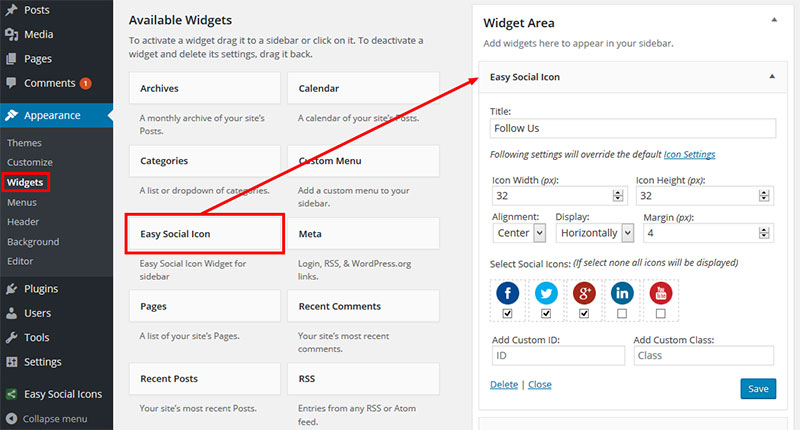
WordPress footer widgets allow adding custom code easily. Go to Appearance > Widgets in your dashboard. Find a widget area in the footer.
Add a Custom HTML widget there. Paste the Instagram embed code inside. Save the widget and check your site footer. The Instagram post will appear without changing theme files.
Step-by-step Plugin Setup
Setting up an Instagram feed on your WordPress footer is simple with the right plugin. This step-by-step guide helps you connect your account, adjust settings, and place the feed exactly where you want. Follow these easy instructions to get your Instagram photos showing in your site footer quickly.
Connecting Instagram Account
First, install and activate your chosen Instagram feed plugin from the WordPress plugin directory. Next, open the plugin settings and find the section to connect your Instagram account. Click the connect button and log into your Instagram. Allow the plugin to access your profile and media. Once connected, your Instagram account will link directly to your website.
Configuring Display Settings
After connecting your account, adjust the display options. Choose how many photos to show in the footer. Set the layout style, such as grid or carousel. Pick image size and spacing for a clean look. You can also enable or disable captions and likes. Customize these settings to match your website design and keep the footer neat.
Placing Instagram Feed In Footer
To add the Instagram feed to your footer, go to your WordPress widgets area. Find the Instagram feed widget provided by the plugin. Drag and drop this widget into the footer widget section. If your theme supports footer shortcodes, use the plugin shortcode instead. Save your changes and refresh your site. Your Instagram photos now appear beautifully in the footer.
Optimizing Footer Instagram Feed
Optimizing your Instagram feed in the WordPress footer improves user experience. A well-designed feed keeps visitors engaged and encourages them to follow your Instagram. Simple changes can make a big difference in appearance and functionality.
Ensuring Mobile Responsiveness
Your Instagram feed must look good on all devices. Mobile users make up a large part of website traffic. Use responsive design techniques to adapt the feed size automatically. Test the feed on phones and tablets to check display quality. Avoid fixed widths that cause horizontal scrolling. A flexible layout improves site usability and user satisfaction.
Adjusting Image Size And Layout
Choose image sizes that load quickly and look clear. Smaller images reduce page load times, enhancing performance. Set a grid layout with consistent spacing between images. Avoid clutter by limiting the number of photos shown. A clean layout highlights each image and maintains balance in the footer area.
Updating Content Automatically
Keep your feed fresh by syncing it with your Instagram account. Use plugins or widgets that update content without manual work. Fresh posts attract repeat visitors and show active engagement. Automatic updates save time and effort managing your site. Regular content updates improve SEO by adding new content consistently.
Troubleshooting Common Issues
Adding Instagram to your WordPress footer can boost site engagement. Sometimes, issues may arise. These problems can stop your feed from showing properly. Fixing common errors helps keep your site smooth. Below are typical issues and easy fixes.
Feed Not Loading Correctly
Your Instagram feed might not load due to slow internet or server issues. Clear your browser cache and refresh the page. Check if Instagram is working by visiting their website. Make sure your feed plugin is updated to the latest version. Sometimes, the feed stops if Instagram changes its API.
Authentication Errors
Authentication errors happen when your Instagram account cannot connect to WordPress. Re-enter your login details to fix this. Check if your Instagram password changed recently. Revoke access and reconnect the plugin to your Instagram account. Make sure your Instagram account is public, or the feed may not show.
Plugin Conflicts
Plugins on your WordPress site can clash with each other. Disable other plugins one by one to find the conflict. Update all plugins and your WordPress version to prevent issues. Sometimes, the theme may also cause problems. Switch to a default theme to test if the footer feed works.
Credit: wpdatatables.com
Tips For Maximizing Engagement
Adding Instagram to your WordPress footer is a smart way to keep visitors connected. To get the best results, focus on engagement. Engaged visitors spend more time on your site. They explore your Instagram and may follow you. Use these tips to boost interaction and keep content fresh.
Encouraging Followers To Interact
Ask simple questions in your Instagram captions. Invite followers to share their thoughts or experiences. Use calls to action like “Comment below” or “Tell us your story.” Respond to comments quickly to build community. Interaction makes followers feel valued and eager to return.
Using Hashtags Effectively
Choose relevant hashtags that match your content and audience. Use a mix of popular and niche tags. Avoid overloading posts with too many hashtags. Hashtags help new users find your Instagram feed in the footer. They expand your reach beyond current followers.
Regularly Refreshing Content
Update your Instagram feed in the footer often. New posts catch visitor attention and show activity. Remove old posts that no longer fit your brand style. Regular updates keep your website and Instagram fresh. Visitors notice and appreciate dynamic content.
Frequently Asked Questions
How Can I Add Instagram To WordPress Footer?
You can add Instagram by embedding a widget or plugin in your WordPress footer. Use Instagram feed plugins for dynamic display. Customize the widget to match your site’s style and ensure it loads quickly for better user experience.
Which WordPress Plugins Display Instagram In The Footer?
Popular plugins include Smash Balloon Social Photo Feed, Instagram Feed WD, and WP Instagram Widget. These plugins let you show Instagram photos easily. They offer customization, responsive design, and are user-friendly for seamless footer integration.
Can I Show Instagram Photos Without A Plugin?
Yes, you can embed Instagram photos manually using Instagram’s embed code. Copy the embed code from your Instagram post and paste it into a text widget in your footer. This method requires manual updates but avoids extra plugin use.
Does Adding Instagram Slow Down My WordPress Site?
Adding Instagram feeds can impact loading speed if not optimized. Use lightweight plugins and enable caching. Limit the number of photos shown to improve performance and maintain a fast, responsive footer area for visitors.
Conclusion
Adding Instagram to your WordPress footer boosts site interaction. Visitors see your latest posts without leaving your page. This keeps them engaged and encourages follows. The process is simple and fits any site style. Regular updates keep your footer fresh and inviting.
Try it today to make your site more social and lively.