

Adding a login feature to your WordPress site is easier than you might think. Whether you want to protect content, create a member area, or simply control who can access certain parts of your site, having a login system is key.
If you’ve ever felt lost or overwhelmed by all the technical talk, this guide is made just for you. By the end, you’ll know exactly how to set up a smooth, secure login experience for your visitors—no coding skills needed.
Ready to take your site to the next level? Let’s dive in.
Credit: www.malcare.com
Choosing The Right Login Method
Choosing the right login method is important for your WordPress site. It affects user experience and security. The best method depends on your site’s needs and your audience. Some methods are simple, while others offer more features. Let’s explore the main options to help you decide.
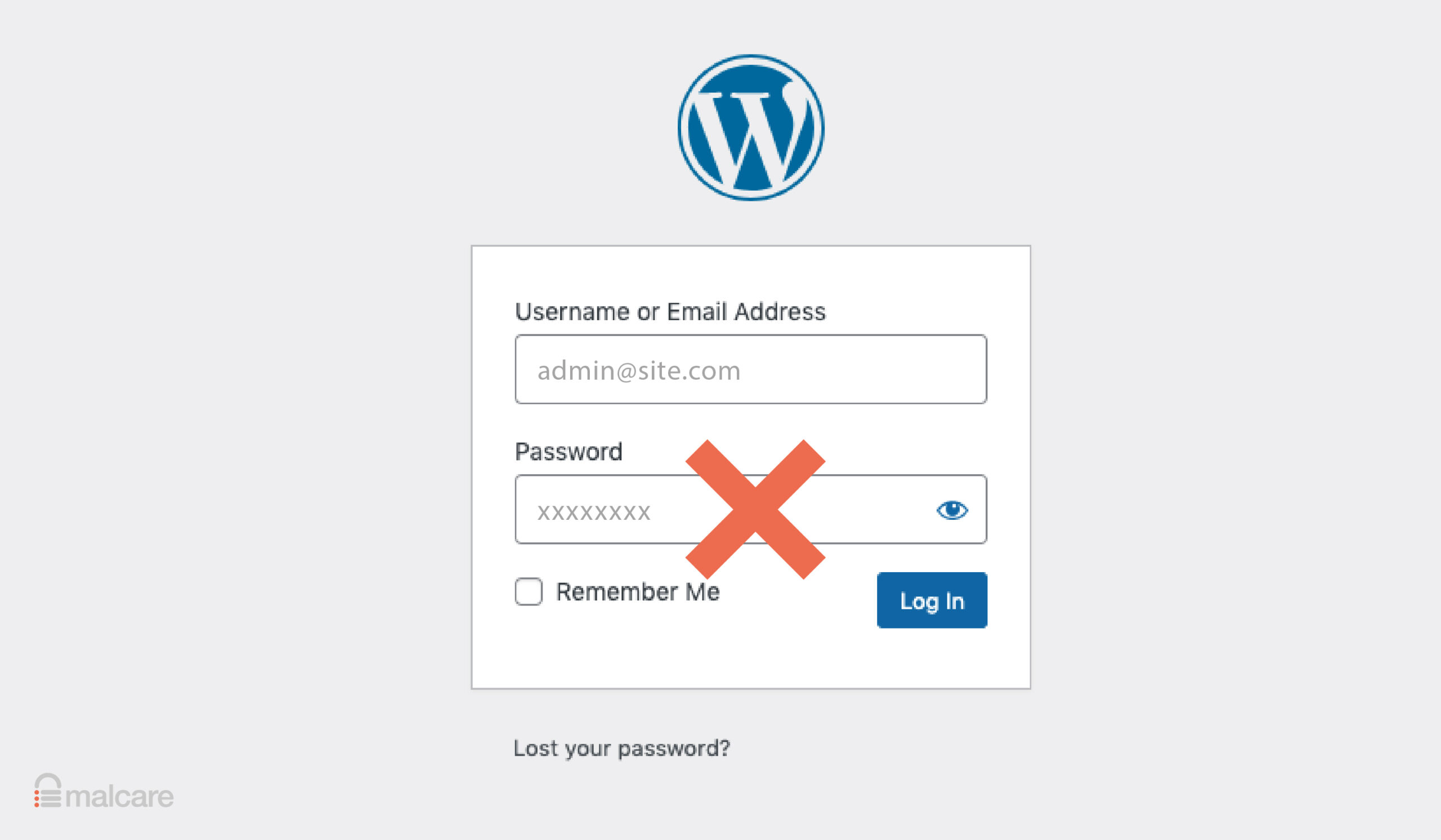
Default WordPress Login
The default WordPress login is easy to use. It comes built-in with every WordPress site. Users log in with a username and password. This method is simple and familiar to many. It works well for small sites or blogs. You do not need extra plugins. But it lacks social login features and customization.
Social Media Login Options
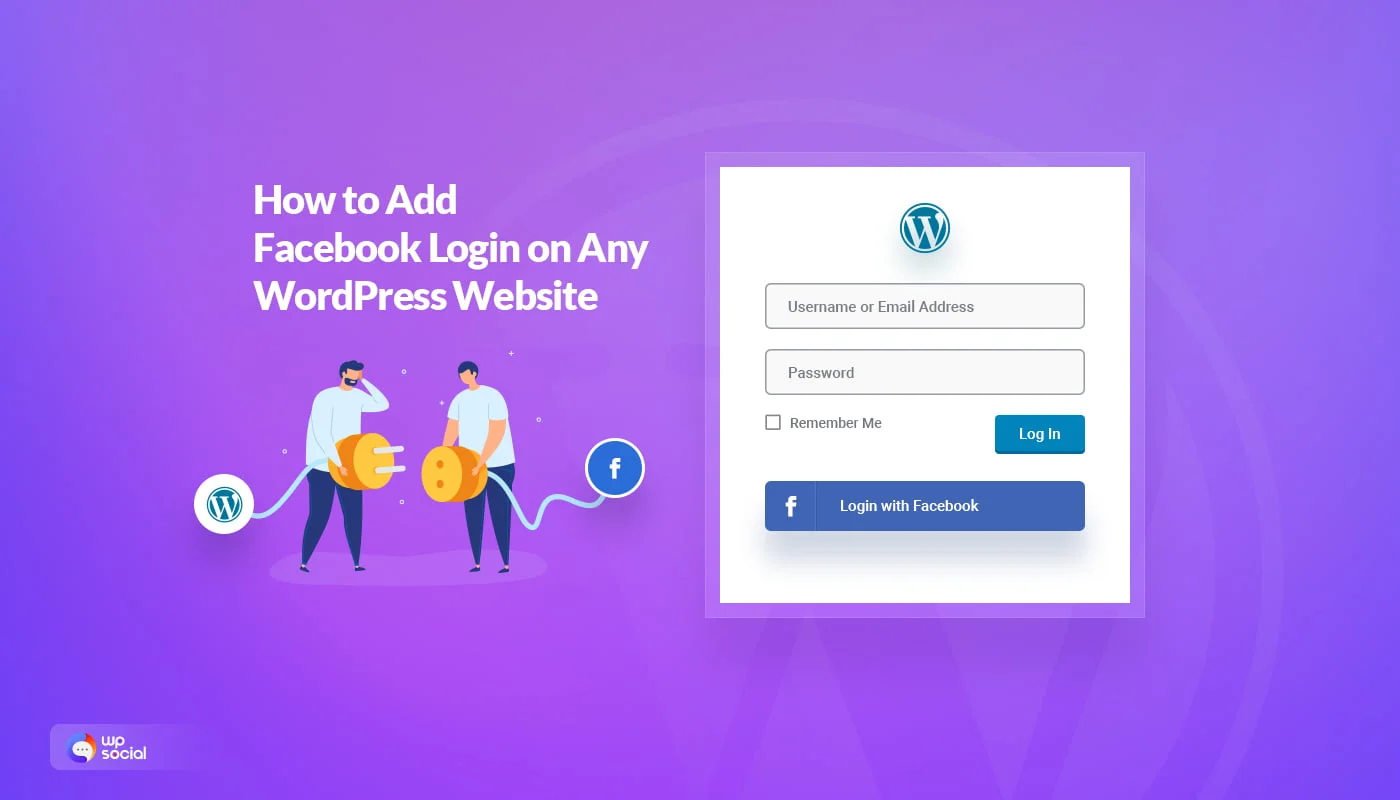
Social media login lets users sign in with Facebook, Google, or Twitter. It speeds up the login process. Users avoid creating new passwords. This method can increase user registration and engagement. You need plugins to enable social login. It improves convenience but may require more setup and security checks.
Custom Login Forms
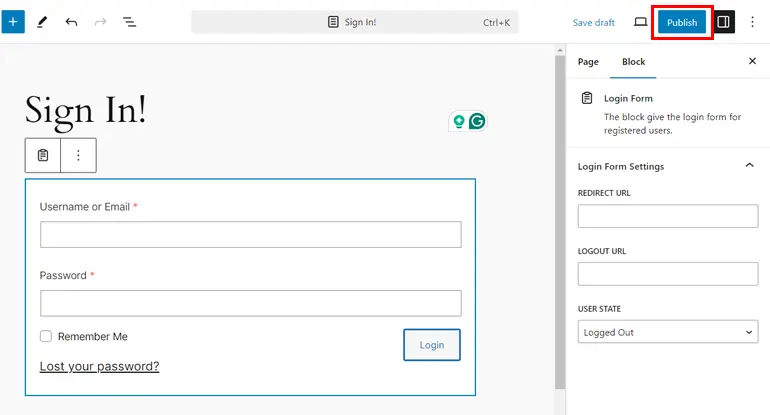
Custom login forms offer more control over design and fields. You can match the form to your site’s style. This method enhances branding and user experience. Many plugins allow you to build custom forms without coding. Custom forms can add extra security features. They suit websites that want a unique login page look.
Installing Login Plugins
Adding a login feature to your WordPress site is easy with plugins. Plugins help create secure and user-friendly login forms. They offer options for customization without coding knowledge.
Installing a login plugin takes only a few steps. Choose the right plugin, install it, and set it up. This process improves site security and user experience.
Popular Login Plugins
Many login plugins work well with WordPress. Some top choices include:
- WPForms – simple form builder with login options
- Theme My Login – customizes login pages easily
- LoginPress – allows design control for login forms
- Nextend Social Login – adds social media login buttons
These plugins support various features like social login, redirects, and styling.
Plugin Installation Guide
Start by logging into your WordPress dashboard. Go to the Plugins menu and click “Add New.”
Type the plugin name in the search box. Find the plugin and click “Install Now.”
After installation, click “Activate” to enable the plugin on your site. The plugin will appear in your dashboard menu or settings area.
Configuring Plugin Settings
Access the plugin settings from your dashboard. Follow the instructions provided by the plugin developer.
Set up login form options like redirect URLs, style, and security features. Test the login form to ensure it works correctly.
Adjust settings as needed to improve user experience and site protection.
Creating Custom Login Pages
Creating custom login pages makes your WordPress site look professional. It helps users feel confident and safe. Default login pages are plain and not very inviting. Custom pages offer a chance to match your site’s style. They improve user experience and brand recognition. Below are key methods and tips for building your own login page.
Using Page Builders
Page builders let you create login pages without coding. Tools like Elementor or Beaver Builder work well. They provide drag-and-drop features. You can add forms, images, and buttons easily. Many have ready-made login templates. Customize colors, fonts, and layout to fit your site. Preview your page on desktop and mobile. This ensures it looks good everywhere.
Design Tips For Login Pages
Keep the design simple and clean. Use clear labels and large input fields. Avoid clutter that distracts users. Choose colors with good contrast for readability. Add a visible login button. Make error messages easy to understand. Test your page to ensure it works fast. A smooth login process reduces user frustration.
Adding Branding Elements
Include your logo at the top of the page. Use your brand colors in backgrounds and buttons. Add a small tagline or welcome message. This builds trust and shows professionalism. Avoid too many images that slow loading. Keep branding consistent with the rest of your site. These details make your login page unique and memorable.
Credit: wpuserregistration.com
Enhancing Login Security
Keeping your WordPress login secure protects your site from hackers. Basic passwords are not enough. You need extra layers of security to keep attackers out. Simple steps can make a big difference.
Strong login security helps protect your user data and your website’s reputation. It also reduces the risk of downtime caused by attacks. Let’s explore easy ways to enhance your login security.
Implementing Two-factor Authentication
Two-factor authentication adds a second step to your login process. Users enter their password and then a code from their phone. This code changes every few seconds. Even if a hacker steals a password, they cannot log in without the code.
You can use plugins to add two-factor authentication to WordPress. It is quick to set up and greatly improves security.
Limiting Login Attempts
Limiting login attempts stops hackers from guessing passwords. It blocks users after a few failed tries. This reduces the chance of brute force attacks. WordPress plugins can set limits on login attempts easily.
This method slows down attackers and protects your site from repeated login failures.
Using Recaptcha
reCAPTCHA helps block automated login attempts by bots. It asks users to prove they are human. This may be a simple task like clicking a checkbox or solving a puzzle.
Adding reCAPTCHA to your login page stops many fake login attempts. It keeps your site safer without making it hard for real users.
Managing User Access
Managing user access is key for any WordPress site with multiple users. It helps you control who can see and do what. Good user access management keeps your site safe and organized. You decide who can add content, change settings, or just browse.
Let’s explore how to handle user roles, create registration forms, and approve new users. These steps help keep your site secure and user-friendly.
User Roles And Permissions
WordPress has built-in user roles. Each role has specific permissions. Roles include Administrator, Editor, Author, Contributor, and Subscriber. Administrators control everything. Editors manage content but not settings. Authors write and publish their posts. Contributors write but can’t publish. Subscribers only read content and manage their profiles. Assign roles carefully based on trust and needs.
Creating User Registration Forms
User registration forms let visitors sign up on your site. You can create these forms with plugins or custom code. Simple forms ask for username, email, and password. Adding extra fields depends on your needs. Make forms easy to use and clear. Avoid asking for too much information. This keeps users from abandoning the form.
Approving New Users
Approving new users helps control who joins your site. You can set registration to manual approval. This means you check each new user before they get access. Some plugins send you alerts for new signups. Review user details to avoid spam or fake accounts. Approving users manually keeps your site safe and trusted.
Troubleshooting Login Issues
Login problems can stop users from accessing your WordPress site. These issues can frustrate visitors and site owners. Troubleshooting login problems fast helps keep your site running smoothly.
Common login issues include forgotten passwords, errors on the login page, and locked accounts. Each problem has simple fixes you can apply yourself.
Resetting Passwords
Resetting a password is the quickest way to regain access. Use the “Lost your password?” link on the login screen. Enter your username or email to get a reset link.
Check your spam folder if the email does not arrive. If email reset fails, reset passwords via phpMyAdmin or using a plugin.
Fixing Login Page Errors
Login page errors may show as blank screens or error messages. Clear your browser cache and cookies first. Disable all plugins by renaming the plugins folder via FTP.
Switch to the default WordPress theme to check for theme conflicts. Errors often happen due to plugin or theme issues.
Handling Locked Accounts
Accounts may lock after too many failed login attempts. Wait for the lockout period to end or use a security plugin to unlock.
Site admins can unlock users from the database or security plugin settings. Always keep login attempt limits reasonable to avoid lockouts.
Credit: wpmet.com
Frequently Asked Questions
How Do I Add A Login Form To WordPress?
You can add a login form using plugins like WPForms or LoginPress. These tools help create custom login pages easily without coding.
Can I Customize The WordPress Login Page Design?
Yes, WordPress allows login page customization via plugins or custom CSS to match your site’s branding and style.
Is It Possible To Add Social Login Options In WordPress?
Absolutely. Plugins like Nextend Social Login enable users to sign in using Facebook, Google, or Twitter accounts.
How Do I Improve WordPress Login Security?
Use strong passwords, enable two-factor authentication, limit login attempts, and install security plugins to protect your site.
Conclusion
Adding a login to your WordPress site keeps it safe and personal. You control who can see and use your content. The steps are simple and quick to follow. Use plugins or built-in tools to set it up easily. Keep your site secure by updating passwords often.
A login system helps you manage users better. Try these tips to make your site user-friendly. Keep your WordPress site safe and easy to use.


