
Are you diving into the world of WordPress and feeling a bit overwhelmed by all the terminology? Let’s simplify things for you.
A fundamental aspect of WordPress is the concept of a “post. ” Understanding what a post is and how it functions can be a game-changer for managing your website effectively. Imagine having the power to share your thoughts, updates, and stories seamlessly with your audience.
Posts are your go-to tool for keeping your site fresh and engaging. You might be wondering, “Why should I care about posts? ” Well, mastering posts can be the key to boosting your site’s visibility, attracting more visitors, and keeping them hooked. Curious to discover how this simple concept can make a big impact on your online presence? Keep reading to unlock the secrets of WordPress posts and elevate your website game to the next level.
Understanding WordPress Posts
WordPress posts are like blog entries. They show in reverse date order. New posts appear first. Each post has a title and body text. You can add images or videos. Posts are great for sharing ideas. They can include comments from readers. This makes them interactive.
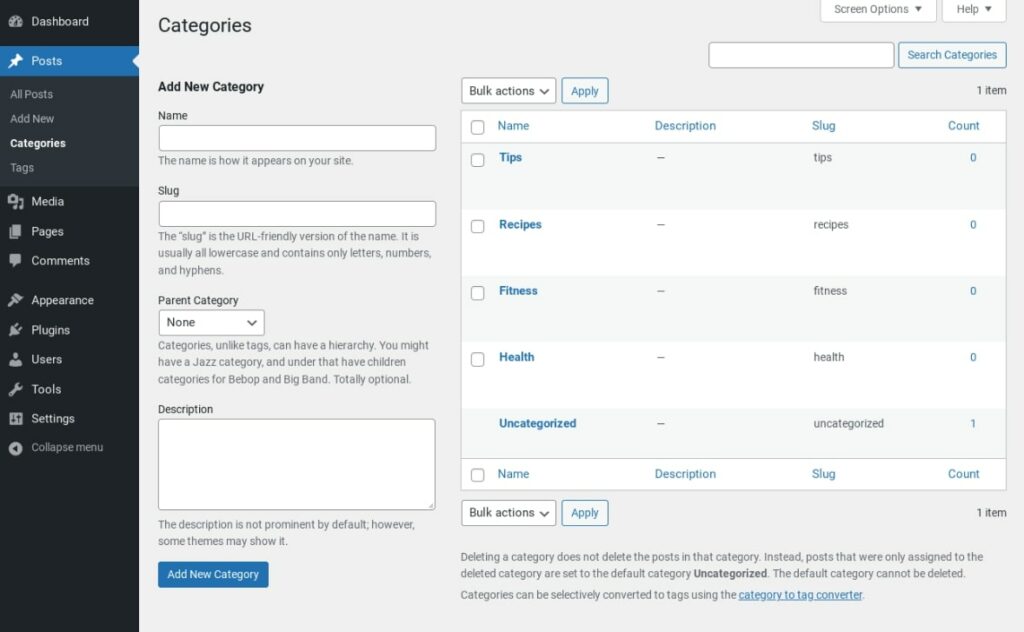
You can categorize posts. Use tags to help people find them. Categories are like big folders. Tags are like labels. Use them to organize your posts. This makes it easy for readers to navigate.
Posts can also be scheduled. Write them now, publish them later. This helps in managing content. Keep your site active even when busy. Posts are crucial for engaging visitors. They keep the site fresh and lively.
Credit: www.dreamhost.com
Key Features Of WordPress Posts
Creating posts is easy. You can add text, images, and videos. Editing is simple. You click to change things. Add links and format text. Make it bold or italic. Drag and drop media files. Use the visual editor or HTML view. Save drafts to work later. WordPress helps you create great posts.
Organize posts with categories. Choose one or more for each post. Tags help too. They show what the post is about. Both help users find content. Use many tags. It makes searching easy. Categories are like folders. Tags are like labels. They keep your blog neat.
Publish posts instantly or schedule for later. Choose visibility: public, private, or password-protected. Set posts as sticky to keep them on top. Preview before publishing. Change the author if needed. Use the publish button to make it live. Options are flexible. Control how and when your content appears.
Posts Vs. Pages
WordPress posts are dynamic content pieces, often displayed in reverse chronological order. They are ideal for news, blogs, and updates. Posts can be categorized and tagged, making them easily searchable and accessible.
Differences In Functionality
Posts and pages in WordPress serve different purposes. Posts are for timely content. They appear in your blog feed. Use them for news, updates, or articles. Posts are organized by categories and tags. This helps readers find related content.
Pages are for static content. They don’t change often. Examples include About Us, Contact, or Privacy Policy. Pages are not part of the blog feed. They stand alone and are usually in your main menu.
When To Use Posts
Use posts for regular updates. They are great for sharing news. You can add new thoughts or stories. Posts keep your site fresh and engaging. They let you connect with your readers. Use posts to build a community. Encourage comments and discussions. This makes your blog lively and interactive.
Credit: www.hostgator.com
How To Create A WordPress Post
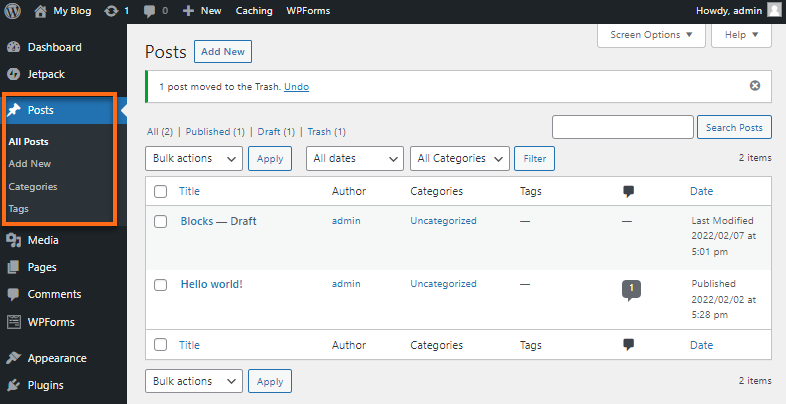
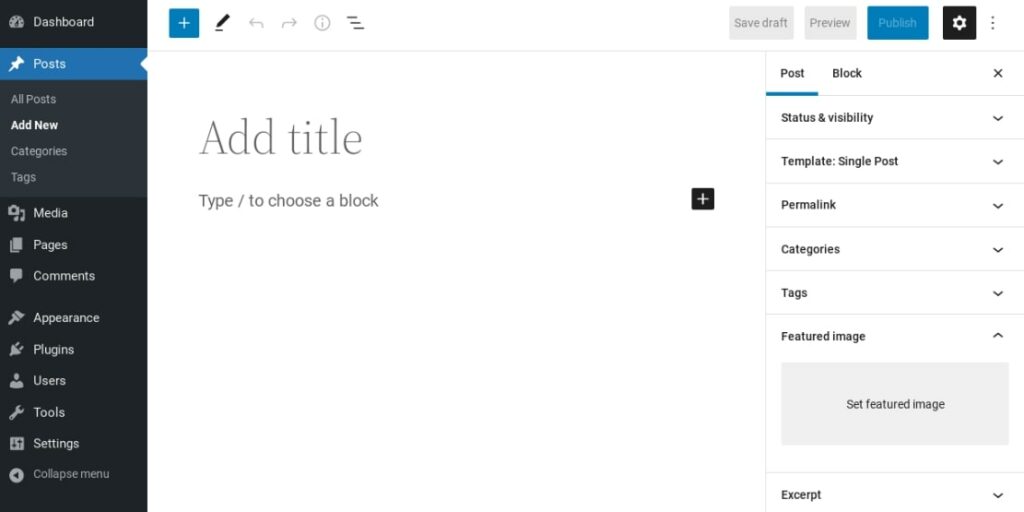
Find the dashboard after logging in. Locate the Posts section. Click on Add New to start a post. It’s simple. Explore the options on the left. These help you manage your site.
The block editor is easy to use. Write your text in blocks. Each block can be a paragraph, image, or list. Use blocks to create headers and quotes. It makes your post neat. Try different blocks to see what works best.
Multimedia makes posts interesting. Add images to illustrate your text. Use the Add Media button for videos. Drag and drop files from your computer. Make sure they are clear and relevant. Your post will stand out with good media.
Tips For Effective Post Writing
Engaging headlines grab attention. They should be short and catchy. Use action words to make them lively. Numbers can add interest, like “5 Tips for Better Writing”. They help readers know what to expect. Questions can also intrigue, like “Why Write Well?”. Make it relevant to the post content. A good headline is a promise.
SEO helps your post reach more people. Use keywords wisely. They should be in the title and first paragraph. Keywords need to be natural in the text. Avoid stuffing too many. Use meta tags and descriptions. This helps search engines find your post. Good SEO makes your post visible.
Visuals make posts more interesting. Use images that relate to your content. They should be clear and of high quality. Links are useful too. They can lead readers to more information. Use them to connect to related posts. Visuals and links enhance the reader’s experience. They make content more engaging.
Managing And Organizing Posts
Posts can be updated many times. Each update creates a revision. This helps track changes. You can see what was edited. Scheduling posts is handy. Write now, publish later. Choose a future date and time. This lets you plan content ahead.
Categories group posts together. They make finding content easy. Use clear names for each category. This helps users navigate. You can assign multiple categories to one post. Keep them relevant to the topic. Categories bring order to your blog.
Tags add more information. They help with searching. Tags should be short. Use keywords related to the post. Tags improve visibility in search engines. More tags mean better search results. Keep tags specific and useful.
Common Issues And Solutions
Text may not appear as expected on the screen. Check the text editor settings first. Make sure you are using the right formatting tools. Sometimes, extra spaces can cause issues. Remove extra spaces to fix it. Use the preview option before publishing. This helps you see any mistakes early. If you see a problem, fix it right away. Using simple HTML tags can also help. They make the text look better. Try them when you have formatting issues.
Publishing errors can stop your post from going live. Always check internet connection first. A weak connection can cause problems. Make sure you are logged in. Check your login status before publishing. Sometimes, the platform needs an update. Updating WordPress can solve many issues. It keeps everything running smoothly. Check plugin compatibility too. Plugins can cause publishing errors. Update or remove plugins if needed. Always save your work first. This prevents losing your post.
Credit: www.dreamhost.com
Expanding Functionality With Plugins
SEO plugins help improve your website’s visibility. They make your site easier to find. Yoast SEO is a popular plugin. It is easy to use. It helps with keywords and descriptions. All in One SEO Pack is another good choice. It offers similar features. Both plugins support sitemap creation. This helps search engines crawl your site.
Social sharing tools let users share your posts. They increase your site’s reach. Jetpack includes social sharing options. It is easy to set up. Shared Counts is another plugin. It shows how many times a post is shared. This encourages more sharing. Both plugins support popular networks like Facebook and Twitter.
Frequently Asked Questions
What Is A WordPress Post?
A WordPress post is a type of content used for blog entries. Posts appear in reverse chronological order on your site’s homepage. They are time-stamped, categorized, and can be tagged. Posts encourage reader interaction through comments and are ideal for dynamic content.
They’re perfect for sharing news, updates, or personal stories.
How Do I Create A WordPress Post?
To create a WordPress post, log into your dashboard. Navigate to “Posts” and click “Add New. ” Enter your post’s title, content, and media. You can also add categories, tags, and a featured image. Once satisfied, click “Publish” to make it live.
This process is straightforward and user-friendly.
Can I Schedule WordPress Posts?
Yes, you can schedule WordPress posts for future publication. When editing a post, click on the “Publish immediately” link. Select your desired date and time for publication. WordPress will automatically publish the post at that scheduled time. This feature is useful for planning content in advance.
What Is The Difference Between Posts And Pages?
Posts and pages serve different purposes in WordPress. Posts are timely and appear in chronological order. They encourage engagement through comments and are categorized. Pages are static, timeless, and used for content like “About” or “Contact. ” Pages do not support categories or tags, offering a more static presentation.
Conclusion
Understanding WordPress posts is essential for beginners. They are the backbone of blogs. Posts keep your content fresh and engaging. They display in reverse chronological order. Readers see the latest updates first. Posts can include text, images, and videos. Easily categorize and tag them.
This helps in better organization. Readers can find related content quickly. Consistent posting attracts more visitors. Search engines love fresh content. This boosts your site’s visibility. Start creating posts today. Watch your blog grow and thrive.


