
Ever found yourself puzzled over where exactly WordPress plugins reside in your website’s file structure? You’re not alone.
Navigating the WordPress ecosystem can feel like walking through a maze, especially when it comes to understanding the nuts and bolts of plugin management. If you’ve ever wondered, “WordPress, what file are plugins added to? ” You’re in the right place.
Knowing where plugins are stored can empower you to troubleshoot issues, optimize performance, and customize your site with confidence. By the end of this article, you’ll have a clear grasp of plugin file locations, helping you unlock the full potential of your WordPress site. Keep reading to demystify this aspect of WordPress and take control of your website’s functionality.
Credit: wordpress.org
Understanding WordPress Plugins
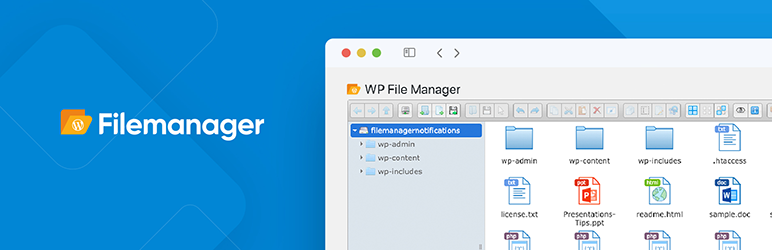
WordPress plugins are small software add-ons for your website. They help add new features to your site. Each plugin is stored in its own folder. These folders are inside the /wp-content/plugins/ directory. This directory is where all plugins live. Each plugin folder has many files. Common files include PHP files. Also CSS and JavaScript files. These files make the plugin work. If you install a new plugin, WordPress adds it to this directory. This way, your site can find and use the plugin easily. Understanding where plugins are stored helps manage your site better.
Role Of Plugins In WordPress
Plugins help WordPress do more. They add new features. They make websites better. Plugins are like small tools. Each plugin has its own job. Some plugins keep sites safe. Others make sites faster. Many plugins help with SEO. Some plugins add contact forms. Others help with social media. Plugins are easy to use. They work with WordPress themes. They don’t need coding skills. Plugins can be free or paid. Free ones are often good. Paid ones have more options. Choose plugins carefully. Too many plugins slow down sites. Always update plugins. Updates fix problems. Keep sites running well.
Plugin Directory Structure
WordPress plugins are stored in a specific folder. This folder is called the wp-content/plugins directory. Each plugin has its own folder inside this directory. The plugin folder contains all the files needed for the plugin to work. These files include PHP scripts, CSS stylesheets, and JavaScript files. Some plugins also have image files or language files.
Every plugin folder has a main file. This file usually has the same name as the plugin folder. It contains code that tells WordPress about the plugin. This code includes the plugin name, description, version, author, and license. The main file acts like the plugin’s entry point. It’s the first file WordPress loads when activating the plugin.
Organizing files in a plugin folder is important. It makes the plugin easy to maintain and update. Developers often use subfolders for organization. Common subfolders include includes, assets, and languages. These folders help keep code and resources tidy and separated.
Credit: www.wonderplugin.com
Where Plugins Are Stored
WordPress plugins live in a special folder. This folder is called wp-content/plugins. Each plugin has its own folder inside this. The plugin files help your website do more things. Sometimes, you will find a file named index.php in the plugin folder. This file helps with security. It keeps people from seeing inside the plugin folder. Most plugins have many files. These files work together to make the plugin work well. Developers often add files like .php, .css, and .js. These files help with the plugin’s looks and actions. Always keep your plugins updated. This helps your site stay safe and fast.
Navigating The Wp-content Folder
Plugins live in the wp-content folder. This folder holds themes and uploads too. Inside, you’ll find a plugins folder. This is where plugins are stored. Each plugin has its own folder. Inside, you’ll see files and subfolders. These are important for the plugin to work.
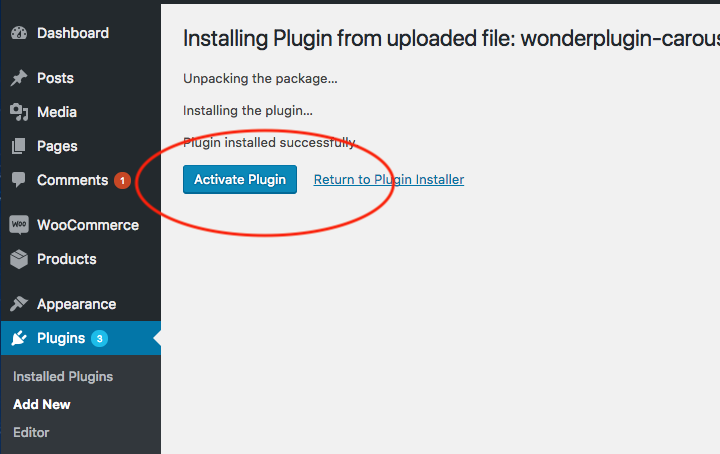
The plugins folder is easy to find. It’s inside wp-content. You can add new plugins here. Simply upload the plugin’s folder. Then, activate it in WordPress. Always check for updates. Updates keep plugins safe and fast.
Remember, plugins help your site. They add features. They make tasks easy. Choose plugins wisely. Too many plugins can slow your site. So, pick plugins that you need.
Inside The Plugins Folder
The plugins folder in WordPress holds all your plugins. Each plugin has its own folder inside. These folders contain important files. Such as PHP files, CSS files, and JavaScript files. The main file of a plugin is a PHP file. It tells WordPress how the plugin works. Sometimes, the main file and the folder have the same name. This makes it easy to find.
Plugins can also have readme files. These files give information about the plugin. Like what it does and who made it. Some plugins need extra files to work. Images, languages, or libraries might be included. They all stay inside the plugin’s folder. Keeping everything organized and simple.
Managing Plugins In WordPress
Plugins are added to the wp-content/plugins folder. Each plugin has its own folder inside. This folder holds all the plugin files. Make sure to check the folder name. It should match the plugin name. If you remove the folder, the plugin stops working. Be careful when deleting files. It might break your site.
Using plugins can be fun. They add new features to your website. They can make your site look better. They can also help it work faster. Always update your plugins. Updates fix bugs and add new features. They make plugins safe to use. Check for updates regularly.
Best Practices For Plugin Installation
Plugins are important for WordPress sites. Always check the plugin’s reviews and ratings before installing. This helps avoid malware and bugs. Download plugins from the official WordPress repository. This ensures safety and quality.
Keep all plugins updated. Outdated plugins can harm your site. They may cause security issues. Regularly check for updates. Always make a backup before installing new plugins. This prevents data loss.
Limit the number of plugins. Too many can slow your site. Choose plugins carefully. Only install what you need. This keeps your site fast and efficient.
Troubleshooting Plugin Issues
Plugins often store data in the wp-content folder. This folder is crucial. It holds all the plugin files. If a plugin fails, check this folder first. Sometimes, plugin conflicts arise. They might cause errors. Disable plugins one by one. Doing this helps find the problem plugin. Always ensure plugins are up-to-date. Updates fix bugs and add features. Older versions may not work well. Look at the plugin settings. A wrong setting can cause issues. Check the plugin support page. Many users share solutions there. Backup your site before changes. Backups keep your data safe.
Credit: www.elegantthemes.com
Frequently Asked Questions
Where Are WordPress Plugins Stored?
WordPress plugins are stored in the `wp-content/plugins` directory of your website’s file system. Each plugin resides in its own folder within this directory. This structure helps in organizing and managing plugins efficiently. It ensures that plugins are separate from core WordPress files.
How To Access WordPress Plugin Files?
Access WordPress plugin files via FTP or cPanel File Manager. Navigate to the `wp-content/plugins` directory. Here, you can view, edit, or delete plugin files. Always back up files before making changes to avoid data loss.
Can Plugins Affect Website Performance?
Yes, plugins can impact website performance. Poorly coded or excessive plugins may slow down your site. Always choose reputable plugins and keep them updated. Regularly audit installed plugins to ensure optimal performance and security.
How To Safely Edit Plugin Files?
To safely edit plugin files, create a child theme or use a custom plugin. This ensures your changes aren’t overwritten during updates. Always back up your site before editing files. Consider using a staging site to test changes before applying them live.
Conclusion
Understanding where WordPress plugins are added is vital. It helps you manage your site better. Plugins reside mainly in the “wp-content/plugins” directory. Knowing this supports effective troubleshooting. It ensures your website runs smoothly. Learning these basics enhances your WordPress skills.
With this knowledge, handling plugins becomes easier. Your site remains organized and efficient. Keep exploring WordPress functionalities. They offer endless possibilities for your website. Stay informed and adapt to new updates. This ensures a seamless experience for both you and your site visitors.
Happy blogging and WordPress management!


