
Are you looking to customize the header toolbar of your WordPress site using the Total theme but feel a little overwhelmed? You’re not alone.
The header toolbar is a crucial part of your website’s design, serving as a first impression and a navigation aid for your visitors. Getting it just right can significantly enhance user experience and boost engagement. Imagine having the power to tailor this section to perfectly fit your brand and style.
Exciting, right? In this guide, we’ll walk you through the simple steps to easily edit your header toolbar in the Total theme. By the end, you’ll be equipped with the know-how to make your website truly stand out. Let’s dive in and unlock the potential of your WordPress site together!
WordPress Total Theme Overview
WordPress Total Theme is a popular choice for websites. It offers many features and customization options. The theme is known for its flexibility and user-friendly design. Users can easily change the look of their site. The theme’s settings allow you to customize colors, fonts, and more. This makes it simple to match your brand style.
The header toolbar in the Total Theme is essential. It holds important information like contact details and social media links. Editing the header toolbar is easy. You can add or remove items as needed. This helps keep your site organized and clean. Having a clear header can improve user experience.

Credit: totalwptheme.com
Accessing The Theme Settings
Editing the header toolbar is easy. First, log in to your WordPress dashboard. Look for the Appearance menu on the left. Click on Customize to open the theme settings. The Total theme offers various options here. Find the Header Toolbar section. This is where changes happen.
Click to open the toolbar settings. You can change colors and fonts. Add widgets like social media icons or search bars. Preview changes before saving. This helps see how the toolbar looks. Once happy, click Publish to save. The toolbar now shows your edits.
Navigating To The Header Toolbar
First, open your WordPress dashboard. Look for the Total Theme option. Click on it to access theme settings. This is where you can change your header toolbar.
Find the Header tab in the settings. Click on it. This takes you to all header settings. The toolbar is part of these settings. You can customize what you need. Add or remove items as needed. Make sure to save your changes. This way, your toolbar will look just right.
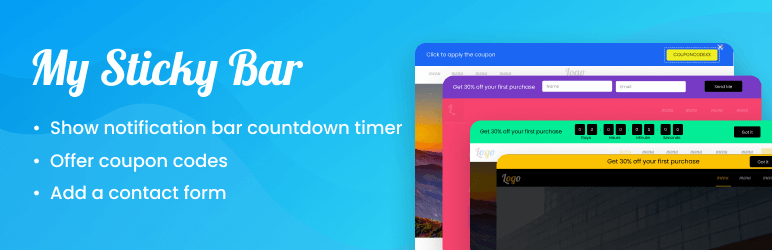
Credit: ca.wordpress.org
Customizing Toolbar Elements
The toolbar shows important links. You can add or remove items easily. First, go to the WordPress dashboard. Click on “Total Theme”. Find the “Header Builder” option. You will see a list of toolbar items. To add an item, click the plus (+) symbol. To remove an item, click the trash icon. Make sure to save your changes. This way, your toolbar looks neat.
Changing the order of toolbar items is simple. Go to the “Header Builder” section. Look at the list of items. Click and hold the drag icon next to an item. Move it up or down to change its position. Place it where you want. Release the mouse to drop it. Always remember to save changes. Your toolbar will now show the new order.
Styling The Toolbar
Choose bright or calm colors for your toolbar. Make it look good. Pick fonts that are easy to read. You can use simple fonts like Arial or Times. Adjust size to make it fit. Colors should match your theme. This helps your toolbar stand out.
Decide where you want items to go. Put important links in the center. Arrange them neatly. Use icons if needed. Keep it clean and tidy. You can use space wisely. Avoid cluttering. Make sure it looks balanced.
Integrating Social Media Links
Adding social media links to your WordPress site is simple. First, access your WordPress dashboard. Then, go to the Appearance tab and click on Customize. Find the option for the header toolbar. Click on it. Now, look for the Social Media Links section.
In this section, you can add links to your social media pages. Enter the URL of your Facebook, Twitter, or Instagram page. Make sure to double-check each link. Your visitors can now click on these icons to visit your social media profiles. This helps in connecting with your audience better.
Incorporating Custom Code
Custom code can change the look of your website. It allows for more personalization. The header toolbar is an important part. It shows information at the top of the page. Adding code here can make your site unique. Use the WordPress dashboard to edit. Go to the “Appearance” section. Then, click on “Theme Editor.” Be careful while editing. Incorrect code may break your site. Always save a backup before changes. Use CSS for style changes. JavaScript can add special functions. Follow coding standards for best results. This keeps your site safe and fast.
Saving And Previewing Changes
Always click the Save button after making changes. This keeps your work safe. Before showing it to the world, use the Preview option. This lets you see how your site looks. Check for any mistakes or things to fix. If something is wrong, go back and adjust. It’s easy to miss small details, so look carefully. Happy with your changes? Then it’s time to publish. But remember, you can always go back and change things later. The preview helps make sure everything is perfect before it goes live.
Troubleshooting Common Issues
Sometimes the header toolbar does not show correctly. This can be frustrating. First, check your theme settings. Make sure they are correct. Clear your browser cache. This helps refresh the page. Update your theme to the latest version. Older themes can cause problems. If the toolbar still does not display, try disabling any plugins. Some plugins might conflict with the theme. Enable them one by one to find the problem.
Compatibility errors can stop the toolbar from working. Check the PHP version on your server. It should match the theme’s requirements. Update WordPress to the latest version. This helps fix many errors. Look for coding errors in the theme files. Incorrect code can break the toolbar. If errors persist, seek help from the theme’s support team. They can provide expert advice.
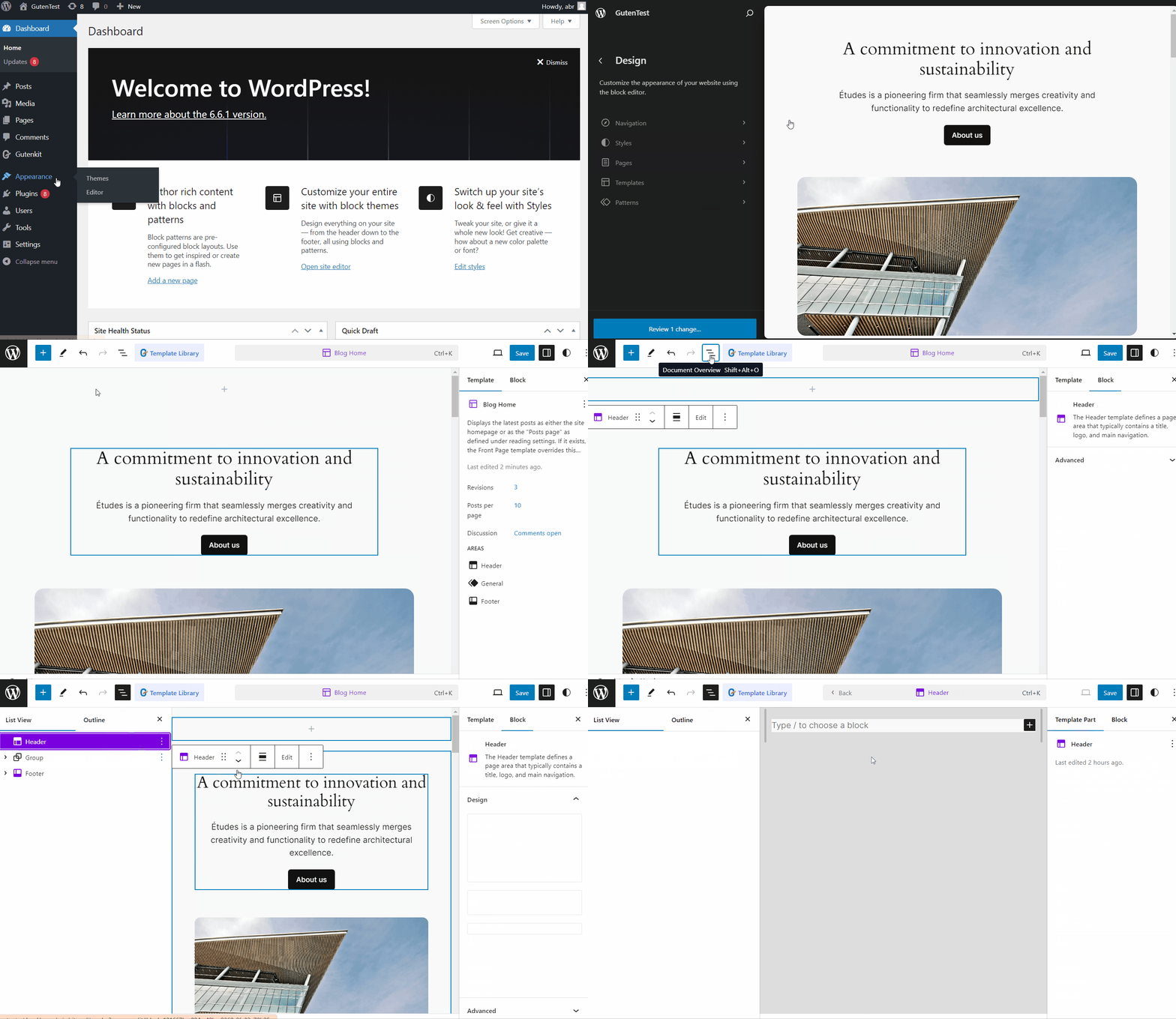
Credit: wpmet.com
Frequently Asked Questions
How Do I Customize The Header Toolbar In Total Theme?
To customize the header toolbar in Total Theme, navigate to the WordPress dashboard. Select ‘Appearance’ and click ‘Customize’. Go to ‘Header’ and choose ‘Toolbar’. From there, you can modify text, links, and icons. Make sure to save your changes to update the toolbar on your site.
Can I Add Social Media Icons To The Header Toolbar?
Yes, adding social media icons is easy. In the WordPress Customizer, under ‘Header’ then ‘Toolbar’, find the social media section. Enter your social media URLs and select the icons you want. This will display the icons in your header toolbar, enhancing your site’s connectivity.
How Do I Change The Toolbar Background Color?
To change the toolbar background color, access the WordPress Customizer. Under ‘Header’ and ‘Toolbar’, find the background color settings. Choose your desired color using the color picker. This change will apply instantly, giving your toolbar a fresh look that matches your brand.
Can I Remove Items From The Header Toolbar?
Yes, removing items is straightforward. In the WordPress Customizer, go to ‘Header’ then ‘Toolbar’. Simply uncheck or delete the elements you don’t need. This allows you to streamline the toolbar, ensuring only relevant items are displayed, enhancing user experience and site navigation.
Conclusion
Editing the WordPress Total Theme header toolbar is simple. Follow the steps above to customize your site. Make your website unique and user-friendly. A well-designed header improves visitor experience. It can make navigation smoother and more intuitive. Take your time to explore different options.
Small changes can have a big impact. Keep experimenting until you find the perfect look. Your website deserves attention and care. With practice, you’ll get better. Enjoy the process of creating something special. Happy editing!


