
You’ve successfully installed WordPress on HostGator—congratulations! But now, a daunting question looms: what do you do next?
It’s easy to feel overwhelmed, staring at the blank canvas of your new website. You might be wondering how to bring your vision to life, ensure seamless functionality, and attract visitors. Don’t worry, you’re not alone. Imagine transforming your WordPress site into a vibrant digital space that captivates your audience and stands out in the crowded online world.
This isn’t just about building a website; it’s about crafting an experience that resonates with your visitors from the moment they arrive. In this guide, you’ll discover the essential steps to take after installing WordPress on HostGator. You’ll learn how to optimize your site for speed, enhance security, and choose the right themes and plugins to match your goals. Stick with us, and you’ll soon have a website that not only looks great but also performs exceptionally. Ready to dive in? Let’s unlock the full potential of your WordPress site together.
Credit: www.hostgator.com
Login To WordPress Dashboard
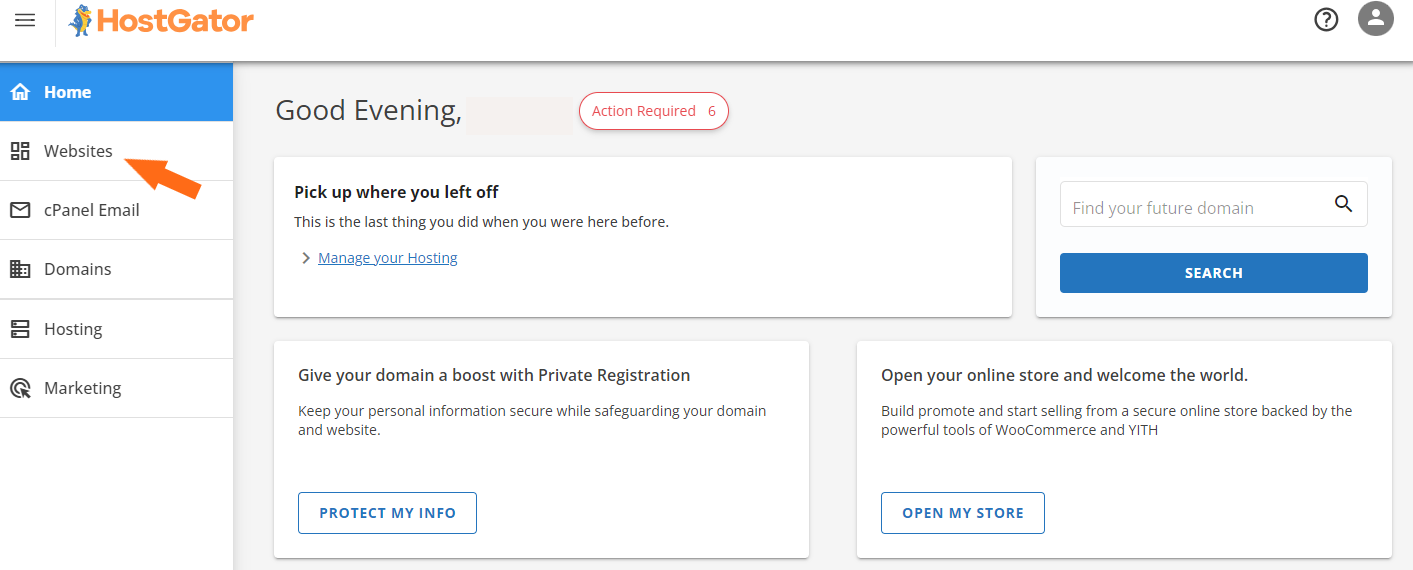
First, find the login page. It’s usually at /wp-admin after your website address. Type your username and password. These were set up during installation. Click the login button. Now you can see your dashboard.
The dashboard is your home. You manage your site here. Look at the left menu. It has many options. Explore each one. Click on Posts to write blog posts. Use Pages for static content. Check Settings to change site features.
Remember to save changes. Always update themes and plugins. This keeps your site safe. Check your dashboard often. Make sure everything works well. This is your control center.
Choose A Theme
Free themes are available to everyone. They cost nothing. Many people use them. Premium themes cost money. They offer extra features. They look nice. Free themes might have less options. Premium themes provide support. Free themes sometimes lack updates. Choose wisely. Think about your needs. Your budget matters.
Customizing makes your site unique. Change colors. Add a logo. Pick a font. Make it yours. Use the WordPress customizer. It’s easy. Explore the settings. Try different styles. Your theme should fit your brand. Adjust layout. Change widgets. Add images. Keep it simple. Ensure it’s user-friendly.
Install Essential Plugins
SEO plugins help your site get noticed. They make your site easier to find. Yoast SEO is a popular choice. It helps with keywords and readability. Another option is All in One SEO Pack. Both help improve your site’s rank.
Protect your site with security plugins. Wordfence Security offers firewall protection. It also provides malware scans. Sucuri Security is another good option. It checks for threats and keeps your site safe.
Speed up your site with performance plugins. WP Super Cache helps load pages faster. W3 Total Cache improves speed as well. Both plugins make your site run smoothly.
Backups keep your data safe. UpdraftPlus is easy to use. It saves your site data. BackWPup is another choice. It creates backups for you. Both plugins are reliable and trusted.
Credit: www.hostgator.com
Set Up Site Structure
Start by creating key pages for your site. These include Home, About, Contact, and Blog. Each page serves a purpose. The Home page welcomes visitors. The About page tells your story. The Contact page helps people reach you. The Blog page shares your posts. Make sure each page is easy to navigate. Use clear, simple words. This helps visitors find what they need quickly.
Categories and tags keep your content organized. Categories group similar topics. For example, a food blog might have categories like Recipes and Reviews. Tags offer more specific labels. They help with detailed topics within a category. Use relevant tags for each post. This makes it easier for readers to find related content. Proper use of categories and tags improves your site’s navigation.
Configure Basic Settings
After installing WordPress on Hostgator, set basic settings like site title and tagline. Adjust permalink structure for better SEO. Customize your theme to match your brand.
Permalinks Settings
Permalinks are important for your website’s URLs. Go to settings. Click on permalinks. Choose “Post Name”. This option is best for SEO. It makes links easy to read. Save changes after selecting.
Reading Settings
Reading settings decide how your site looks. You can set the homepage. Choose what people see first. Pick a static page or latest posts. Adjust the number of posts on one page. This helps visitors find content easily.
Discussion Settings
Discussion settings manage comments. Comments let people talk on your site. Turn on or off the comment option. Moderate comments if needed. Approve comments before they show up. This keeps things safe and clean.
Create And Publish Content
Start by clicking on the “Posts” menu. Choose “Add New” to start writing. Enter a catchy title for your post. Use simple words in your sentences. Write short paragraphs. This keeps readers interested. Use the text editor to format your content. Add headings and lists if needed.
Click on the “Media” menu to open the library. Here, you can add images and videos. Click “Add New” to upload files. Use images to make your post lively. Drag and drop files easily. After uploading, click on the “Insert” button. Place media in your post where it fits best. Always use clear and bright images.
Optimize For Seo
Start with finding keywords people use. Use free tools like Google Keyword Planner. Look for words with low competition. These are easier to rank for. Write down a list of 10 to 15 keywords. Make sure they are related to your content. Pick the most important one for each page.
Use keywords in your titles and headings. Keep them short and clear. Add the main keyword in the first paragraph. Sprinkle it naturally throughout the text. Use alt tags for images. This helps search engines understand images. Always have a meta description. It should be catchy and have a keyword. Make sure your site loads fast. A fast site is good for users and SEO.

Credit: www.youtube.com
Enhance Security
Secure Login Practices are important for keeping your site safe. Use a strong password. Mix letters, numbers, and symbols. Avoid common words. Enable two-factor authentication. This adds another layer of security. Use a plugin for it. Limit login attempts. This stops hackers from trying too many times. Change the default login URL. This makes it hard for hackers to find.
Regular Updates keep your site secure. Always update WordPress. Updates fix security issues. Plugins need updates too. Check for updates often. Set them to update automatically. This saves time and keeps you safe. Themes also need updating. Old themes can be risky. Check for theme updates. Keep everything current to protect your site.
Monitor Site Performance
Use Google Analytics to track site visitors. It shows where they come from. It also shows what they do. This helps you understand your site’s performance. Another tool is Jetpack. It offers similar data. Both are easy to set up on WordPress. These tools are important. They help you know your audience. They also help improve your site.
Check your site’s speed. Use Pingdom or GTmetrix. These tools test how fast pages load. Fast sites make visitors happy. Slow sites drive them away. Performance testing is easy. It shows what needs fixing. Sometimes, images are too big. Other times, plugins slow things down. Fixing these issues can help.
Frequently Asked Questions
How Do I Log Into My WordPress Dashboard?
After installing WordPress on HostGator, access your dashboard by visiting “yourdomain. com/wp-admin”. Enter your username and password. You’ll then be directed to the WordPress admin area. This is where you can manage your site, customize themes, and add plugins.
What Are Essential Plugins For Beginners?
For beginners, essential plugins include Yoast SEO for optimizing content, Akismet for spam protection, and Jetpack for enhanced features. Also, consider installing WP Super Cache for improved site speed. These plugins help enhance functionality and security for your WordPress site.
How Do I Choose A WordPress Theme?
Choose a WordPress theme by considering your site’s purpose and audience. Browse themes in the WordPress repository or premium marketplaces. Ensure the theme is responsive, SEO-friendly, and regularly updated. Preview themes before activating to see how they’ll look on your site.
How Can I Secure My WordPress Site?
Secure your WordPress site by using strong passwords and keeping WordPress, themes, and plugins updated. Install security plugins like Wordfence or Sucuri. Regularly back up your site with plugins like UpdraftPlus. Limit login attempts and use two-factor authentication for added security.
Conclusion
You’ve installed WordPress on HostGator. Now, explore its features. Start by customizing your site’s look. Choose a theme that fits your style. Add essential plugins to boost functionality. Write engaging content for your audience. Keep it simple and clear. Regularly update your site for better performance.
Check site speed and security. Use analytics to understand visitor behavior. Optimize for search engines. Keep learning and improving. Your WordPress journey is ongoing. With these steps, your site can grow and thrive. Enjoy the creative process and connect with your audience.
Keep exploring and learning.


