
Ever stumbled upon a stunning website and wondered, “What theme are they using on WordPress?” You’re not alone.
Whether you’re a budding blogger, a seasoned developer, or just someone who wants a sleek, professional-looking site, knowing a site’s theme can be a game-changer. Imagine unlocking the potential to elevate your website’s design by discovering the exact theme that caught your eye.
It’s like having the secret ingredient to your favorite dish. We’re diving into simple, effective ways to identify a WordPress theme, empowering you to replicate the look you love. Stay with us, and you’ll be spotting themes like a pro in no time!

Credit: themeforest.net
Identifying A WordPress Theme
Checking a website’s source code can help. Right-click on the page and select “View Page Source.” Look for the word “theme” in the code. It often appears in the URL path. This gives clues about the theme name.
Online tools can also help. Websites like What Theme and WP Theme Detector can be handy. Enter the website URL. These tools analyze the site and display the theme name.
Contacting the website owner can work too. Some owners are happy to share theme details. Always be polite when asking.
Using Online Tools
Theme detector websites are helpful for finding out a site’s theme. These tools are easy to use. Just enter the website URL in the tool. It then shows the theme name. Some popular tools are WPThemeDetector and What WordPress Theme Is That. These websites give fast results. They help you learn more about the theme. They also show plugin details sometimes. This way, you get a full picture of the site. Many people use them for quick theme checks.
Browser Extensions
Browser extensions can also detect themes. They work directly in your browser. Install the extension first. Then, visit any WordPress site. Click the extension icon. It shows the theme details right there. Wappalyzer is a popular extension for this task. It supports multiple browsers. These extensions are convenient and save time. They are perfect for quick checks. Many users find them useful.
Inspecting The Source Code
Finding Theme Information in HTML is easy. First, right-click on the webpage. Select “View Page Source.” A new tab opens with the HTML code. Press “Ctrl + F” to search. Type “theme” in the search box. Look for lines with “/wp-content/themes/”. This shows the theme folder name. The folder name often reveals the theme.
Identifying Theme Name in CSS is another way. Right-click the webpage. Choose “Inspect” or “Inspect Element.” The browser shows a panel with code. Click the “Sources” tab. Look for a folder called “wp-content.” Inside, find “themes.” The names here are the theme names. This method helps find the theme quickly.
Exploring The Theme Directory
To find a theme’s files, start in the WordPress dashboard. Go to Appearance and then click on Themes. Here, you’ll see all themes installed on the site. To view a theme’s details, click on the Theme Details button. This shows the theme name, version, and more.
The style.css file is important. It holds the theme’s main styles. Go to the Theme Editor to find it. In the editor, look for the style.css file on the right. Click it to open and see the code. This file often includes the theme’s name and author.
Checking WordPress Admin Area
Exploring the WordPress admin area can reveal a website’s theme quickly. Navigate to the ‘Appearance’ section, and find the theme name listed there. This tool simplifies identifying the design framework behind any site.
Accessing Appearance Settings
To find a theme, first log into the WordPress admin. Look on the left menu. Find the Appearance tab. Click on it. A list of options will appear. Themes will be the first option. Click on it to see the themes.
Viewing Active Theme
The active theme appears at the top. Its name is visible there. You can see a picture of the theme. The theme details are there too. This helps know which theme is used. Sometimes, there are extra themes. They are not active. The active one is the theme in use.
Limitations And Challenges
Custom themes and modifications create a unique look. Many websites use them. This makes it hard to find the base theme. Developers often change theme files. These changes can hide the original theme name. They might edit CSS or PHP files. This alters the site’s appearance. Some even remove theme tags. This makes identifying the theme tricky.
Some themes are obfuscated or hidden. This means they hide theme information. Developers do this on purpose. They want to protect their work. They might use special codes. These codes keep the theme name secret. Sometimes, they use plugins. These plugins hide theme details from users. This can be challenging for those trying to learn the theme.
Alternative Methods
You can ask the website owner about the theme used. Many owners are happy to share this info. Send a polite email or use the contact form on the site. Be clear and concise. Ask directly which theme they use. It’s a simple way to learn more. Sometimes, you might even get extra tips or advice.
Some websites help you find a site’s theme. These services scan the site for details. They often give quick results. Just enter the site’s URL, and they do the rest. Popular choices include WhatTheme and WPThemeDetector. These tools are user-friendly and free to use. They provide useful insights without much effort. It’s a handy way to gather information.
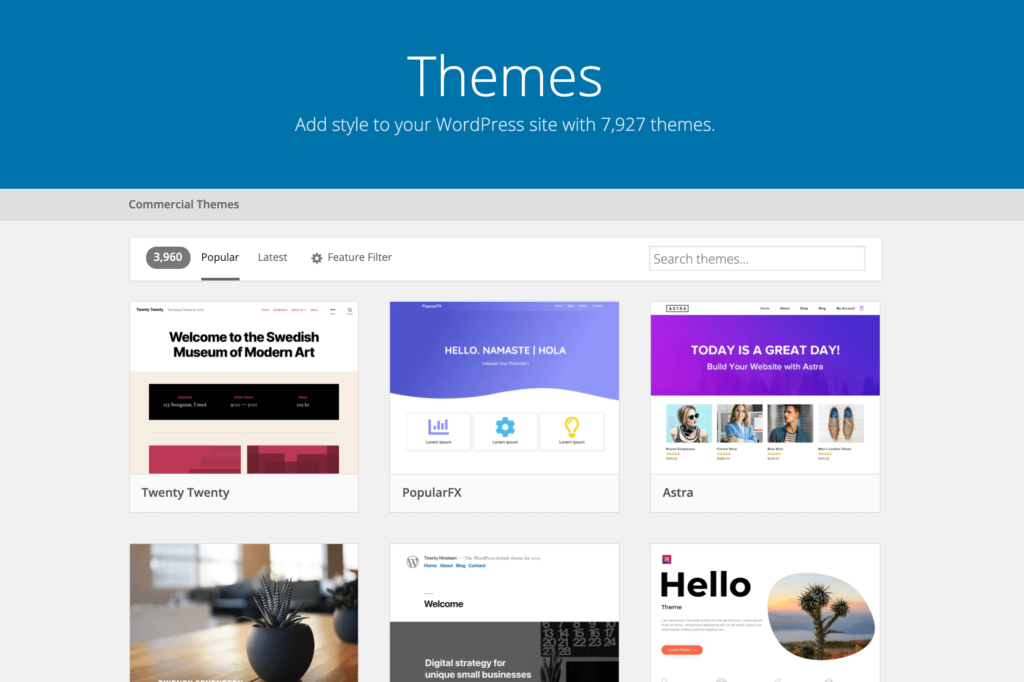
Credit: torquemag.io

Credit: www.wpbeginner.com
Frequently Asked Questions
How To Identify A WordPress Theme?
To identify a WordPress theme, inspect the website’s source code. Look for the theme’s name in the style. css file or use online tools like WP Theme Detector. Additionally, browser extensions can help reveal the theme details quickly.
Can I Find The Theme Using A Plugin?
Yes, plugins like “What WordPress Theme is That” can identify a website’s theme. Install the plugin and activate it. It will analyze the site and display theme details, saving you time and effort.
Is It Possible To Change The Theme Easily?
Changing a theme is simple. Navigate to the WordPress dashboard, select ‘Appearance,’ then ‘Themes. ‘ Choose a new theme and activate it. Always preview changes first to ensure compatibility and maintain design integrity.
Does Theme Affect Website Speed?
Yes, themes significantly affect website speed. A lightweight theme enhances performance, while bulky themes slow down loading times. Opt for themes optimized for speed to improve user experience and SEO rankings.
Conclusion
Discovering a WordPress theme can be simple. Use online tools or browser extensions. These help identify themes with ease. Understanding themes aids in web design decisions. It ensures your site stands out. Knowledge of themes also improves customization. This enhances user experience.
Always stay curious and explore different themes. It broadens your understanding. The right theme contributes significantly to site success. Keep learning and experimenting. Your WordPress journey will be smoother. Enjoy the process of discovery. It’s rewarding and insightful. Happy theme hunting!


