
Are you ready to take your WordPress site from generic to genuinely yours? Customizing a starter theme in WordPress is like crafting the perfect outfit—tailored to fit your style and needs.
Imagine having the power to shape your website’s look and functionality without being a coding expert. This guide will show you how to transform a basic starter theme into a unique masterpiece that reflects your brand or personal flair. You’ll discover simple steps and powerful tips to unleash your creativity and make your website stand out.
Curious about the magic behind customizing WordPress themes? Let’s dive in and unlock your site’s full potential!

Credit: www.linkedin.com
WordPress Themes Basics
A WordPress theme changes the look of your website. It includes design and layout. Themes make your site unique. They control colors, fonts, and styles. Themes can be free or paid. Many themes have extra features. These can be widgets or custom options. Themes are easy to change. You can switch themes anytime. This won’t affect your content. But it will change the appearance.
A theme is a full design package. A template is a single page layout. Themes include many templates. For example, a theme might have a home page template. It could also have a blog template. Templates are part of the theme. They help display content. Choose a theme with templates that fit your needs. This makes building your site easier.

Credit: github.com
Choosing The Right Starter Theme
Many developers choose Underscores for its simplicity. It offers clean code. Roots Sage is another favorite. It uses modern tools. WP Bootstrap is great for responsive design. It uses Bootstrap framework. Beginners love OceanWP. It has many features. GeneratePress focuses on speed and ease. It works well with page builders.
- Speed: Fast loading themes are crucial.
- Flexibility: Themes should allow easy changes.
- Compatibility: Check plugin support.
- SEO: Ensure theme is search engine friendly.
- Responsive: Must work on all devices.
Setting Up Your Development Environment
Creating a WordPress theme needs the right tools. Code editors like Visual Studio Code or Sublime Text are helpful. These editors have features that make coding easier. Version control systems like Git help keep track of changes. GitHub or GitLab are popular platforms for this. They also help in collaboration with others.
Browsers like Chrome or Firefox are useful for testing. Web developer tools in these browsers help find and fix errors. Image editors like GIMP or Photoshop are important too. They help in creating and editing images for themes.
Setting up a local environment is crucial. Local servers like XAMPP or MAMP help test themes. They allow you to run WordPress on your computer. This setup is safe for testing changes. With a local environment, you can work offline.
Customizing The Starter Theme
Start by opening the theme files in a text editor. Look for header.php and footer.php files. These files control the top and bottom of your site. Change the text inside these files to fit your site. Check the functions.php file next. This file adds features to your theme. Edit it to include only the features you need. Save your changes and refresh your site to see the updates.
Create a new file named style.css. Use it to add custom styles. Make text bold or change colors. Add background images or adjust font sizes. Use simple CSS rules to change the look of your site. This makes your site unique and personal. Keep your styles clean and easy to read. Test your site on different devices to ensure it looks good everywhere.
Incorporating Custom Features
Custom widgets can make a theme unique. They help users interact easily. Drag and drop widgets add charm. Widgets can show recent posts or comments. They also display images or videos. This improves user experience. Code or plugins can create custom widgets. Easy to add, easy to use.
Plugins add special features. They can improve site functionality. SEO plugins help with search engines. Security plugins protect from hackers. Some plugins speed up sites. Others manage email subscriptions. Plugins make sites better. They are like magic tools. Easy to install, easy to configure.
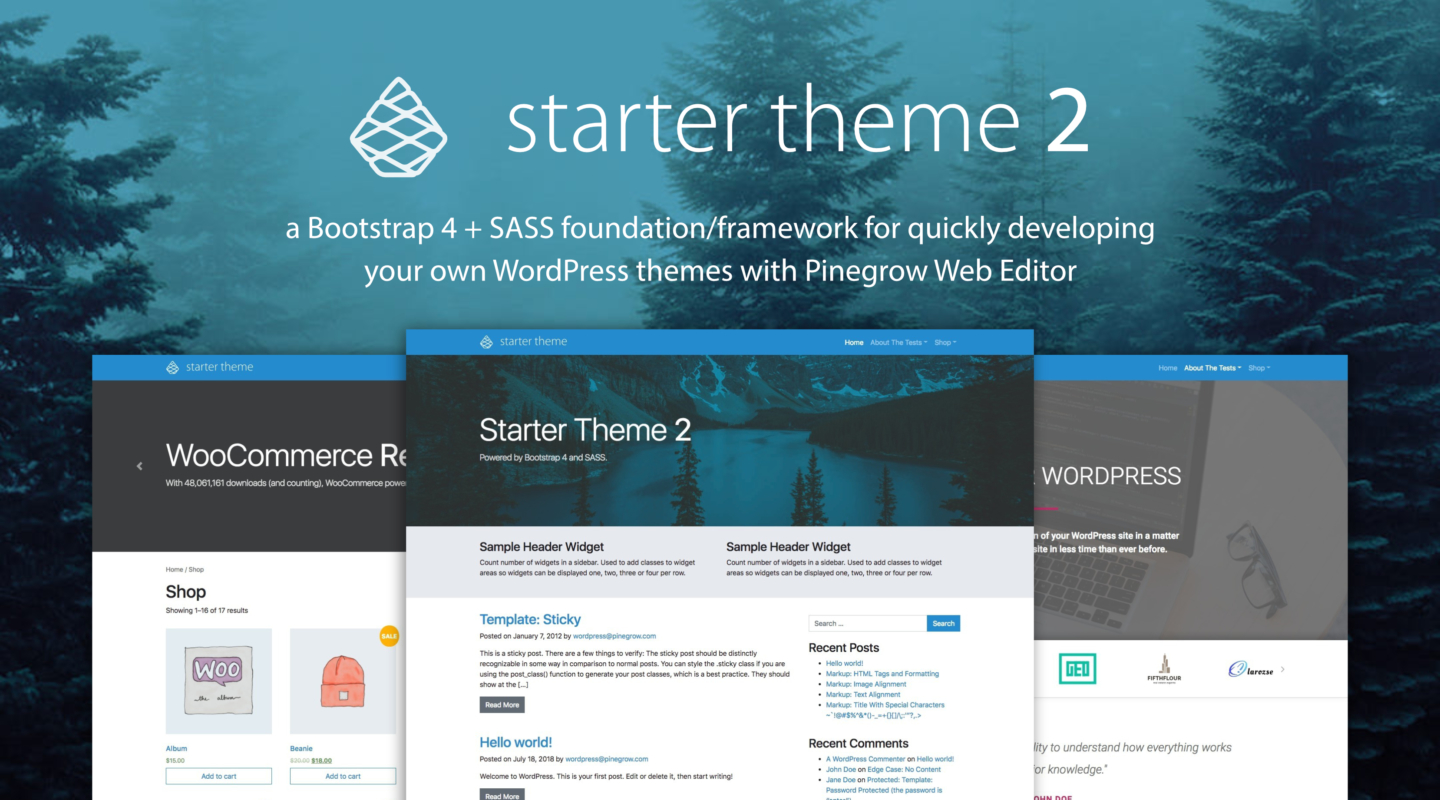
Credit: pinegrow.com
Testing And Debugging
Debugging ensures your custom WordPress theme runs smoothly. Identifying errors early saves time. Testing each change helps maintain quality.
Common Issues And Fixes
Common issues can appear during theme customization. Broken layouts are a frequent problem. Check for missing CSS classes. Always ensure JavaScript files load correctly. Sometimes, plugins might cause conflicts. Disable them one by one to see. PHP errors can also occur. Enable debug mode in WordPress. Look at error messages for clues. Missing images can be another issue. Check if paths are correct.
Using Developer Tools
Developer tools help find and fix issues. Use Inspect Element to see HTML and CSS. Check if styles apply as expected. The Console shows JavaScript errors. Look for red warnings. Network tab shows resource loading. See if any files fail to load. Use Responsive Design Mode. Ensure your theme looks good on all devices.
Deploying Your Custom Theme
Transform your starter theme into a custom masterpiece on WordPress effortlessly. Begin with theme installation, then modify it using intuitive tools. Personalize styles, layouts, and functionalities to fit your vision perfectly.
Preparing For Launch
Ensure your theme is ready for deployment. Check all files are complete. Verify your code is clean and error-free. Double-check the design matches your plan. Test it on different devices. Make sure everything works smoothly. Check links, images, and buttons. Get feedback from friends or experts. Fix any issues they find. Prepare a backup of your current site. This helps restore it if something goes wrong.
Uploading To WordPress
Use an FTP client like FileZilla. Connect it to your website server. Enter your credentials for access. Find the WordPress themes folder. Upload your custom theme there. Wait for the upload to complete. Check your WordPress dashboard. Activate your new theme. Visit your site to see changes. Ensure everything displays correctly. Fix any problems you notice. Adjust settings to fit your needs.
Maintaining And Updating
Keep your theme updated for the best performance. Updates fix bugs and add new features. Always back up your site before updates. This way, you keep your data safe. Check for updates often. WordPress notifies you about new updates. Update plugins and themes together.
Security is very important for your website. Use strong passwords. Avoid using easy passwords like “123456”. Update your plugins regularly. This helps keep your site secure. Install a security plugin like Wordfence or Sucuri. These plugins help protect your site from hackers. Always use a secure connection. Look for “https” in your site URL.
Frequently Asked Questions
What Is A WordPress Starter Theme?
A WordPress starter theme is a basic theme framework. It provides essential code and structure for developers. Starter themes are designed to be customized. They often include minimal styling and features. This allows developers to build unique themes efficiently.
How To Customize A Starter Theme?
Customizing a starter theme involves editing its code. You can modify CSS for styling changes. PHP files can be adjusted for functionality. Use a child theme for safe customizations. Regularly update and backup your work. This ensures your site remains functional.
Why Use A Starter Theme For WordPress?
Starter themes simplify the development process. They offer a clean slate for customization. This reduces the time spent on coding. Developers can focus on unique features. Starter themes enhance flexibility and creativity. They’re ideal for those with coding skills.
Can Beginners Use Starter Themes?
Beginners can use starter themes with guidance. They require basic coding knowledge. Resources like tutorials and forums are helpful. Start with simple customizations. Gradually learn more complex edits. Practice improves understanding and skills over time.
Conclusion
Customizing a WordPress starter theme can feel daunting. But it’s rewarding. Start with small changes. Tweak colors and fonts first. Gradually, move to layout adjustments. Use child themes to keep updates safe. This helps avoid losing changes. Practice makes perfect.
Experiment with new elements. Resources and forums offer great support. Always back up your work. This ensures no data loss. With patience, your skills will grow. Soon, your website will reflect your vision. Happy customizing!


