
Are you feeling stuck with your current WordPress theme? Maybe it’s not as sleek as you imagined, or perhaps you’ve made one too many customizations and now things just aren’t working right.
Whatever the reason, you might be thinking about hitting the reset button. But where do you start without risking your website’s content and functionality? In this guide, you’ll discover how to reset a WordPress theme safely and efficiently. We’ll walk you through each step, ensuring you have the confidence to give your website a fresh start.
Don’t let technical worries hold you back from the website of your dreams—read on to learn how to reset your WordPress theme and unlock new possibilities for your online presence.
Credit: blog.hubspot.com
Reasons To Reset A WordPress Theme
Themes can have bugs. These bugs make your website slow. Sometimes, they break your site. Features might not work. This can be frustrating. Compatibility issues can also arise. Old themes might not work well with new plugins. Design errors can occur. Pages might look wrong. These problems affect user experience. Visitors may leave your site.
Resetting can solve many problems. It clears old settings. This helps in starting fresh. Bugs can disappear. Website speed can improve. Users will have a better experience. New features can work well. Design can look neat again. Compatibility issues often get fixed. Resetting is easy. It’s like a fresh start. Your website can shine again.
Pre-reset Considerations
Always create a backup of your website. Backups save your data. Use a plugin to back up your site. Store your backup in a safe place. External hard drives work well. Cloud storage is another option. Backups protect against data loss. They also help during technical problems.
Know your customizations before resetting. Check the changes you made. Themes often have unique settings. Sometimes there are added features too. Write down these features. Take screenshots for reference. This helps in restoring after reset. Forgetting customizations causes problems. Always keep a record of them.
Using WordPress Dashboard
First, log into your WordPress Dashboard. It’s the main control room. Look on the left side. You will see a menu. Find the word “Appearance”. Click on it. A new list will appear. This list shows you all theme settings. Select “Themes” from this list. Now, you can see all installed themes. Choose the theme you want to reset.
Click on the theme. You will see theme options. These options help you change your theme. Explore them to find more settings.
After opening theme options, search for a reset button. Not all themes have it. Some themes hide this button under “Advanced” settings. If you see it, click on it. This will reset your theme to its default look. If you can’t find the reset option, check the theme’s documentation. Sometimes, the reset option is tricky to find.
Resetting a theme is useful. It helps when you want a fresh start. Remember, this action may remove custom changes. Always back up your data before resetting.

Credit: www.youtube.com
Resetting With A Plugin
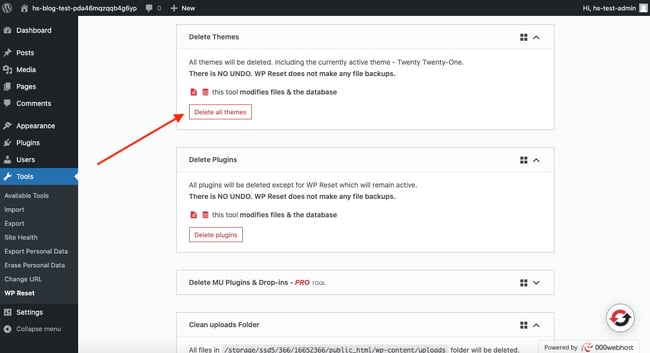
Many plugins can reset themes. WP Reset is popular. Advanced WordPress Reset works well too. Check reviews before choosing. Read ratings and descriptions. Look for easy-to-use options. Most plugins offer basic features. Some provide extra tools. Pick one that suits your needs.
Install the plugin from the WordPress Dashboard. Click “Plugins” then “Add New”. Search for your chosen plugin. Click “Install Now”. After installation, click “Activate”. Activation is important. Without it, plugins won’t work. Make sure it activates correctly.
Find the plugin settings in the dashboard. Look for a reset button. Click to start the reset. Follow any prompts. Some plugins ask for confirmation. Be sure before you reset. Reset removes all changes. Original theme settings return. Double-check your choice.
Manual Theme Reset
To reset a theme, edit its files. Open your WordPress folder. Find the theme directory. Look for the functions.php file. Use a text editor to open it. This file controls many theme settings. Delete lines of code that change settings. Save the file after editing. This resets some theme parts.
Return to default settings easily. Go to your WordPress dashboard. Click on Appearance. Choose Customize. Find the button that says Reset to Default. Press it. This restores settings to default. Most themes have this feature. If your theme lacks this, manual editing is needed. Always backup your theme first. This protects your data.
Post-reset Steps
After resetting your theme, check if everything works fine. Click on each page and see if it opens. Test the buttons to see if they work. Ensure the menu is visible. Images should load without any issues. Make sure all links are working.
Some settings might be lost. Reapply your custom styles if needed. Add the logo back if it’s missing. Change the colors to match your brand. Update the fonts to your liking. Remember to save your changes. This ensures everything looks good.
Troubleshooting Common Issues
Errors can happen while resetting a theme. These errors may stop your work. First, check if the theme is updated. An old theme might cause problems. Next, look at the error message. It often gives clues. Make sure you read each word carefully. If the error is unclear, try a different approach. Sometimes, uninstalling and reinstalling the theme helps. Always have a backup before making big changes. This protects your content if things go wrong. If errors persist, seek help. Support forums are useful. Many people share solutions there.
Compatibility is vital for smooth functioning. Some themes don’t work with all plugins. Check if the theme supports your plugins. If not, you might face issues. Disable plugins to see if the problem resolves. Sometimes, themes need certain WordPress versions. Always use the latest version for best results. Reading the theme’s documentation helps. It often lists supported plugins and versions. If issues continue, consider switching to a different theme. Choose one with better compatibility for your needs.

Credit: wordpress.com
Frequently Asked Questions
How Do I Reset A WordPress Theme?
To reset a WordPress theme, use a plugin like WP Reset. Install and activate it, then navigate to the Tools section. Choose the reset options you prefer, and confirm the reset. This process will restore your theme to its default settings without affecting your content.
Will Resetting A Theme Delete My Content?
No, resetting a theme won’t delete your content. It only reverts the theme’s settings to default. Your posts, pages, and media files remain intact. Always back up your website before making changes to ensure data safety and prevent any accidental loss.
Can I Reset A WordPress Theme Without A Plugin?
Yes, you can manually reset a WordPress theme. Go to Appearance > Themes and activate a default theme. Then, delete and reinstall your current theme. This resets its settings. However, using a plugin is more efficient and less prone to errors.
Why Reset A WordPress Theme To Default?
Resetting a WordPress theme helps resolve customization errors and restore original settings. It’s useful for troubleshooting issues or when switching themes. A reset provides a fresh start, eliminating unwanted changes, ensuring optimal performance, and maintaining a clean design.
Conclusion
Resetting a WordPress theme can simplify your site management. It helps maintain a clean, organized look. Follow the steps carefully to ensure success. Don’t forget to back up your site first. A fresh start can rejuvenate your website’s appeal. Keep your design neat and functional.
Regular updates can enhance user experience. Learn new techniques to improve your site. Stay informed on WordPress tools and tricks. Experiment with themes to find the right fit. Your website deserves the best version of itself. Enjoy the process and watch your site flourish.


