
Are you struggling to load a JavaScript file in your WordPress child theme? You’re not alone.
Many WordPress users find themselves puzzled when it comes to this seemingly simple task. But fear not! In this guide, we’ll break down the process step-by-step, ensuring that even if you’re not a coding expert, you can follow along with ease.
Imagine the satisfaction of seeing your custom scripts come to life on your site, enhancing functionality and user experience. Stay with us, and by the end of this article, you’ll be equipped with the know-how to seamlessly integrate your JS files, giving your WordPress site the edge it deserves. Ready to dive in? Let’s get started!
Basics Of Child Themes
A child theme is a copy of another theme. This main theme is called the parent theme. Child themes help to change the look of a website. They are safe for updates. Changes in the parent theme do not affect the child theme.
A child theme has two main files. These are style.css and functions.php. The style.css file changes the design. Functions.php adds features. You can also load JavaScript files in a child theme.
This is done by adding code in the functions.php file. This makes child themes very useful. They are a great way to customize websites. With child themes, your website looks unique.
Benefits Of Using Child Themes
Child themes offer a safe way to modify a website. They allow changes without altering the original theme. This means updates are easy. The main theme can update without losing custom changes. Safety and flexibility are key benefits.
Using a child theme helps keep the website stable. It reduces errors when the main theme changes. Developers can test new features without risk. This makes it easy to experiment and learn. The child theme acts as a sandbox.
Changes to a child theme are easier to manage. They are stored separately from the main theme. This helps in organizing and tracking modifications. It is a great way for beginners to learn. Understanding child themes improves coding skills.
Setting Up A Child Theme
Start by making a new folder. This folder is your child theme directory. Give it a unique name. It should be related to the parent theme. Keep it simple and easy to remember. This is where all your child theme files will go.
Inside the folder, create a file called style.css. This file will tell WordPress about your child theme. Add some basic information at the top. Include the Theme Name, Template, and Version. This helps WordPress recognize your theme.
To load the parent theme styles, use a functions.php file. Create this file in your child theme folder. Add code to enqueue the parent stylesheet. This code connects your theme to the parent theme’s styles. Make sure to spell everything correctly.
Javascript File Loading
WordPress uses a special way to load files. This way is called enqueue. Enqueue helps to load files safely. It prevents errors and conflicts. To load a JavaScript file, use wp_enqueue_script(). This function is easy to use. It has some important parts. First, the name of your script. Second, the path to your file. Third, dependencies if any. Fourth, the version of your file. Fifth, whether to load in the footer.
First, create a JavaScript file. Name it clearly. For example, custom.js. Save it in your child theme folder. This makes it easy to find. Check your file for errors. Use a text editor to write code. Keep your code simple and clear. Test your code to make sure it works. Fix any issues you find. Your file is now ready to enqueue.
Adding Javascript To Child Theme
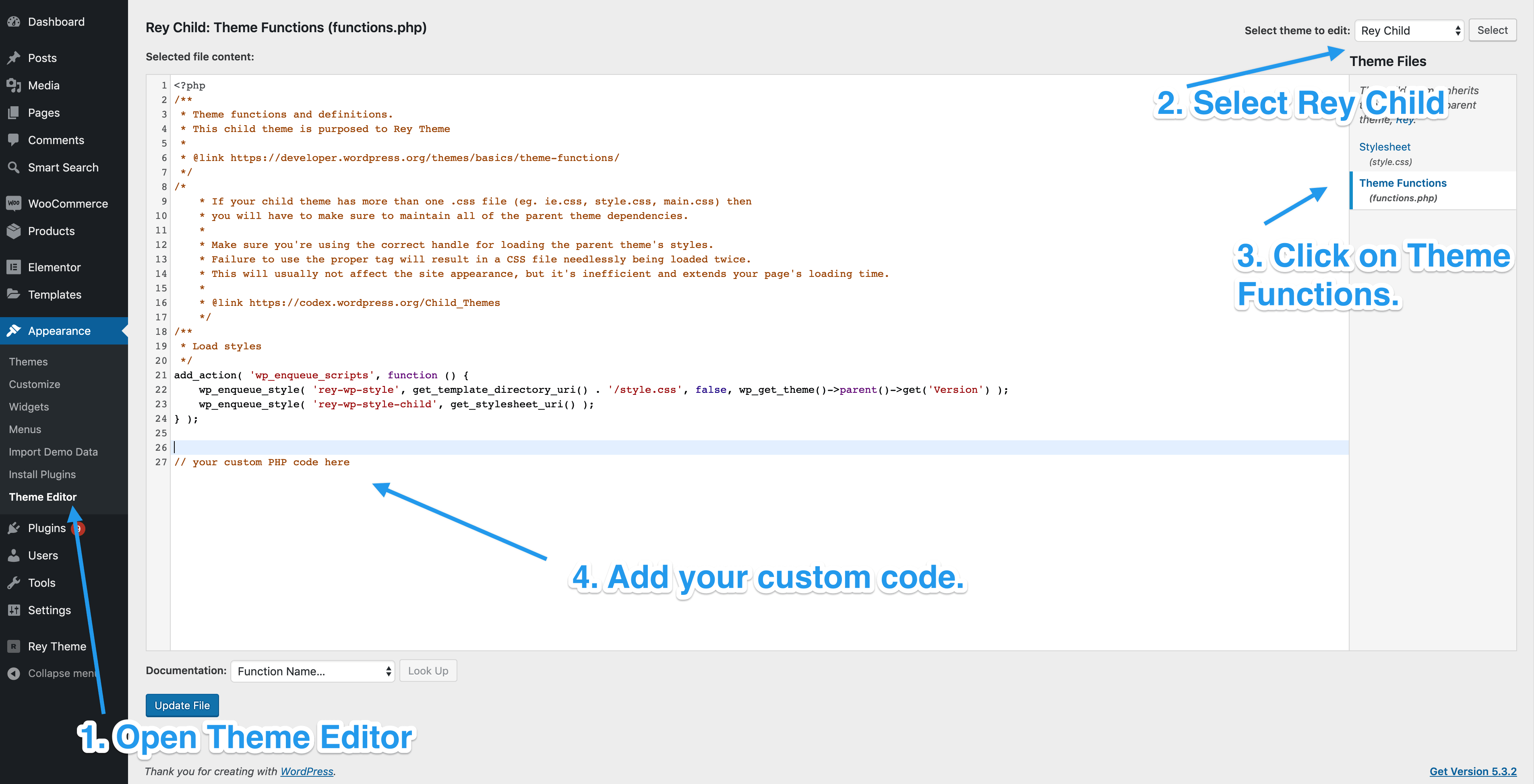
Start by creating a functions.php file in your child theme folder. This file helps in adding custom features. It should be placed in the root of your child theme directory. Use a text editor to open this file. Add your custom code here. This file is important for loading scripts.
The wp_enqueue_script function loads JavaScript files. First, you need to register your script. Use wp_register_script() to register it. Then, enqueue the script using wp_enqueue_script(). This ensures the script loads correctly. Always use these functions in the functions.php file. It helps to avoid conflicts and errors.

Credit: wordpress.stackexchange.com
Managing Script Dependencies
Script dependencies are important for WordPress. They make sure scripts load in the right order. Each script needs a list of other scripts. These are the dependencies. This helps avoid errors. Scripts depend on jQuery, for example. If jQuery is missing, the script fails.
Determining Script Dependencies
First, check your script. See what it needs. Look for library names. These are the dependencies. Write them down. Make a list. Use the list when adding scripts. This ensures the right loading order. Your script works without errors.
Handling Jquery And Other Libraries
jQuery is popular in WordPress. Many scripts use it. Always load jQuery first. Other libraries might be needed too. Check your script. Find out what it uses. Add these libraries as dependencies. Your script loads correctly. It works every time.
Testing Javascript Integration
Check if the JavaScript file loads on your website. Open the browser’s developer tools. Go to the “Network” tab. Reload your webpage. Look for your JavaScript file name. This confirms the file is loading.
Verifying Script Loading
Ensure the script does what it’s supposed to. Test all features. Do buttons work? Does animation run? If something doesn’t work, the script might not be loading right.
Debugging Common Issues
Sometimes, scripts don’t work. Common issues include wrong file paths or naming errors. Double-check the file path and name. Ensure they match in the code. Also, check if dependencies load before your script. Use the console in developer tools for error messages. These messages tell what’s wrong.
Credit: support.reytheme.com
Best Practices For Script Loading
Put important scripts at the top. This helps them load first. Loading order is crucial for site speed. Too many scripts slow down your site. Use asynchronous loading where possible. This allows scripts to load without blocking other content. Place less important scripts at the bottom. This ensures the page loads fast. Always test your site after changes. This helps catch any problems early.
Smaller files load faster. Use tools to compress JavaScript files. Remove unnecessary code from your scripts. This reduces the file size. Combine scripts where possible. Fewer files mean faster loading. Use caching to store scripts locally. This speeds up repeat visits. Always check the site’s performance. Ensure changes improve speed and functionality.

Credit: jetpack.com
Frequently Asked Questions
How Do I Add Javascript To A Child Theme?
To add JavaScript to a child theme, use the `wp_enqueue_script` function. Place this function in your child theme’s `functions. php` file. Make sure to specify the script’s handle, source, and dependencies. This method ensures your JavaScript file is loaded correctly.
Why Is My Js File Not Loading In WordPress?
Your JS file might not load due to incorrect paths or missing dependencies. Check the script path in `wp_enqueue_script`. Ensure all dependencies are loaded before your script. Also, verify that your function is hooked correctly to `wp_enqueue_scripts`.
Can I Load Js In WordPress Without Plugins?
Yes, you can load JS without plugins by using WordPress functions. Use `wp_enqueue_script` in your child theme’s `functions. php`. This method is efficient and recommended for adding JavaScript files.
Is It Possible To Load External Js Libraries?
Yes, you can load external JS libraries using `wp_enqueue_script`. Provide the library’s URL in the source parameter. Make sure the external library’s dependencies are loaded before calling your script to ensure proper functionality.
Conclusion
Loading JavaScript files in a child theme is simple. Follow these steps carefully. Add the code snippet to functions. php. Ensure the file path is correct. This method keeps your site organized. It also helps with future updates. Always check your changes after implementation.
This prevents unexpected issues. Child themes safeguard your main theme. They allow easy customization. You can enhance site functionality without risk. Experiment confidently with new features. Enjoy the flexibility of WordPress child themes. Your website is now ready for dynamic enhancements!


