
Imagine having a WordPress site that perfectly reflects your brand and vision. Sounds exciting, right?
But how do you make your site stand out from the millions of others online? The key lies in customizing your theme. Editing a WordPress theme might sound daunting, but it’s easier than you think. In this guide, you’ll discover simple steps to tweak your theme and make your website truly yours.
Whether you’re looking to change colors, fonts, or layout, you’ll learn how to do it without feeling overwhelmed. Ready to transform your WordPress site into something spectacular? Let’s dive in and unlock the secrets to editing your theme.
Choosing The Right Theme
WordPress themes come in different types. Some themes are free, while others are premium. Free themes often have fewer features. Premium themes offer more customization options. The choice depends on your budget and needs. Think about what you need from your theme.
Consider what features are important for your site. Do you need a responsive design? Is a custom header important to you? Write down your must-have features. This helps narrow down your choices. Remember, your theme should fit your site’s purpose and style. A great theme makes a great website.
Credit: www.greengeeks.com
Setting Up A Child Theme
Creating a child theme in WordPress allows for safe theme customization. This approach ensures your edits remain intact after updates. Follow simple steps to set up and edit without losing changes.
Why Use A Child Theme?
Using a child theme keeps your site safe. It lets you update the main theme. Changes won’t be lost. This is very important. Updates fix bugs and add features. Without a child theme, updates can erase your work. A child theme is your safety net. It also helps you learn. You can try new things without fear. If something breaks, the main theme stays fine. Always use a child theme when editing.
Creating A Child Theme
To create a child theme, make a new folder. This folder goes in the wp-content/themes directory. Name it after your theme with “-child” at the end. Inside, make a file called style.css. Add a few lines of code to this file. Use the Template line to link to the main theme. Also, create a functions.php file. This file can enqueue the styles. Now your child theme is ready. Activate it from your WordPress dashboard.
Accessing Theme Files
Editing a WordPress theme involves accessing theme files through the WordPress dashboard or via FTP. Navigate to Appearance and select Theme Editor for direct access. Ensure to back up files before making changes to avoid losing important data.
Using The WordPress Dashboard
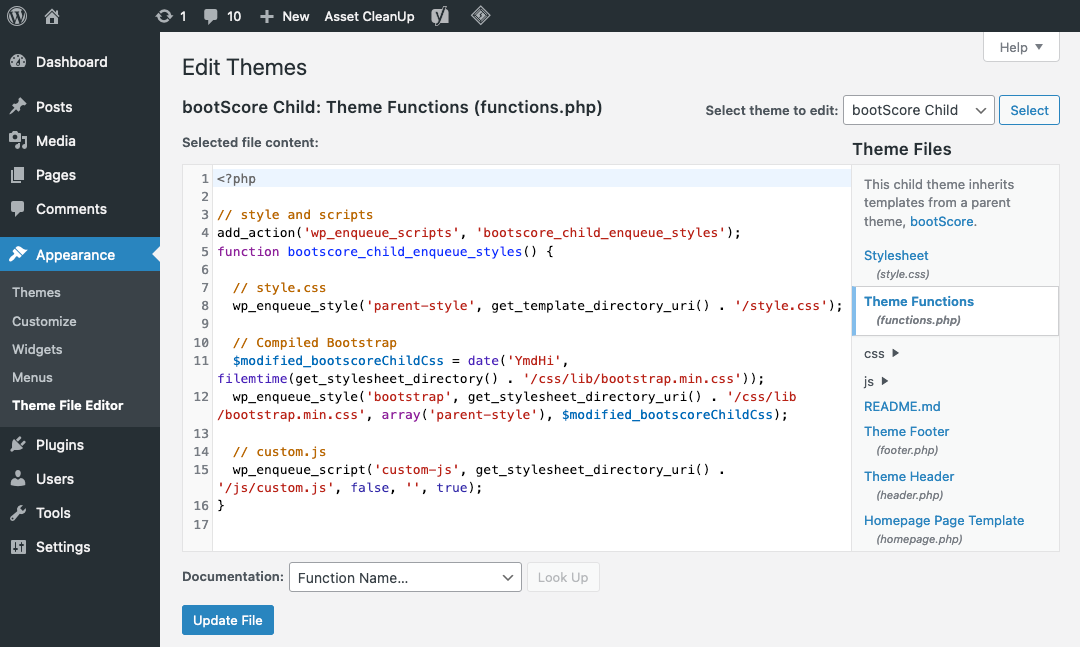
Log into your WordPress dashboard. Go to Appearance, then click Theme Editor. You will see theme files on the right. Click on a file to view or edit. Before making changes, always backup your theme files. Use the editor to make small changes. After editing, click Update File to save changes. Be careful with code. Mistakes can break your site.
Accessing Via Ftp
Install an FTP client like FileZilla. Connect to your website using FTP details. Go to the wp-content folder. Find the themes folder. Open your theme’s folder to access files. Download a file to your computer. Edit using a text editor. Save changes and upload back to the server. Always keep a backup of original files. FTP gives more control over theme files.
Editing Html And Php
Templates shape your site. These files control layout and look. Find them in the theme folder. Open with a code editor. Change HTML and PHP to tweak design. Add or remove elements. Save changes to update site. Always backup files first. Mistakes can break your site.
Headers and footers appear on all pages. Modify them for consistent branding. Locate header.php and footer.php in your theme. Use a code editor for changes. Add logos or menus. Edit links and text. Customize with CSS for style. Check changes in a browser. Backup before editing. This prevents loss if errors occur.
Styling With Css
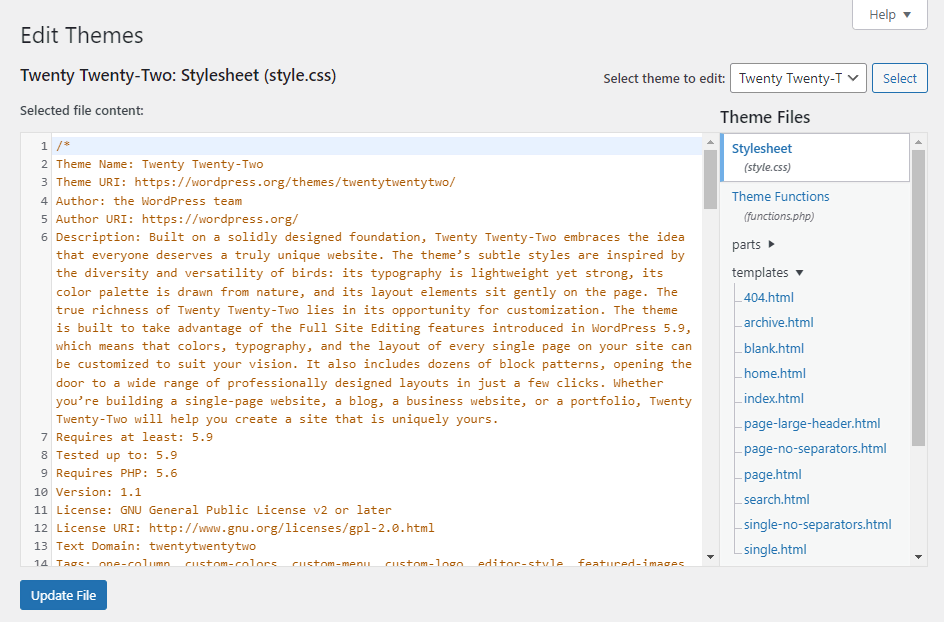
Custom styles help make your site unique. Use them to change colors, fonts, and sizes. First, find the style.css file in your theme folder. Open it in a text editor. Add your custom CSS rules at the bottom. For example, you can change the text color with color: red;. Save your changes and check your site. You should see the new styles applied. Always back up your original files before making changes.
Default styles come with the theme. Sometimes, they don’t match your needs. You can override them with custom CSS. Find the element you want to change. Use your browser’s developer tools to inspect it. Note the class or ID. Add your new styles in the style.css file. Use the same class or ID. This will replace the default styles. Save the file and refresh your site. Check to see the changes. If it doesn’t work, try adding !important to your rule.
Credit: www.hostinger.com
Incorporating Javascript
JavaScript adds cool features to your website. It makes things interactive. Buttons can be clicked, and menus can pop up. This makes sites more engaging. You can add JavaScript to your theme. This will make your site better. Visitors will like it more. It improves the user experience.
Loading scripts in the right way is important. It helps your site run smoothly. Always load scripts at the end of your page. This makes your site faster. Use functions like `wp_enqueue_script`. This helps in loading scripts correctly. It ensures scripts don’t clash. This is good for performance.
Testing And Troubleshooting
Previewing Changes is essential before finalizing edits on a WordPress theme. Use the live preview feature to see changes instantly. This helps in catching errors early. Make sure the theme appears consistent across different devices. Check mobile and tablet views. Adjust elements if they look off. This process ensures a smooth user experience for site visitors.
Debugging Common Issues is crucial for a successful theme edit. If something breaks, start with the error logs. They often show what went wrong. Missing files or incorrect paths are common problems. Double-check your code for typos. Plugins might conflict with themes too. Disable them one by one to find the issue. Fixing bugs ensures the theme runs smoothly.
Using Theme Customizer
The Theme Customizer is a tool in WordPress. It helps you change the look of your site. You can adjust the layout to fit your needs. Want a sidebar? You can add it. Prefer a full-width page? It’s easy to set up. Just click and change. Explore the options. Make your site yours.
Colors and fonts can change how a site feels. In the Theme Customizer, you can tweak these easily. Choose a new color for the background. Pick a font that’s fun or serious. These small changes can make your site look better. It’s your site, make it bright or calm. The choice is yours.
Leveraging Plugins For Customization
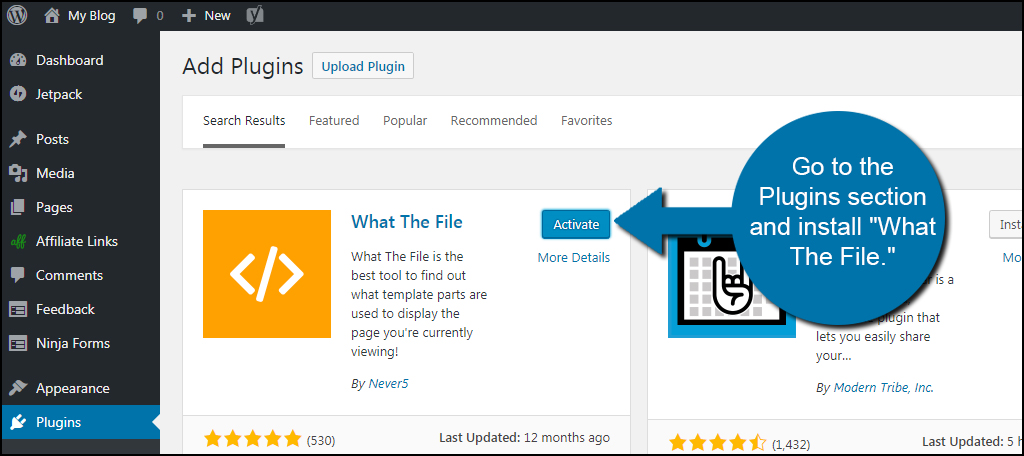
Choosing plugins can change your theme. Look for plugins with good reviews. Check for plugins that fit your theme style. Popular plugins often have support and updates. Check compatibility with your theme before installing. Some plugins can slow down your site. Test plugins on a staging site first. Keep your plugins updated for security.
Plugins can add features to your theme. Some plugins need special settings to work well. Read plugin guides to understand how they fit with your theme. Check settings after installing a new plugin. Sometimes, plugins change theme layout. Adjust theme settings for best look. Back up your site before adding plugins. This helps in case of errors.
Backing Up And Updating
Always create a backup of your theme files. This saves your work if something goes wrong. Use plugins like UpdraftPlus or BackupBuddy. They make backing up easy. Store your backups in a safe place. Cloud storage is a good option. It keeps your data secure.
Updating themes is important. It keeps your site secure and fresh. Before updating, make sure you have a backup. Check the theme’s update details. Some changes may affect your site. Update your theme using the WordPress dashboard. Click on “Themes” and follow the instructions. After updating, test your site. Ensure everything works fine.
Credit: www.wpzoom.com
Frequently Asked Questions
How Do I Edit A Theme In WordPress?
To edit a WordPress theme, access the WordPress dashboard. Click “Appearance” then “Theme Editor. ” Make changes using HTML, CSS, or PHP. Always back up files before editing. Use child themes to preserve changes during updates. Save changes and refresh your site to see updates.
Why Can’t I Edit My WordPress Theme?
You might lack the necessary permissions to edit your WordPress theme. Check your user role and file permissions. Your theme might also be a premium version, requiring a license for customization. Consider using a child theme to safely make changes.
How Do I Edit A Page Theme In WordPress?
Go to your WordPress dashboard. Navigate to “Appearance” and click “Customize. ” Choose your theme options to edit. Save changes by clicking “Publish. “
How Do I Edit An Existing Template In WordPress?
Edit a WordPress template by navigating to Appearance, then Theme Editor. Select the template file to modify. Make desired changes directly in the code editor and save. Ensure you have a child theme to prevent losing modifications during updates. Always back up your site before making changes.
Conclusion
Editing a WordPress theme can be simple with practice. Start small. Change colors and fonts first. Gradually, try more complex edits. Use the WordPress Customizer for easier adjustments. Always back up your site before changes. Mistakes happen. A backup saves your work.
Online resources can guide you further. Join forums for support and tips. Learning at your own pace is key. Enjoy the process and watch your skills grow. Soon, your WordPress site will reflect your unique style. Feel empowered to create and customize.
Keep exploring and experimenting. Your perfect theme awaits!


