
Have you ever felt that your WordPress site could use a splash of color to truly reflect your brand’s personality? Changing the text color in your WordPress theme is a simple yet powerful way to enhance your site’s visual appeal and make your content pop.
Whether you’re aiming to draw attention to a special announcement or just want to inject some vibrancy into your posts, adjusting text color can make a big difference. In this guide, you’ll discover just how easy it is to tweak those colors to suit your style and captivate your audience.
Stick around, because by the end of this article, you’ll be ready to transform your website’s look with just a few clicks. Let’s dive in and unleash the full potential of your WordPress theme!

Credit: stackoverflow.com
Accessing The WordPress Dashboard
First, log in to your WordPress Dashboard. Use your username and password. The dashboard is your main control panel.
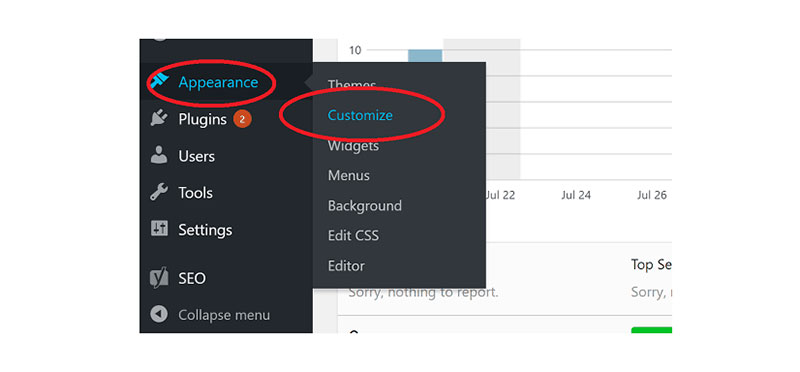
Find the Appearance option on the left menu. Click on it. This leads to various theme settings. Themes, Customize, and Widgets are some choices.
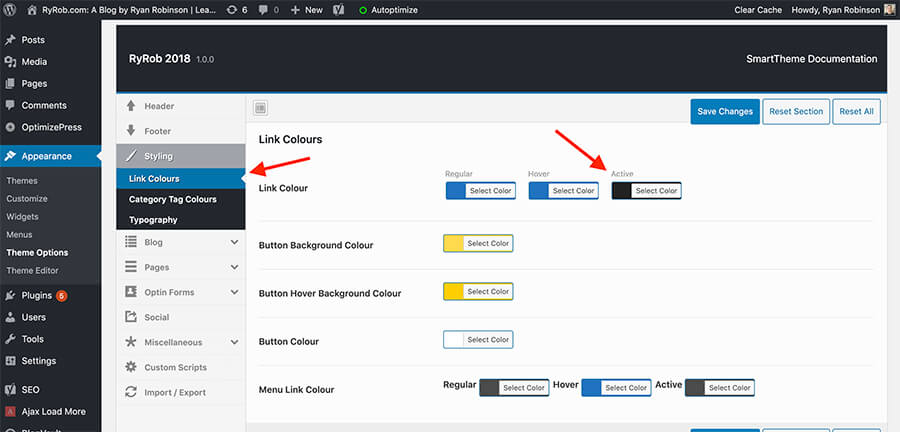
To change text color, choose Customize. A new page opens. Here, you can make design changes. Look for Colors or Typography. Click on it to start editing.
You can see text color options. Pick a color that fits your style. Save changes when done. Your website now has a fresh look.
Using The WordPress Customizer
Begin by accessing your WordPress dashboard. Find the Appearance section on the left side. Click on Customize. The Customizer window will open. This is where you can make changes to your theme. Explore the options available here.
Inside the Customizer, look for Typography settings. This section controls text styles. You might find it under a menu item like Theme Options. Sometimes, it’s labeled as Fonts or Colors. Click on it to see more options. Each theme may label this differently.
Once in Typography settings, find Text Color. Click to open the color picker. Choose a new color by clicking on it. Watch how the text changes instantly. If satisfied, click Publish to save changes. Your website will now show the new text color.
Editing Css For Text Color
Changing text color in a WordPress theme involves editing CSS. Locate the theme’s stylesheet in the WordPress dashboard, then adjust the color code for the desired text elements. This simple tweak allows you to customize the appearance of your site effectively.
Accessing Additional Css
To change text color, first access the WordPress Dashboard. Find the Appearance tab on the left. Click on Customize to open the customizer screen. Locate the Additional CSS section. This is where you can add your own CSS code. Remember, changes here affect how your site looks.
Writing Custom Css For Text
In the Additional CSS area, type your CSS code. To change text color, use the color property. For example, type p { color: red; } to make paragraphs red. Replace “red” with any color name you like. This code changes the text color for all paragraphs.
Applying Css Changes
After writing your CSS, preview the changes. Click the Publish button to save. Check your website. Ensure the text color is correct. If not, adjust the CSS code. Refresh the page to see updates. Keep your code simple for the best results.
Credit: www.ryrob.com
Using A WordPress Plugin
Plugins make it easy to change text colors. Search for WordPress plugins that offer text color features. Read user reviews to check reliability. Look for plugins with high ratings. This helps find the best plugin. Choose plugins that are easy to use. Simple plugins save time.
Install the plugin from the WordPress dashboard. Click on ‘Plugins’ then ‘Add New’. Search for your chosen plugin. Click ‘Install Now’ next to the plugin name. After installation, click ‘Activate’. Activating makes the plugin ready to use.
Go to the plugin settings. Find the color options. Choose your preferred text color. You may see a color palette. Select colors that match your theme. Save changes to update text colors. Check your site to see the new look.
Testing And Previewing Changes
Check how your text color looks in various browsers. Open your website in Chrome, Firefox, and Safari. Each browser might display colors differently. Some colors may look brighter or dimmer. Ensure your text remains clear and readable. This helps you to pick the best color for your theme. You want your text to look good everywhere.
Mobile phones show colors differently than computers. Test your text color on a phone and tablet. Make sure the color looks nice on all screen sizes. Check if the text is easy to read. Sometimes small text with light colors can be hard to see. Your goal is to make sure everyone can read it easily. This is important for a great user experience.
Troubleshooting Common Issues
Sometimes, you change text color, but it doesn’t show. Clear your browser cache. This might help. Check if the theme settings are saved. Look at the WordPress theme options. Ensure they are correct. Refresh your page to see changes. Use a different browser to test. This can solve the problem.
Plugins can cause color change issues. Disable plugins one by one. Check if the text color appears after each. Some plugins override theme settings. Identify the plugin causing trouble. Update it or find an alternative. Ensure all plugins are compatible with your theme. Sometimes, a plugin update can fix conflicts. Always keep plugins updated.
Credit: wpdatatables.com
Frequently Asked Questions
How Do I Change Text Color In WordPress Theme?
To change text color, navigate to your WordPress dashboard. Go to Appearance > Customize. Select ‘Colors’ or ‘Typography’ depending on your theme. Adjust the text color settings to your preference. Save changes and preview your site to ensure the desired effect.
Can I Change Text Color Using Css In WordPress?
Yes, you can change text color using CSS. Go to Appearance > Customize > Additional CSS. Add a CSS rule targeting the specific text element and specify the color. For example: `p { color: #000000; }`. Save the changes and check your site to confirm the new color.
What Plugins Help Change Text Color In WordPress?
Plugins like ‘Yellow Pencil’ and ‘WPBakery Page Builder’ allow you to change text color easily. These plugins provide visual editors to customize text color without coding. Install and activate your preferred plugin, then use its interface to modify text colors on your website.
Is Changing Text Color Theme-specific In WordPress?
Yes, text color options can be theme-specific. Some themes offer more customization options than others. If your theme lacks options, consider using CSS or a plugin. Check your theme’s documentation or support for specific instructions on changing text colors.
Conclusion
Changing text color in WordPress themes is straightforward. Follow the steps outlined earlier to customize colors easily. Adjusting text color enhances your site’s look and feel. It helps convey your brand message effectively. Remember to preview changes before saving them.
This ensures your design stays consistent and appealing. Keep experimenting with different shades until you find the perfect match. Regular updates keep your site fresh and engaging. Your website will stand out with the right color choices. Happy editing and designing your WordPress theme!


