
Struggling to activate your WordPress theme via FTP? You’re not alone.
Many WordPress users find this task daunting, especially when the usual dashboard method isn’t an option. But don’t worry, you’ve come to the right place. Imagine transforming your website with the perfect theme in just a few simple steps. By the end of this article, you’ll have the confidence to activate any theme via FTP, unlocking a whole new level of customization for your website.
Let’s dive in and get your site looking just the way you want.
Understanding WordPress Themes
WordPress themes change the look of your site. They have different styles and layouts. Each theme can give your site a unique feel. Some themes are for blogs. Others are for business websites. You choose based on what you need.
Themes are made of files. These files tell your site how to look. To use a theme, you must activate it. This is like turning it on. Once active, your site will have a new design. Activating a theme can be done in several ways. One way is using FTP. FTP stands for File Transfer Protocol. It helps you move files from your computer to your website.

Credit: visualmodo.com
Why Use Ftp For Theme Activation
FTP helps in activating themes easily. It is safer than other methods. Themes can be changed without logging into WordPress. It saves time and effort. Using FTP is simple and quick. Files are uploaded straight from your computer. This way, themes are installed faster. No need to use WordPress dashboard. It helps when the dashboard has errors. FTP works even if WordPress is broken. It is reliable and always ready to use. Themes are moved with just a few clicks. This method is great for beginners.
Preparing For Ftp Access
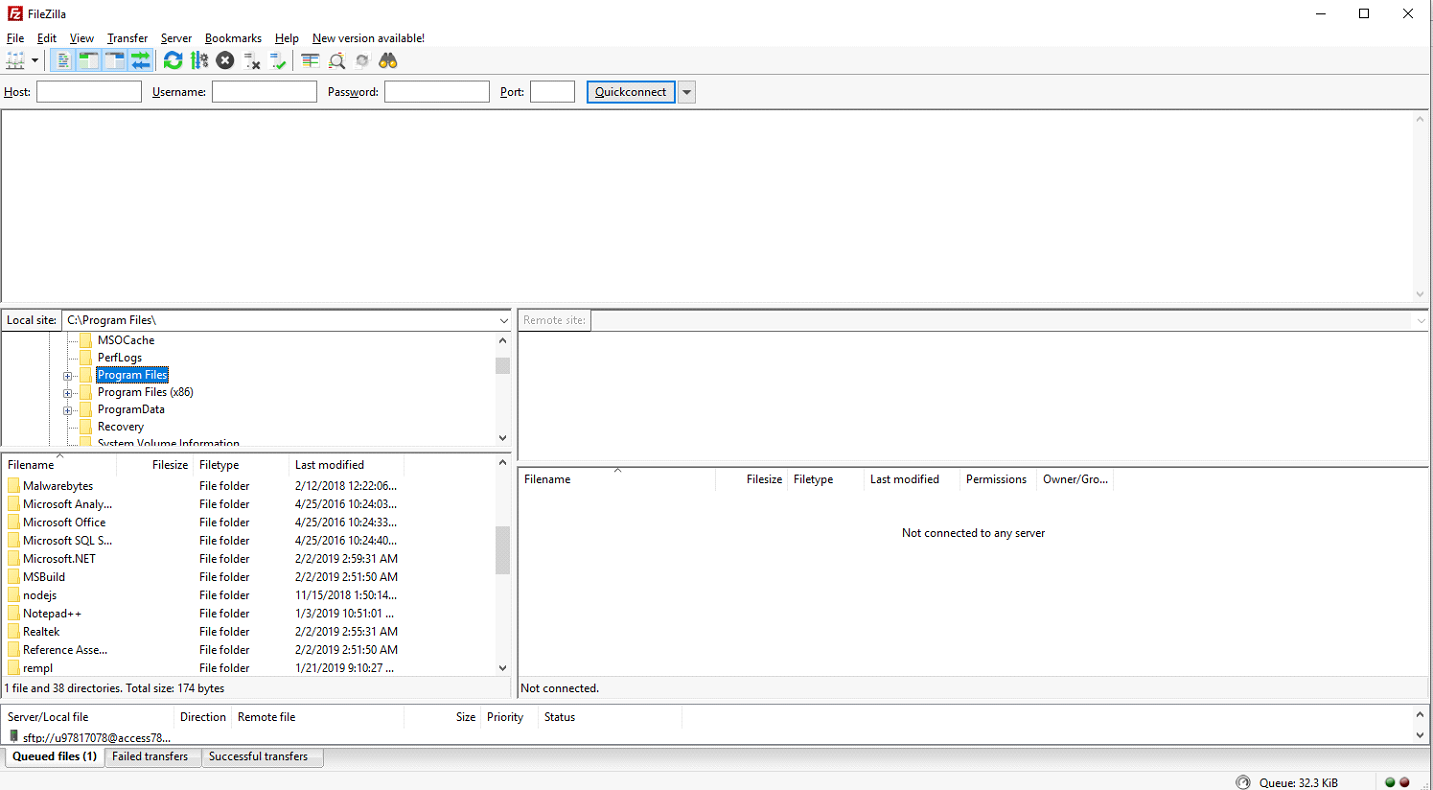
To activate a WordPress theme, you need an FTP client. This tool helps you move files between your computer and the server. Some popular FTP clients are FileZilla, Cyberduck, and WinSCP. Each has its own features. FileZilla is easy to use and free. Cyberduck is also free and works on both Mac and Windows. WinSCP is best for Windows users. Choose one that fits your needs. Download and install it on your computer.
FTP credentials are like keys. They let you access your website files. These credentials include a host, a username, and a password. You can find them in your hosting account. Log in to your hosting account. Look for the FTP section. Copy your credentials carefully. Keep them safe. You will need them to connect your FTP client to the server.
Uploading Theme Files Via Ftp
First, find the WordPress theme directory. Open the FTP client. Connect to your website. Go to the wp-content folder. Inside, find the themes folder. This is where all themes live. Remember this location for later.
Download the theme files to your computer. Unzip the files if they are compressed. In the FTP client, navigate to the theme folder. Drag and drop the theme folder from your computer. Make sure all files transfer completely. Once done, check the theme in your WordPress dashboard. Activate it from there.
Activating The Theme In WordPress Dashboard
Activating a WordPress theme via FTP is a straightforward process. Upload the theme folder to the ‘wp-content/themes’ directory using an FTP client. Then, go to the WordPress dashboard and activate the theme from the ‘Themes’ section.
Accessing Appearance Settings
Log into your WordPress dashboard. On the left, find the Appearance menu. Click it. You will see the Themes option. Here, you can view all your themes. Choose the theme you wish to activate.
Selecting And Activating The Theme
Once you find the theme, hover over it. A button will appear. Click Activate. Your theme is now active. Check your site to see changes. You can always switch themes here. It’s easy and quick.
Credit: helpcenter.qodeinteractive.com
Troubleshooting Common Issues
Activate your WordPress theme via FTP by uploading the theme folder to the wp-content/themes directory. Ensure correct file permissions for smooth activation. Troubleshoot common issues by verifying file paths and rechecking theme compatibility.
Fixing Upload Errors
Many face upload errors with WordPress themes. First, check the file size. Sometimes, files are too big. Try splitting large files. Also, ensure the file is in a .zip format. WordPress only accepts this format. Next, check your internet connection. A weak connection can cause issues. Lastly, verify your FTP settings. Incorrect settings lead to errors.
Resolving Activation Problems
After upload, themes might not activate. This can be frustrating. Check if the theme is compatible with your WordPress version. Older themes might not work. Also, deactivate other plugins. Some plugins cause conflicts. If issues persist, check your PHP version. Update PHP if needed. Ensure all files are in the theme folder. Missing files can cause problems.
Best Practices For Theme Management
Activating WordPress themes via FTP involves uploading theme files to the wp-content/themes directory. Access your hosting account using an FTP client. Transfer the theme’s unzipped folder into the specified directory. Once uploaded, navigate to the WordPress dashboard to activate the theme under the “Appearance” section, ensuring smooth and efficient theme management.
Regular Backups
Backing up your website keeps your data safe. It helps in case of mistakes. You can use plugins to backup your site. Store backups on cloud services or external drives. Check your backups often to ensure they work. This practice saves your site from data loss.
Keeping Themes Updated
Updating themes fixes bugs and improves security. Themes with updates run better and safer. Use the latest theme versions for best results. Set reminders to update themes regularly. Updates add new features and enhance performance. Avoid using outdated themes to keep your site secure.

Credit: docs.presscustomizr.com
Frequently Asked Questions
How Do I Access Ftp For WordPress?
Access FTP by using an FTP client like FileZilla. Enter your website’s FTP credentials provided by your hosting service. These include server address, username, and password. Once connected, you can view and modify files in your WordPress directory. This method is useful for manual theme activation.
Can I Activate Themes Via Ftp?
Yes, you can activate themes via FTP. First, upload the theme folder to the “wp-content/themes” directory using an FTP client. Then, log into your WordPress dashboard. Navigate to Appearance > Themes and activate the uploaded theme. This method bypasses the WordPress admin theme uploader.
Why Use Ftp To Activate Themes?
Using FTP to activate themes helps when facing upload errors. FTP allows direct file management, bypassing common dashboard limitations. It’s useful for large themes or when the WordPress admin is inaccessible. This method ensures themes are correctly placed in your directory for activation.
What Is The Correct Theme Folder Path?
The correct theme folder path is “wp-content/themes” within your WordPress directory. Upload your theme’s extracted folder here using FTP. Ensure the folder contains all necessary theme files. This placement allows WordPress to recognize and list the theme for activation via the dashboard.
Conclusion
Activating a WordPress theme via FTP is simple. You follow a few steps. First, connect to your server. Then, upload the theme files. Next, access the dashboard. Finally, activate the new theme. This method helps when themes don’t upload normally.
Troubleshooting becomes easier. Plus, it saves time and frustration. Remember, practice makes perfect. Try it a few times. Soon, you’ll do it easily. Always back up your site first. This ensures safety. Happy website building! Enjoy exploring new themes. Your site deserves a fresh look.
Keep learning and improving.


