
You’ve probably found yourself browsing through various WordPress themes, trying to find the perfect fit for your website. But what if you’re already using a theme and want to know if it’s a child theme or a parent theme?
Understanding this difference is crucial, especially when it comes to customization and updates. In this post, we’ll unravel the mystery of identifying which WordPress theme is the child. You’ll gain insights that not only enhance your site management skills but also empower you to make informed decisions.
Get ready to dive into the world of themes with confidence. By the end, you’ll have the clarity you need to take your WordPress site to the next level. Keep reading to discover how simple it is to identify and leverage your theme’s true potential.

Credit: meancreative.com
Identifying Parent And Child Themes
A child theme uses a parent theme as a base. To spot the child theme, look for a special file. This file is named style.css. It tells you the theme’s name and type.
Inside this file, you see a line called Template. This line shows the parent theme’s name. If this line is missing, it is likely not a child theme.
The child theme’s folder usually has fewer files. It may have just a few custom files. This helps you know which is the child. Always check the style.css file for clues.
Theme Structure Basics
Parent themes are the main frameworks in WordPress. They provide all the basic features and styles for a website. Imagine the parent theme as the foundation of a building. It holds everything together and makes sure the site works well. Without a parent theme, there is no structure. Parent themes are crucial in WordPress.
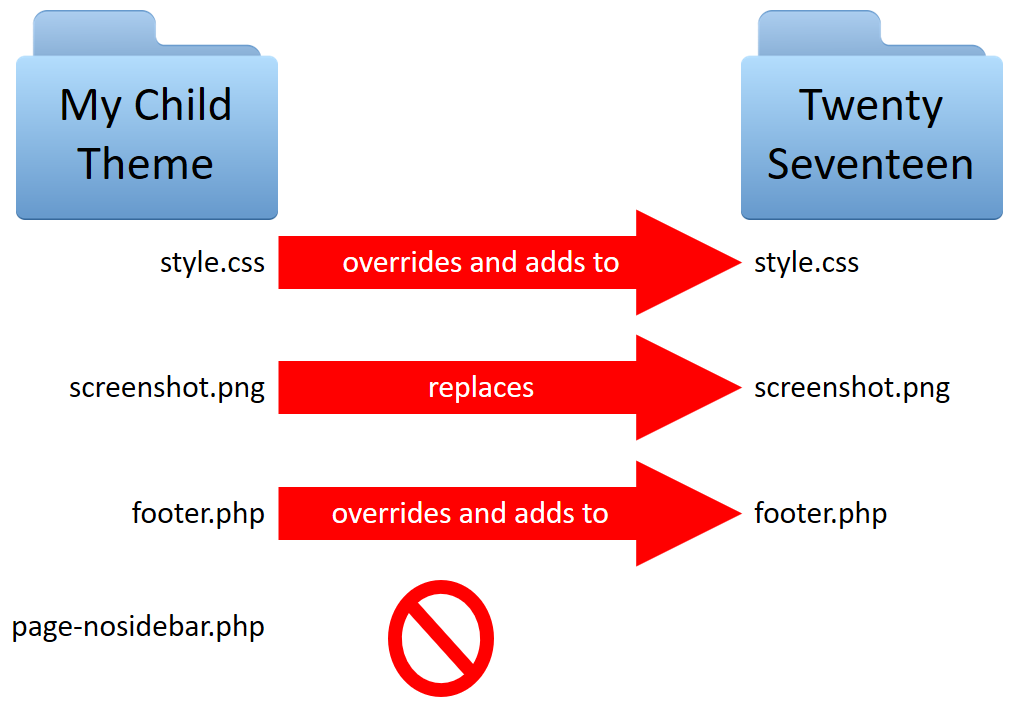
Child themes let users change a site without touching the parent theme. This means you can update the parent theme and keep your customizations safe. Child themes are like making changes on a copy rather than the original. They are useful for designers and developers. They make sure your changes stay even after updates. Child themes ensure flexibility.
Inspecting Theme Files
The style.css file is important in WordPress themes. It holds key information about the theme. Look for a line that says “Template”. This line shows the name of the parent theme. If you see this, the theme you are checking is a child theme.
Child themes often have a functions.php file. This file adds extra features. Parent theme files usually remain unchanged. Templates in a child theme may override the parent. Check for similar files in both themes. Differences show what the child theme changes.
Using WordPress Dashboard
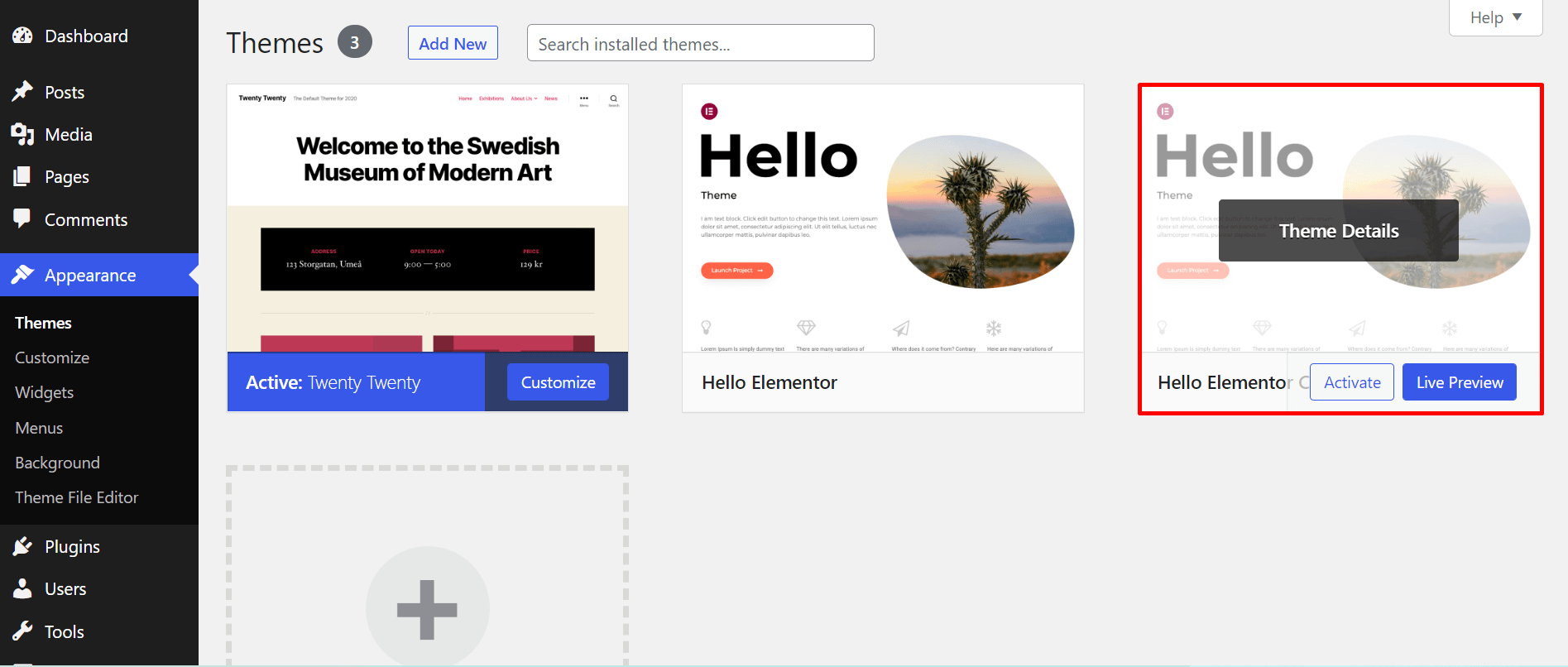
Navigate the WordPress Dashboard to identify the child theme. Access “Appearance” and select “Themes. ” The child theme often states its parent theme in its description. This approach helps in distinguishing themes effectively.
Appearance Section
Finding the child theme is easy in WordPress. Go to the Appearance section. Click on Themes. Here, you will see a list of themes. Look for the active theme. Click on it to view more details.
In the theme details, search for the word “child”. Child themes usually mention their parent theme. This helps you know which theme is the child. If you do not see “child”, it might be the parent theme.
Check the Theme Details and Info section. You will find information about the theme’s author and version. Look for the template line. This line shows the parent theme’s name if it is a child theme.
Theme Documentation Review
Official documentation is key to finding a child theme. The main theme usually has detailed instructions. Check for notes on child themes. Sometimes, authors include a section about this. Look for any installation tips. Also, find customization steps. This can reveal if a theme is a child.
Many people discuss themes online. Forums can offer useful hints. Often, users share their theme experiences. Search for threads about your theme. Sometimes, users mention if it’s a child theme. Websites with theme reviews can help too. They often list theme details. Always cross-check different sources.
Credit: happyaddons.com
Utilizing Theme Detection Tools
Online theme detectors can help find the child theme. You just enter your website’s URL. The tool analyzes your site and identifies the theme. Some tools show both parent and child themes. This helps in understanding theme structures. These tools are easy to use and often free. They offer quick results in seconds. Many users find them helpful for theme research.
Browser extensions are another way to detect themes. They work directly in your browser. After installation, they show theme details. Extensions often reveal the theme name and author. This helps in identifying the child theme. Some extensions provide extra details like version numbers. They are convenient and save time. Users can access them with a simple click.
Common Misconceptions
Many people mix up parent and child themes in WordPress. A parent theme is the main theme. It comes with all basic features. A child theme uses the features of a parent theme. But it lets you change the look without breaking things. People often think a child theme needs more coding. That is not true. It just needs a few lines of code. This can be very simple for beginners.
Some believe that child themes are always slower. This is not always true. Both parent and child themes can be fast. It depends on how you use them. Another myth is that child themes are hard to update. In reality, they make updates easier. Parent themes can update without losing your changes. This is why many choose child themes for their websites.
Credit: learn.wordpress.org
Best Practices For Theme Selection
Choosing the right WordPress theme involves identifying child themes effectively. A child theme inherits the main theme’s functions but allows customization without altering the parent theme. Look for a style. css file with ‘Template’ to spot a child theme, ensuring easy updates and modifications.
Choosing Reliable Themes
Pick themes from trusted sources. Choose themes with good reviews. Look for themes updated regularly. Updates keep themes secure and fast. Check how often themes get updated. Frequent updates mean better performance. Read user feedback before choosing. Feedback tells you about theme issues. Avoid themes with negative reviews. Reliable themes make websites safer and faster.
Ensuring Compatibility
Ensure themes work with your plugins. Compatibility matters for smooth operation. Test theme before using it. Use a staging site to test. Staging sites help find errors early. Check theme documentation for details. Documentation shows if plugins are supported. Avoid themes with low compatibility. Better compatibility leads to fewer problems. Compatible themes make sites work well.
Frequently Asked Questions
How Do You Identify A WordPress Child Theme?
To identify a WordPress child theme, check the theme’s directory. It will have a ‘style. css’ file with a ‘Template’ line referencing the parent theme. Alternatively, use the WordPress dashboard to view active themes. The child theme will list its parent under ‘Template’.
Why Use A Child Theme In WordPress?
Using a child theme in WordPress allows customization without affecting the parent theme. This ensures that updates to the parent theme don’t overwrite your custom changes. It provides flexibility and security, preserving your site’s unique design and functionality.
Can I Make Changes To A Parent Theme?
You can change a parent theme, but it’s risky. Direct changes get overwritten during updates. Instead, use a child theme. This allows you to customize safely, keeping your modifications intact even after parent theme updates.
What Happens If A Parent Theme Is Deleted?
If the parent theme is deleted, the child theme will break. It relies on the parent theme’s files for functionality. Always ensure the parent theme is intact. Keep backups and regularly update both themes to maintain site stability.
Conclusion
Understanding child themes in WordPress is crucial. They preserve modifications safely. Recognizing them improves your site management skills. Look for the child theme’s folder in your theme directory. It usually contains a “style. css” file with a template name. This template name points to the parent theme.
Knowing this helps you customize without risk. You maintain the original design and functionality. Keep exploring WordPress themes. Enhance your site’s appearance and performance. Child themes offer flexibility and security. They are a smart choice for WordPress users. Stay informed and make the most of your site.


