
Are you tired of your WordPress website showing the same old pages in the header every time someone visits your homepage? Imagine having the power to decide exactly which pages catch your visitors’ attention first.
Whether you want to highlight your latest blog posts, showcase your services, or simply refresh your site’s look, customizing your header can make a huge difference. This guide will walk you through the steps to control which pages appear in your WordPress header, giving you the flexibility to tailor your site to your goals.
Ready to transform your homepage into a dynamic gateway to your content? Let’s dive in and discover how you can take charge of your site’s first impression.
Customizing WordPress Header
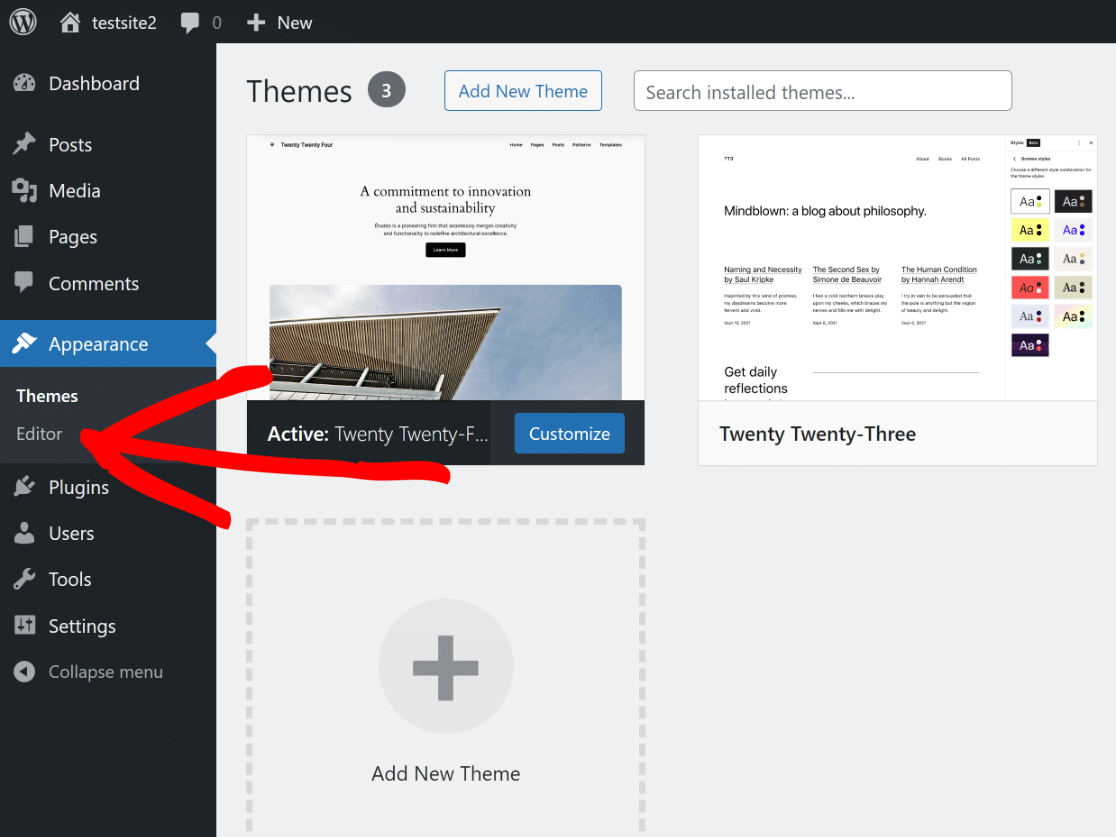
Editing the WordPress header is easy. You can select which pages show up. Use the WordPress dashboard to do this. Find the menu option under appearance. Click on it to see your menu items. You can add or remove pages from here. Drag pages to reorder them. This changes the order they appear on the header. Save changes to update the header.
Plugins can help with header changes. Many plugins offer customization features. Header plugins are available in the WordPress plugin directory. Search for one that fits your needs. Install and activate it. Follow instructions to customize your header. Some plugins offer design options. Others offer visibility settings for your pages. Choose a plugin that suits your site’s style.
Custom headers make your site unique. They improve navigation. Help visitors find important pages fast. Keep your site organized and easy to use. Custom headers can reflect your brand. Make sure to update them regularly. Ensure they match your site’s current focus. This keeps your site fresh and engaging.
Accessing The WordPress Dashboard
First, open your web browser. Type your website’s URL. Add “/wp-admin” at the end. Press “Enter” to load the page. A login screen will appear. Enter your username and password. Click the “Log In” button. Now, you see the WordPress Dashboard.
This Dashboard is your command center. Here, you control your website. You can add new posts and pages. Change themes and plugins too. Make sure you explore all options. The Dashboard is simple and user-friendly. You’ll find what you need quickly.
Navigating To Menus Section
To change what pages show up, go to your WordPress dashboard. Find the “Appearance” tab on the left. Click on it. A list will appear. Choose “Menus” from the list. You will see your current menu. It shows pages on your site. You can add or remove pages here.
Look at the left side of the screen. You will see a list of pages. To add a page, check the box next to it. Then, click “Add to Menu”. To remove a page, find it in the menu. Click the small arrow next to it. Click “Remove”.
Arrange pages by dragging them up or down. Make sure to save changes. Click the blue “Save Menu” button. Now, your header shows the pages you want.
Credit: wpforms.com
Selecting The Primary Menu
Choose the primary menu for your site. This menu appears on the homepage. Find it in the WordPress dashboard. Click on Appearance and select Menus. Here, you can see all available menus. Pick the one you want to use.
Ensure it has the right pages. Add or remove pages as needed. Click on Save Menu to confirm changes. The menu shows the pages you select. Make sure it fits your site’s needs. Always check the menu after saving.
Adding Pages To The Header Menu
Want to make your header menu better? Follow these steps. First, go to the WordPress dashboard. Then, find the Appearance tab. Click on Menus. This opens the menu editor. Check the list of pages. You can see all your pages there. Choose the pages you want. Click the checkbox for each page. Now, press Add to Menu. Your pages are now in the menu list.
Arrange your pages. Drag and drop each page. Put them in the order you like. Use the Save Menu button. This saves your changes. Now, check your website. Your header menu shows new pages. Easy and fast. You did it!
Removing Pages From The Header Menu
Many want a clean header menu. Some pages are not needed. You can make your site look better. First, go to the WordPress dashboard. Find the Appearance section. Click on Menus. It shows a list of pages. Check the boxes next to the pages. You want to remove them. Then, click Remove.
After removing, save your changes. This keeps the menu neat. Your visitors will find things easily. If you change your mind later, you can add pages back. Just return to the Menus section. It’s simple and easy.
Reordering Menu Items
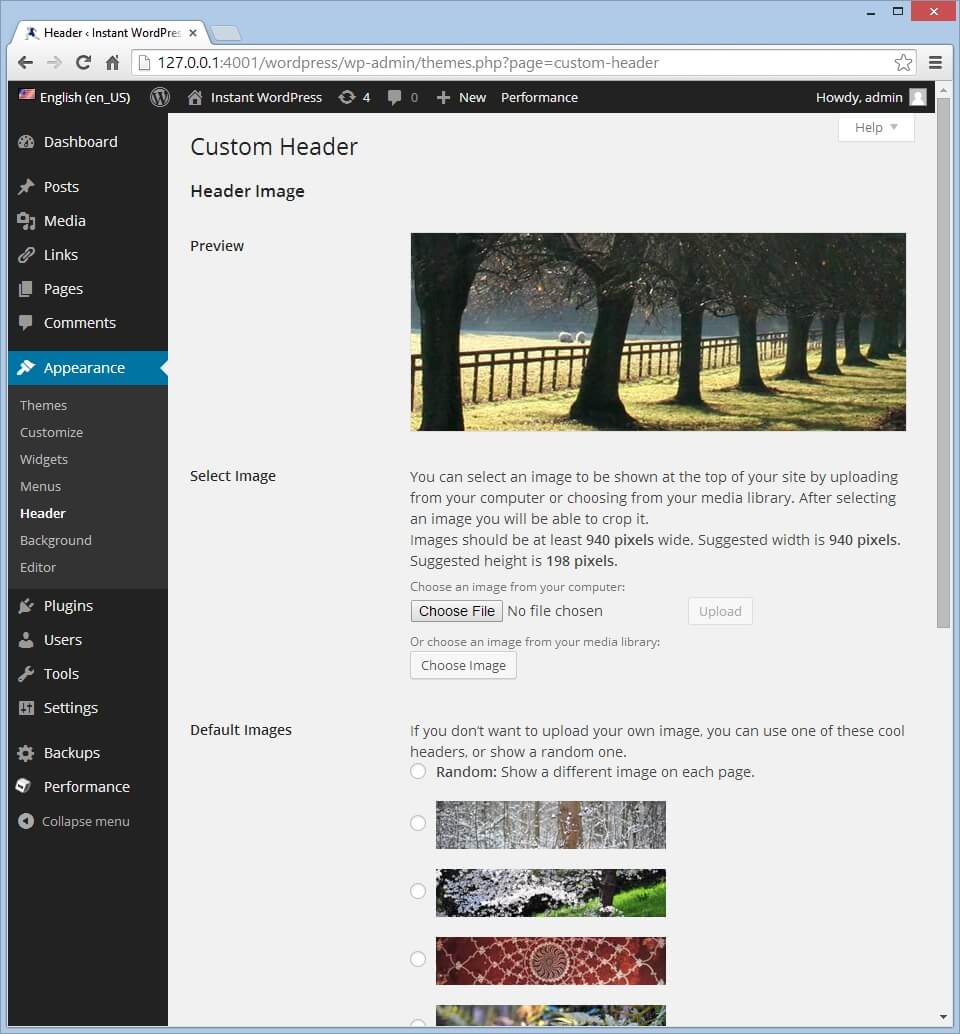
Moving items in your WordPress menu is easy. First, go to the Appearance section. Then, click on Menus. Here, you’ll see a list of menu items. Drag the items to their new position. Watch as they move up or down. You can place them in any order you like.
Want to create a submenu? Simply drag an item a bit to the right. It will become a child item. This makes it part of a dropdown menu. Always remember to click Save Menu. This keeps your changes. Now, your header menu looks just how you want it.
Credit: www.theblogstarter.com
Creating Custom Links
Custom links help show specific pages on the homepage header. This makes navigation easy for visitors. To add a custom link, first find the menu section in your WordPress dashboard. Choose the page you want in the header. Click ‘Add to Menu’. You can change the link name. This helps visitors understand the link easily.
Arrange the menu items in the order you like. Drag and drop items to reorder them. Use the ‘Save Menu’ button to keep changes. You can add external links too. Just use the ‘Custom Links’ option. Enter the URL and link text. Save it to your menu. Make sure the theme supports custom menus. Check the theme documentation for details.
With custom links, you control what appears in the header. This makes the site more personal and user-friendly.
Assigning Menus To Locations
Menus help users navigate your site. They show important pages. To set this, go to the dashboard. Find the Appearance tab. Click on Menus. Here, you can see your menu list. Pick the menu you want to change.
Look for the Menu Settings. It is at the bottom. There, find the Display location option. Select the location you want. It could be the header or footer. Click Save Menu when you’re done. Now, your menu is in the right spot.
You can add or remove pages from the menu. This helps control what shows up. Keep the menu simple. Too many links can confuse users. Make sure it is easy to use.
Saving Changes And Previewing
After editing, click Save Changes. This keeps your updates safe. Want to see your changes? Use the Preview button. It shows how your site looks now. Check if all pages show correctly. Verify links work well. Ensure images display properly. Adjust if needed. Preview helps spot mistakes. It allows corrections before publishing. An important step. Never skip it. Preview often. It saves time later. It prevents errors. Gives confidence. Your site should look professional. Make sure it does.
Remember, changes only show after saving. Preview doesn’t save them. Always click save after previewing. This finalizes your updates. Then, check again. Double-check everything. Ensure perfection. It’s a simple process. Yet very important.
Using Plugins For Advanced Customization
Plugins can help to change what pages show up in the header. They offer simple ways to customize the header. With plugins, you can select which pages to display. It is easy to manage pages with a few clicks. Plugins often come with user-friendly interfaces. These interfaces make changes quick and easy. Many plugins are free to use. Some have more features for a small fee. Always check plugin reviews before downloading. Good reviews mean the plugin works well. Plugins update often for security reasons. Keep them updated for best results. Choose plugins that fit your needs. Look for ones that support your theme. Using plugins can make header changes straightforward.

Credit: visualmodo.com
Troubleshooting Common Issues
Sometimes, pages don’t show up in the header menu. This can be confusing. Check your menu settings first. Make sure the right pages are selected. Go to the WordPress dashboard. Click on “Appearance” and then “Menus.” Look for missing pages and add them back.
If pages still don’t show, check for theme issues. Some themes have custom settings. These can hide pages in the header. Visit the theme settings and see if something is off.
Another reason could be a plugin conflict. Disable plugins one by one. This helps find the troublemaker. After finding it, look for updates or alternatives. Keeping plugins updated is important. This can solve many problems.
Frequently Asked Questions
How To Change Homepage Header Pages In WordPress?
To change pages in your WordPress homepage header, navigate to Appearance > Menus. Select the header menu, then choose or remove pages from the menu structure. Save changes to update the homepage header. This process allows customization of the navigation experience for visitors.
Can I Hide Specific Pages From The Header?
Yes, you can hide pages from the header in WordPress. Go to Appearance > Menus, select the header menu, and remove unwanted pages. Save your changes. This action will hide the specific pages from appearing in the header navigation.
How Do I Add Custom Links To The Header?
To add custom links, go to Appearance > Menus. Under the “Custom Links” section, enter the URL and link text. Add it to the menu and position it as desired. Save changes to update your header with the new custom link.
Why Aren’t Header Changes Appearing Immediately?
Header changes may not appear immediately due to caching. Clear your browser cache or any caching plugins in WordPress. This should refresh the changes. If issues persist, contact your hosting provider for further assistance.
Conclusion
Customizing your WordPress homepage header can enhance user experience. Simple adjustments make navigation smoother for visitors. Choose which pages show up to highlight important content. This control helps focus your audience’s attention. Tailor your site to better meet your goals.
Remember, a clear menu increases engagement. It guides users effortlessly through your site. Experiment with different settings to find what works best. Regular updates ensure your site remains relevant. Always prioritize user-friendly design. Happy customizing!


