

Are you trying to find the header.php file in your WordPress site but feel stuck? Knowing where this file is can make a big difference in customizing your website’s look and feel.
Whether you want to add a logo, change the navigation menu, or tweak your site’s header design, the header. php file holds the key. You’ll discover exactly where to find header. php in WordPress and how to access it safely.
Keep reading to unlock simple steps that will give you more control over your site’s appearance.
Credit: kinsta.com
Locating Header Php In WordPress
Locating the Header PHP file in WordPress is important for customizing your site’s appearance and functionality. This file controls the content and structure of the header section on your website pages. Knowing where to find it helps you make changes safely and effectively.
WordPress themes store the Header PHP file in specific folders. These locations depend on the theme you use. Understanding these paths makes editing easier and prevents mistakes.
Common File Paths
The Header PHP file is usually named header.php. It lives inside your active theme folder. You can find it by going to wp-content/themes/your-theme-name/. Look for the header.php file in this directory. This path is the most common place to find it.
Child Themes And Header Php
Child themes often have their own header.php file. This file overrides the parent theme’s header. Check the child theme folder at wp-content/themes/child-theme-name/. If no header.php is there, WordPress uses the parent theme’s header instead. Editing the child theme header keeps updates safe.
Default Themes And Header Files
Default WordPress themes like Twenty Twenty-Three have header.php files in their theme folders. For example, wp-content/themes/twentytwentythree/ contains the header file. These headers follow standard WordPress structure. They are good references for learning or restoring header code.
Accessing Header Php Via Dashboard
Accessing the header.php file in WordPress is essential for customizing your site’s header area. The WordPress dashboard offers easy ways to find and edit this file without needing FTP or external tools. This section explains two simple methods to access header.php directly from your dashboard.
Using Theme Editor
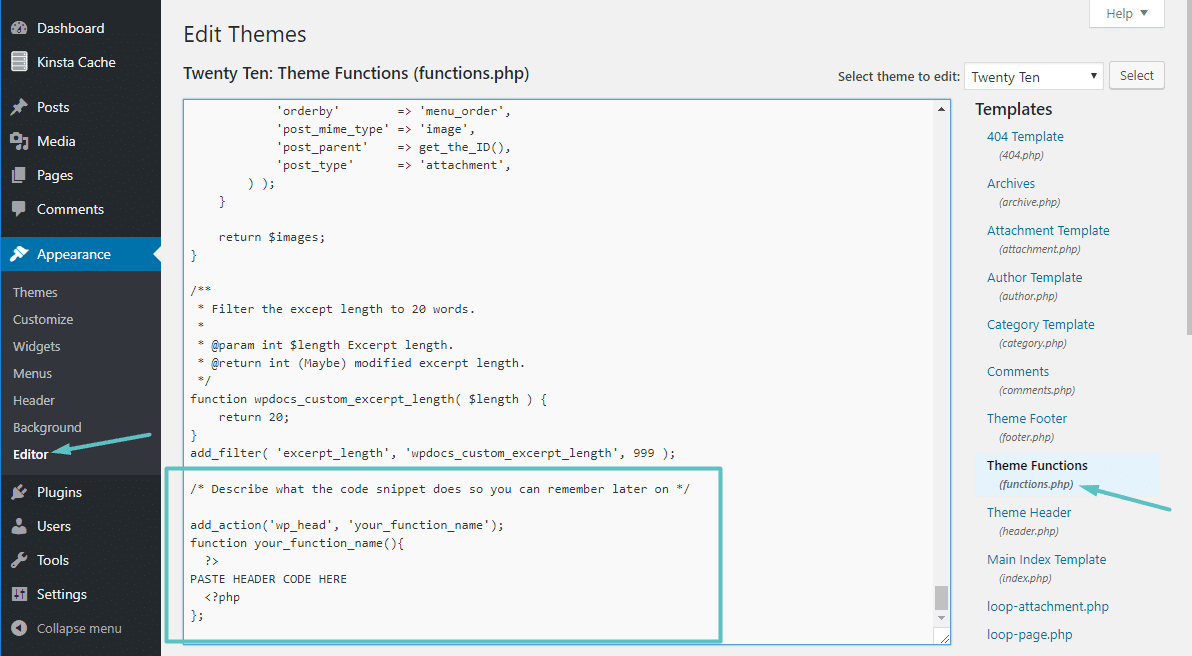
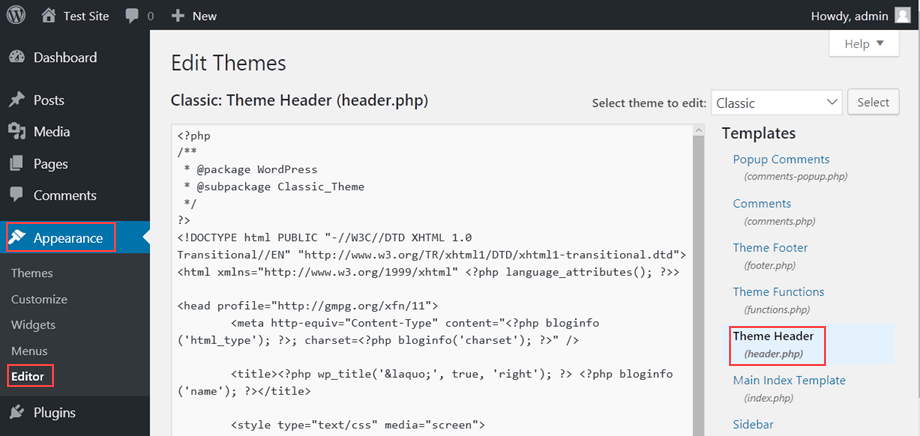
The Theme Editor is a built-in tool in WordPress. It lets you edit theme files right from the dashboard. To access header.php, go to Appearance > Theme Editor. On the right side, you will see a list of theme files. Scroll down to find “header.php” or “Theme Header.”
Click the file name to open it in the editor. You can then make small changes or add code. Be careful while editing. A wrong change can break your site. Always save a backup before making edits.
File Manager Plugins
File Manager plugins provide an alternative way to access header.php. These plugins let you browse all WordPress files inside your dashboard. Popular plugins like “WP File Manager” or “Advanced File Manager” are easy to install.
After activating the plugin, open it from the dashboard menu. Navigate to wp-content/themes/your-theme folder. Here, find the header.php file and open it for editing. This method gives you more control over files than the Theme Editor.
Finding Header Php Through Ftp
Finding the Header PHP file through FTP is a simple way to edit your WordPress theme. This method gives direct access to your site’s files. It lets you make changes safely outside the WordPress dashboard. You can backup and download files before editing. This section guides you step-by-step to locate and edit the header.php file using FTP.
Connecting To Your Server
First, open your FTP client. Enter your server’s address, username, and password. These details come from your hosting provider. Click “Connect” to access your website files. A successful connection shows your site folders on the right side.
Navigating Theme Directories
Look for the “wp-content” folder and open it. Inside, find the “themes” folder. Each theme you installed appears here as a separate folder. Open the folder of the active theme on your website. This folder contains the header.php file you need.
Downloading And Editing Files
Find the header.php file inside the theme folder. Right-click and select “Download” to save a copy on your computer. Use a simple text editor to open the file. Make your changes carefully and save the file. Upload the edited file back to the same folder via FTP. This updates your site’s header safely and quickly.
Credit: crocoblock.com
Customizing Header Php Safely
Customizing the header.php file in WordPress can change how your website looks and works. It lets you add logos, menus, or scripts to your site’s header. Editing this file directly might cause problems if done wrong. Safe methods protect your site from errors and keep updates easy.
Creating Child Themes
Child themes let you change header.php without touching the main theme. This keeps your changes safe during theme updates. Create a child theme and copy the header.php file there. Edit the copied file to add your custom code. WordPress will use this edited file instead of the original.
Backing Up Files
Always save a copy of your header.php before changing it. Backups help you restore your site if something breaks. Use your web host’s backup tools or download files via FTP. Keep backups in a safe place for quick recovery. This step saves time and stress later.
Using Code Snippets Plugins
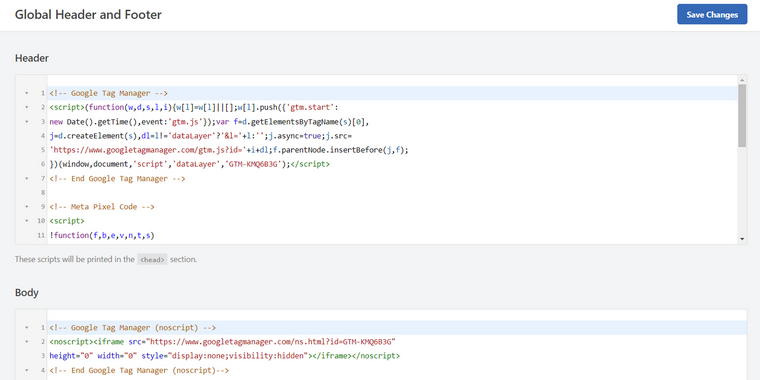
Code snippets plugins let you add small pieces of code safely. They avoid direct file edits and reduce risks. Use these plugins to insert PHP code into your header area. This method is simple for beginners and keeps your site stable. It also makes managing code easier.
Troubleshooting Header Php Issues
Troubleshooting header PHP issues in WordPress can be tricky. The header.php file controls the top part of your website. Errors here can break your site’s look or functionality. Fixing these issues quickly keeps your site running smoothly.
Understanding common problems helps solve them fast. Knowing how to restore the original header protects your site. Using simple debugging tips finds errors easily.
Common Errors
One common error is a white screen or blank page. This happens when PHP code has syntax mistakes. Missing semicolons or brackets cause this. Another issue is broken layout or missing images. This may be due to incorrect file paths in the header. Sometimes, the header.php file gets deleted or corrupted. This stops the theme from loading properly.
Restoring Original Header
Restoring the original header is easy. Access your WordPress files using FTP or hosting file manager. Go to wp-content/themes/your-theme folder. Replace the header.php file with a clean copy. You can get this from your theme’s original files. Always backup your current header.php before making changes. This step prevents data loss.
Debugging Tips
Enable WordPress debugging by adding define('WP_DEBUG', true); in wp-config.php. This shows PHP errors on your site. Check error messages carefully to find the problem. Use simple echo statements to test code sections. Disable all plugins to see if one causes the issue. Switch to a default theme to rule out theme problems. Clear your browser cache after every change. These steps help identify and fix header.php issues fast.
Alternatives To Editing Header Php
Editing the header.php file in WordPress can be risky. Small mistakes may break your site. Many users prefer safer methods to customize their headers. These alternatives keep your site secure and easy to update. They also avoid direct code editing, perfect for beginners.
Using Hooks And Filters
Hooks and filters let you change header content without editing files. WordPress uses them to add or modify features. You can insert code snippets in your theme’s functions.php file. This method keeps your header safe from accidental errors. It also helps keep changes even after theme updates. Hooks and filters offer flexibility for simple or complex tweaks.
Header Builders And Page Builders
Header builders are tools that create headers visually. No coding needed. Many page builders include header customization options. Drag and drop elements like logos, menus, and buttons. These builders show changes live as you work. They make header design easy and fast. Perfect for users who want control but no coding. Most builders work with any WordPress theme.
Credit: www.hostpapa.com
Frequently Asked Questions
Where Is Header.php Located In WordPress?
Header. php is found in your active theme’s folder under /wp-content/themes/your-theme/. It controls the site’s header section and is essential for theme structure.
How To Edit Header.php In WordPress Safely?
Use a child theme or a code editor plugin to edit header. php. Avoid direct edits in the main theme to prevent losing changes during updates.
Can I Customize Header.php Without Coding?
Yes, you can use page builders or theme customizers. These tools let you change header elements without touching the header. php file directly.
What Does Header.php Control In WordPress?
Header. php manages the header area, including logo, navigation, and metadata. It’s loaded on every page, influencing site appearance and SEO.
Conclusion
The header. php file in WordPress controls your site’s header section. You can find it inside your theme’s folder. Editing this file lets you change your site’s look and feel. Always back up your site before making changes. Simple changes can improve your website’s design and user experience.
Understanding where header. php is helps you customize your WordPress site better. Take your time and explore the file carefully. It’s a key step in managing your website’s layout.


