
Have you ever found yourself wondering, “Where can I see what version of WordPress I have?” You’re not alone.
Many WordPress users face this question, and finding the answer is crucial for maintaining a secure and smoothly running website. Knowing your WordPress version helps you ensure compatibility with plugins, themes, and the latest security updates. Picture this: you’re about to install a new feature that could transform your site, but you’re unsure if it will work with your current setup.
That’s where knowing your WordPress version becomes essential. Stick with us as we guide you through the simple steps to uncover this vital piece of information, empowering you to make informed decisions and keep your website in top shape.
Credit: www.hostinger.com
Checking From Admin Dashboard
The admin dashboard has an At a Glance section. It shows useful info. You can find your WordPress version there. It is easy and quick. The version number is near the top. Look for it next to the site name. This section helps you see other details too. But focus on the version number. Knowing this helps keep your site safe.
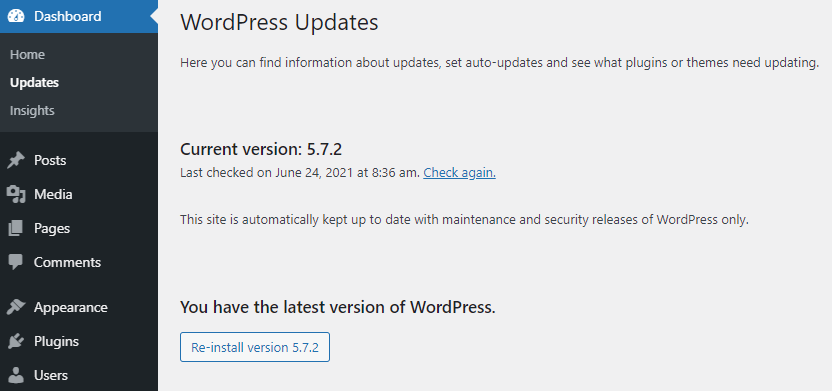
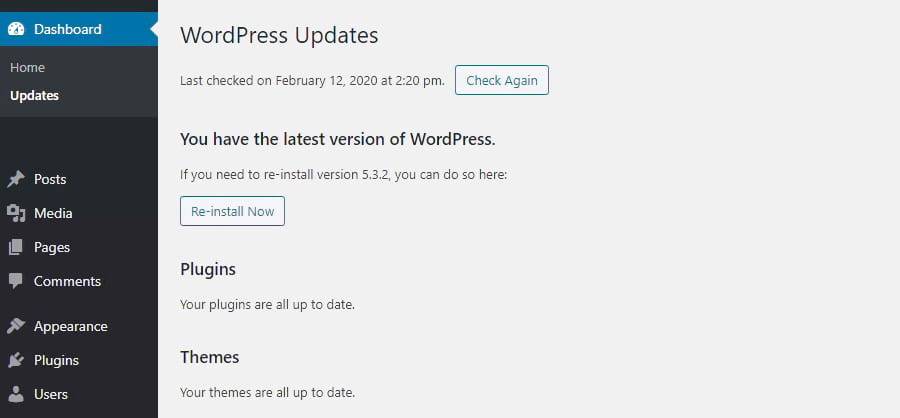
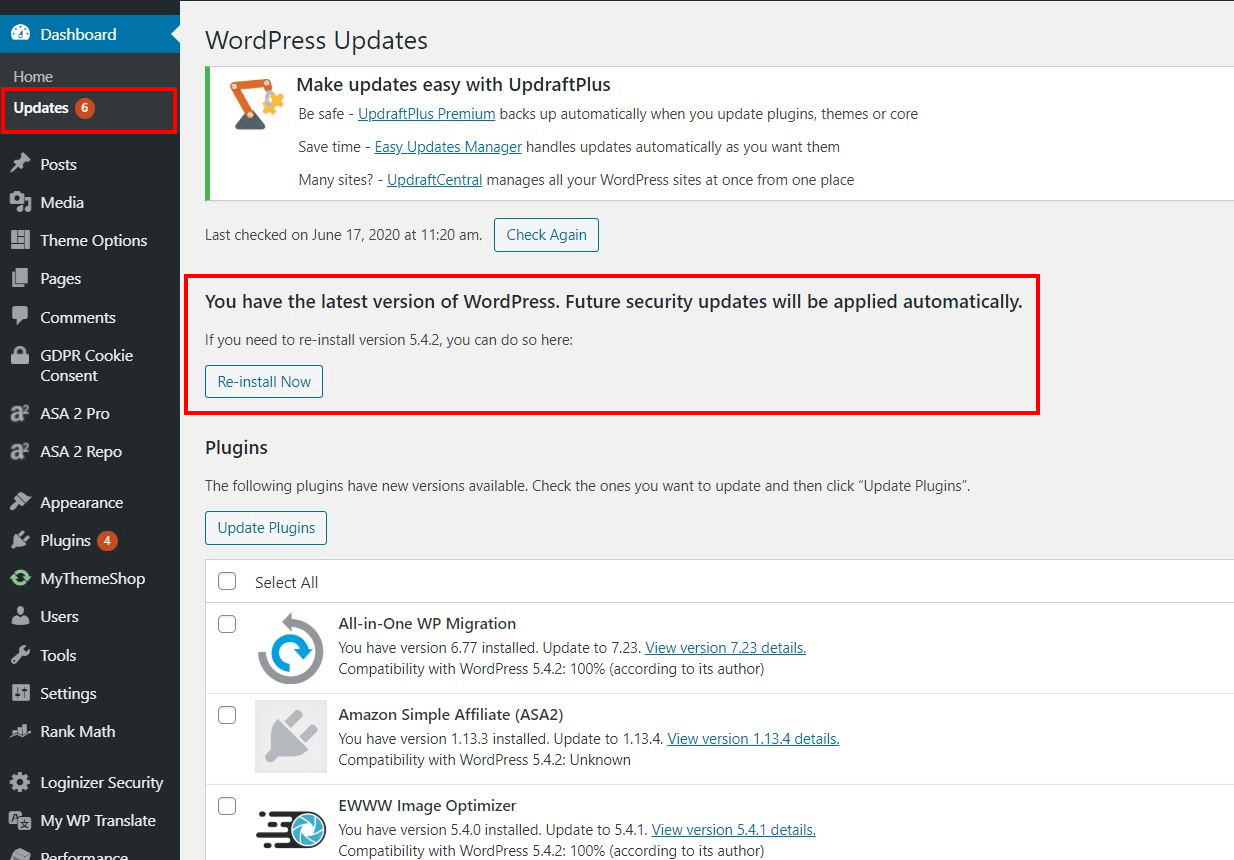
Another place to check is the Updates section. This section tells if your site is up-to-date. The version number is there too. It is near the top of the page. Check this often to keep your site fresh. Updates are important. They protect your site. Look for the version number in the Updates area. It is easy to find.
Credit: kinsta.com
Viewing Source Code
Open your website in a browser. Right-click anywhere on the page. Select “View Page Source” from the menu. This shows you the code of the page. Look for the HTML tags.
Press Ctrl + F to open the search box. Type “generator” in the box. The version number is near this word. It may look like WordPress 5.8.1. This helps you know the version.
Using Ftp To Find Version
First, open your FTP client. Enter your website details. Use your username and password. Then, connect to your server. Browse the files on your server. Locate the folder named WordPress. This folder holds the key files. You are now connected via FTP.
Look for the file named version.php. It is inside the wp-includes folder. Open this file. Here, you will find your WordPress version. It is clearly stated. The line starts with $wp_version. This shows the current version number. Now you know the version of WordPress you have.
Credit: www.ionos.com
Third-party Tools For Version Detection
Many websites offer online tools to check your WordPress version. These tools are easy to use. Just enter your site’s URL. They will show the version number. This method is quick and simple. No need to log in to your WordPress admin panel. It’s a good option for beginners. Always choose a trusted website for this service. Be cautious with your site information. Protect your data from unknown sources.
Security plugins can help find your WordPress version. They keep your site safe. They also show version details in their dashboard. Some popular plugins offer this feature. You get both security and version info. Updating plugins is important. This ensures they work well with the latest WordPress version. Use plugins from trusted developers. This keeps your website secure and updated.
Importance Of Knowing Your Version
Knowing your WordPress version keeps your website safe. Updates fix security holes. Older versions have risks. Hackers look for these holes. Regular updates stop them. Always check your version for safety.
WordPress plugins need the right version. Some work only with new updates. Others might break on old versions. Check your version before adding new plugins. This avoids problems and keeps your site running smooth.
Frequently Asked Questions
How Do I Check My WordPress Version?
To check your WordPress version, log into your dashboard. Look at the bottom right corner for the version number. Alternatively, go to “Updates” under the “Dashboard” menu. Here, the current version of WordPress will be displayed, ensuring you have the latest updates.
Where Is The WordPress Version Located In The Dashboard?
The WordPress version is located at the bottom right of your dashboard. Alternatively, under the “Dashboard” menu, click “Updates. ” Here, you’ll find the WordPress version. Keeping an eye on this helps ensure your site is up-to-date and secure.
Can I Find WordPress Version Without Logging In?
Yes, you can check your WordPress version without logging in. View your website’s source code by right-clicking and selecting “View Page Source. ” Search for “generator” meta tag. The version number is included there, providing quick access to this information.
Why Is Knowing My WordPress Version Important?
Knowing your WordPress version is crucial for security and compatibility. Regular updates protect against vulnerabilities and ensure compatibility with plugins and themes. Keeping your WordPress version updated helps maintain optimal website performance and security, providing a smooth user experience.
Conclusion
Finding your WordPress version is essential. It helps keep your site secure. You now know the steps to check it. Always stay updated for the best performance. Regular updates ensure safety from vulnerabilities. WordPress often releases new features. These can improve your site’s functionality.
Remember, knowledge is power. Keep exploring WordPress for more insights. Stay informed, and your website will thrive. Thank you for reading. Happy blogging!


