
Are you scratching your head trying to figure out your WordPress URL? You’re not alone.
Many people find themselves puzzled when it comes to identifying their website’s address. Whether you’re a beginner setting up your first blog or a seasoned webmaster tweaking your site, knowing your WordPress URL is crucial for accessing your admin panel, sharing content, and growing your online presence.
You’ll discover exactly how to find your WordPress URL with ease. Imagine the confidence and clarity you’ll gain once this mystery is solved. Stick around, and let’s unravel this together, so you can navigate your WordPress world with newfound ease and efficiency.
Locating Your WordPress Url
Your WordPress URL is where your site lives on the internet. It’s like an address for your house. Without it, people can’t find your site. URLs usually start with “http://” or “https://”. They help browsers know where to go. It is important to know your URL to share your site.
There are different types of URLs. The main URL is called the domain name. It looks like “example.com”. There are also subpages like “example.com/blog”. Some URLs might have “www”. Others might not. Each URL points to a different part of your site. Knowing the right URL helps visitors find what they want easily.
Accessing Your WordPress Site
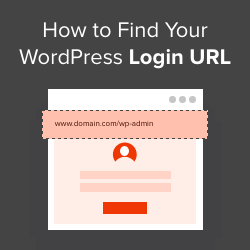
First, type your website address in the browser. Add /wp-admin at the end. This takes you to the login page. Enter your username and password. Click the login button. Now, you are inside your dashboard.
Can’t log in? Check your internet connection first. Ensure your username is correct. If you forget your password, click “Lost your password?” Follow the instructions to reset it. Sometimes, your browser might cause problems. Try using a different browser or clear your browser cache. If issues persist, contact your web host for help.
Customizing Your Url
Permalinks are the links to your pages and posts. Changing permalinks can make your site look good. It also helps others find your site easily. Go to your WordPress dashboard. Find the Settings option and click on Permalinks. You can choose from different options. Pick a style that fits your site. Short and clear permalinks are best. Make sure to save your changes after selecting. This way, your site will have new links.
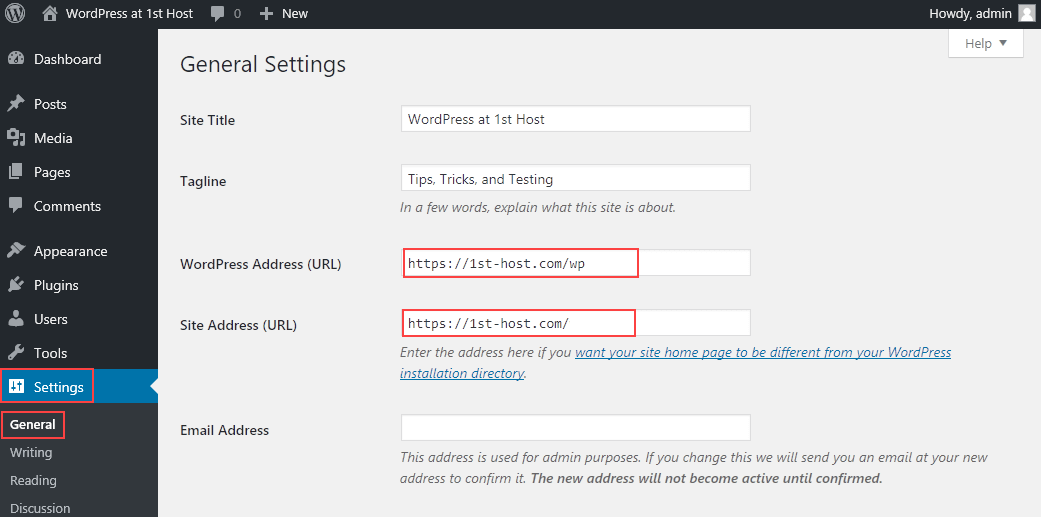
Want a new name for your site? You can change your domain name. First, find a domain registrar like GoDaddy or Namecheap. Search for a name you like. If it’s free, buy it. Next, go to your WordPress dashboard. Click on Settings and then General. Here, change your WordPress address and Site address. Make sure both match your new domain name. Save changes to update your site.
Credit: www.hostpapa.com
Secure Your WordPress Url
SSL certificates make your WordPress site secure. They encrypt data between users and the site. Websites with SSL show a padlock icon in the browser. This tells users the site is safe. To get an SSL, contact your hosting provider. Many hosts offer free SSL certificates. Once installed, make sure your site uses HTTPS instead of HTTP.
Redirects send users from one URL to another. They help users find the right page. For example, redirecting from HTTP to HTTPS is important. This keeps your site secure. You can set up redirects using plugins. Popular plugins include Redirection and Yoast SEO. Test your redirects to ensure they work correctly.
Tools For Managing Urls
Plugins help manage WordPress URLs easily. They offer simple tools. Some plugins let you change URL structures. Others help with redirection. Using plugins, you can improve SEO. Your site can rank better.
Popular choices include Yoast SEO and Redirection. Yoast helps you with SEO. Redirection helps manage broken links. These tools save time. They are user-friendly. Easy for beginners to understand.
Online resources offer guides and tips. They help with URL management. Many websites offer tutorials. They explain plugins and tools. These guides are free. They are easy to access.
Websites like WPBeginner and WordPress.org are helpful. They have articles and videos. These resources make learning easy. They support non-native users. You can find answers quickly.
Credit: www.wpbeginner.com
Credit: wpengine.com
Frequently Asked Questions
How Can I Find My WordPress Url?
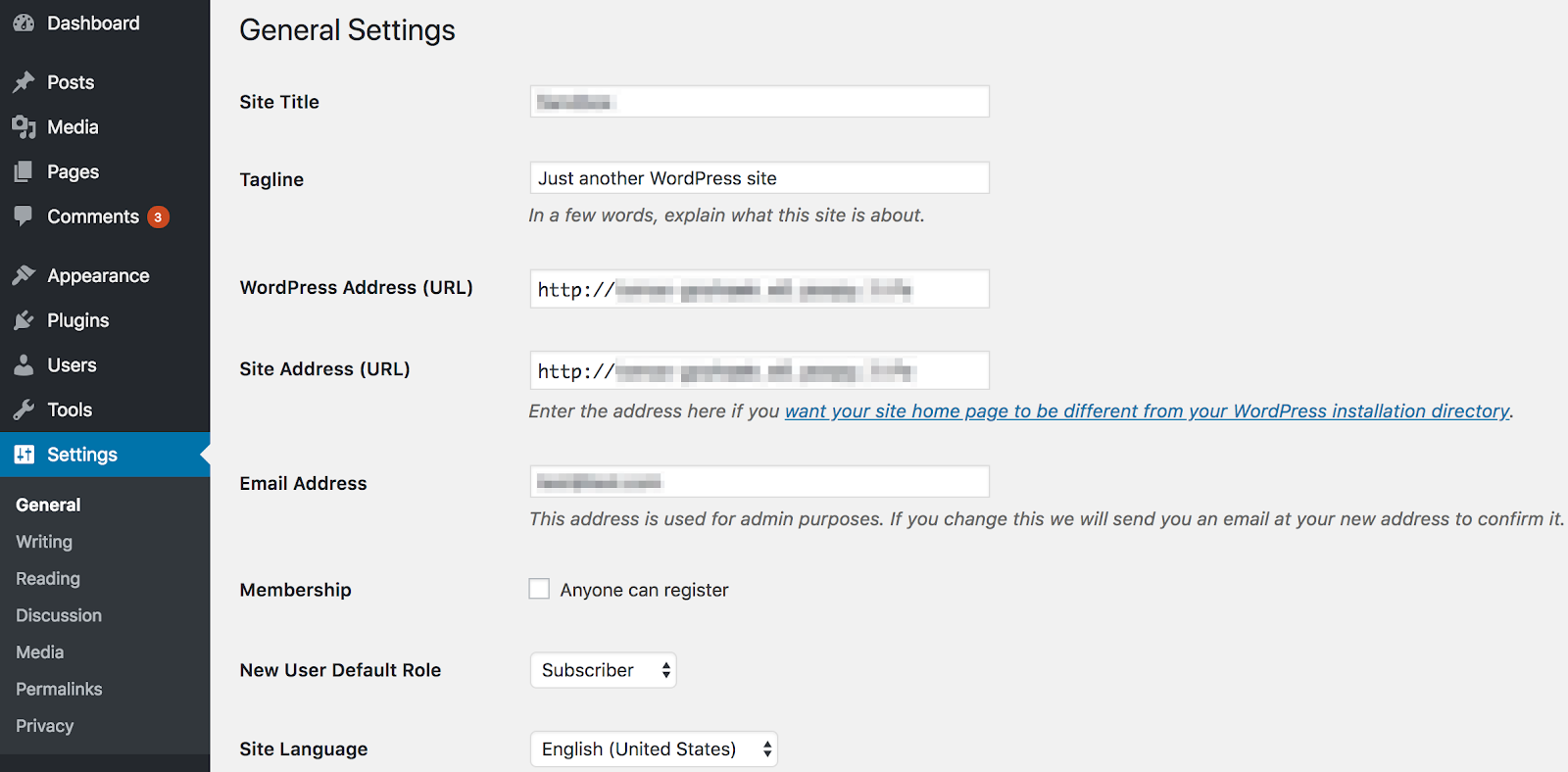
Your WordPress URL is the web address of your site. You can find it in your WordPress dashboard under Settings > General. The “WordPress Address (URL)” and “Site Address (URL)” fields will display your URL. Ensure both fields are correct to avoid any access issues.
What Is The Default WordPress Login Url?
The default WordPress login URL is usually “yourdomain. com/wp-login. php” or “yourdomain. com/wp-admin”. This URL allows you to access your WordPress dashboard. If you’ve customized your login URL, use that instead. Bookmarking the login page can save you time in the future.
Why Can’t I Access My WordPress Url?
If you can’t access your WordPress URL, check your internet connection first. Ensure your URL is correct and matches your domain settings. Clear your browser cache or try using a different browser. If issues persist, contact your hosting provider for further assistance.
Can I Change My WordPress Url?
Yes, you can change your WordPress URL. Go to your WordPress dashboard, then navigate to Settings > General. Update the “WordPress Address (URL)” and “Site Address (URL)” fields. Be cautious as incorrect changes can break your site. It’s advisable to back up your site first.
Conclusion
Finding your WordPress URL doesn’t have to be difficult. With the steps provided, you can easily locate it. Remember, your URL is essential for accessing your site. Keep it safe and handy for future use. Bookmark it if necessary. This way, you won’t waste time searching again.
Understanding your URL helps in managing your WordPress site effectively. Stay organized and manage your site with ease. If you face any issues, revisit the guide. With practice, it becomes second nature. Happy blogging with your WordPress site!


