
Are you scratching your head trying to figure out your WordPress server URL? You’re not alone.
Many WordPress users find themselves in a similar spot, unsure where to look or even what they’re looking for. This simple yet crucial piece of information can be the key to solving various site issues, from troubleshooting connectivity problems to setting up plugins correctly.
Imagine having the power to streamline your WordPress experience and fix frustrating issues with ease. By the end of this article, you’ll not only uncover what your WordPress server URL is but also why it’s so important. Dive in, and let’s demystify this essential piece of the WordPress puzzle together.
Locating Your WordPress Admin Url
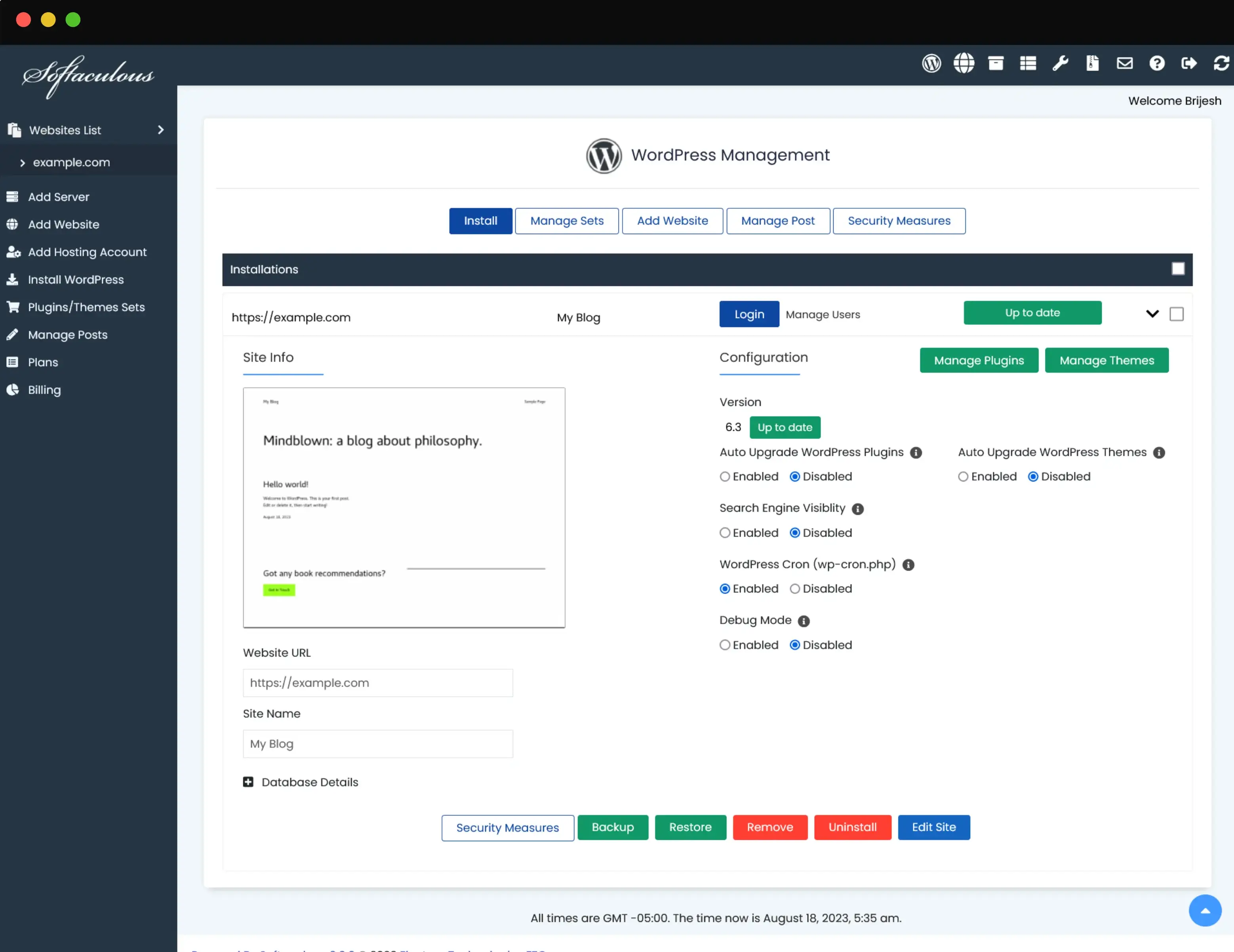
Finding your WordPress admin URL is easy. First, open your browser. Type your website address in the search bar. At the end of the address, add /wp-admin. Press Enter. Now, you see the login page. It’s where you enter your username and password. Sometimes, your admin URL may be different. Check with your hosting provider. They can help you find it. Remember, keep your login details safe. Don’t share them with anyone. Protect your website from hackers. Always log out when done. Keep your website secure. It is very important.
Credit: www.softaculous.com
Accessing Your Hosting Provider
cPanel helps find your server URL. Start by logging into cPanel. Look for the Server Information section. This section holds key data. Your server URL is there. It’s often named Server Name or Server Address. Note this URL for future use.
Accessing the hosting dashboard is simple. Visit your hosting provider’s website. Use your login details to sign in. Once inside, find the Dashboard or Control Panel. This area displays your server URL. Look for terms like Server Address or Domain Details. This is your WordPress server URL.
Navigating File Manager For Url
Discovering your WordPress server URL involves navigating through the file manager. Begin by accessing the hosting control panel. Locate the public_html folder, where essential WordPress files reside. Your server URL is linked with the domain name pointing to these files.
Finding Wp-config.php
Open your hosting account. Look for the File Manager. This tool helps find files. Go to the root folder of WordPress. It’s usually named public_html or www. Find the wp-config.php file. This file holds important information. Open it with a text editor. Look for the line with site URL. This line shows your WordPress server URL. Keep this information safe.
Locating Site Url In Database
Access the phpMyAdmin in your hosting control panel. It manages databases. Find your WordPress database name. Click on it to open. Look for the wp_options table. Click on this table. Find the siteurl row. It shows your current URL. You can change it if needed. Always back up your database first. This prevents accidental loss of data.
Using WordPress Settings
Discovering your WordPress server URL is easy through the settings menu. Navigate to your dashboard, find “General Settings,” and locate the “WordPress Address (URL)” field. This reveals the specific URL for your WordPress site.
General Settings Page
Finding your WordPress server URL is easy. Go to your dashboard. Click on “Settings.” Then, choose “General.” Your site URL is there. It shows the address where your site is live. This is important to know. You need it for links and sharing. Keep it safe and correct. Changes here affect your site.
Permalinks Structure
Permalinks help with URLs. They make links pretty. Go to “Settings.” Click “Permalinks.” Choose a structure that suits your site. Some options are simple. Others use post names. Pick what makes sense for your content. This helps with SEO. It also makes links easy to read. Always save changes. Make sure URLs work well. This keeps visitors happy.
Checking The Address Bar
Your WordPress server URL is in the address bar. The address bar is at the top of your browser. It shows the website’s exact link. Look for the name of your website. The URL usually starts with “http” or “https”. After that, you’ll see www. Then comes your website’s name. The URL ends with “.com” or similar endings. Make sure you type the URL correctly. Mistakes can lead to other sites.
Some URLs have extra parts. These parts may include folders or pages. They come after a slash. These show specific pages on your site. Always check the address bar for correct links.

Credit: www.greengeeks.com
Troubleshooting Url Issues
Finding your WordPress server URL can solve many URL issues. Access the dashboard, go to “Settings,” and find your URL under “Site Address. ” This step ensures your website’s links function correctly, enhancing user experience and search engine ranking.
Common Mistakes
Many people type the wrong URL. This is a common mistake. Always double-check your spelling. Sometimes, there are typos. These can cause problems. Missing letters or extra spaces can break the URL. Make sure you use the right protocol. Use “http” or “https” as needed. Forgetting these can lead to errors. Pay attention to your server name. Make sure it matches exactly.
Resolving Conflicts
Conflicts happen when two URLs clash. This can confuse your server. It may not know where to go. Check for duplicate URLs. They can create issues. Try to keep URLs unique. Use tools to find conflicts. They can help fix them. Always update your settings. Make sure everything is current. This can prevent future problems.
Utilizing WordPress Plugins
Finding your WordPress server URL can be easy. WordPress plugins offer tools for this task. These plugins are simple to use. They help locate your server URL fast. URL Finder Tools are popular. Many users rely on them. They make the search process quick. Install the plugin. Follow the steps. The URL appears in seconds.
Keeping your WordPress site safe is important. Security plugins can help with this. They protect against threats. Hackers often target WordPress sites. These plugins block harmful attacks. They also alert you to issues. Most plugins are easy to install. They work in the background. Keeping your site secure without hassle.

Credit: www.greengeeks.com
Consulting Hosting Support
Consulting hosting support can help solve problems. They guide you to find your server URL. This is important for accessing your WordPress site. Server URL is like your website’s home address. It shows where your website lives on the internet.
Hosting support teams are trained to assist you. They have the tools to check server settings. They can also help with login issues. Always have your account information ready. This makes the process faster.
If you need further help, use online resources. Many hosting companies offer helpful guides. Online forums can also provide tips and advice. Remember, asking questions leads to learning.
Frequently Asked Questions
How Do I Find My WordPress Server Url?
You can find your WordPress server URL in your hosting account settings. Log into your hosting account, navigate to the domain section, and there you’ll see the URL. Alternatively, check your WordPress dashboard under Settings > General for the site address.
What Is The Difference Between WordPress Url And Site Url?
The WordPress URL is where your WordPress core files are located. The Site URL is where visitors access your website. They can be the same, but differ if WordPress is installed in a subdirectory.
Why Is My WordPress Server Url Important?
Your WordPress server URL is crucial for directing traffic to your site. It ensures proper site functionality and indexing by search engines. It’s essential for maintaining site accessibility and performance.
Can I Change My WordPress Server Url?
Yes, you can change your WordPress server URL. Navigate to Settings > General in your WordPress dashboard. Update the WordPress Address (URL) and Site Address (URL) fields.
Conclusion
Finding your WordPress server URL is simple. Start by logging into your account. Next, navigate to the settings menu. There, you will find the URL listed. This URL is crucial for accessing your site. Always keep it handy. It helps in troubleshooting and maintenance.
Understanding your server URL enhances your WordPress experience. It ensures smoother website management. If you forget, revisit this guide anytime. Your WordPress journey will be easier with this knowledge. Keep exploring and learning. Your website success depends on it. Stay curious and keep optimizing your skills.


