
Are you trying to add PHP code to your WordPress site but feel lost in the sea of files and folders? You’re not alone.
Many WordPress users find themselves puzzled about which file to tweak when they want to customize their site with PHP. Understanding where and how to insert your PHP code can transform your website’s functionality and save you from potential headaches.
But the key is knowing where to start. You’ll discover the exact WordPress file you need to edit to seamlessly integrate your PHP code. Whether you’re looking to enhance your site’s features or simply want to personalize it, we’ve got you covered. Keep reading to unlock the secrets to mastering WordPress file editing with confidence.
Understanding WordPress File Structure
WordPress has many core files. These files make your site work well. You should not change these files often. They include files like wp-config.php and wp-load.php. These are important for basic site functions. Messing with them can break your site. Keep these files safe. They are the heart of WordPress.
Theme files make your site look nice. Each theme has its own style. You can find these in the wp-content/themes folder. Files like functions.php let you add new features. Editing these files can change your site’s look. Always make a backup first. It keeps your work safe.
Plugins add more features to your site. They live in the wp-content/plugins folder. Each plugin has its own files. Editing plugin files can be tricky. It might break the plugin. Use caution and check for updates. It’s best to use hooks and filters when possible. This is a safer way to change plugins.
Credit: www.hostinger.com
Identifying Safe Files For Php Code
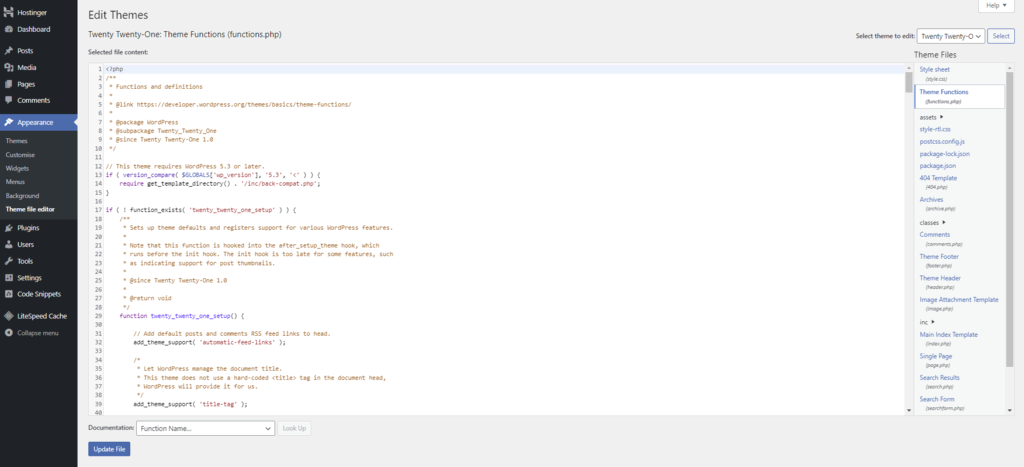
The functions.php file is important. It helps your theme work well. You can add new features here. Be careful. Mistakes can break your site. Always make a backup first. This file is in your theme folder.
Custom templates let you make unique pages. They are great for special designs. You can add PHP code here too. But, you must follow the rules. Custom templates help your site stand out.
Child themes are safe for changes. They protect your main theme. Use them for big edits. Add your PHP code here. This way, updates won’t remove your changes. Child themes are smart and safe.
Editing Functions.php
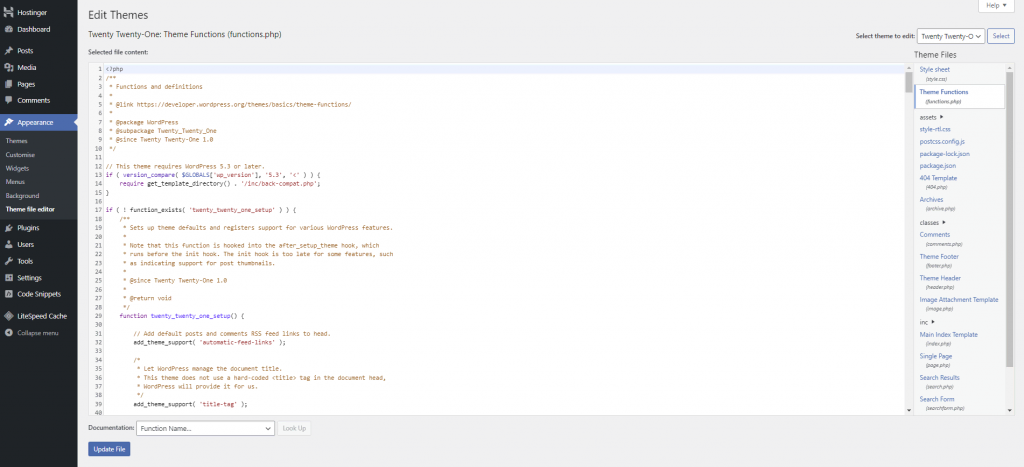
Find the functions.php file in your WordPress theme folder. It’s usually in the wp-content/themes/your-theme-name directory. You can use FTP or the WordPress dashboard to access it. Open the file in a text editor. Be careful; changes can affect your whole site.
This file is perfect for adding custom features to your site. Many use it to add custom shortcodes or widgets. Others add action hooks or filters. Always add code at the bottom. This keeps the file organized.
Always backup your functions.php before editing. This prevents loss if things go wrong. Test any new code in a staging environment first. Avoid syntax errors. They can break your site. Use the WordPress Codex for reference. It provides helpful guidelines.
Credit: www.hostinger.com
Creating Child Themes
Child themes are important for customizing WordPress. They keep your changes safe. Original themes stay untouched. Updates won’t erase your work. You can experiment without fear. Mistakes are easy to fix. Child themes make learning fun. Create something unique and special. Use them to test new ideas. The WordPress community supports them. Get help when needed.
First, make a new folder. Name it like your theme, but add “-child”. Inside, create a style.css file. Add a comment at the top. Include your theme’s name and “Template: original-theme-name”. Next, create a functions.php file. Copy important code from the parent theme. Use it to connect stylesheets. Finally, activate your child theme. Go to your WordPress dashboard. Find it under “Themes”. Click “Activate”.
Open the functions.php file in your child theme. Add your PHP code here. Keep it simple and clean. Check for errors often. Test your site regularly. Use comments to explain your code. Backup your work before starting. Mistakes happen to everyone. Fix them with ease. WordPress coding is a fun journey. Learn more as you go.
Using Custom Templates
Custom templates are useful in special cases. You need different layouts for pages or posts. These templates help your site look unique. They can match your style. They can show your brand. Custom templates are great for specific needs.
Start by copying a default template. Rename it to something unique. Add your custom code. Save it in the theme folder. Choose the new template in the page settings. This will apply your changes. It’s simple. It’s effective.
PHP code can add special features. Open your custom template file. Place PHP code inside the PHP tags. Make sure it’s correct. Check if it works on your site. PHP can change how your site behaves. It can make your site interactive.
Php Code In Plugins
To add PHP code in WordPress, consider editing the functions. php file within your theme. This file allows custom functions and code snippets, enhancing functionality without altering core files. Always back up your site before making changes to ensure safety and recoverability.
Advantages Of Plugins For Php
Plugins make adding PHP code easy. They are safe and flexible. You can update them without losing changes. This helps keep your site secure. Plugins also let you add new features fast. You don’t need to change core files. This protects your site from breaking. Using plugins is a smart choice for everyone.
Developing Custom Plugins
Creating a custom plugin lets you add special features. You can make a plugin for your needs. It’s like building a tool for your site. Custom plugins give you full control. They help you manage the code better. This is perfect for unique websites. Custom plugins are great for personal projects.
Integrating Php Code
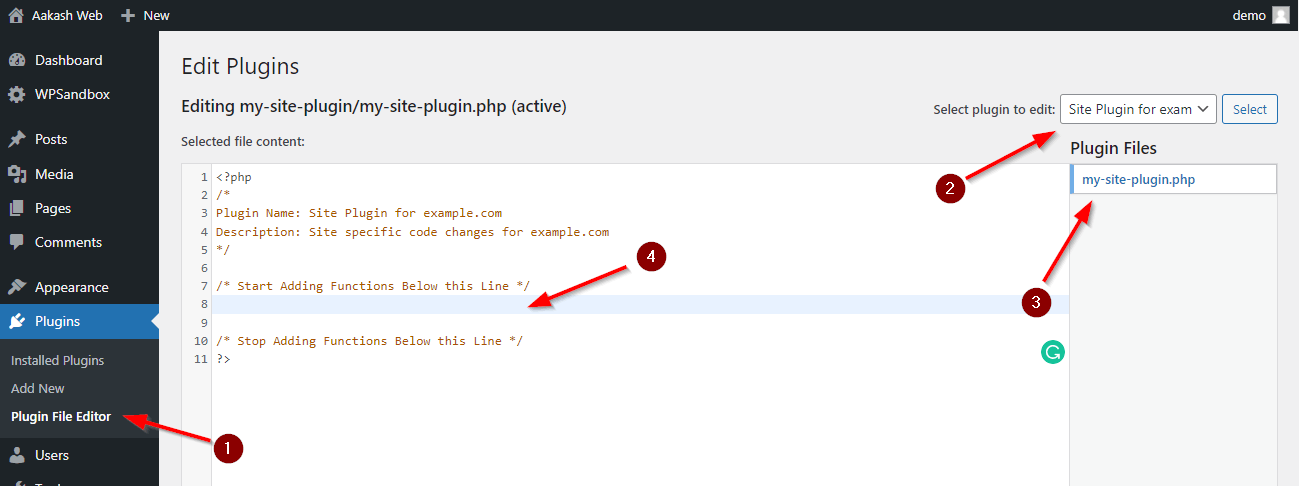
Adding PHP code to plugins is simple. You write the code in the plugin file. Then, activate the plugin in WordPress. Your code runs just like magic. This is an easy way to add functions. The site stays stable and safe. Plugins help keep your site neat and tidy.
Ensuring Code Compatibility
Always test your PHP code before adding it. This keeps your website safe. Use a local server for testing. It helps find errors early. A tool like XAMPP is useful. It simulates a real server. Make sure your code works well.
Errors happen often when adding code. A syntax error is the most common. It occurs when there are typos. Checking for missing semicolons helps. Another error is a white screen. It means the page is blank. This can be fixed by checking the error log.
Always keep WordPress updated. New updates fix bugs and improve security. They also ensure your code runs smoothly. Regular updates keep your site safe. They protect against hackers. Update themes and plugins too. This ensures everything works well together.
Credit: www.aakashweb.com
Frequently Asked Questions
How Do I Add Php Code In WordPress?
To add PHP code in WordPress, edit the theme’s functions. php file. Access this file via the WordPress dashboard under Appearance > Theme Editor. Insert your PHP code at the bottom of the file. Always back up your site before making changes to avoid potential issues.
Which WordPress File For Custom Php Code?
The functions. php file is ideal for custom PHP code. Located in your theme’s directory, it allows you to add features without altering core WordPress files. Always use a child theme to ensure your changes remain intact after theme updates.
Can I Use A Plugin To Add Php Code?
Yes, plugins like “Code Snippets” allow safe PHP code addition. They provide an interface to add, manage, and activate snippets without directly editing theme files. This method reduces the risk of site errors and ensures code remains after theme changes.
Is Editing Functions.php Safe?
Editing functions. php is safe if done correctly. Always back up your files and test changes on a staging site first. Using a child theme ensures your modifications aren’t lost during theme updates. Mistakes can cause site errors, so proceed with caution.
Conclusion
Editing WordPress files to add PHP code can feel tricky. But it’s manageable with the right file. Start with the functions. php file. This file is crucial and often the best place for your code. Always back up your site before making changes.
This step prevents data loss. Understanding your theme structure helps. It ensures you place code correctly. Remember, editing core files can break your site. So, proceed cautiously and use child themes when possible. With practice, adding PHP code becomes easier.
Keep learning and exploring WordPress possibilities!


