
Are you curious about what version of WordPress your website is running? Knowing your WordPress version isn’t just a matter of keeping up with software updates—it’s crucial for maintaining site security, ensuring compatibility with themes and plugins, and optimizing performance.
Imagine discovering that your site is lagging behind in updates, exposing it to vulnerabilities or missing out on new features that could enhance your user experience. You’ll learn exactly how to check your WordPress version quickly and easily. By the end, you’ll be equipped with the knowledge to keep your website at its best.
Dive in to ensure your site’s success and security!
Identifying Your WordPress Version
Knowing your WordPress version is important. It helps with updates and security. To find it, log in to your WordPress dashboard. Look at the bottom right corner. You will see the version number there. Another way is through the source code. Right-click on your website page. Choose “View Page Source” or “Inspect”. Search for “generator“. This will show your WordPress version. It’s a simple process. Keeping track of the version ensures your site runs smoothly. Regular updates protect your site from threats. Always stay informed about your WordPress version.

Credit: webstick.blog
Checking Version In The Admin Dashboard
The WordPress version is shown in the footer. Scroll down to the bottom of the admin dashboard. There, you will find the version number. This is the easiest way to find it.
Another way is through the “At a Glance” section. This section is on the dashboard. It shows site information. The WordPress version is listed here. Look for it there. It’s quick and simple.
Finding Version Through Source Code
Open your website in a browser. Right-click on the page. Select View Page Source from the menu. A new tab will open. This tab shows the page’s HTML code.
Look for the meta tag in the source code. Press Ctrl + F to search. Type “generator” in the search box. This finds the generator meta tag. The meta tag tells you the WordPress version.
The version number is usually shown. It might look like this: WordPress 5.9.3. Now you know your WordPress version. Always check the latest updates. Keeping your site updated is important.
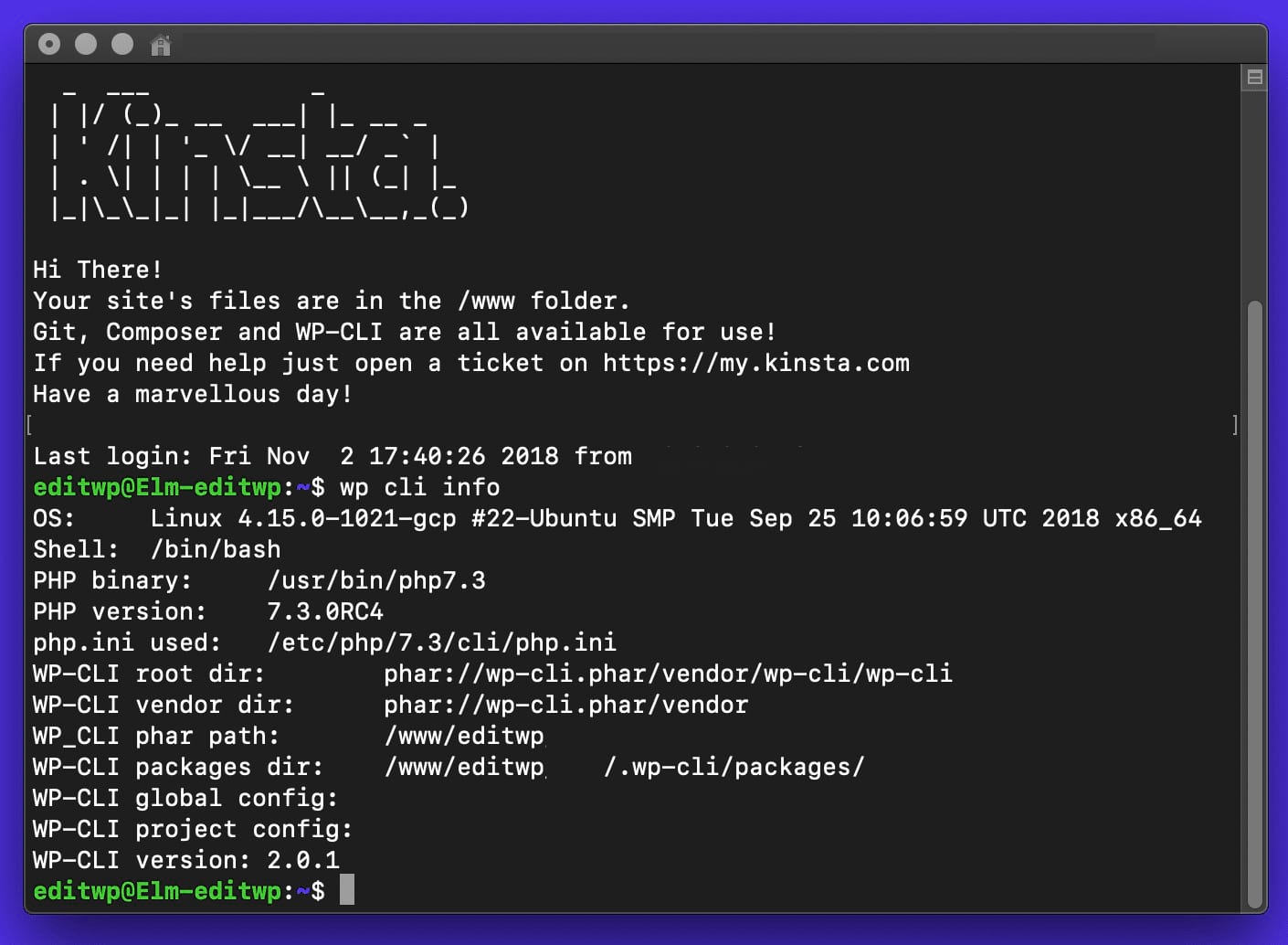
Credit: kinsta.com
Using The Readme.html File
To find out your WordPress version, access the FTP. First, connect to your site’s server using an FTP client. Look for the WordPress files in your site’s directory. The files are usually under the public_html or www folder. Find the readme.html file there.
Reading Version In Readme.html
Open the readme.html file. It contains important information about your WordPress version. Look for the version number near the top of the file. The version number tells you which WordPress version you are using. Keep the readme.html file safe. It helps you know your site’s WordPress details.
Using WordPress Version Plugins
Discovering your WordPress version is easy. Check the dashboard’s “At a Glance” section. Alternatively, view the source code of your site’s homepage to find the version number.
Choosing The Right Plugin
Choosing a plugin can be tricky. Many plugins show the WordPress version. Some are free; others cost money. Look for plugins with good reviews. Check how often they get updates. Read user comments. They help you know if a plugin works well.
Some plugins have extra features. They might show more than just the version. Decide what features you need. Remember, too many features can slow your site. Pick a plugin that fits your needs.
Installing And Activating The Plugin
Installing a plugin is simple. First, go to your WordPress dashboard. Next, click “Plugins” and then “Add New.” Type the plugin name into the search box. Click “Install Now.” Wait for it to finish. Then click “Activate.” The plugin is ready to use.
Check your dashboard. You should see the plugin’s settings. Sometimes, plugins add a menu item. Explore the settings. Make sure everything is correct. Your WordPress version should now be visible.

Credit: matomo.org
Why Knowing Your WordPress Version Matters
Importance for Security: WordPress sites can face attacks. Older versions may have weaknesses. Knowing your version helps fix these issues. Updates often improve security. Hackers look for weaknesses. Always use the latest version. This keeps your site safe. Security is very important.
Ensuring Compatibility with Themes and Plugins: New versions of WordPress can change. Themes and plugins may not work. Updates ensure they fit well together. Developers make changes to improve. Always check for updates. Some features may not work in old versions. Staying updated helps your site run smoothly. Compatibility is key for a good site.
Updating WordPress To The Latest Version
Updating WordPress keeps your site safe and fast. First, make a backup of your site. This saves all your data. Check if your plugins and themes are compatible. Outdated plugins might cause problems. Look at your dashboard for the update notice. Click the update button to start. Wait for the update to finish. Check if your site works after updating. If there are issues, use the backup to restore your site.
Steps For Safe Update
- Backup your site data.
- Ensure plugins are compatible.
- Update WordPress via the dashboard.
- Verify site functionality after update.
Benefits Of Updating
Updated WordPress improves security for your site. It fixes old bugs, making your site stable. New updates add features and tools. They can make your site faster. Users get a better experience. Updates help protect against hackers. Staying updated is smart. A secure site is a happy site.
Frequently Asked Questions
How Do I Check My WordPress Version?
To find your WordPress version, log into your admin dashboard. Navigate to the “At a Glance” section on the main page. Your WordPress version will be displayed there. Alternatively, you can check the version in the footer of the dashboard or view the source code of your website.
Why Is Knowing My WordPress Version Important?
Knowing your WordPress version is crucial for maintaining website security and compatibility. It helps you determine if updates are needed for plugins or themes. Staying updated ensures your site is protected against vulnerabilities. Compatibility issues can arise if your version does not support certain features or plugins.
How Often Does WordPress Update Its Versions?
WordPress releases major updates two to three times a year. Minor security updates are rolled out more frequently. Regular updates ensure improved security, new features, and bug fixes. Keeping your WordPress version current is essential for optimal performance and security.
Can I Update WordPress Automatically?
Yes, WordPress offers an automatic update feature. By default, minor updates are installed automatically. You can enable automatic updates for major versions too. This ensures you always have the latest security features. However, it’s wise to backup your site before any updates.
Conclusion
Identifying your WordPress version is crucial for website management. It helps you ensure compatibility with themes and plugins. Staying updated improves security and performance. Use the dashboard or site source code to find your version. Regular checks keep your site running smoothly.
Updates often bring new features and bug fixes. It’s vital to maintain your site’s health. Knowledge of your version aids in troubleshooting issues. A well-managed site enhances user experience. Always prioritize keeping your WordPress current. This simple step can save you time and effort.
Happy blogging!


