
Ever stumbled upon a WordPress site that looks stunning and wondered, “What theme is this site using?” You’re not alone.
The design of a website can instantly captivate your attention and inspire you to revamp your own. Knowing the theme behind that perfect layout can save you hours of searching and trial-and-error. You’ll discover how to easily identify the theme of any WordPress site.
Imagine transforming your site into a visual masterpiece with just the right theme! By the end, you’ll be equipped with the tools to effortlessly uncover those design secrets. Let’s dive in and unlock the potential for your own site’s transformation.
Identifying WordPress Themes
Finding out the theme of a WordPress site can be fun. Check the website’s footer. Sometimes the theme name is there. Use online tools like WhatTheme. These tools can scan the site. They tell you the theme in seconds. Another trick is to look at the source code. Right-click on the page and select “View Page Source.” Search for “wp-content/themes/” in the code. This often shows the theme name. WordPress themes can be tricky to identify. But with these simple steps, you can do it.
Why Knowing The Theme Matters
Recognizing the theme of a WordPress site is crucial. Themes shape the site’s look and feel. They influence colors, fonts, and layout. This affects how visitors interact with your site. A good theme makes a site easy to navigate. It keeps people coming back.
A theme affects site’s speed and performance. Some themes are optimized for speed. Others may slow a site down. Knowing the theme helps in choosing the right plugins. Compatibility with plugins can enhance site features.
Understanding themes is beneficial for SEO. A well-coded theme improves search engine ranking. It makes content more accessible. A good theme can boost visibility. It helps attract more visitors.
Manual Inspection Techniques
Right-click on the webpage. Select “View Page Source” from the menu. A new window will open. Look for the word “theme”. It might be in the header section. Search for links ending with “/themes/your-theme-name”. This can tell you the theme name.
Open the page source again. Press Ctrl + F or Cmd + F on a Mac. Type “style.css” in the search box. This file often shows the theme’s name. It might have extra details too. Like the theme’s author or version.

Credit: wpmarmite.com
Using Online Tools
Theme detection websites can help you find out what theme a WordPress site uses. Enter the site URL on these websites. They quickly analyze and give you the theme name. Easy, right? Sites like WhatWPThemeIsThat and WPThemeDetector are popular choices. These tools are simple to use. They provide accurate theme information. Many people trust them for finding WordPress themes.
Browser extensions are useful for theme detection. Install them on your browser. They show theme details when you visit a site. Extensions like Wappalyzer and Library Sniffer are good options. They are quick and efficient. You get results without leaving the page. Perfect for discovering WordPress themes on the go.
Understanding Child Themes
Child themes are special. They depend on parent themes. Parent themes hold the main design. Child themes make changes. They add new features. Child themes can change colors. They can change fonts too. They help keep the main theme safe. Updates will not affect them. So, your website stays stable. Making a child theme is smart. It lets you customize without risk.
Differences From Parent Themes
Parent themes are full packages. They have all the designs. Child themes are lightweight. They only have extra changes. Parent themes control the main look. Child themes tweak small details. They depend on parent themes. Parent themes give structure. Child themes bring creativity. Together, they make a website unique. Understanding their roles is key.
Recognizing Child Themes
Recognizing child themes is easy. Check the code in WordPress. Look for the “Template” tag. It shows the parent theme name. Child themes have extra folders. They hold CSS and functions. Parent themes hold the main files. Child themes are like accessories. They add style without altering the base. This keeps the site secure and dynamic.
Limitations And Challenges
Changing a theme can be tough. Not all themes allow easy changes. Some themes need coding skills. Others offer limited options. Customization might break the site look. It can also affect site speed. Slow sites lose visitors fast. The theme might not work well on mobile. People love mobile-friendly sites. Mobile users are important.
Sometimes theme details are hidden. They can be hard to find. Many sites use custom themes. These themes are unique. They don’t show up in theme searches. Custom themes make sites special. But they hide important info. This makes it hard to know the theme. Even experts can struggle. Hidden details can confuse users.
Alternative Methods
Discovering the theme of a WordPress site can be done through alternative methods. Use online tools like WhatTheme or WPThemeDetector for quick insights. These platforms easily identify the themes and plugins used on any WordPress website.
Contacting The Site Owner
Sometimes, the easiest way is to ask directly. Send a polite message to the site owner. Use the site’s contact form or email. Mention your interest in their site’s theme. Many owners are happy to share this info. They might even give you tips. Always be respectful and patient. They might not reply quickly. But your curiosity might be rewarded.
Exploring Developer Resources
Developer tools can help. Open the site in your browser. Right-click and choose “Inspect.” Look for the CSS files. They often contain theme names. Search for “theme” or “style.css.” This might reveal the theme details. It’s like a detective game. You might not always find what you want. But it’s worth trying. You learn new things about web pages.
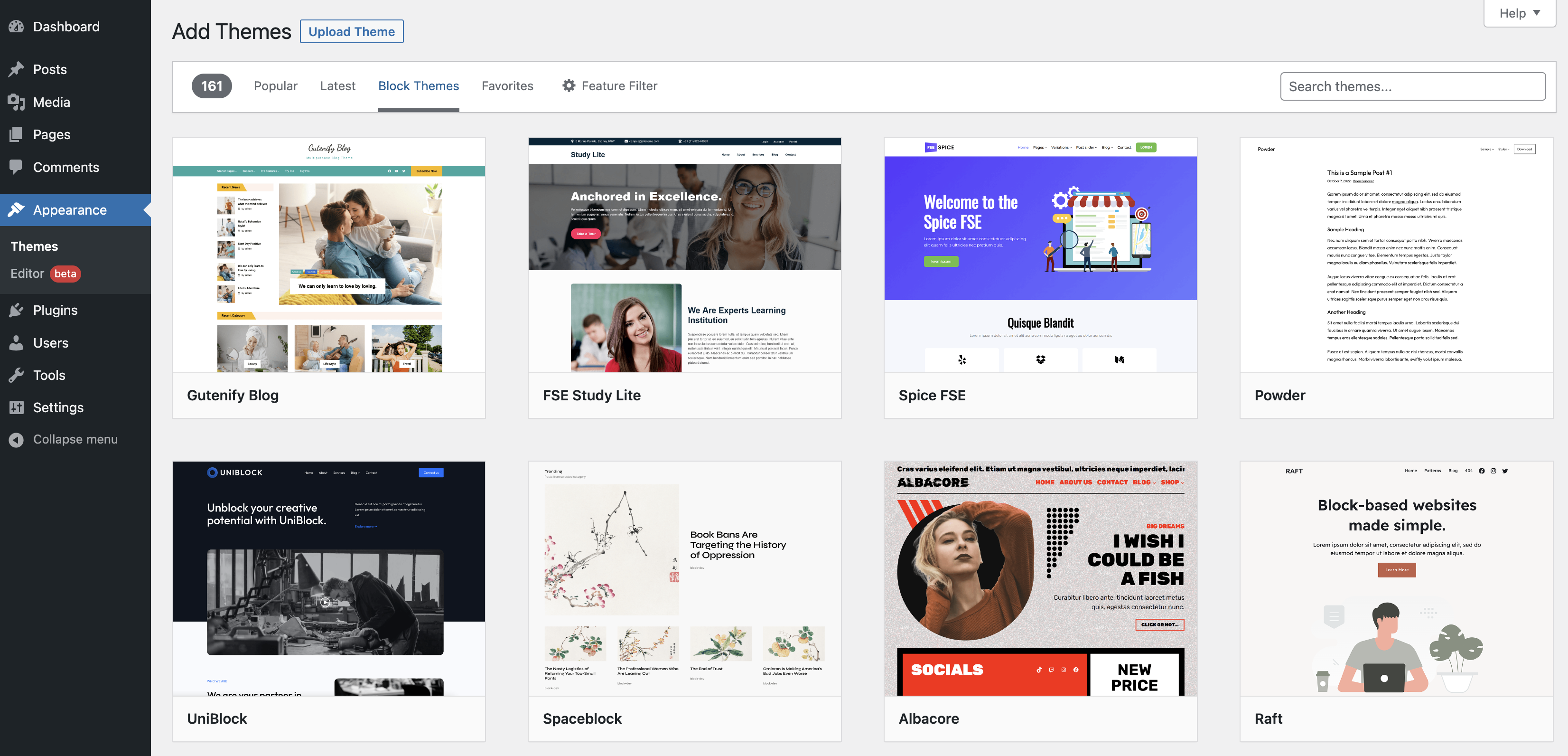
Credit: wordpress.org
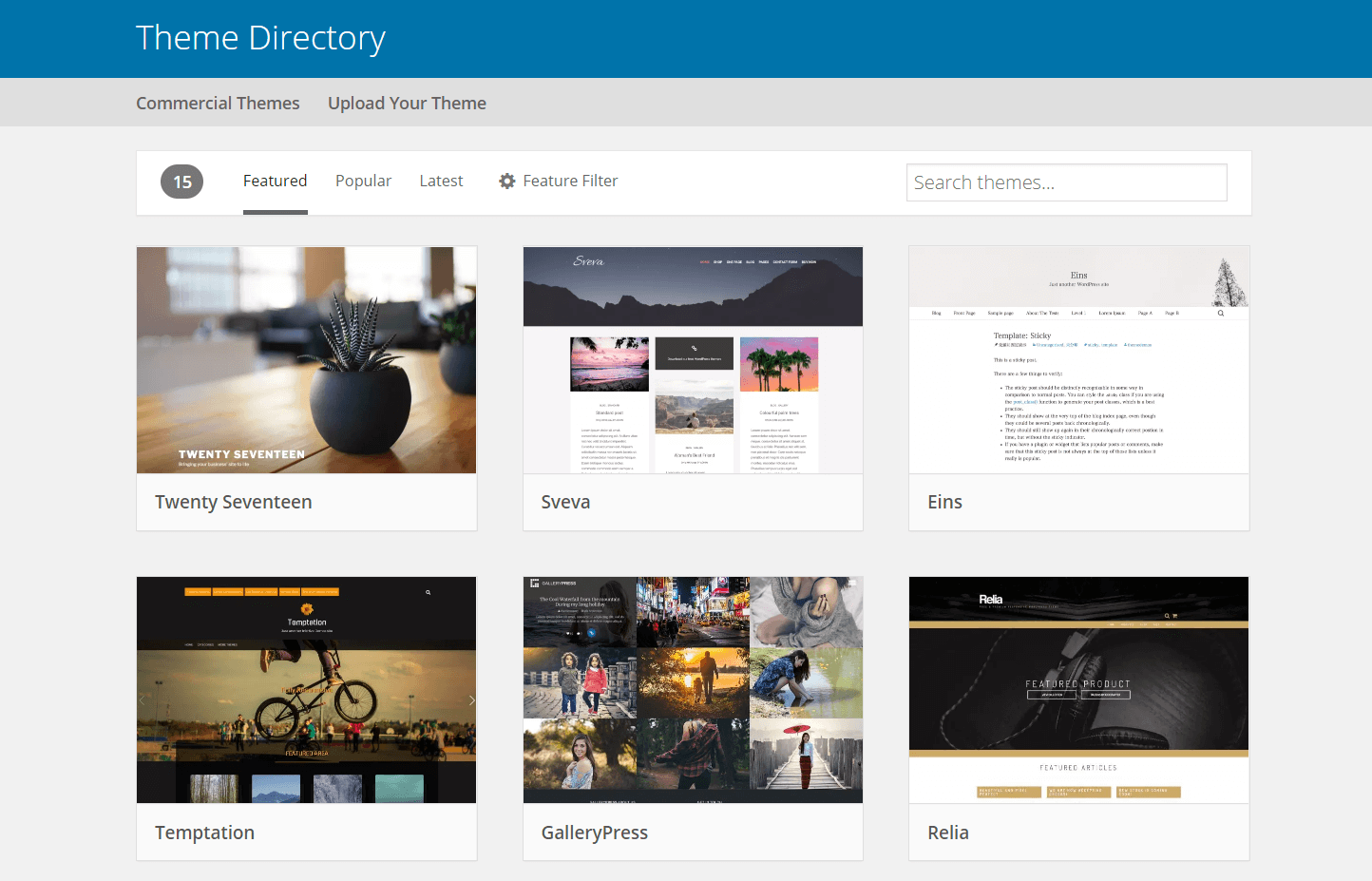
Credit: wpengine.com
Frequently Asked Questions
How Can I Identify A WordPress Theme?
To identify a WordPress theme, use online tools like WhatWPThemeIsThat or WordPress Theme Detector. These tools analyze the website’s source code to reveal the theme details. Alternatively, you can inspect the site’s code manually through your browser’s developer tools to locate theme information.
Is It Legal To Find Out A Website’s Theme?
Yes, it’s legal to find out a website’s theme. This information is publicly available through the site’s source code. Using tools or manual inspection doesn’t violate any laws. However, respect intellectual property rights and avoid copying or using themes without proper licensing.
Why Should I Know A Site’s WordPress Theme?
Knowing a site’s WordPress theme helps in understanding its design and functionality. It can inspire your own website projects or improvements. Additionally, it aids in evaluating the theme’s features, performance, and compatibility with your website needs.
Can I Use The Same Theme For My Site?
Yes, you can use the same theme if it’s available for purchase or download. Check the theme’s licensing and compatibility with your WordPress version. Ensure it meets your site’s design and functionality requirements before implementing it.
Conclusion
Identifying a WordPress theme is simpler than it seems. Use tools like WPThemeDetector or What WordPress Theme is That? They quickly show theme details. Knowing the theme helps in customizing or replicating a site’s look. It also aids in learning design trends.
This knowledge empowers your web creativity. Remember, themes shape your site’s first impression. Choose wisely to match your vision. Explore and experiment with different themes. Build a site that stands out and serves your purpose well. Happy theme hunting!


