
If you’ve ever found yourself frustrated by slow-loading pages or unexplained errors on your WordPress site, you’re not alone. These issues can often be traced back to an overlooked yet crucial setting: the WordPress memory limit.
But what exactly is this mysterious memory limit, and why does it matter for your website’s performance? Imagine your WordPress site as a busy kitchen. The more tasks you want to juggle, the more counter space you need. Similarly, your website needs enough memory to handle all its processes smoothly.
Without it, things can get chaotic, leading to a sluggish user experience that might drive visitors away. By understanding what the WordPress memory limit is and how to adjust it, you can ensure your site runs efficiently, keeping your visitors happy and engaged. So, if you’re ready to unlock the secret to a faster, more reliable website, keep reading—because this knowledge could transform your online presence.
WordPress Memory Limit Basics
WordPress needs memory to work. This is called the WordPress Memory Limit. It helps WordPress run smoothly. If the memory is too low, your site may be slow. Worse, it could even stop working.
The default memory limit is often set low. This can be a problem for busy sites. Increasing the memory can help. This makes sure your site runs well. You can change the memory limit in the wp-config.php file. But be careful. Always make a backup first.
Too much memory use can slow down servers. Balance is key. Make sure to check your host’s rules. Some hosts do not allow changes. Always follow their advice.
Why Memory Limit Matters
WordPress memory limit affects your site’s performance. Low memory can cause slow speeds. It might lead to crashes. Imagine trying to load a heavy page. The site struggles. It can’t handle the load. That’s frustrating, right?
More memory means better handling. Your site runs smoothly. Users enjoy quick browsing. They like fast sites. It keeps them happy. No one likes waiting. That’s why memory matters.
Adjusting the limit can help. It’s like giving your site more power. More power means less lag. Less lag means happy users. Happy users return. They visit again and again.
Default Memory Limit
WordPress often has a default memory limit of 40MB for single sites. For multisite setups, this limit increases to 64MB. This memory helps WordPress run smoothly. But sometimes, it’s not enough.
Plugins and themes use extra memory. If they use too much, your site could slow down. The dreaded “white screen of death” might appear. This happens when WordPress runs out of memory. It’s frustrating.
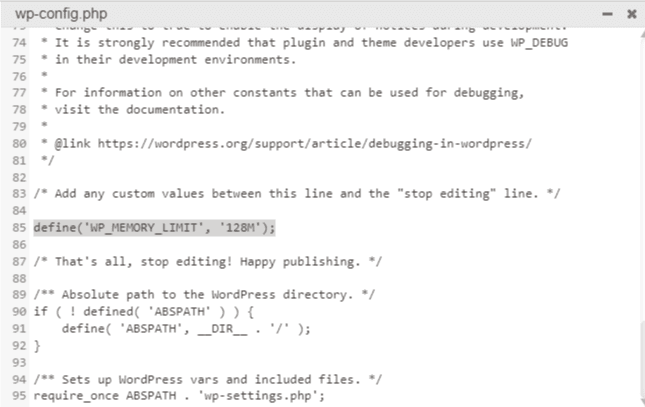
Increasing the memory limit can help. This gives WordPress more room to work. You might need to edit the wp-config.php file. It’s important to be careful. A small change can fix big problems.
Credit: wpmet.com
Signs Of Low Memory Limit
Websites may become slow or even freeze when memory is low. Pages take forever to load. Images don’t show up. Sometimes, plugins stop working. Users may see error messages like “Out of Memory”. This is frustrating. It can make visitors leave your site.
Admin dashboard may act weird. It freezes or doesn’t respond. New updates won’t install. You can’t add new features. Low memory affects site performance. It slows down everything. Your work becomes harder.
Fixing these problems is crucial. It helps keep your site running smoothly. Make sure to check memory settings regularly. A healthy memory limit is vital for WordPress sites. It keeps things working well.
How To Check Current Memory Limit
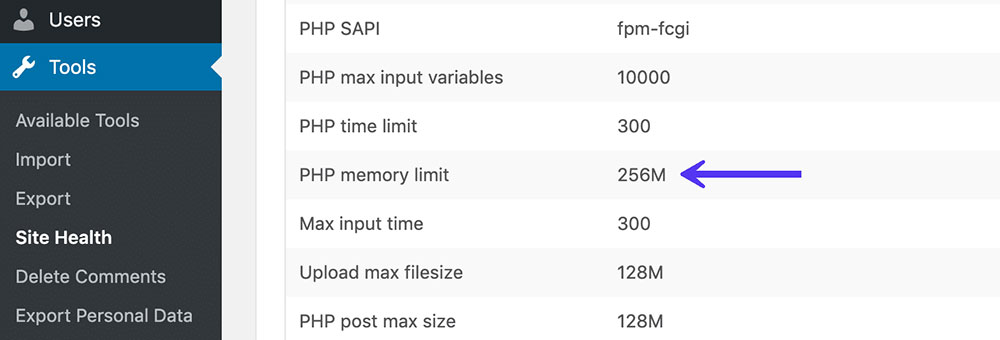
Checking the WordPress memory limit is simple. First, go to the WordPress dashboard. Find the menu on the left side. Click on Tools. Then, click on Site Health. A new page will open. Look for the Info tab. Click it. Scroll down until you see Server Information. You will find the memory limit there. It is usually in megabytes (MB).
Another way is using a plugin. Install a plugin like WP Memory Usage. Activate the plugin. You will see the memory details in the dashboard. This is easy for beginners. Knowing the memory limit helps. It ensures your site runs smoothly. Enough memory is important for plugins and themes. Keep your site fast and efficient.
Increasing Memory Limit
Open the wp-config.php file with a text editor. Add this line: define('WP_MEMORY_LIMIT', '256M');. Save the file. This change helps to increase the memory limit.
Locate the php.ini file on your server. Find the line with memory_limit. Change it to memory_limit = 256M. Save the file. This increases the memory for PHP scripts.
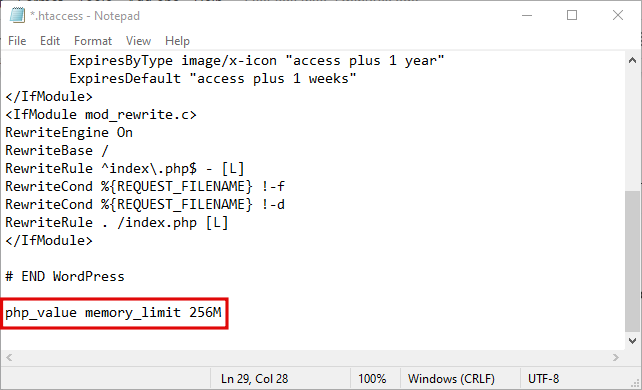
Open the .htaccess file in the WordPress root directory. Add this line: php_value memory_limit 256M. Save the changes. This helps increase memory usage on your site.
Impact On Website Performance
WordPress memory limit affects website speed. A low limit slows down the site. More memory helps load pages faster. Users enjoy quick browsing. High traffic sites need more memory. They handle more visitors at once. Plugins also use memory. Too many plugins can slow down your site. Increase memory for better performance. Check your hosting plan. Some plans limit memory. Ask your host for more if needed. Optimize images and scripts. This saves memory. Test your site speed often. Make changes if it’s slow. A fast site keeps visitors happy. Memory is key for a smooth experience.
Credit: muffingroup.com
Common Errors Related To Memory Limit
Fatal Error: This error shows up when your site uses too much memory. It means the site needs more memory to work well. Your site’s code might be trying to use too much memory. This stops the site from loading. You might see a blank page or error message. To fix, increase the memory limit. Change the settings in your site’s server. This helps your site run better.
Internal Server Error is another common problem. This error means something is wrong with the server. Sometimes, low memory causes this error. Your site might crash or freeze. Users can’t access your pages. To solve, check the server logs. Find out what’s causing the issue. Often, increasing memory helps. Make sure plugins and themes are updated. This reduces server load and helps avoid errors.
Best Practices For Managing Memory Limit
Setting the right memory limit helps your WordPress site run smoothly. Too low a limit may cause errors. Your site can become slow or crash. Increasing it can solve many issues. Check your site’s current memory usage. This helps in deciding the right limit. Always back up your site before changes.
Update your php.ini file to increase memory. Look for the line that says memory_limit. Change the value to something higher like 256M. Save the file after editing. If you can’t access php.ini, use your wp-config.php file. Add this line: define('WP_MEMORY_LIMIT', '256M');
Ensure your hosting provider allows higher memory limits. Some providers restrict this. Contact them if you face issues. Regularly monitor your site’s performance. Adjust memory settings as needed. These steps help keep your site fast and error-free.
Credit: www.hostinger.com
Frequently Asked Questions
What Is The Default WordPress Memory Limit?
The default WordPress memory limit is typically 32MB. However, this might vary depending on the hosting provider. Increasing the memory limit can improve website performance. It can be crucial for running resource-intensive plugins or themes. Always check with your host for specific limitations.
How To Increase WordPress Memory Limit?
To increase the WordPress memory limit, edit the wp-config. php file. Add the line `define(‘WP_MEMORY_LIMIT’, ’64M’);` or a higher value. Ensure your hosting provider allows the specified limit. Larger memory limits can improve site performance but check for compatibility issues.
Why Is WordPress Memory Limit Important?
WordPress memory limit is crucial for optimal site performance. It dictates how much memory PHP scripts can use. Insufficient memory may cause slow loading times or errors. Increasing it helps handle resource-heavy themes or plugins, ensuring a smoother user experience.
What Happens If Memory Limit Is Exceeded?
If the memory limit is exceeded, you may encounter the “Allowed memory size exhausted” error. This can lead to site crashes or incomplete loading. Increasing the memory limit in the wp-config. php file can resolve this issue. Ensure your hosting provider supports the desired limit.
Conclusion
Understanding WordPress memory limit is crucial for website performance. It affects speed and functionality. Increasing it can enhance your site’s efficiency. Check your current settings regularly. Adjust when needed. This ensures smooth operation and prevents crashes. Always back up your site before making changes.
This protects your data. Consult your hosting provider for help if unsure. They can guide you through the process. Keep learning and stay updated. This helps in maintaining an optimal website experience. A well-managed WordPress memory limit benefits both you and your visitors.


