
Imagine having a magical control room where you can effortlessly manage every aspect of your website. That’s precisely what the WordPress Dashboard offers you!
As the beating heart of your WordPress site, the dashboard is your go-to place for creating, editing, and organizing your content with ease. But what exactly does this powerful tool entail, and how can it transform your online presence? If you’re eager to unlock the secrets of this dynamic platform and boost your website’s performance, you’re in the right place.
Dive in, and discover how mastering the WordPress Dashboard can put you in the driver’s seat of your digital domain, turning your website into a well-oiled machine. Ready to empower your web journey? Let’s get started!
WordPress Dashboard Essentials
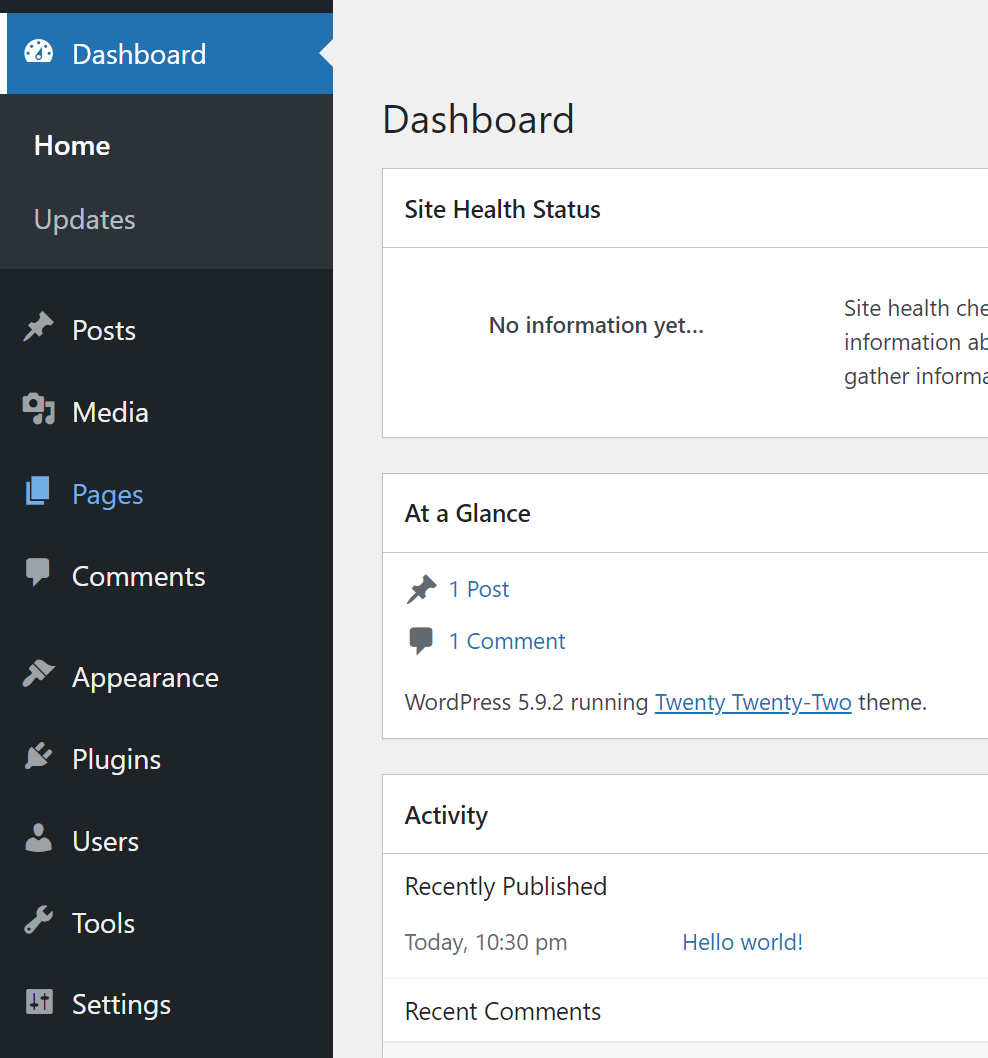
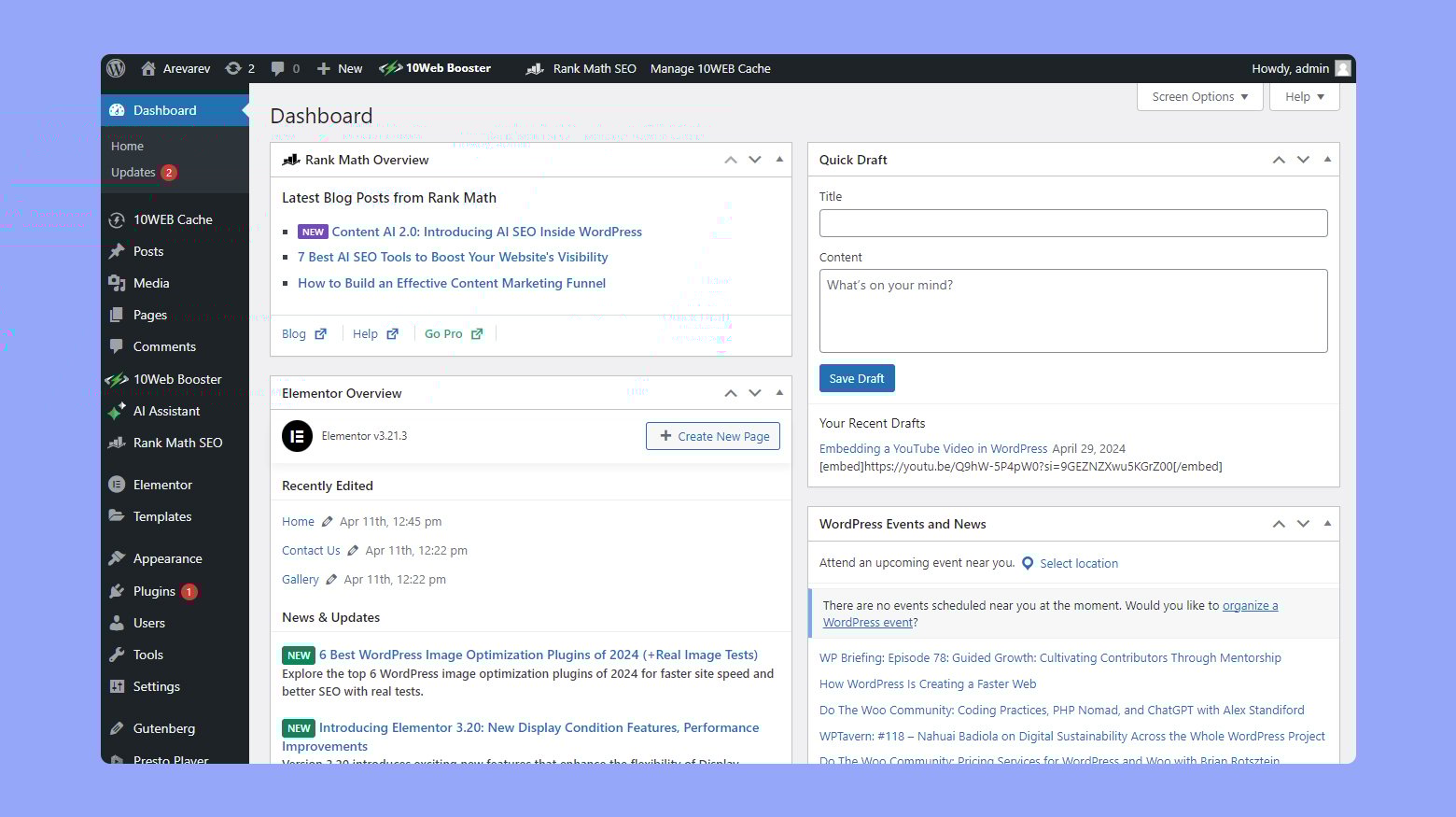
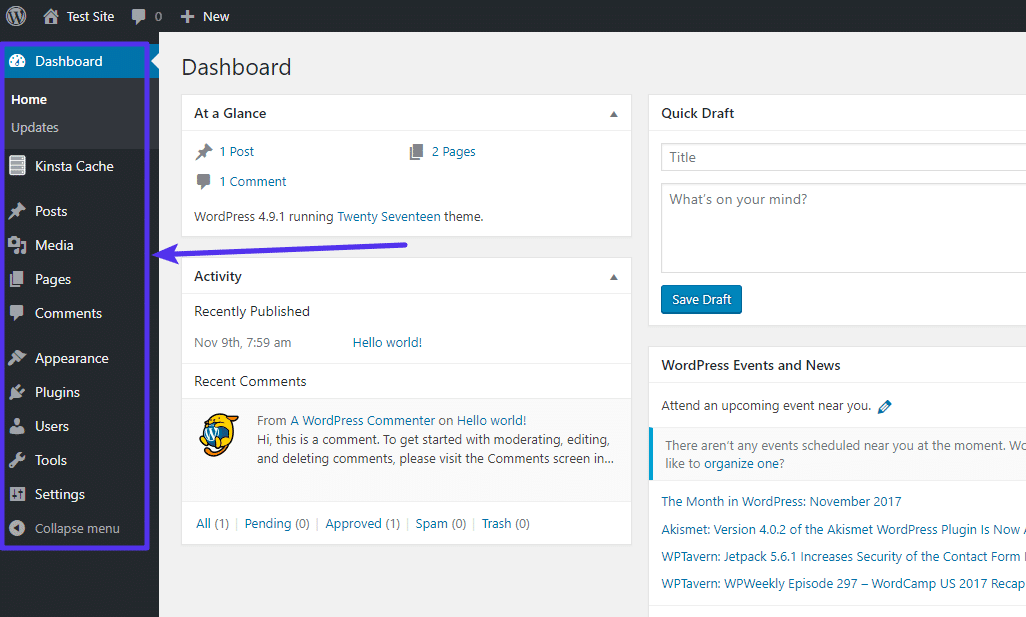
The WordPress Dashboard is a hub for website management. It helps you control every part of your site. The dashboard is user-friendly. It shows you all the important tools. You can add new posts and pages easily. The menu on the left side has all the options you need.
The At a Glance section shows site stats. You can see the number of posts, pages, and comments. This helps you keep track of your content.
Updates are important for security. The dashboard tells you when updates are needed. It’s easy to update themes and plugins. This keeps your site safe and running smoothly.
The Quick Draft feature lets you write ideas fast. It’s great for jotting down thoughts. You can save drafts and come back later to finish them.
Credit: jetpack.com
Navigating The Interface
The WordPress Dashboard is the starting point. It’s where you manage your site. The dashboard shows your site’s activities. You’ll see updates, posts, and comments. It helps keep your site fresh.
On the left, there’s a menu. This menu has important options. Pages, posts, and settings are there. You can click these to make changes. It’s simple to use. Find what you need quickly.
The top bar has shortcuts. These shortcuts save time. You can add new posts fast. Also, view your site with one click. This makes your work easy.
Widgets are on the right. They show site stats. Widgets tell you about visitor numbers. They help you understand your site’s growth.
Customizing Your Dashboard
The WordPress Dashboard is like your website’s control room. You can change many things to make it your own. Widgets are small boxes with information. You can add or remove them. Drag and drop to move them around. This way, you see what is important to you first.
The screen options tab helps you choose what to show. You can show or hide different parts. Make it simple or detailed. It is your choice.
Plugins can add new features to your dashboard. Some plugins help you see more data. Others can make tasks easier. Explore and find what you need.
Managing Content
Creating a post in WordPress is simple. Click on the “Posts” option. Then click on “Add New”. A new page will open. Here, write your title in the top box. In the large box, write your content. Use the toolbar to style your text. You can make it bold or italic. Add images by clicking the “Add Media” button. Once done, click “Publish” to share your post.
Pages are different from posts. They are for static content. To create a page, go to “Pages” and click “Add New”. Enter a title and add content in the editor. You can also add images here. Arrange pages under “Parent” pages. This helps in keeping them organized. Finally, press “Publish” to make the page live.
Working With Plugins And Themes
Plugins add extra features to your site. They make your site better. You can add plugins in a few steps. First, go to the plugin section in the dashboard. Click on “Add New”. Now, search for the plugin you need. Once you find it, click on “Install Now”. After installing, click “Activate” to start using it.
Themes change the look of your site. They make it unique. To change a theme, go to the appearance section. Click on “Themes”. You will see many themes here. Choose one you like. Click on “Activate”. Some themes need customizing. Use the “customize” button for this. Change colors, fonts, and more. Make your site yours.
Credit: 10web.io
User Management
WordPress makes adding new users easy. Access the dashboard. Find the Users section. Click on Add New. Enter the user’s details. Name and email are needed. Choose a strong password. Decide if the user should get an email. Hit the Submit button. Now, the new user is added.
Different roles have different powers. The Administrator controls everything. The Editor can change posts and pages. The Author writes and publishes their own posts. The Contributor writes but can’t publish. The Subscriber reads and comments. Choose the right role. Make sure users have needed access. Roles help keep your site safe.
Understanding Settings
General settings help manage your site’s basic details. You can set your site title and tagline. These words show on the browser tab. Choose your time zone so posts appear at the right time. Update your email address for alerts and messages. Decide if people can register as members. It’s important to keep your site language correct. This helps everyone understand your site.
Permalinks are the links to your pages. They help people find your content easily. Choose a style that is clear. A common choice is post name. It uses your post title in the link. This makes links easy to read. It is also good for search engines. You can change permalinks anytime. Just remember to update old links. This keeps everything working right.
Monitoring Website Performance
WordPress dashboard helps track your site’s health. Use analytics tools to see how visitors behave. These tools show which pages get traffic. They tell you which posts are popular. Google Analytics is one tool you can use. It shows visitor numbers. It shows where visitors come from. Bounce rate is important. It shows if visitors stay or leave quickly. High bounce rate means visitors leave fast. Try to keep bounce rate low. Check page views too. More views mean more interest in your content.
SEO tracking is vital for website success. Use tools like Yoast SEO. This plugin helps improve search rankings. It checks keywords in your content. Good keywords help your site appear in searches. Use relevant keywords in titles and headings. SEO score matters. It tells you how well your site ranks. A higher score is better. Update content regularly. Fresh content attracts more visitors. Keep an eye on backlinks. They help improve SEO. More backlinks mean better authority.
Tips For Effective Use
Keeping your WordPress Dashboard updated is vital. New updates fix bugs and improve security. Check for updates once a week. WordPress often releases updates. Updating plugins and themes is important too. This ensures compatibility and safety. Use automatic updates if available. It saves time and effort. Always back up your site before updates. Avoid problems by staying updated.
Backing up your site is crucial. It protects your data. Use tools that automate backups. Set them to run daily or weekly. Keep copies in different locations. Local and cloud storage are good options. This ensures you can recover your site. If something goes wrong, backups are your safety net. Losing data can be costly. Regular backups prevent this.
Credit: kinsta.com
Frequently Asked Questions
What Is The WordPress Dashboard?
The WordPress Dashboard is the control center for your WordPress site. It provides access to all the tools and features needed to manage your website. From here, you can create posts, customize themes, manage plugins, and monitor site activity. It’s designed to be user-friendly, even for beginners.
How Do I Access The WordPress Dashboard?
To access the WordPress Dashboard, log into your WordPress site. Once logged in, you’ll be redirected to the Dashboard. Alternatively, append “/wp-admin” to your site’s URL. This will take you directly to the login page. After entering your credentials, you’ll gain access to the Dashboard.
What Features Does The WordPress Dashboard Offer?
The WordPress Dashboard offers a variety of features to manage your website. You can create and edit posts, pages, and media. Customize the appearance with themes and widgets. Manage plugins and users. Access settings, analytics, and security tools. It’s a comprehensive hub for website management.
Can I Customize My WordPress Dashboard?
Yes, you can customize your WordPress Dashboard to suit your preferences. Use screen options to show or hide specific elements. Install plugins to enhance functionality. Choose themes that provide unique dashboard layouts. This customization helps streamline your workflow and improve user experience.
Conclusion
Exploring the WordPress Dashboard is key to website management. It offers tools for content creation, design tweaks, and user engagement. Beginners will appreciate its simplicity. Advanced users find robust features. Regular updates keep it secure and efficient. Managing plugins and themes is straightforward.
You can monitor site activity easily. Customization options enhance your site’s look. Understanding the dashboard boosts productivity. It’s an essential skill for website owners. Start with the basics, then explore deeper. Your site will thrive with proper use. Keep learning, and enjoy building your WordPress journey.


