
Have you ever found yourself tangled in the web of website management, wishing there was a simpler way to control everything? If you’re nodding your head, then you’re about to discover a game-changing tool: the WordPress Admin Area.
Imagine having the power to manage every aspect of your website at your fingertips. This crucial feature is your command center, your digital cockpit, where every button, link, and setting is designed to help you steer your site with ease and precision.
Whether you’re a seasoned webmaster or just starting your online journey, understanding the WordPress Admin Area is like unlocking the secret map to a treasure trove of website potential. Stick around, and you’ll uncover how this powerful tool can transform your website management experience and make your digital goals more attainable than ever.
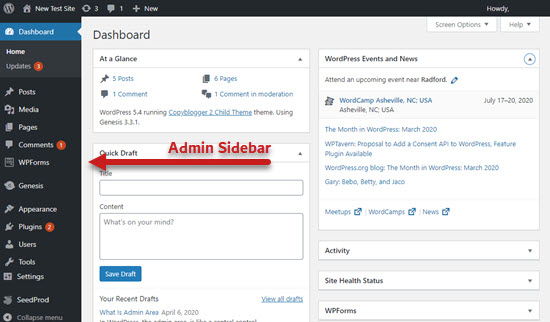
WordPress Admin Dashboard
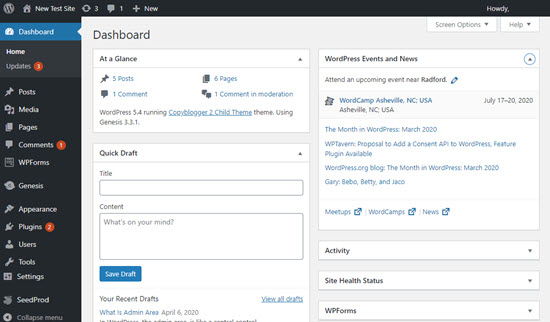
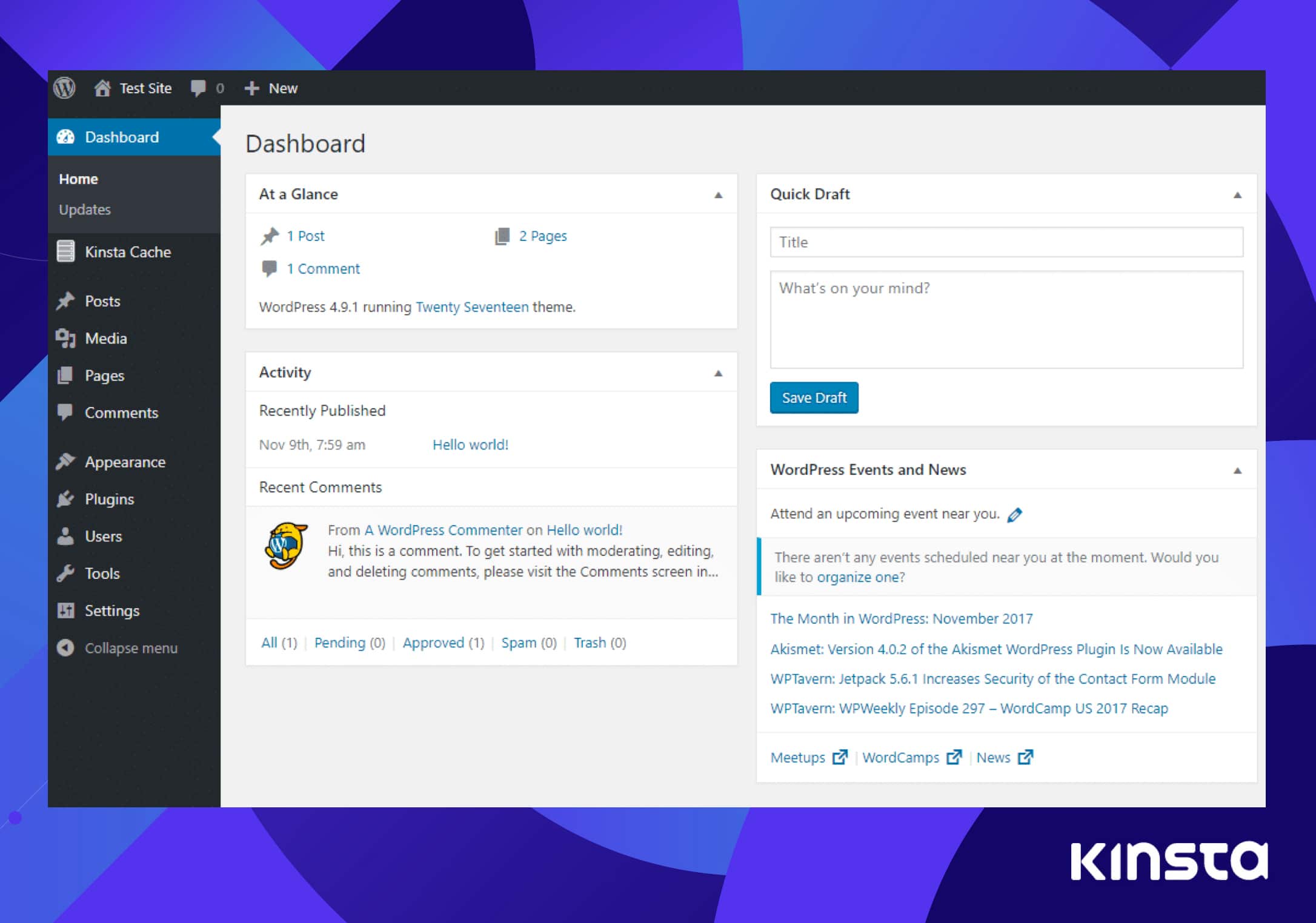
The WordPress Admin Dashboard is the heart of your site. It lets you control everything. Add new posts easily. Manage your site’s settings. Users can be added or removed. It is a powerful tool. The dashboard has many features. They are useful. You can change themes. Make your site look different. Plugins add extra abilities. They are easy to install. Your site’s performance can be checked. It shows how fast your site is. The dashboard is simple to use. Even beginners can use it. No special skills needed.
Navigation Menu
Dashboard Overview provides a quick look at your site. You can see your site’s activity. It shows recent comments. It also displays site stats. Your WordPress version is visible here.
Posts and Pages section lets you manage content. Create new posts with ease. Edit existing pages quickly. You can organize them into categories. Add tags for better searchability.
Media Library stores your images and files. Upload photos easily. Organize them in folders. You can edit images here. Manage all media files from this section.
Comments Management helps handle user feedback. Approve or delete comments. Respond to users directly. Keep your site interactive. Maintain a healthy discussion environment.
Appearance Customization
Themes change how your site looks. Choose from many designs. Each theme has special features. You can switch themes easily. Some themes are free. Others need payment. Themes affect colors and layout.
Widgets add extra functions to your site. They can show photos, text, or links. Drag and drop widgets to different areas. Widgets enhance user experience. They can be added to sidebars. Customize widgets to fit your needs.
Menus guide visitors through your site. Create menus for easy navigation. Add links to pages or posts. Menus appear at the top or side. Organize menus to simplify finding information. Menus help users explore your site.
Background and Headers personalize your site. Change background colors or images. Headers appear at the top of pages. Use headers for branding. They make your site unique. Customize them to show your style.
Plugins Management
Adding plugins to your WordPress site is easy. Visit the Plugins section in the admin area. Click on Add New. Search for the desired plugin. Click Install Now. After installation, click Activate to start using it.
Keeping plugins updated is essential. Updated plugins work better and are safer. Go to the Plugins area in the admin. Look for any plugin with an Update Now option. Click on it to update the plugin. Ensure you do this regularly.
Each plugin may have settings to adjust. Find the plugin in the Installed Plugins list. Click on Settings under the plugin name. Modify the settings as needed. These settings help the plugin perform better.
User Management
WordPress has five main roles. Administrator, Editor, Author, Contributor, and Subscriber. Each role has different permissions. Administrators can do everything. Editors can change content. Authors can write and publish. Contributors can write but not publish. Subscribers can only read content.
Only administrators can add new users. Go to the Users section. Click Add New. Enter user details. Choose a role for the new user. Click Add New User to save.
Every user has a profile. Profiles have personal details. Users can change their own profiles. Update email, password, and more. Go to Profile in the menu. Make changes. Click Update Profile to save.
Credit: www.wpbeginner.com
Settings And Configuration
General Settings allow you to set your site name and tagline. You can change your email and time zone here. These settings help your site look right. They make sure your visitors see the correct details.
The Writing and Reading settings help you write and read posts. You can choose your default category for posts. You set how many posts show on your homepage. This helps your site stay organized. It makes reading easier for everyone.
Permalinks are the URLs for your posts. They help people find your content. You can choose how these links look. This makes your site easy to navigate. Good permalinks improve your site’s search engine ranking.
Privacy Settings protect your visitors’ data. You can create a privacy policy page. This helps you follow rules and keep data safe. It builds trust with your users.
Tools And Utilities
The WordPress Admin Area has a tool for Importing and Exporting data. It helps move content between websites. You can use it to move posts, pages, and media. This is very useful when starting a new site. It helps save time and effort.
The Site Health tool checks your website’s performance. It looks for problems that might slow down your site. It also suggests how to fix these issues. Keeping your site healthy is important. It makes sure everything runs smoothly.
There are various tools in the admin area. They help manage your website better. Some tools help with post editing. Others help with media management. These tools make tasks easier to handle. WordPress offers these to improve your site management.
Credit: www.wpbeginner.com
Security Features
WordPress Admin Area offers robust security features. Password protection ensures unauthorized access is blocked. Two-factor authentication adds an extra layer of security, safeguarding sensitive data effectively.
Login Security
WordPress Admin Area has login security measures. Strong passwords are required. Passwords protect your data. The system locks accounts after failed attempts. Hackers can’t easily get in. This keeps your site safe.
Backups
Regular backups are essential. They save your data. Backup copies are stored safely. If something goes wrong, restore from backups. This protects against data loss. Backups give peace of mind.
Two-factor Authentication
Two-Factor Authentication adds extra security. It requires two steps to log in. First, enter your password. Then, verify with a code. The code is sent to your phone. This makes hacking harder. Your site stays safe.
Common Issues
Some users face trouble logging in. Incorrect usernames are common mistakes. Forgotten passwords can add to the problem. Browser cache sometimes creates issues. Clearing it might help. Use the password reset option when needed.
Plugins sometimes clash with each other. This can break site features. Deactivating plugins one by one helps find the bad one. Updating plugins regularly is important. Old versions cause problems. Compatibility checks are wise before adding new ones.
Themes sometimes clash with plugins. This can make sites look odd. Switching themes temporarily helps find the issue. Updating themes is crucial. New updates fix bugs. Child themes are safer for custom changes.
Credit: kinsta.com
Frequently Asked Questions
What Is The WordPress Admin Area?
The WordPress Admin Area is a backend interface for managing your WordPress site. It allows users to create, edit, and publish content. You can also manage themes, plugins, and user roles. It’s the control center where site settings and features are configured.
How Do I Access The WordPress Admin Area?
To access the WordPress Admin Area, add “/wp-admin” to your site’s URL. Log in with your credentials. You need an administrator role to access all features. Once logged in, you can manage your site’s content and settings.
What Can I Do In The WordPress Admin Area?
In the WordPress Admin Area, you can create, edit, and manage posts and pages. You can customize themes and install plugins. Manage users and configure site settings. It’s the central hub for all site management tasks.
Is The WordPress Admin Area Secure?
The WordPress Admin Area is secure, but you must take precautions. Use strong passwords and enable two-factor authentication. Regularly update WordPress, themes, and plugins. Limit login attempts and use security plugins to enhance protection.
Conclusion
WordPress Admin Area is a crucial part of managing your site. It offers tools to customize and control your content. Easy navigation makes tasks simple and efficient. Users can add posts, change themes, and manage plugins. Security settings ensure your site stays safe.
Beginners and experts find it intuitive and useful. Remember, regular updates keep your admin area running smoothly. Exploring its features can help enhance your site. Understanding WordPress Admin Area gives you the power to build your online presence effectively. Dive in and make your website shine!


