
Imagine having the power to transform your WordPress site with just a few clicks. That’s what Widget Management in WordPress offers you.
Widgets are the small but mighty tools that can enhance your website’s functionality, making it more engaging and user-friendly for your visitors. But here’s the catch: without proper management, they can become overwhelming, turning your site into a cluttered mess.
You know how frustrating it is when a webpage feels chaotic, right? That’s why understanding widget management is crucial. It’s your key to maintaining a clean, organized, and efficient site that keeps your audience coming back for more. Dive into the world of widgets and discover how you can take control, ensuring your site not only looks great but performs seamlessly. Ready to unlock the secrets of effective widget management? Let’s get started!
Widget Basics
Widgets are small tools or content boxes. They add features to your WordPress site. These features can be a calendar or a search bar. Widgets make sites more useful and fun. You can find them in the WordPress dashboard.
Widgets help you organize your site. They keep things easy to find. You can put them in sidebars or footers. Widgets make your site look better. They are also easy to use. Just drag and drop to add them.
Types Of Widgets
WordPress gives many default widgets for users. Text widgets let you add text or HTML to your site. The Calendar widget shows dates and events. An Archives widget helps find old posts. The Categories widget lists blog topics. You can use the Recent Posts widget to display recent blog entries.
Custom widgets let you create unique features. Developers design these widgets for special needs. You can make a social media widget for sharing posts. An image widget can show photos or logos. Some plugins give extra widgets too. Custom widgets help make your site special. They can improve how visitors use your site.
Accessing The Widget Area
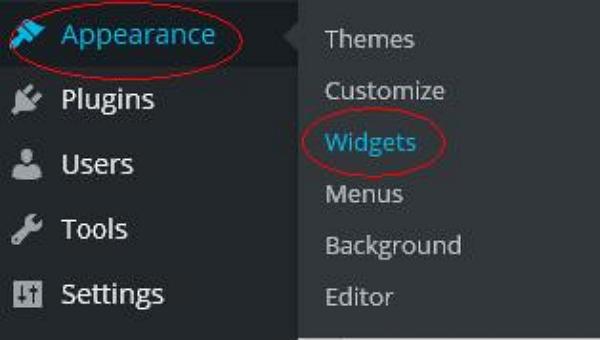
To find widgets, go to your WordPress dashboard. Look for the menu on the left. You will see many options. Click on “Appearance”. Then find the “Widgets” option. This is where you manage all your widgets. It’s easy to use.
Another way is through the Theme Customizer. In the dashboard, find “Appearance” again. Click on “Customize”. This takes you to a new page. On the left, find the “Widgets” option. Here, you can add or remove widgets. It’s all very simple.
Adding And Removing Widgets
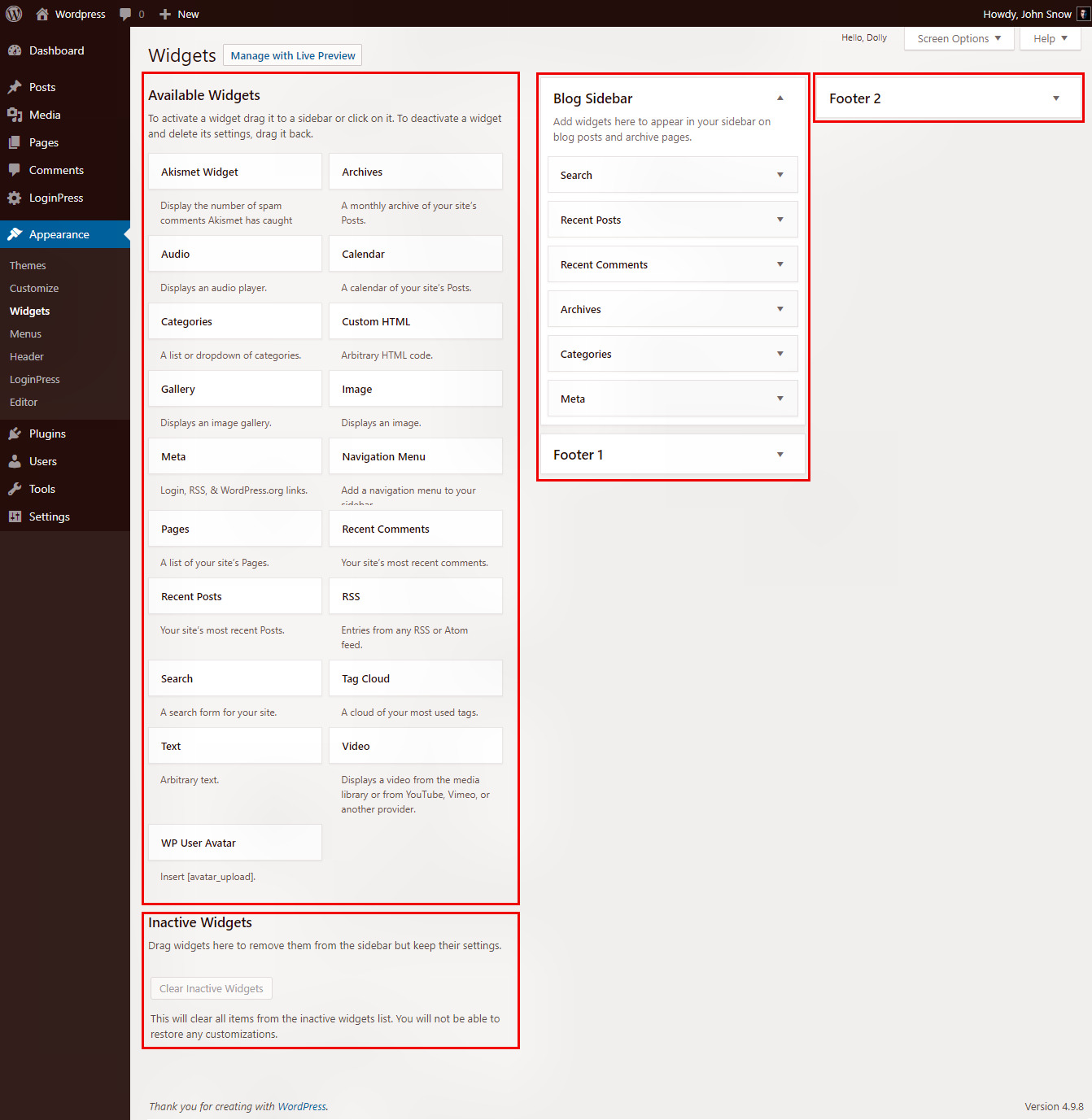
Widgets make your site look nice. Use the drag and drop method to add them. First, open the widget panel. Next, click on a widget and hold it. Move it to your chosen area. Finally, let go of the mouse button. Your widget will appear there.
The add widget button is easy to use. Locate the button on the widget panel. Click on it to see a list of widgets. Choose one from the list. After that, pick a spot for the widget. Your widget will be added there. This method is quick and simple.
Customizing Widgets
Widgets are small tools on your WordPress site. They help you show different content. You can change them to fit your needs. Open the Widget Settings to start. You can add new widgets or remove old ones. It’s like arranging furniture in your room. Change the order of widgets to make them look nice. You can also change their size and shape. This makes your site unique.
In WordPress, you have many styling choices. You can choose colors and fonts for your widgets. This makes them match your site’s look. Add borders or backgrounds to make them stand out. Play with different options to see what works best. This is how you can make your site pretty and fun.
Widget Areas And Layouts
Sidebars hold important tools and links. They make websites more useful. With sidebar widgets, you can add menus, text, or images. This helps visitors find what they need quickly. You can also add a search bar to help users find content. Make sure widgets fit the site’s theme. Keep the design clean and simple for easy reading.
Footers appear at the bottom of a page. They often hold contact details or social links. Footer widgets can include copyright information or a site map. They are useful for adding extra links without cluttering the page. Choose what is most important to show in the footer. This keeps the page looking tidy and organized.
Headers are at the top of each page. They often include the site logo and main menu. Header widgets can include search bars or login links. These make navigation easier for visitors. Other areas might include special sections or custom spots. Widgets can fit into these spaces too. They can display news or special offers. Make sure all widgets serve a clear purpose.
Best Practices
Widgets make your website look better. They add useful features. Always choose widgets that fit your site’s needs. Only add what is needed. Too many widgets can slow down your site.
Arrange them wisely. Put important ones at the top. Less important ones can go lower. This helps users find what they need fast.
Keep your site fast. Regularly check widget performance. Some widgets may need updates. Updates keep them running well.
Remove widgets you do not use. They can slow down your site. Less is more. Fewer widgets mean faster loading. Fast sites make users happy.
Credit: www.coderepublics.com
Common Issues And Troubleshooting
Widgets can disappear from your site. This happens after updates. Sometimes, themes or plugins cause this. Check your widget settings first. Make sure they are still active. Visit the Appearance menu in WordPress. Select Widgets to see the list. If they are missing, re-add them. Drag them back to the widget area. Save your changes. Refresh your page. This often fixes the issue.
Conflicts occur when two widgets do not work together. This can break the layout. Identify the conflicting widgets. Deactivate one at a time. Check if the problem goes away. If it does, the last widget is the problem. Update or replace it with another. Choose widgets from trusted developers. They are less likely to cause issues. Regularly update your widgets and themes. This helps avoid conflicts.
Advanced Widget Management
Plugins help manage WordPress widgets easily. They offer extra tools. With plugins, you can add new features. Drag and drop is a popular feature. It makes managing widgets simple. Some plugins have pre-made layouts. These layouts save time. Choose a plugin that suits your needs. Make sure it is updated regularly. This ensures security and new features.
Custom code allows more control over widgets. You can change their look. Or how they behave. Use HTML and CSS for styling. JavaScript adds interactivity. But be careful. Wrong code can break your site. It’s best to backup your site first. This way, you can restore it if needed. For beginners, start with small changes. Gradually, you can try more complex code.
Credit: www.tutorialspoint.com

Credit: torquemag.io
Frequently Asked Questions
What Is Widget Management In WordPress?
Widget management in WordPress involves adding, editing, and organizing widgets in your site’s sidebars or widget-ready areas. Widgets are small content blocks that add functionality and features, like search bars or recent posts. Managing them efficiently can enhance site usability and appearance.
How Do I Add Widgets In WordPress?
To add widgets, navigate to Appearance > Widgets in your WordPress dashboard. Drag and drop your desired widgets into designated widget areas. Customize settings as needed to suit your site’s needs. This process helps enhance your site’s functionality and user experience.
Can I Customize WordPress Widgets?
Yes, you can customize WordPress widgets to fit your site’s design and functionality. Most widgets offer settings you can adjust, such as title or content type. Some themes and plugins provide additional customization options for further design flexibility.
Why Are Widgets Important For My WordPress Site?
Widgets enhance your site’s functionality and user experience by adding interactive elements. They can improve navigation, display additional content, and promote user engagement. By effectively managing widgets, you ensure a more dynamic, user-friendly website.
Conclusion
Widget management in WordPress simplifies your site’s customization. It allows easy adjustments without coding skills. Use widgets to enhance your site’s functionality. They can improve navigation, display recent posts, or show social media feeds. Choose the right widgets for your needs.
Keep your website clean and user-friendly. Regularly update widgets for best performance. Experiment with different widgets to find what works best. Remember, a well-organized site attracts more visitors. Start managing your widgets today for a better website experience. Enjoy the flexibility and control WordPress widgets offer.


