
Have you ever wondered what makes WordPress so user-friendly, especially for those who aren’t tech-savvy? The secret lies in a powerful tool called the Visual Editor.
Imagine being able to create stunning blog posts and pages without needing to write a single line of code. Sounds incredible, right? This is exactly what the Visual Editor allows you to do. It’s like having a virtual design assistant that helps you bring your ideas to life with just a few clicks.
You’ll discover how this tool can transform your WordPress experience and empower you to craft engaging content effortlessly. Curious to find out more? Let’s dive into the fascinating world of the Visual Editor in WordPress and unlock the potential that awaits you.

Credit: docs.flothemes.com
Visual Editor Basics
The Visual Editor in WordPress helps you write posts easily. It looks like a simple text editor. You can see how your post will appear online. This makes editing fun and simple.
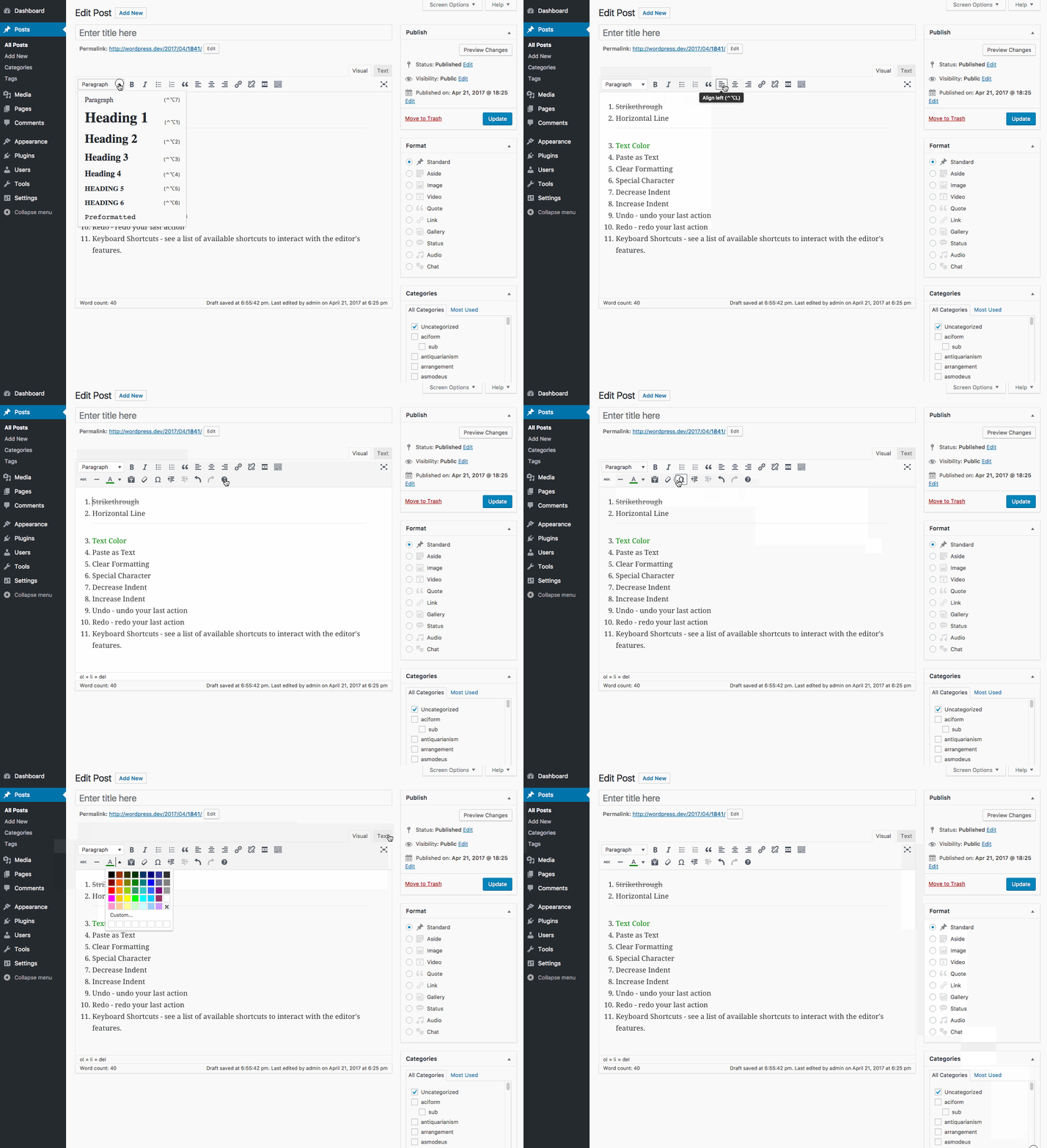
Bold or italicize words with just a click. Add images with ease. These tools are on the toolbar. You can also make lists or change font sizes.
Using the Visual Editor, you don’t need to know HTML. This helps beginners a lot. Just type, and your post is ready to share.
Credit: make.wordpress.org
Features Of Visual Editor
Visual Editor has many tools for text. You can make words bold or italic. You can change text size too. Lists are easy to make. Choose bullet points or numbers. You can even add links. Just click the link button.
Adding images is simple. Click the image button. Choose from your files. You can also add videos. Select the video option. Drag and drop makes it easy. You can arrange items by dragging. All media types are supported.
Shortcodes allow special features. They are tiny codes. Use them to add maps or forms. Widgets help display content. Place them in sidebars. Choose from many options. They are like small apps. Customize your site with them.
Switching Between Visual And Text Editors
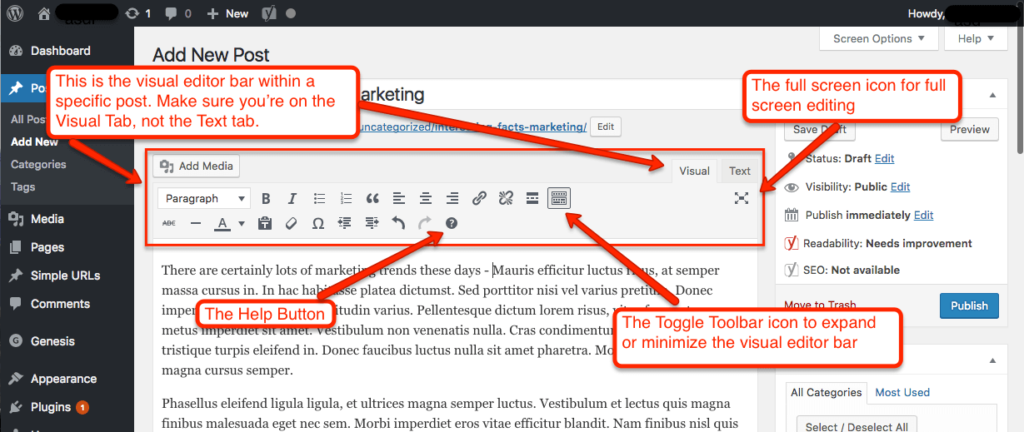
The Visual Editor in WordPress is like a word processor. It shows how your content will look. The Text Editor is different. It lets you see and edit the HTML code. You can switch between them easily. Just click the tabs at the top right of the editor.
Using the Visual Editor is simple. It helps create content without coding. The Text Editor, however, is for those who know HTML. It offers more control. Each editor has its own benefits. Choose based on your needs.
Benefits Of Using Visual Editor
The user-friendly interface of the visual editor is easy to use. It helps people write and design without knowing code. Users can drag and drop elements. They can also see changes instantly. This makes editing fun and simple for everyone.
The WYSIWYG editing feature is a big help. WYSIWYG means “What You See Is What You Get.” It shows exactly how content will look. This helps users avoid mistakes. They can make sure everything looks right before publishing.
The visual editor allows efficient content creation. It saves time and effort. Users can focus on writing and designing. They do not worry about complex codes. This makes the process smooth and quick.
Limitations Of Visual Editor
Visual Editor in WordPress offers simplicity but lacks flexibility for advanced design. Customization is limited, making complex tasks challenging. Users may find it difficult to implement unique features without coding skills.
Limited Html Customization
The Visual Editor in WordPress offers a simple way to create content. Yet, it limits advanced HTML customization. Users cannot add complex code directly. This can restrict design possibilities. Developers often need more control. The editor hides the raw HTML. This makes it hard to tweak certain elements. Simple tasks like adding custom attributes become challenging. Such limitations can frustrate users seeking unique designs. Without full HTML access, creativity may feel boxed in.
Compatibility Issues
The Visual Editor may face compatibility issues. Plugins sometimes clash with it. Themes can also cause problems. These conflicts affect site functionality. Users might see unexpected changes. Certain elements might not display correctly. Older browsers may struggle with new features. Compatibility issues can slow site performance. Fixing these problems often requires technical skills. Regular updates help, but issues may still arise. Users must stay alert to these challenges.
Tips For Effective Use
Visual Editor in WordPress simplifies content creation. Click and type directly on the page to edit text. Use the toolbar for formatting options, like bold or italic. Drag and drop media files to add images or videos easily. Save changes frequently to avoid losing work.
Keyboard Shortcuts
Keyboard shortcuts make editing faster. Use Ctrl + B to bold text. Press Ctrl + I to italicize text. Ctrl + U underlines your words. Try Ctrl + Z to undo changes. Ctrl + Y will redo them. Save your work with Ctrl + S. These shortcuts save time.
Utilizing Plugins
Plugins add features to the editor. Install a SEO plugin for better ranking. Use a grammar plugin to fix mistakes. Find a media plugin for images and videos. A backup plugin keeps your work safe. Choose plugins wisely. They enhance your editor’s power.
Comparing Visual And Gutenberg Editors
The Visual Editor in WordPress is easy. It offers basic tools for text and pictures. You can change colors and fonts. This editor is simple and quick to use. But, it may not have all the options some need.
The Gutenberg Editor is also called the block editor. It offers more design options. Each part of the page is a block. You can move blocks around. This makes it easier to create unique layouts. Some find it more flexible for designing.
The Visual Editor is simple to learn. Many new users find it easy. It has a clean interface. You click and type. That’s it!
Gutenberg might take more time to learn. There are more features. Some may need a bit more practice. But with time, many find it powerful. You have more control over your page.
Credit: larryludwig.com
Frequently Asked Questions
What Is The Visual Editor In WordPress?
The Visual Editor in WordPress is a user-friendly tool. It allows users to create and format content without coding. It offers a WYSIWYG interface, making it easy to add text, images, and links. This editor simplifies the content creation process, enhancing productivity and creativity.
How Do I Access The Visual Editor?
To access the Visual Editor, log into your WordPress dashboard. Navigate to the Posts or Pages section and click on ‘Add New’ or ‘Edit’. The Visual Editor is the default interface for content creation, offering easy-to-use formatting tools.
Can I Switch Between Visual And Text Editors?
Yes, you can easily switch between editors. In the post edit screen, you’ll find tabs labeled ‘Visual’ and ‘Text’. Click ‘Text’ for HTML editing or ‘Visual’ for a WYSIWYG interface. This flexibility allows users to customize content with precision.
What Features Does The Visual Editor Offer?
The Visual Editor offers numerous features for content creation. Users can add images, format text, and create lists with ease. It also includes tools for embedding media, adjusting alignment, and adding links. These features make it a versatile tool for bloggers and developers.
Conclusion
Visual Editor in WordPress simplifies website creation. No coding skills needed. It’s user-friendly, allowing easy content updates. Drag-and-drop features make design seamless. Beginners find it accessible and straightforward. Advanced users appreciate its flexibility. Visual Editor enhances creativity without technical barriers.
Better layouts boost user engagement. Improved site design fosters visitor retention. Content changes happen swiftly. This tool is essential for efficient web management. Harnessing its power is simple. Just open WordPress, start editing visually. Your site evolves as your ideas do.
Visual Editor is practical for all. A vital part of WordPress.


