
Have you ever wondered how to access the heart of your WordPress website? The WordPress Admin Login is your gateway to control every aspect of your site.
Whether you’re a seasoned developer or a curious beginner, understanding this login process is crucial. Imagine effortlessly customizing your site, adding new content, and managing plugins—all from a single, powerful dashboard. You’ll discover the simple steps to access your WordPress Admin Login, ensuring that you have the keys to unlock your website’s full potential.
Ready to dive in and take control? Let’s get started!
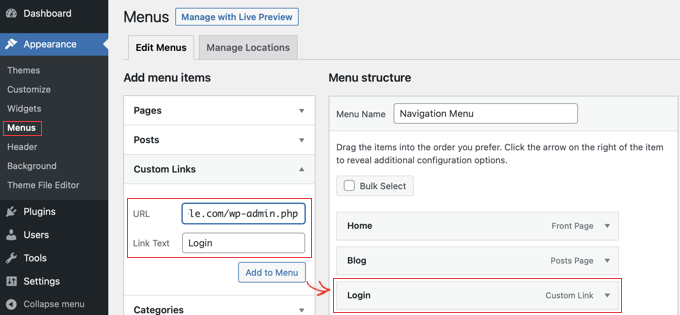
Credit: www.wpbeginner.com
WordPress Admin Login Basics
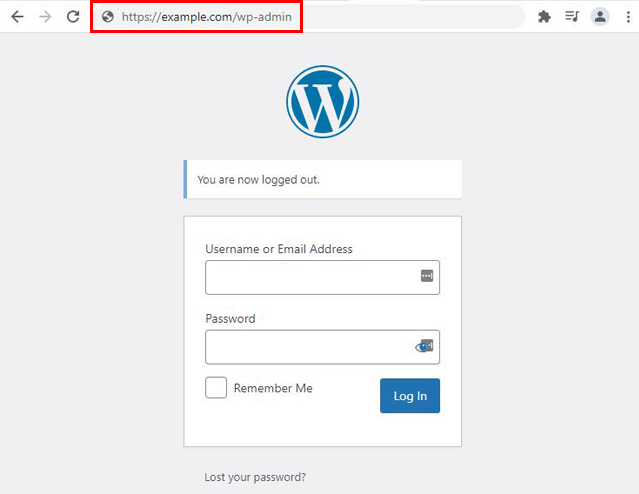
The WordPress admin login is your gateway to your website’s control panel. This is where you manage your site’s content and settings. You can change themes, add new posts, and update plugins here. To access this area, use the URL ending with /wp-admin. Enter your username and password on the login page. Keep your login details safe. This helps protect your site from hackers. If you forget your password, use the ‘Lost your password?’ link. You will get an email to reset it. Always update your password regularly. This ensures your site stays secure.
Accessing The Admin Dashboard
Logging into WordPress is easy. Start by opening your browser. Type your website’s URL. Add /wp-admin at the end. Press Enter. You will see the login page. Type your username and password. Click on Login. You are now in the admin dashboard.
In the dashboard, you can manage your site. Create new posts. Change themes. Add plugins. It’s your site control center. Always keep your login details safe. Never share them with others. This protects your website.
Use strong passwords. Mix letters, numbers, and symbols. This makes your account more secure. Update passwords regularly. Keep your WordPress updated too. This helps protect your site from hackers.
Common Login Url
To access the WordPress admin area, use a specific URL. This URL is often like yourwebsite.com/wp-admin. It may vary slightly but follows this pattern. Many users type it directly into the browser’s address bar. Forgetting the URL can be frustrating. Bookmarking it helps save time. Remembering it makes access quicker. Some websites use custom URLs. This adds an extra layer of security. Always check your site’s specific login URL. It keeps your website safe from unauthorized access.
Login Credentials
The username is your unique ID. It tells the system who you are. Choose a name that is easy to remember. Avoid common names like “admin” or “user”. These are easy for others to guess. Keep it simple but unique.
The password is like a secret key. It keeps your account safe. Use a mix of letters, numbers, and symbols. Avoid simple passwords like “123456” or “password”. These are not safe. Make your password strong.
Creating Strong Passwords
A strong password is hard to guess. Use at least eight characters. Mix uppercase and lowercase letters. Add numbers and symbols. Change your password often. Never share it with others.
Troubleshooting Login Issues
Sometimes, people forget their passwords. It happens to everyone. To fix this, click on the “Lost your password?” link on the login page. Enter your email address. Check your email for a link to reset your password. Follow the steps in the email. You will have a new password soon. Keep it safe and easy to remember.
An account may lock after many wrong password attempts. This is for safety. Wait a bit, then try again. Still locked? Contact your site administrator. They can help unlock your account. They may ask for some details to confirm your identity. Stay calm, and follow their instructions.
Need to reset your password? Go to the login page. Click on the “Lost your password?” link. Enter your username or email. Check your email for a reset link. Click the link and make a new password. Use a mix of letters and numbers. Make it strong but easy to remember.
Securing The Admin Login
Two-factor authentication adds a layer of security. It requires a second step to log in. This step is often a code sent to your phone. Without this code, access is denied. This keeps your site safe from hackers. Use apps like Google Authenticator for easy setup. It’s a simple way to protect your account.
Limit login attempts to prevent unauthorized access. It stops repeated wrong passwords. If someone tries too many times, they get blocked. This stops brute force attacks. Use plugins to set limits easily. It reduces the risk of hacking. Your site stays secure.
Secure your URL by changing the default login path. Hackers often know the default path. Create a custom URL for login. This makes it harder to find. Use plugins to change your URL. Your login page becomes less visible. This adds another layer of security.
Customizing The Login Page
Plugins are easy tools for making changes to your site. They help you customize the login page without coding. Many plugins are free. Some plugins let you change colors and fonts. Others allow adding a logo or background image. These small changes make your site unique.
A well-designed login page is important. It shows your site’s identity. Keep the design simple. Use colors that match your brand. Your logo should be clear. Visitors feel more secure on familiar sites. A branded login page builds trust. It gives a professional look to your site.
Credit: themegrill.com
Best Practices For Admin Security
Keeping WordPress up to date is important. Updates fix security issues. They keep your site safe. Always use the latest version. Plugins and themes need updates too. Outdated plugins can be risky. Check for updates weekly. It helps keep hackers away.
Assign roles wisely. Admins have full control. Limit admin access. Give users only what they need. Use roles like editor or author. It keeps the site safe. Fewer admins mean fewer risks. Review roles regularly. Change them if needed.
Backups protect your data. Always have a backup plan. Use plugins to help. Schedule backups weekly. Keep copies in different places. Cloud storage is a good option. Backups make recovery easy. Test them often. Make sure they work.

Credit: jetpack.com
Frequently Asked Questions
How Do I Access The WordPress Admin Login?
To access the WordPress admin login, append ‘/wp-admin’ to your site’s URL. For example, if your site is ‘example. com’, visit ‘example. com/wp-admin’. Enter your username and password on this page to log in. Ensure you use secure credentials to protect your site.
What If I Forgot My WordPress Admin Password?
If you forget your admin password, click “Lost your password? ” On the login page. Enter your email or username to receive a password reset link. Follow the instructions in the email to create a new password. Ensure your new password is strong and unique.
Can I Change My WordPress Admin Username?
By default, WordPress doesn’t allow username changes. However, you can create a new admin user with a different username. Then, delete the old admin account. Ensure you assign the correct roles and permissions to the new user for seamless management.
Why Can’t I Log Into WordPress Admin?
Login issues can arise from incorrect credentials, plugin conflicts, or browser cache problems. Double-check your username and password for accuracy. Clear your browser cache or try another browser. Disable plugins via FTP if conflicts occur. Ensure your site is up-to-date and secure.
Conclusion
Navigating the WordPress admin login is straightforward. It opens a world of website management possibilities. Understanding its basics empowers you to manage your site efficiently. Remember to keep login details secure. Protecting your website is crucial. Regular updates ensure smooth operation.
Familiarize yourself with the dashboard. This boosts confidence in handling tasks. Explore features slowly. Learn what each tool offers. Step by step, WordPress becomes easier. Over time, managing your site feels natural. Keep practicing, and soon you’ll handle it with ease.
Happy managing!


