
Are you looking to jazz up your WordPress site with some custom styles? Whether you’re a seasoned developer or a curious beginner, knowing how to properly add styles to WordPress can be a game-changer for your website’s appearance and functionality.
You want your site to stand out, look professional, and reflect your brand, right? But if you’ve ever felt overwhelmed by the technical jargon or unsure where to start, you’re not alone. This article is here to guide you through the process step by step.
Imagine having the skills to transform your site’s aesthetic with ease, making it not just visually appealing but also user-friendly. Stick around, and you’ll discover simple techniques and expert tips that will empower you to take control of your WordPress styling. Ready to dive in and give your site the makeover it deserves? Let’s get started!
Enqueuing Stylesheets
Enqueuing helps keep your site organized. It loads stylesheets the right way. This prevents conflicts and makes your site run better. Enqueuing also helps with dependencies. Styles load in the correct order. This ensures everything looks as it should. WordPress has a function just for this. It makes the process simple and clean.
First, create a function in your theme’s functions.php file. Next, use wp_enqueue_style() to add styles. Don’t forget to include the stylesheet URL. Also, specify dependencies if needed. Finally, use add_action() to hook your function. This lets WordPress know when to load the styles.
Some forget to use the right hook. This can break your site. Others might not specify dependencies. This can lead to styles not loading properly. Also, avoid hardcoding styles in the header. This makes your site slower. Always enqueue styles the correct way.
Using The Customizer
Click on Appearance in your WordPress dashboard. Next, select Customizer. This opens the Customizer panel. You can change your site’s look here. It’s like a magic window. You can see changes in real-time. No need to guess. Easy and fun.
Find the Additional CSS option in the Customizer. Type your CSS code there. You can make your site unique. Want bigger fonts? Change colors? You can do it all. Click Publish to save. Your changes appear live. It’s simple and quick.
Customizer is user-friendly. No coding skills needed. It shows real-time changes. You get instant feedback. Mistakes are easy to fix. It saves time. You control your site’s look. Make it yours.
Child Themes And Styling
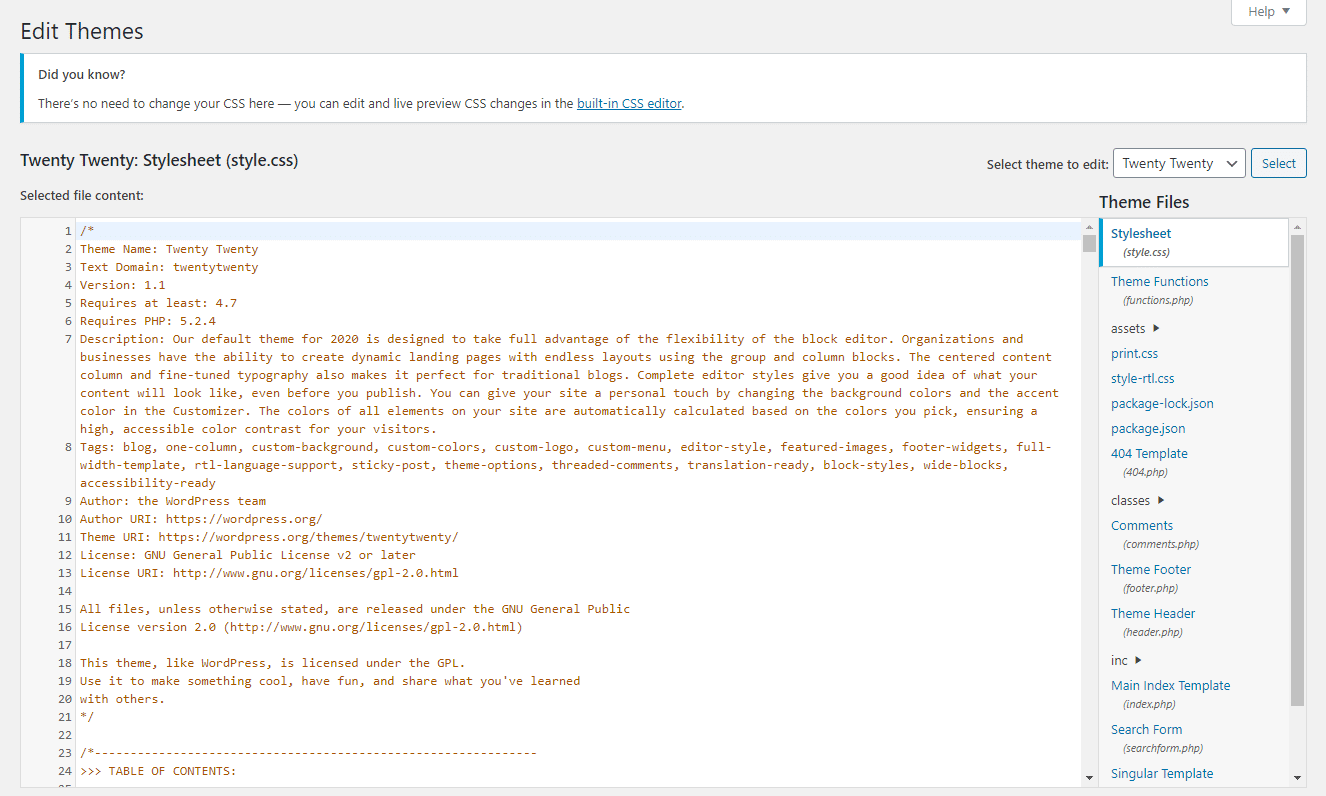
Use child themes for easy changes in WordPress. They help keep the main theme safe. First, make a new folder in the themes directory. Name it something like “my-child-theme”. Add a style.css file with basic details. Include information like theme name and description. Create a functions.php file to enqueue styles. This helps connect the child theme to the parent theme. Follow these simple steps for a proper start.
Adding styles is simple with child themes. Open the style.css file. Write your CSS rules here. These rules change the look of your site. Use selectors wisely. Target specific elements for changes. Save the file after editing. Refresh your site to see changes. Use Chrome DevTools for testing. Check your styles and make adjustments.
Child themes offer many benefits. They help keep changes safe during updates. Parent themes update without losing custom styles. This makes site management easy. Use child themes to try new designs. Test features without risk. Save time and effort with child themes. A smart choice for WordPress users.
Credit: kinsta.com
Style Plugins
Many plugins help style WordPress. Some of the most popular are Elementor and Beaver Builder. These tools help you design pages easily. Users can drag and drop elements. They offer pre-made templates to save time. WPBakery is another popular choice. It provides many customization options. Styles can be changed without coding. These plugins give you control over your site’s look.
Plugins work well with many themes. But not all themes are compatible. Some themes may break when a plugin is added. Always check plugin compatibility. Test the site after adding a plugin. This helps find any issues early. Some plugins offer theme-specific features. This enhances the design experience. Integration can be smooth with the right tools.
| Pros | Cons |
|---|---|
| Easy to use | Can slow down site |
| Many design options | Some are costly |
| No coding needed | May cause conflicts |
Inline Styles Vs. External Stylesheets
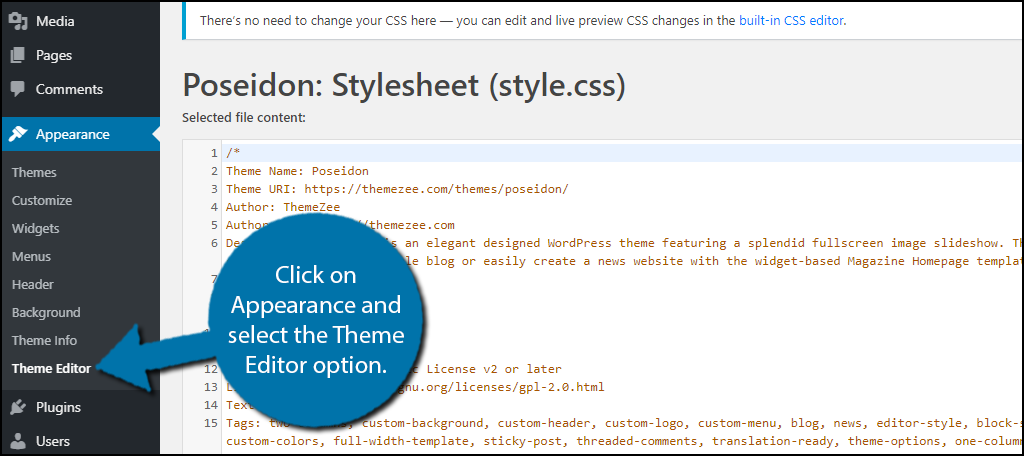
Performance considerations are crucial in styling WordPress. Inline styles load directly with the HTML. This means faster page render for small tasks. They are perfect for quick changes. But too many inline styles slow things down. They make pages heavy. External stylesheets separate CSS from HTML. They reduce HTML clutter. Browsers cache them. This speeds up page loads. They handle large CSS tasks better. Choose wisely to balance speed and style.
When to use inline styles depends on task size. Small, quick changes suit inline styles. They are handy for one-off styling. Use them for unique elements. They are not ideal for repetitive styles. Avoid them in complex designs. They clutter HTML.
When to use external stylesheets is clear for large projects. They simplify complex styling. They keep HTML clean. They work well for uniform styles. Reuse styles easily across pages. They are better for performance. They keep sites fast.
Credit: www.greengeeks.com
Best Practices For Styling
Consistency in styling is very important. Use the same fonts and colors. This helps your site look neat. Try to keep your headers the same size. It looks better and makes reading easy. Make sure your links are styled the same way. This helps users know where to click. Keep your buttons uniform too. It makes your site user-friendly.
Responsive design means your site looks good on all devices. Use flexible grids. This helps your site fit on any screen. Try using percentage widths. This makes elements adjust to screen size. Add media queries for different devices. This ensures your site works on phones and tablets. Test on different devices often. This helps catch problems early.
CSS conflicts can break your site. Use unique class names to avoid this. Keep your styles in one place. This helps keep track. Limit the use of !important. This can cause conflicts. Check for errors often. Debugging tools help find issues. Stay organized with your code. It makes your site run better.
Debugging Css Issues
CSS issues can make websites look bad. Elements may not align. Text might be too small or large. Colors can be off. These issues affect user experience. Identifying the problem is key. Always check your code for typos. Use browser developer tools to spot errors.
Many tools help with CSS debugging. Browser developer tools are very handy. They let you inspect elements. Firebug and Chrome DevTools are popular choices. You can see how CSS affects your page. These tools allow you to test changes live. This helps in finding the root cause quickly.
CSS conflicts can cause styling issues. One style may override another. Use specific selectors to avoid conflicts. Add !important to make rules stronger. Be careful with !important. It can make debugging harder. Organize your CSS files properly. This helps in managing conflicts better.
Credit: www.hostpapa.com
Frequently Asked Questions
How Do You Add Styles In WordPress?
To add styles in WordPress, use the `style. css` file in your theme directory. You can also use the WordPress Customizer for custom CSS. For advanced users, enqueue styles in the `functions. php` file. Remember to clear cache to see changes immediately.
What Is Enqueueing Styles In WordPress?
Enqueueing styles is a method to add CSS files to your WordPress theme. It ensures proper loading and prevents conflicts. Use the `wp_enqueue_style()` function in your theme’s `functions. php` file. This method helps manage dependencies and versioning effectively.
Can You Add Custom Css In WordPress?
Yes, you can add custom CSS in WordPress. Use the WordPress Customizer under Appearance > Customize. Navigate to Additional CSS and add your custom styles. This method allows you to preview changes instantly and is safe for theme updates.
Is It Possible To Use External Stylesheets?
Yes, you can use external stylesheets in WordPress. Enqueue them using `wp_enqueue_style()` in the `functions. php` file. Provide the full URL to your external stylesheet. This method is efficient for using third-party CSS frameworks like Bootstrap.
Conclusion
Adding styles to WordPress enhances your site’s appeal. Simple steps can make a big difference. Use themes for a consistent look. Custom CSS offers more control and uniqueness. Plugins simplify the process, saving time. Always preview changes to avoid errors.
Keep your site’s design user-friendly and responsive. Regular updates ensure compatibility and security. Remember, a well-styled site attracts more visitors. It keeps them engaged longer. Explore different methods to find what works best for you. Keep practicing and experimenting. You’ll get better with time.
Happy styling!


