
Imagine opening a book with no table of contents or index. You’d be lost, right?
That’s exactly how your visitors feel when they land on a WordPress site without a well-organized navigation menu. This simple, yet powerful tool is the backbone of your website’s structure, guiding your audience seamlessly from one page to another. But what exactly is a navigation menu in WordPress, and why should you care?
As you continue reading, you’ll discover how this essential feature can enhance user experience, boost your site’s engagement, and ultimately, keep your visitors coming back for more. Let’s unlock the secrets of crafting a navigation menu that captivates and converts. Are you ready to transform the way people explore your website?
Understanding Navigation Menus
Navigation menus help users find what they need. They guide users through a website. This improves the user experience. A clear menu helps users stay longer on a website. It makes finding pages easy. Users like simple and organized menus.
Menus are often at the top of a page. They can also be on the side. This makes them easy to see and use. They show important pages like Home, About, and Contact. A good menu design is crucial for a successful website. It keeps users happy and engaged.
A bad menu can confuse users. It can make them leave a site. A well-designed menu improves navigation. It makes a site more user-friendly. Users can find what they need faster. This increases their satisfaction.
Credit: www.sangfroidwebdesign.com
Types Of Navigation Menus
Horizontal menus are common in websites. They run across the top of a page. These menus are easy to use. Users find important links quickly. They work well for simple sites. Many choose horizontal menus for their clean look.
Vertical menus list links down the side. They are easy to scroll. Many sites use them for long lists. They fit well on mobile screens. Vertical menus help users focus on one link at a time. Useful for blogs or content-heavy sites.
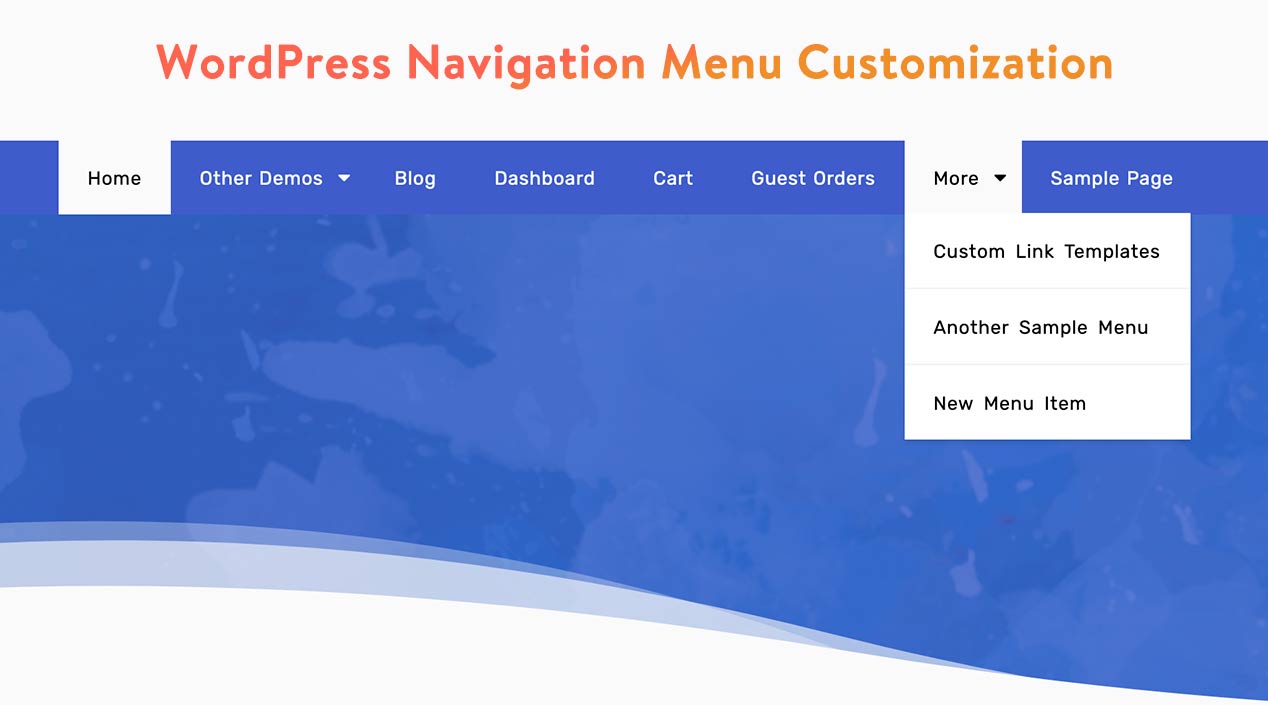
Dropdown menus save space. They show links only when clicked. Users see more options without clutter. Easy to organize related links. Dropdowns are great for complex sites. They help keep the design neat.
Mega menus show many links at once. They are like dropdowns but bigger. Useful for sites with many categories. Users find detailed options easily. Mega menus make browsing fast and efficient. They must be well-organized to avoid confusion.
Creating A Navigation Menu In WordPress
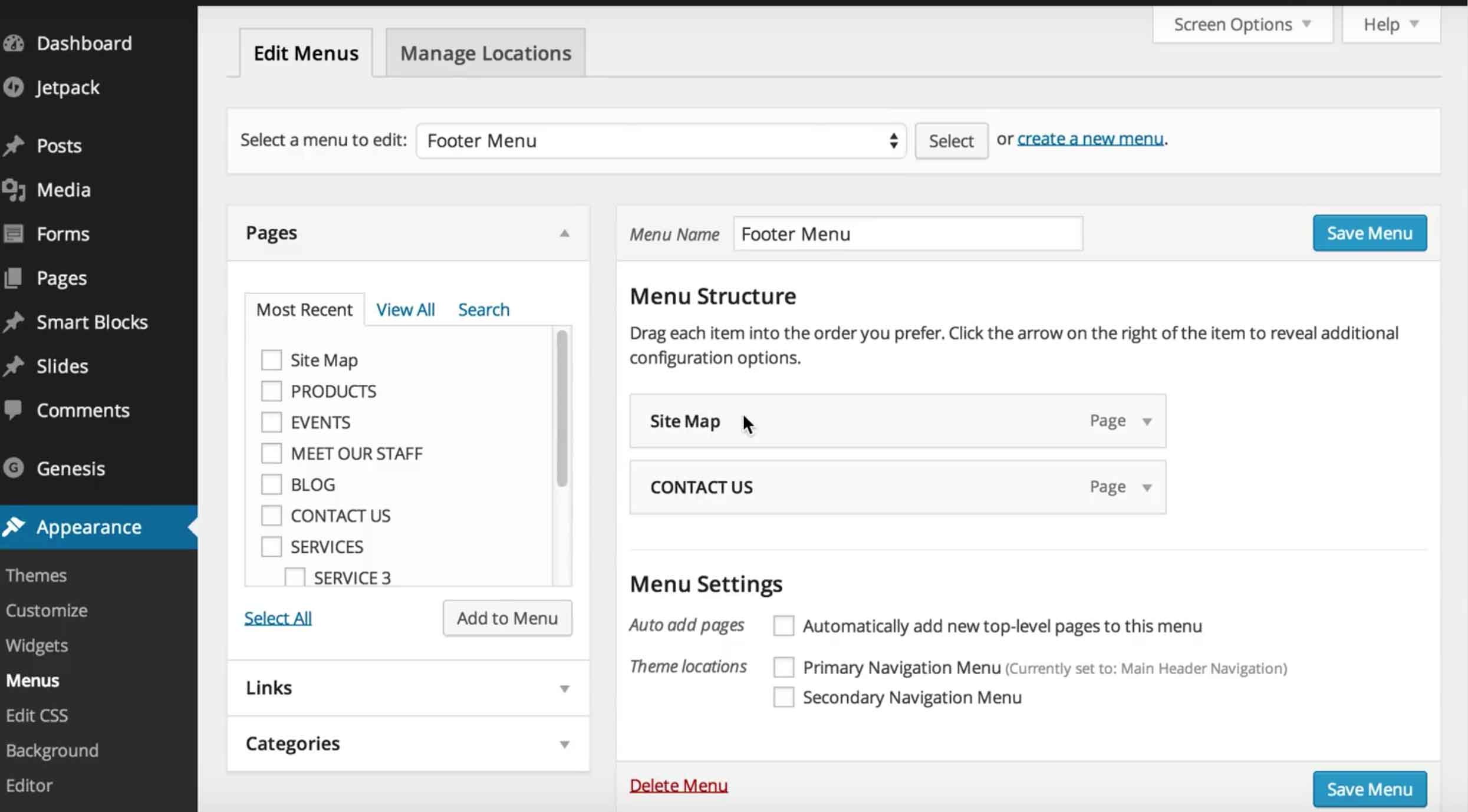
To start, go to your WordPress dashboard. Find the “Appearance” option on the left menu. Click it, then select “Menus.” This opens the menu editor. Here, you can create or edit your navigation menu. The interface is easy to understand. It shows all available pages and links.
On the left, you will see a list of pages. Check the box next to any page you want to add. Then click the “Add to Menu” button. You can also add custom links. Enter the URL and link text, then click “Add to Menu.” Your chosen items now appear in the menu structure.
Drag and drop menu items to change their order. Place one item under another to create a submenu. Make sure your menu is easy to navigate. A clear structure helps visitors find information fast. Save your menu once you’re done. Check your site to see how it looks.
Customizing Navigation Menus
Styling Options can make your menu stand out. Use different colors. Change the font size. Make it unique. Your menu should match your website’s theme. This keeps everything looking nice. Use tools in WordPress to change styles easily.
Using Custom CSS allows more control. You can make specific changes. Add special effects. This makes your menu special. Even small changes can make a big difference. CSS is a tool that helps make your menu beautiful.
Integrating Icons can make menus more interesting. Icons are small pictures. They help users find what they need. Icons make it easier to understand. You can add icons to menu items. This adds a visual touch. It also makes navigation fun and easy.
Responsive Navigation Menus
Mobile-Friendly Design is important for websites today. People use phones a lot. Big buttons are easy to tap. Menus should fit small screens. They should look neat and tidy. Text should be clear and readable. Designers make menus that adjust to screen size. This makes the user experience better. Fast loading is crucial. No one likes waiting.
Using Plugins for Responsiveness can make design easy. Plugins help menus adapt. They offer many options. Some are free, others cost money. Choose one that suits your needs. They save time and effort. Users get a smooth experience. Install and activate them in WordPress. Follow the simple steps. Plugins make your menu work well on any device.

Credit: learn.wordpress.org
Troubleshooting Common Issues
A navigation menu in WordPress helps users find content on your site. It organizes links to pages or categories. Troubleshooting common issues involves fixing broken links or arranging the menu items correctly.
Missing Menu Items
Menu items sometimes disappear. Check if they’re hidden by theme settings. Go to the WordPress Dashboard. Click on Appearance. Then, select Menus. Ensure all desired items are in the menu list. Sometimes, plugins cause conflicts. Deactivate plugins one by one. Check if missing items return. If not, try switching themes temporarily. This helps identify theme-related issues. Always save changes after adjusting settings. Missing items may also hide due to incorrect permissions.
Menu Alignment Problems
Menus may not align properly. Check theme customization settings. Go to Appearance. Then select Customize. Adjust menu alignment options. Sometimes, CSS affects alignment. Inspect using browser developer tools. Identify the CSS code impacting the menu. Modify CSS if needed. Use Custom CSS option in WordPress. Ensure changes do not affect other site areas. Always preview before saving. Menu alignment can also change due to screen size differences. Test on multiple devices for consistency.
Credit: www.wpdownloadmanager.com
Frequently Asked Questions
How To Add A Navigation Menu In WordPress?
Adding a navigation menu in WordPress is simple. Go to your WordPress dashboard, click on ‘Appearance’, and select ‘Menus’. Create a new menu, add pages or categories, and arrange them as desired. Save your menu and assign it to a theme location to display it.
Can I Customize My WordPress Navigation Menu?
Yes, you can customize your WordPress navigation menu. Use the ‘Customize’ option under ‘Appearance’ in the dashboard. Modify menu styles, colors, and fonts as per your theme’s capabilities. You may also use plugins for advanced customization options to enhance your menu’s appearance and functionality.
How Do I Manage Menu Items In WordPress?
Managing menu items in WordPress is straightforward. Navigate to ‘Appearance’ and select ‘Menus’. Here, you can add, remove, or rearrange items using drag-and-drop. You can also assign custom links or set specific pages, categories, and tags as menu items to tailor navigation to your site’s needs.
What Are The Benefits Of Using A Navigation Menu?
Navigation menus improve user experience by providing structured access to content. They enhance site organization, making it easier for visitors to find information. Efficient menus can also boost SEO by improving site structure and internal linking, which helps search engines crawl your website more effectively.
Conclusion
A well-structured navigation menu enhances your WordPress site’s usability. Visitors find information faster. A clear menu reduces bounce rates and boosts engagement. Organize it logically for easy access. Use descriptive labels for clarity. Keep it simple and concise. Too many items confuse users.
Test your menu on different devices. Make sure it works on mobile. Regularly update for relevance. A good navigation menu improves the user experience. It guides visitors smoothly through your content. Prioritize user-friendly design for better site performance. Your WordPress site deserves a thoughtful navigation strategy.
It’s essential for visitor satisfaction and success.


