
Have you ever wanted to share your WordPress profile but found yourself wondering, “What is my WordPress profile URL?” You’re not alone.
Many WordPress users face the same question, and getting the right answer can save you time and effort. Imagine confidently sharing your WordPress profile with friends, colleagues, or potential clients, showcasing your work and connecting seamlessly. Your WordPress profile URL is more than just a link—it’s your digital identity.
By understanding how to find and use it, you unlock new opportunities to engage and expand your online presence. Ready to discover how to locate and leverage your WordPress profile URL? Keep reading to ensure you never miss a chance to share your unique digital footprint.
Understanding WordPress Profiles
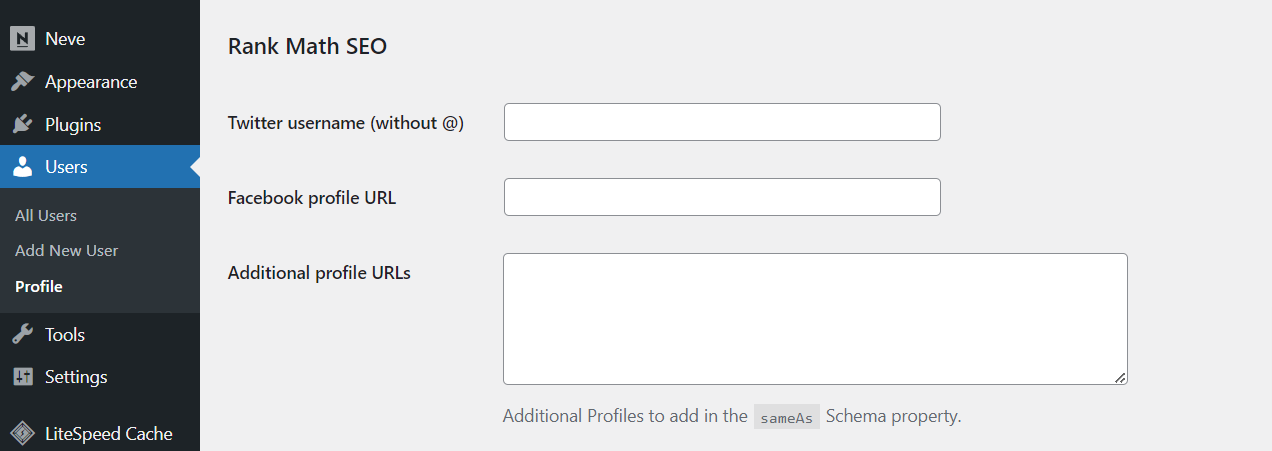
Your WordPress profile is like your online ID. It shows your details. It helps people find your posts. Each user has a unique profile URL. This URL leads to your profile page.
To find your URL, log into your WordPress account. Go to your profile page. You will see your URL at the top. It’s often in this format: www.yoursite.com/author/yourname. Copy this link to share your profile.
Profiles show your posts and details. They help connect with readers. They make your online presence stronger. Make sure your profile info is correct. This helps others trust your work.
Credit: rankmath.com
Locating Your WordPress Dashboard
First, open your web browser. Type your website’s address in the bar. Add /wp-admin at the end. Press Enter. The login page will appear. Enter your username and password. Click the login button. You will see your dashboard. It is the main control area. Here, you can manage your site. Check for updates, add posts, or change settings. The dashboard is easy to use. It helps you control everything on your site.
Navigating To Your Profile Settings
Find the profile settings in your WordPress dashboard. These settings help you edit your profile. Click on your username, often found at the top right. This will lead you to the profile options. The profile section lets you view and change details. Look for the “Edit Profile” button. This is where you can update your information.
Accessing Profile Options
Accessing profile options is easy. Click on your username. A dropdown menu appears. Select “Profile” from this menu. You will see many options. These options include your name and contact details. Change them as needed.
Customizing Your Profile
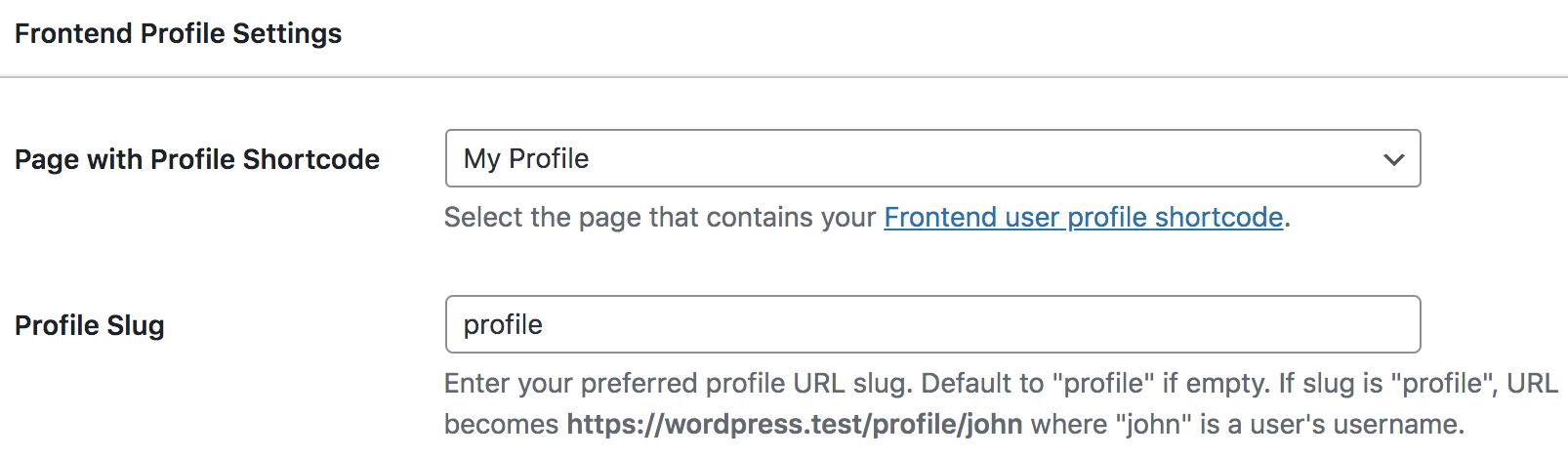
Customizing your profile is important. Add a profile picture. This helps others recognize you. Write a short bio about yourself. Share your interests or expertise. Update your contact email. Make sure it is correct. Save your changes once done.
Credit: profilepress.com
Finding Your Profile Url
Finding your WordPress profile URL is easy. First, log into your WordPress account. Next, look at the top right corner. There, you will see your username. Click on your username. This takes you to your profile page. Your profile URL is in the address bar. Copy this URL. It is your profile URL.
WordPress URLs often follow a simple pattern. Here are some common structures:
- Site URL + “/author/” + username
- Site URL + “/users/” + username
Replace “Site URL” with your site’s address. Replace “username” with your WordPress username. This helps find your profile URL faster.
Using Your Profile Url
Your WordPress profile URL is unique. Share it with friends and followers. It connects people directly to your content. This URL is easy to share via email or messages. Just copy and paste the link. Your profile becomes your online identity. It helps others find your work. It’s simple and effective. Encourage others to visit your profile. This can increase your audience.
Link your profile URL to social media accounts. This makes it easy for others to find you. Post the URL on platforms like Facebook and Twitter. Share it in your bio or posts. This helps you stay connected with your audience. It also attracts new followers. Your online presence becomes stronger. Social media integration is important. It keeps your audience engaged.
Troubleshooting Url Issues
Discovering your WordPress profile URL can help streamline troubleshooting URL issues. Navigate to your WordPress dashboard and click on your profile. Your URL will be visible in the address bar. This unique link is essential for managing your online presence effectively.
Common Problems
WordPress users often face issues with profile URLs. Sometimes, the URL may not work. This can be due to incorrect settings. It might also be a plugin conflict. Check if your plugins are updated. Outdated plugins cause errors.
Solutions And Tips
Always keep your WordPress updated. Update themes and plugins regularly. This can fix many problems. If issues persist, deactivate plugins one by one. This helps identify the problematic plugin. Another tip is to check your permalinks settings. Ensure they are correct. Adjust them if needed. If none of these work, contact support for help.
Enhancing Your WordPress Profile
Customize your profile for a better online presence. Start by adding a clear and friendly profile picture. This helps people recognize you easily. Use a simple and catchy username. It should be easy to remember. Write a short and interesting bio. Tell others what you do in a few words. Add links to your other profiles like LinkedIn or Twitter. This shows more of your work and interests. Choose a good background color or theme. It should match your style and is easy on the eyes.
Keep your profile fresh and up-to-date. Check your contact details often. Make sure they are correct. Update your skills and projects as you learn new things. Remove old or wrong information. This helps people trust your profile. Check your links to see if they work. Broken links can confuse visitors. A well-maintained profile shows you are active and professional.

Credit: www.facebook.com
Frequently Asked Questions
How Do I Find My WordPress Profile Url?
To find your WordPress profile URL, log into your WordPress dashboard. Navigate to your profile by clicking on your username in the top-right corner. Your profile URL will be displayed in the browser’s address bar. Copy and use it as needed.
What Is The Use Of A WordPress Profile Url?
A WordPress profile URL provides a direct link to your user profile. It can be shared with others to showcase your contributions, comments, and personal information. It serves as a digital identity within the WordPress community, making it easier for people to connect with you.
Can I Customize My WordPress Profile Url?
Yes, you can customize your WordPress profile URL. Use plugins like “Permalink Manager” to edit your profile URL. This allows you to create a more personalized and professional URL, enhancing your online presence. Ensure your URL is memorable and relevant to your brand or persona.
Is My WordPress Profile Url Public?
Your WordPress profile URL can be public, depending on your privacy settings. If your site is accessible to others, your profile URL might be visible. You can adjust privacy settings to control who can view your profile information. Always review these settings to ensure your desired level of privacy.
Conclusion
Finding your WordPress profile URL is simple. With the right steps, anyone can do it. Knowing your profile URL helps share your content easily. It connects you with your audience. It’s crucial for your online presence. Keep your URL handy for quick access.
Share it in emails or social media. Make your profile standout and accessible. This URL is your digital identity. Use it wisely. Stay engaged with your readers. Your WordPress journey starts here. Let your profile URL open new opportunities. Enjoy exploring your WordPress world.
Keep it simple, keep it effective.


