
Are you diving into the world of WordPress and feeling overwhelmed by all the options? You’re not alone.
One of the most powerful features of WordPress is its menu system, yet it’s often misunderstood or overlooked. Imagine having a website that guides your visitors seamlessly, leading them exactly where you want them to go. That’s the magic of a well-crafted menu.
But what exactly is a menu in WordPress, and how can it transform your website from a confusing maze to a user-friendly hub? We’ll demystify WordPress menus, showing you not just what they are, but how they can be your secret weapon for engaging visitors and boosting your site’s performance. Stick around to discover how a simple menu can be the key to unlocking a more successful website.
WordPress Menu Basics
A WordPress menu is a list of links. These links help users find pages. Menus are important for website navigation. They make websites easy to use. Creating menus in WordPress is simple. You can add, remove, or change links. You can also arrange them in order. There are different menu locations. Some themes offer many places for menus. Main menus are often at the top of a page. Footer menus are usually at the bottom. You can use menus for categories or posts too. Organizing content is easy with WordPress menus.
Custom menus allow special links. You can link to outside pages. You can even link to social media. WordPress gives flexibility to menus. This helps users find what they need quickly. Easy menus make happy visitors.
Credit: 10web.io
Creating A New Menu
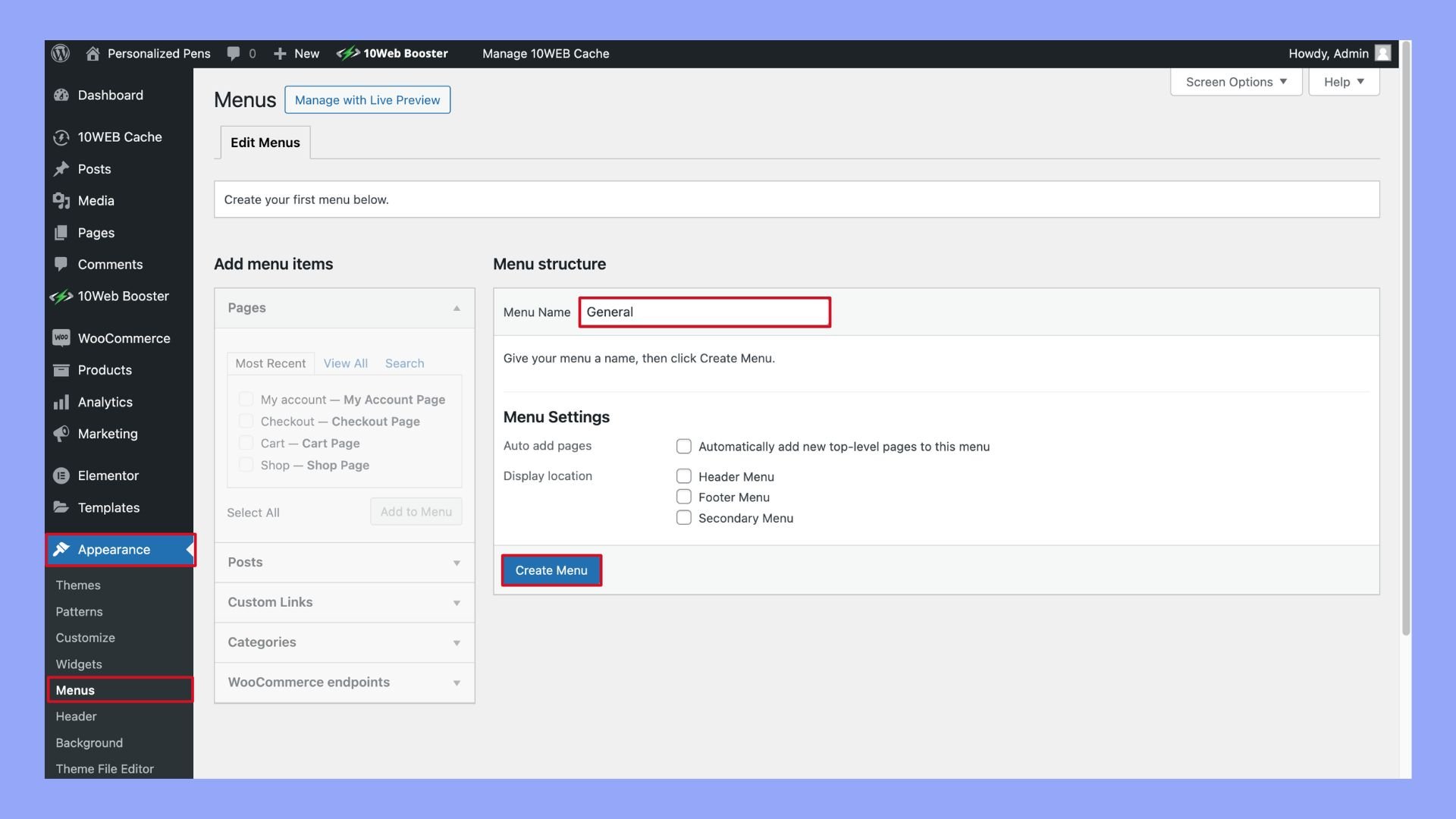
To create a menu, go to your WordPress dashboard. Find the Appearance section. Click on Menus. This opens the menu settings. You can see a list of existing menus. You also have an option to create a new menu. Enter a name for your menu. Click Create Menu to start.
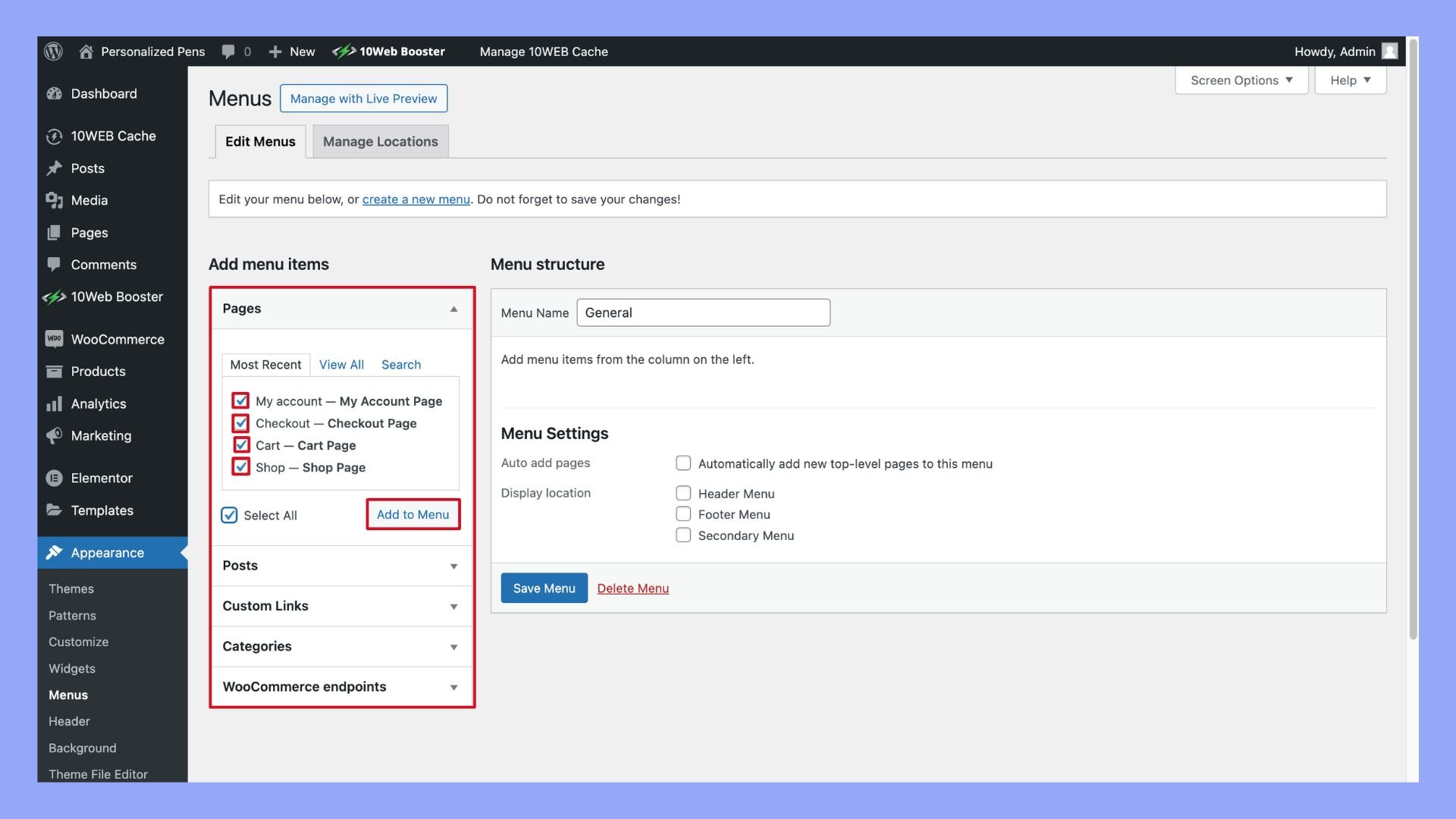
Once your menu is created, add items to it. Look at the left side of the screen. You will see pages, posts, and categories. Select items you want in your menu. Click the Add to Menu button. You can drag and drop items to arrange them. Click Save Menu when done.
Customizing Menu Appearance
Moving menu items is easy. Click and drag the menu item. Place it where you want. You can make it first or last. This helps organize items. Better organization helps users find things quickly. It also makes the site look neat.
Custom links are special. You can add them to your menu. First, find the “Custom Links” tab. Enter the link and a name. Click “Add to Menu”. Now, the link appears in the menu. This is useful for linking other sites. Or linking specific pages.
Menu Locations And Assignments
WordPress menus help to navigate a website easily. The Primary Menu is the main menu. It usually appears at the top of the page. Visitors often use it to find important links. These links might be to home, about, or services pages.
The Secondary Menu is another menu option. It might appear below the primary menu. This menu can hold extra links. These might be for a blog, contact, or FAQs. Both menus help users find what they need.
Assigning menus is easy. First, go to the WordPress dashboard. Find the Appearance tab and click on Menus. Next, choose the menu you want to assign. Then, select the location like Primary or Secondary. Finally, save the changes. Now, your menus are set up!
Advanced Menu Features
Discover the power of menus in WordPress. They organize website navigation, enhancing user experience. Advanced features allow customization, easy management, and improved accessibility. Create intuitive paths for visitors, guiding them to important content effortlessly.
Using Menu Widgets
Menu widgets help organize links. They make navigation simple. Widgets can be added to sidebars or footers. You can choose where they appear. Adding a widget is easy. Select it from the widget area. Drag it to the desired spot. Customize the links and titles. Save your changes. It’s all done in a few clicks. Widgets are flexible. They fit any theme style. Widgets improve user experience. Visitors find what they need fast.
Creating Dropdown Menus
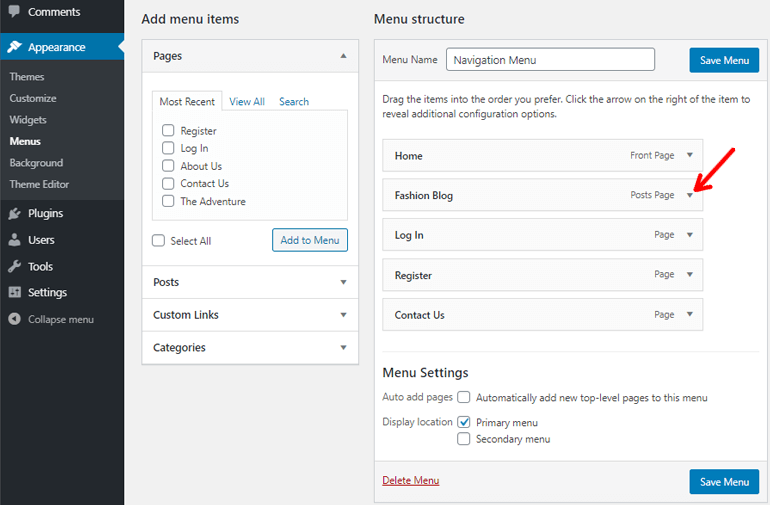
Dropdown menus keep your site tidy. They group related links together. Dropdowns are added under main menu items. Use them for subcategories or pages. Click on menu settings to create one. Drag items under a main link. Indent to show they are sub-items. Save the menu changes. Dropdowns are easy to use. They make menus look clean. Visitors enjoy easy navigation. Dropdowns enhance site organization.
Credit: themegrill.com
Common Issues And Troubleshooting
Menus in WordPress help organize and navigate site content. Common issues include broken links and missing items. Troubleshooting involves checking menu settings and updating links.
Missing Menu Items
Menu items can disappear. This might confuse website users. Check if you have hidden them by mistake. Verify if the items are in the correct location. Ensure you have not accidentally deleted them. Sometimes, plugins can cause issues. Deactivate plugins one by one. See if the menu items reappear. Update your WordPress and themes. This might fix the problem.
Menu Display Problems
Menus might not show up correctly. This can happen after updates. Check the theme settings. Ensure you have set the menu location right. Clear the cache to see changes. Sometimes, CSS errors cause display issues. Inspect the CSS code for mistakes. Contact the theme support if needed. They can help solve complex issues. Always back up your website before making changes.
Best Practices For Effective Menus
Crafting a menu in WordPress involves organizing links for easy navigation. Effective menus enhance user experience by displaying important pages clearly. Utilizing intuitive structures and categorization helps visitors find information effortlessly.
Ensuring User Accessibility
Accessible menus are important for all users. Ensure clear labels for each menu item. This helps everyone find what they need. Use large, readable fonts. This makes it easy for everyone to see. Also, choose colors with good contrast. This helps users with vision problems. Make sure menus work on all devices. Test them on phones and tablets too. Avoid using too many menu items. This can confuse users. Keep it simple for the best experience.
Keeping Menus Organized
A well-organized menu is easy to use. Group similar items together. This makes it easier to find things. Use categories for your menu items. For example, group all blog posts under “Blog.” This helps users know where to look. Use a logical order for items. Place the most important items first. This guides users to key content. Avoid cluttering the menu. Too many items can be overwhelming. Keep it neat and tidy for best results.
Credit: 10web.io
Frequently Asked Questions
How Do I Create A Menu In WordPress?
To create a menu in WordPress, go to the dashboard. Navigate to “Appearance” and select “Menus. ” Click “Create a new menu. ” Add items by selecting pages, posts, or custom links. Organize them by dragging and dropping. Save the menu once finalized.
This process is simple and user-friendly.
Can I Customize My WordPress Menu?
Yes, you can customize your WordPress menu easily. Use the “Menus” section under “Appearance” in the dashboard. Add custom links, categories, or pages. Change the order by dragging items. Choose themes that support different menu locations. This enhances navigation and improves user experience.
What Is A WordPress Menu Location?
A WordPress menu location is where menus appear on your site. Themes offer multiple locations, like header, footer, or sidebar. Assign menus to different locations in the “Menus” section of the dashboard. This flexibility allows for better site organization and user navigation.
How To Add Items To A WordPress Menu?
To add items to a WordPress menu, go to “Appearance” and select “Menus. ” Choose the menu to edit. Add pages, categories, or custom links from the left panel. Drag and drop items to organize them. Save changes to update the menu.
This process is straightforward.
Conclusion
Understanding menus in WordPress is key to a well-organized site. They help visitors navigate easily. You can create menus for pages, posts, or categories. Simple to set up. Customize them to fit your website’s needs. A good menu boosts user experience.
Visitors find what they need quickly. Menus also improve site structure. They help search engines understand your content. Better structure can enhance SEO. Remember, clear menus lead to happy users. Keep them simple and logical. Your site will be more effective and engaging.


