
Imagine you’re updating your WordPress website, eager to unveil new features or a fresh design. You hit the update button, and suddenly, your site is down.
Panic sets in as you wonder what your visitors are seeing. This is where WordPress maintenance mode becomes your ally. But what is maintenance mode in WordPress, and why is it crucial for your site? You’re about to find out how this simple feature can save your website from chaos, keep your visitors informed, and ensure a smooth transition during updates.
Ready to dive in and discover how to leverage maintenance mode to its fullest? Let’s get started!

Credit: www.interserver.net
Understanding Maintenance Mode
Maintenance Mode in WordPress is a special state. It is used when a site needs updates. During this time, visitors can’t see the site. They see a message instead. This message tells them the site is under maintenance. It keeps the site safe while changes happen.
This mode is important for updating plugins and themes. It also helps with WordPress core updates. If something goes wrong, the mode protects the site. The site won’t break or show errors. It ensures a smooth update process.
Site owners can set this mode on and off. They use plugins or code for this. It is easy to manage. Many sites use maintenance mode regularly. It is a handy tool for any website owner.
Credit: www.wpbeginner.com
Reasons For Using Maintenance Mode
Site Updates often need maintenance mode. Websites must stay fresh. New content and features are added. Users see a simple message. They know changes are happening. This keeps visitors informed. They know to come back later.
Plugin and Theme Installation is important. New plugins make sites better. Themes change how sites look. Maintenance mode helps. It prevents user confusion. Visitors see a clear message. They know the site will return soon.
Security Enhancements protect websites. Hackers can harm sites. Owners add security patches. Maintenance mode keeps sites safe. Users get a message. They know security is being improved. This builds trust. Visitors feel safe returning.
How Maintenance Mode Works
Maintenance Mode is a helpful tool in WordPress. It tells visitors your site is under maintenance. During this time, users see a special message. This message explains the site is not available now. Site updates happen safely without interruptions. Maintenance Mode is like a ‘pause’ button. It stops visitors from seeing errors or incomplete features. This mode is important for site safety. It ensures only authorized users make changes. Usually, Maintenance Mode is temporary. Once updates are complete, the site returns to normal. Visitors then enjoy a better and improved experience.
Activating Maintenance Mode
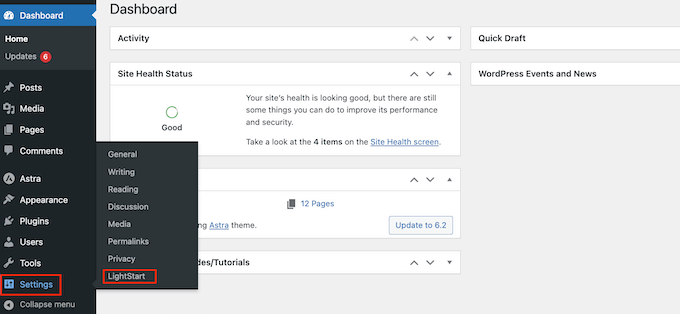
Plugins make things easy. They offer a simple way to activate maintenance mode on your WordPress site. Many plugins are free. Search for “maintenance mode” in the plugins section. Install and activate your chosen plugin. Set up your message. Let visitors know your site is under construction. Customize the look if you like. Now, your site is in maintenance mode. No coding needed. Easy, right?
Manual activation needs some technical steps. First, connect to your site using FTP. Find the wp-content folder. Create a file named “.maintenance”. Write a simple code inside it. This code tells WordPress your site is in maintenance mode. Save and upload the file. Visitors will see a maintenance message. This method needs care. Changes can affect your site. Always make a backup first.
Customizing The Maintenance Page
The design of a maintenance page is important. It should be simple yet informative. Use clear fonts that are easy to read. Colors should be soft and not too bright. Adding a logo helps in branding. Use a background that is not too busy. Make sure the layout is clean and organized.
Custom messages tell users what’s happening. These messages should be short and clear. Say why the site is down and when it will be back. Avoid using complex words. Use simple language that everyone can understand. Tell users you are working hard to fix things. Thank them for their patience. Let them know they can come back soon.
Troubleshooting Common Issues
Maintenance mode keeps your site safe. But sometimes it doesn’t turn off. This happens during updates. You might see a message like “Briefly unavailable for scheduled maintenance.” This message means your site is stuck.
Some errors show up when stuck in maintenance mode. These messages might confuse you. They appear when updates fail. One common message says, “Update failed.” Another message might be “Maintenance mode error.” These messages mean something went wrong.
Best Practices For Maintenance Mode
Maintenance mode in WordPress is crucial for site updates and changes. It temporarily disables site access, showing a maintenance message to visitors. Implementing best practices ensures minimal disruption, maintaining a positive user experience while updates are applied smoothly.
Minimizing Downtime
Keep your website offline for the shortest time. Use plugins that help fix problems fast. Plan updates during low traffic times. This way, fewer visitors are affected. Test changes in a safe environment first. This helps prevent mistakes. Always have a backup plan ready. If something goes wrong, you can restore the site quickly.
Communicating With Users
Let users know about maintenance. Use clear messages on your site. Tell them why your site is down. Share when it will be back online. Use social media for updates. Keep users informed to build trust. Answer questions if users ask. Communication is key to keeping visitors happy. Send email alerts for important updates. This way, users know what to expect.
Alternatives To Maintenance Mode
Maintenance Mode in WordPress temporarily hides your site during updates. Alternatives include using staging sites or scheduling updates for low-traffic hours, ensuring users always see a functional website. Explore plugins that offer seamless transitions without downtime, enhancing user experience while making necessary changes.
Staging Sites
Staging sites offer a safe place to test changes. Here, you can try new themes or plugins without risks. Mistakes on staging sites don’t affect your live site. They help in finding problems early. Developers love staging sites for their safety. You can clone your website easily. It keeps your main site safe. Testing is simple on staging sites. You can fix errors before going live. Many hosting providers offer staging. It’s easy to set up. Staging sites are a smart choice for updates.
Live Previews
Live previews show changes in real time. You can see edits before publishing. This helps in making quick decisions. Live previews save time and reduce mistakes. Designers use them for instant feedback. Live previews make editing easy. You can see how changes affect your site. It’s helpful for beginners. No need to activate changes immediately. You can check and revise. Live previews offer a clear view. They ensure that changes fit your vision.

Credit: blog.hubspot.com
Frequently Asked Questions
What Does Maintenance Mode Mean In WordPress?
Maintenance mode in WordPress temporarily restricts site access. It allows you to perform updates, fix issues, or make changes. Visitors see a maintenance message instead of regular content. This helps prevent errors and ensures a smooth experience when updates are complete.
How Do I Enable Maintenance Mode?
You can enable maintenance mode using plugins or custom code. Popular plugins like WP Maintenance Mode or SeedProd offer easy setup. Alternatively, add a maintenance. php file in your theme directory. This file can display a custom message or page.
Can I Customize The Maintenance Message?
Yes, you can customize the maintenance message. Plugins offer options for text, design, and branding. You can also edit the maintenance. php file for personalized content. Customization helps inform visitors about the duration and purpose of maintenance.
Is Maintenance Mode Necessary During Updates?
Yes, maintenance mode is necessary during updates. It prevents users from experiencing errors or broken pages. It ensures a seamless update process without affecting user experience. Activating maintenance mode helps maintain professionalism and reduces potential disruptions.
Conclusion
Maintenance mode in WordPress is vital for site updates. It keeps visitors informed while you work on changes. This mode ensures a smoother experience and prevents confusion. Activating it is simple, using plugins or manual methods. It’s crucial during major updates or redesigns.
Avoid downtime and maintain professionalism with this feature. Regularly check your site after updates to ensure everything works well. Maintenance mode helps manage user expectations effectively. A seamless transition keeps your site reliable and user-friendly. Always prioritize your site’s functionality and user experience.


