
Have you ever found yourself staring at the WordPress login screen, wondering what the default admin password is? You’re not alone.
Many new users assume that WordPress comes with a preset password, ready for use. This notion, however, can lead to security risks and frustrating login issues. Understanding what the default WordPress admin password is—or more accurately, why there isn’t one—can save you time and protect your site.
This article will unravel the mystery and guide you on how to securely set up your WordPress admin credentials. Stick around, because this could be the most important step in safeguarding your online presence.
Credit: getshieldsecurity.com
Common Misconceptions
Many believe there is a default WordPress admin password. This is not true. WordPress does not come with a default password. You set the password during installation. Some think it’s “admin” or “password”. These guesses are incorrect. Setting your own password is crucial. It keeps your site safe.
Others assume the host sets a password. But, hosts don’t set one for you. You must create a strong password. Change it regularly for safety. This helps protect your website from hackers.
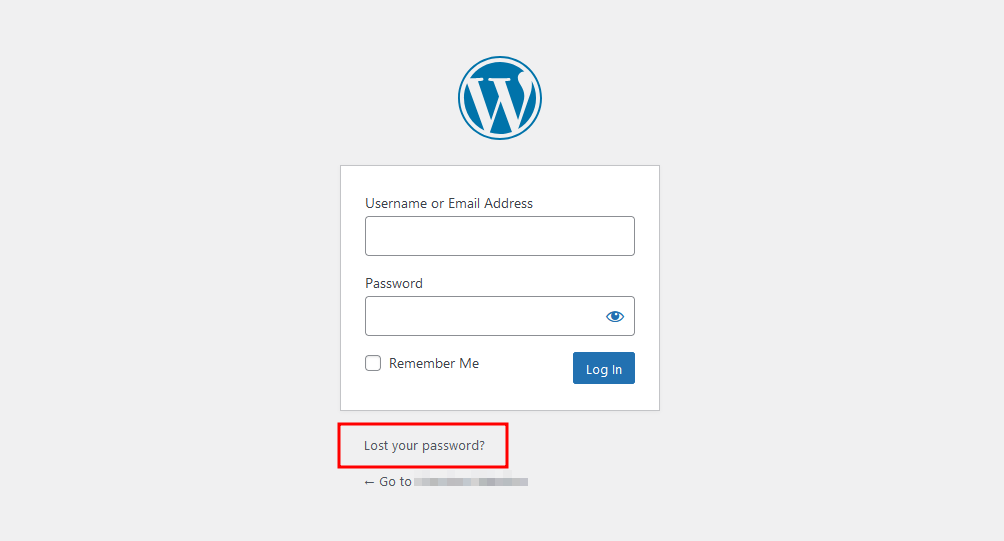
People also think WordPress emails the password. But passwords are never sent via email. If you forget it, use the “Lost your password?” link. This lets you reset it securely.
WordPress Installation Process
First, create a new database in your hosting panel. Choose a unique name for the database. Then, create a user for this database. Ensure the user has full access to the database. This step is crucial for security. Save these details. You will need them later.
During the WordPress install, it asks for a username. Choose a strong username. Avoid using “admin” as a username. Set a strong password. This keeps your site secure. Enter your email address. This helps in password recovery if needed. Make sure all information is correct before proceeding.
Creating A Secure Admin Password
Strong passwords keep your account safe. Bad people can’t get in. If they do, they can change your site. They can steal your data. A weak password is easy to guess. Never use “123456” or “password”. These are bad choices. Choose a strong one instead.
- Use at least 12 characters.
- Mix letters and numbers.
- Add special symbols like @, #, or $.
- Avoid common words.
- Change your password often.
- Do not use easy-to-guess info like birthdays.
Resetting WordPress Admin Password
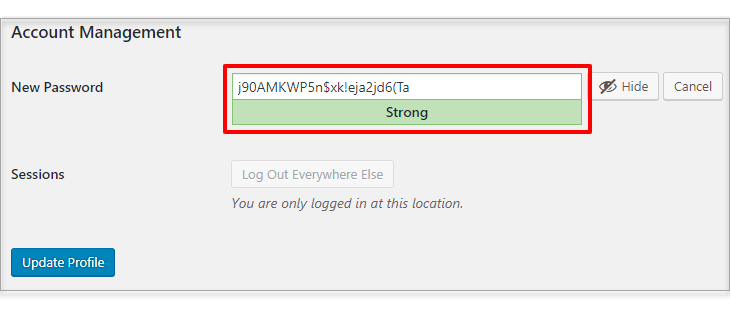
It’s simple to reset your WordPress admin password. First, log into the WordPress dashboard. Click on “Users” on the left menu. Find your username and click “Edit.” Look for the “New Password” section. Enter a strong password. Confirm the password by typing it again. Click “Update Profile” to save changes. Your password is now reset.
Access phpMyAdmin through your hosting account. Select your WordPress database. Find the “wp_users” table. Click on “Browse.” Locate your username. Click “Edit.” Find the “user_pass” field. Enter a new password. Use MD5 encryption for the password. Save changes by clicking “Go.” Your password is updated.
First, connect to your site using FTP. Navigate to the “wp-content” folder. Open the “themes” folder. Locate your active theme folder. Open the “functions.php” file. Add the line: wp_set_password('newpassword', 1);. Save the file. This resets the password for user ID 1. Remove the line after logging in. Password is now reset.
Common Security Plugins
Popular WordPress Security Plugins help protect your site. They block hackers and viruses. Wordfence is a top choice. It has a firewall and malware scanner. Sucuri is another good plugin. It checks your site for threats. iThemes Security is also popular. It offers two-factor authentication. These plugins are easy to use.
Features to Look for in Security Plugins are important. You need a firewall. It blocks unwanted access. Look for malware scanning. This finds bad files. Two-factor authentication keeps passwords safe. Backup features help restore your site. Update alerts are useful. They tell you about new threats. Choose plugins with these features.
Credit: support.tilaa.com
Best Practices For WordPress Security
Keeping your WordPress site updated is very important. Updates fix bugs and security issues. Always update your plugins, themes, and WordPress core. This keeps your site safe. An outdated site is easy to hack. Enable automatic updates for better security.
Two-factor authentication adds an extra layer of security. It uses a second device or app for login. This makes your site safer. Even if someone knows your password, they can’t log in. Always enable this feature to protect your site.
Limiting login attempts helps stop hackers. They try many passwords to break in. By limiting tries, you block them. Set a limit for failed logins. This can prevent unauthorized access. Use plugins that offer this feature for more safety.
Credit: www.ipage.com
Frequently Asked Questions
What Is The Default WordPress Admin Password?
WordPress does not have a default admin password. During installation, you set a unique password for security. It’s crucial to choose a strong password to protect your website from unauthorized access.
How Can I Reset My WordPress Admin Password?
You can reset your WordPress admin password via the “Lost your password? ” Link on the login page. Alternatively, you can reset it using phpMyAdmin or by editing the functions. php file in your theme.
Why Can’t I Access My WordPress Admin?
You might be entering the wrong password or username. Check if your browser cache is causing issues. Also, ensure your website isn’t experiencing server problems or plugin conflicts.
Can WordPress Admin Password Be Retrieved?
The admin password cannot be retrieved directly. You can reset it using the email associated with your account. Use the “Lost your password? ” Link on the login page for assistance.
Conclusion
Understanding the default WordPress admin password is crucial for security. Changing it enhances your site’s protection. Always opt for a strong, unique password. Regular updates and backups are equally important. They keep your site safe from threats. Secure your login with two-factor authentication for added safety.
Being proactive helps prevent unauthorized access. Keep learning about WordPress security practices. It ensures you stay ahead of potential risks. Remember, a secure site builds trust with your visitors. Take steps today to protect your WordPress admin area. Your site’s safety depends on it.


