
Are you feeling overwhelmed by all the changes in WordPress? You’re not alone.
With new features and updates rolling out regularly, it’s easy to feel lost. But there’s a comforting, familiar tool that many WordPress users still love: the Classic Editor. If you’re wondering what the Classic Editor is and why it continues to be a popular choice, you’re in the right place.
This blog post will dive into everything you need to know about the Classic Editor, helping you decide if it’s the best option for your website. Keep reading to uncover why so many people prefer this straightforward, user-friendly editor and how it can make your WordPress experience smoother and more enjoyable.
Classic Editor Overview
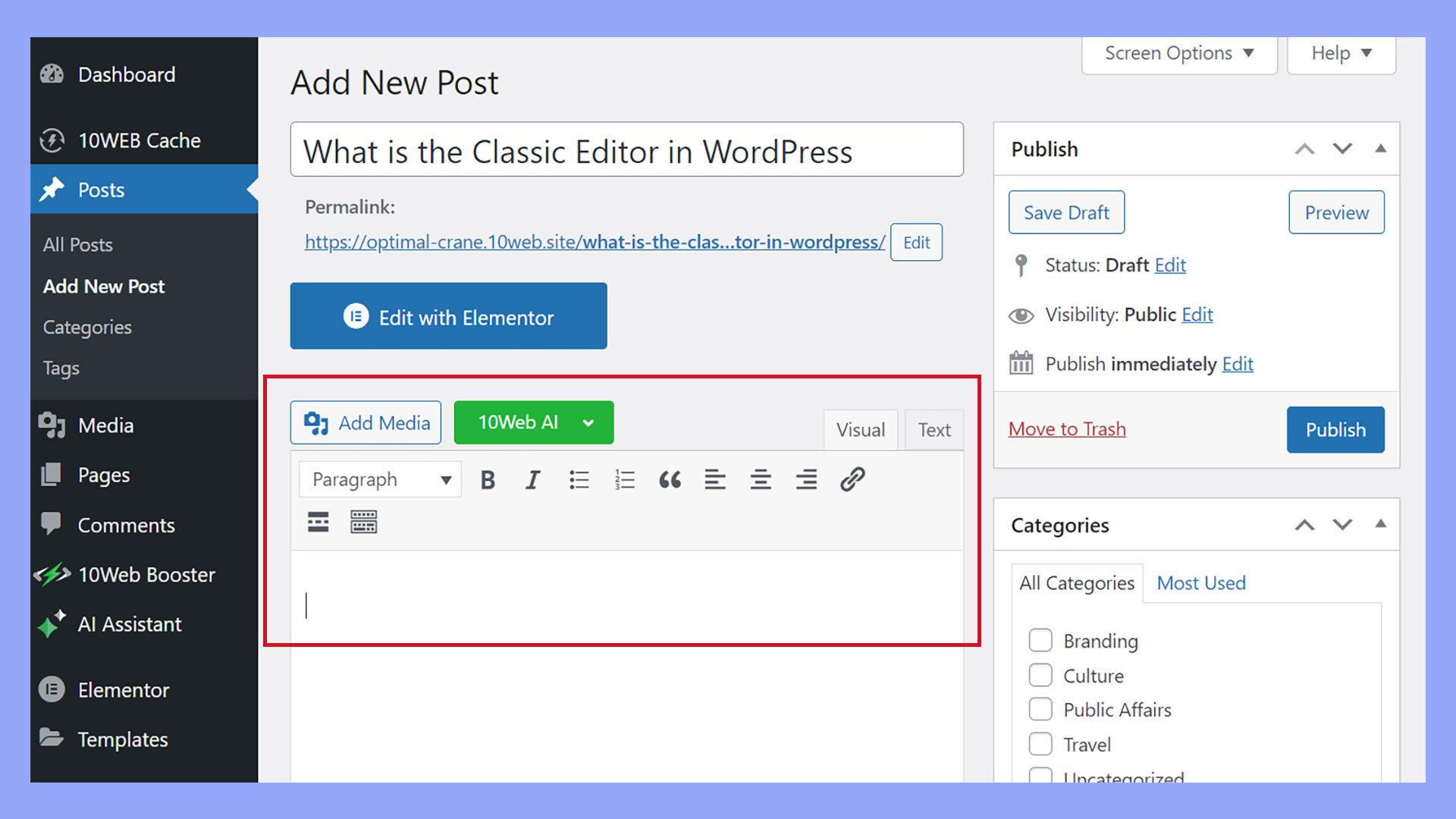
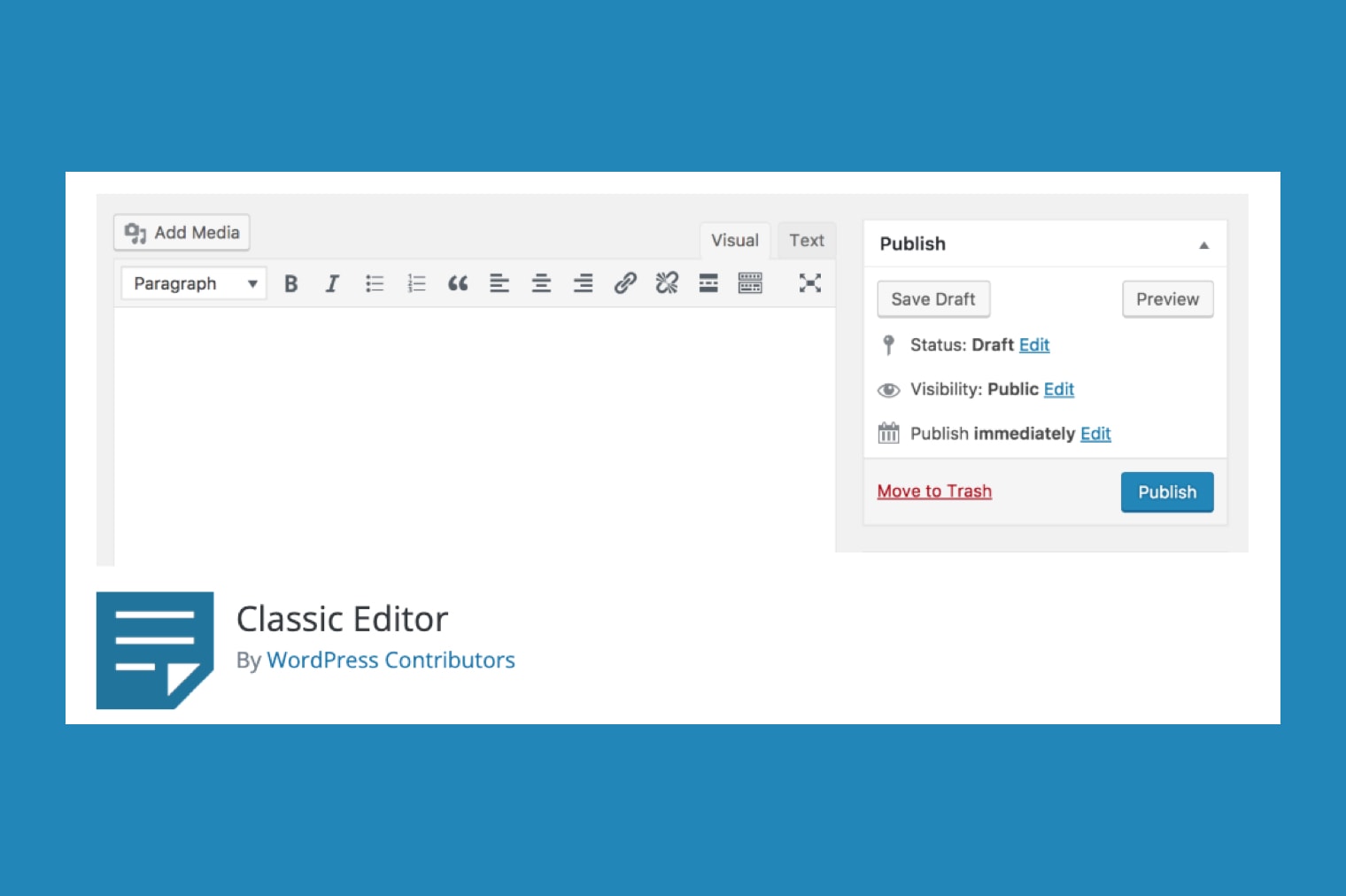
The Classic Editor in WordPress is a simple tool. It helps in writing and editing posts. Many users like its easy interface. The editor shows two tabs: Visual and Text. Visual lets you see the format directly. Text lets you see the HTML code.
Buttons in the toolbar help with formatting. You can make text bold, italic, or add links. Adding images and videos is also simple. The Classic Editor is a favorite for many who prefer a no-fuss experience. It brings back a familiar and straightforward way to create content.
Key Features
The Classic Editor in WordPress helps users write posts easily. It offers a simple layout that feels like a word processor. Users can bold, italicize, or underline text quickly. Adding images or links is straightforward. This editor is favored for its simplicity and ease of use. It lets users switch between visual and HTML editing. Users can also save drafts or publish posts without hassle.
The toolbar is neat and offers essential tools. Users can find buttons for lists, quotes, and alignment. The Classic Editor also supports plugins to add more features. It does not overwhelm with options, making it ideal for beginners. The editor ensures content looks good without much effort. Many appreciate its reliable and familiar interface. It remains a popular choice for those who prefer straightforward editing.
Installation And Activation
Installing the Classic Editor plugin is simple. First, log into your WordPress dashboard. Click on Plugins in the sidebar. Then click on Add New. Search for “Classic Editor” in the search bar. Once you find it, click Install Now. Wait a moment for it to install. After installation, click Activate. Your site will now use the Classic Editor.
If you need to switch back to the block editor, you can. Go to the settings menu. Choose Writing. You will see options there. Select your preferred editor. Save your changes. Switching back is easy.
Comparing Classic And Block Editors
The Classic Editor feels like writing on paper. You type and see text instantly. The Block Editor uses blocks for everything. Each block is a part of the page. Classic is simple. Block has more features. You can add images, videos, and tables easily. Classic is faster for text-only posts. Block is better for creative designs. Drag and drop makes block editing fun. Classic Editor is less confusing for beginners. Block Editor might seem complex at first. You can switch between editors anytime. Both work well for different needs.
User Interface And Tools
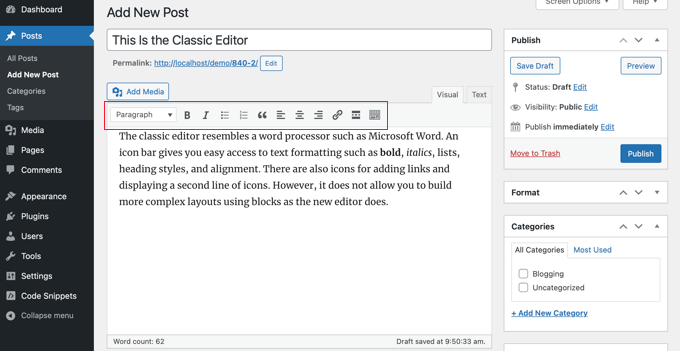
The Classic Editor in WordPress is simple to use. It has a clean interface that helps users write easily. Tools are neatly organized. You can see a toolbar at the top. It has buttons for bold, italic, and other text styles. A button lets you add links to your text. Another button lets you add images or videos.
Users can switch between Visual and Text tabs. The Visual tab shows what the page looks like. The Text tab shows HTML code. This helps users who know coding. The editor supports plugins for more features. Plugins can add buttons or tools to the editor.
The editor is easy to learn. It is perfect for beginners. It does not have complex features. Users can focus on writing without distractions. The Classic Editor makes creating content simple and fun.
Customization Options
Classic Editor offers simple tools to change your text. You can make bold or italic words easily. Use bullet points to list items. Insert images and videos in a click. Choose different fonts and sizes for your text. Add links to your favorite sites. Make tables to organize information. Change the color of your text with a palette. Create headings with different styles. Align your text to the left, right, or center. Add special characters for fun or meaning. Save drafts to edit later. Preview your work before publishing. All these options are easy to find in the toolbar.
Common Use Cases
The Classic Editor is preferred for simple tasks. It helps with quick text edits. Users like its straightforward design. Many bloggers use it for basic posts. It has easy-to-use formatting tools. Adding images is simple with it. Some prefer it for standard blog writing. It supports the use of shortcodes for special features. Many find it great for text-heavy articles. Businesses use it for routine updates. The editor fits well with old plugins. People enjoy its familiar layout. It’s reliable for standard content creation. Writers appreciate its no-frills style. It integrates smoothly with WordPress themes.
Editing is fast and easy with it. This editor supports essential features. It’s a favorite for those who like simplicity. Many choose it for its ease of use. The Classic Editor handles text editing efficiently. It’s a reliable tool for many WordPress users. It remains popular for its simplicity and effectiveness.
Credit: 10web.io
Troubleshooting Tips
Experiencing issues with the Classic Editor in WordPress can be frustrating. First, check if your WordPress version is up to date. Older versions may cause problems. Next, ensure all plugins are compatible with the editor. Conflicting plugins can lead to errors.
Sometimes, clearing your browser cache can solve issues. This refreshes stored data and might fix glitches. If problems persist, consider disabling plugins one by one. This helps identify the problematic plugin. Another tip is to check your theme compatibility. Some themes may not work well with the Classic Editor.
Always make sure your internet connection is stable. A weak connection can hinder editor performance. If none of these tips work, seek help from the WordPress community. Many users share solutions in forums. You can find helpful advice there.
Future Of Classic Editor
Classic Editor is a plugin for WordPress. It lets users edit posts and pages in a simple way. Many users love it because it’s easy to use. Some people worry about its future. Will it stay or go away? WordPress is always changing. New tools come out often. But many users hope the Classic Editor will stay. They find it helpful and friendly. Updates might improve it. Developers listen to user feedback. This is good news for Classic Editor fans. It may be here for a long time. It’s a trusted tool for WordPress users. The community cares about it.
Credit: www.impactmedia.co.uk
Credit: www.wpbeginner.com
Frequently Asked Questions
What Is The Classic Editor In WordPress?
The Classic Editor is a WordPress plugin that restores the previous WordPress editor interface. It provides a simple and user-friendly way to edit posts and pages. This editor is particularly favored by users who prefer a straightforward, non-block-based editing experience, reminiscent of older WordPress versions.
How Do I Install Classic Editor In WordPress?
To install the Classic Editor, navigate to the Plugins section in your WordPress dashboard. Click “Add New” and search for “Classic Editor. ” Once found, click “Install Now” followed by “Activate. ” This will restore the traditional editing interface for posts and pages.
Why Use Classic Editor Over Gutenberg?
The Classic Editor offers a simpler editing experience compared to Gutenberg’s block-based system. It’s ideal for users who prefer a minimalist approach without complex features. Many long-time WordPress users find it more intuitive and less distracting, making content creation a straightforward process.
Is Classic Editor Still Supported By WordPress?
Yes, the Classic Editor is supported by WordPress and will continue to receive updates. WordPress has committed to maintaining it until at least 2024. This ensures that users who prefer the traditional editor can continue using it without issues.
Conclusion
Classic Editor in WordPress is a user-friendly tool. It offers simplicity and familiarity. Many users prefer its straightforward interface. It allows easy content management. Beginners find it less overwhelming. It focuses on text and media without distractions. This makes it ideal for quick editing tasks.
For those who value efficiency, it’s a great choice. It stands strong in the WordPress ecosystem. A reliable option for content creators everywhere. Understanding Classic Editor helps improve your WordPress experience. Embrace its ease and effectiveness today.


