
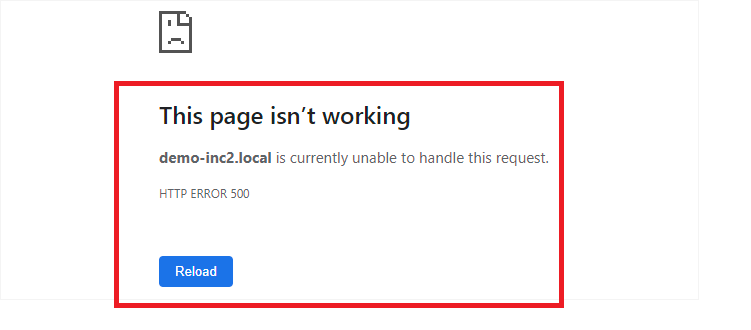
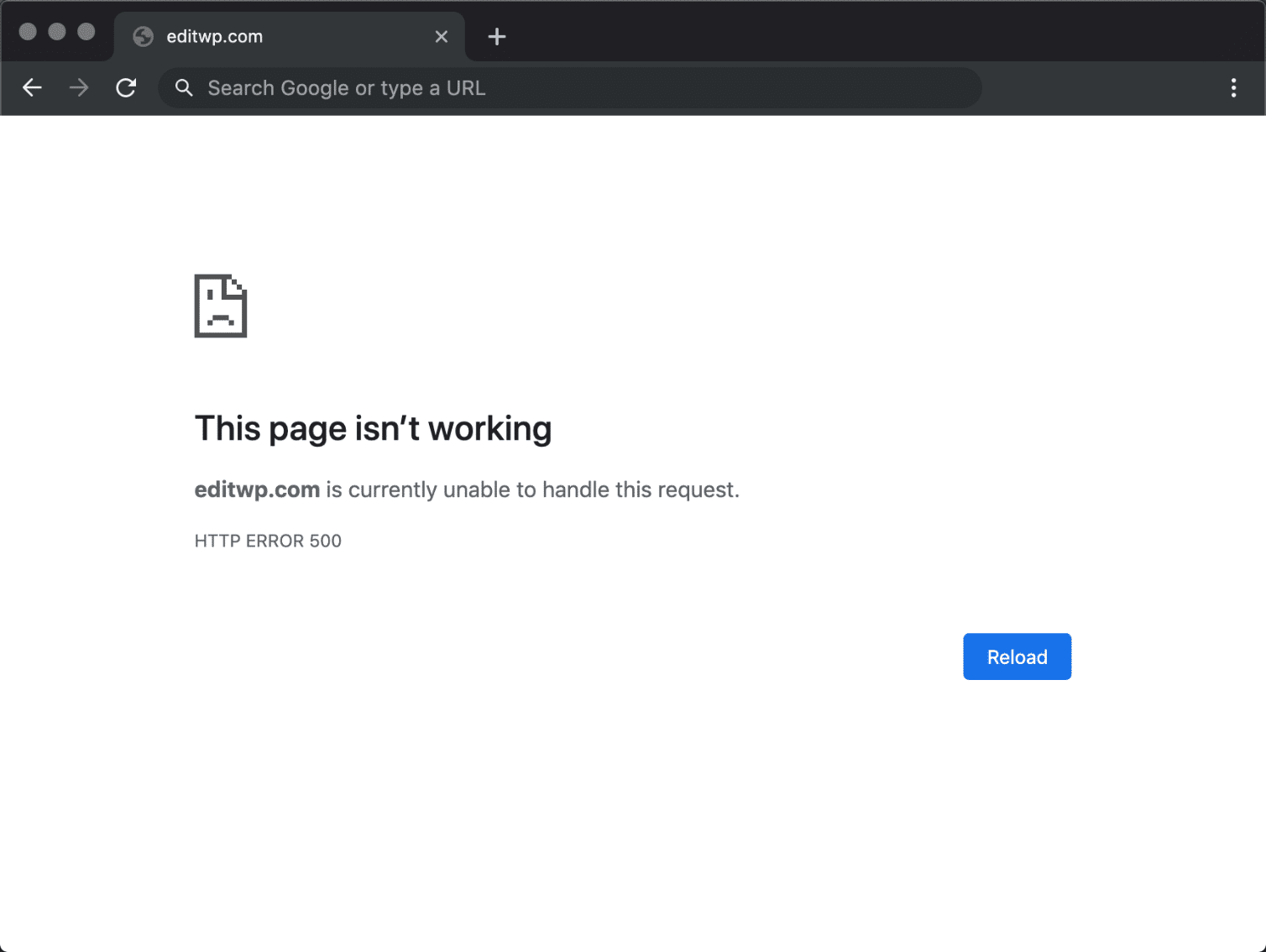
Imagine you’re working on your WordPress site, adding a new blog post or tweaking your design, and suddenly, your screen fills with a cryptic message: “HTTP 500 Error”. You might feel a rush of frustration and confusion.
What does this mean, and how can you fix it to get your site back on track? You’re not alone; many WordPress users encounter this error, and it can be a real headache if you don’t know where to start.
We’re going to demystify the HTTP 500 Error for you. You’ll learn what it is, why it happens, and how to solve it. Understanding this error can save you time and keep your website running smoothly. So, if you’re ready to tackle this issue head-on, read on. Your website’s health could depend on it!
Common Causes
Sometimes, the server settings are not correct. This can cause an HTTP 500 error. It’s like a puzzle where pieces don’t fit. Check the settings to find the problem. Fixing these settings can help your site work again.
Plugins add extra features to your site. But, some plugins don’t get along. This makes your site crash. Deactivate plugins one by one. See if the error goes away. This way, you know which plugin is causing trouble.
A new theme can make your site look fresh. But, not all themes work well with all sites. Sometimes, they break things. Switch to a default theme to test. This helps to check if the theme is the problem.
The .htaccess file is like a rule book. If it gets damaged, your site can get errors. Rename the file to see if it helps. Make a new one if the error stops. This resets the rules.
PHP memory allows your site to run. If it’s too low, your site stops working. Increase the limit in the settings. This gives your site more power to run smoothly.
Credit: www.cloudways.com
Identifying The Error
Enable Debugging Mode to find problems. This mode shows errors on the screen. It helps you understand what’s wrong. To enable it, edit the wp-config.php file. Change WP_DEBUG to true. Be careful while editing files.
Check Error Logs for more details. Error logs store information about issues. They are like a diary of errors. You can find them in the server’s log folder. Reading logs may help you fix the error.
Accessing Admin Dashboard might be tricky with an error. Sometimes, you can’t log in. Try accessing it in safe mode or using a different browser. If you still can’t, seek help from a tech expert.
Fixing Server Issues
Sometimes, restarting the server can solve many problems. It helps in clearing temporary glitches. This action refreshes the server’s memory. It brings the system back to a stable state. Restarting is quick and easy. It requires just a few clicks. Make sure to save your work first. This prevents data loss.
Incorrect permissions can cause errors. Check the server settings. Ensure files have the right access. Permissions like read, write, and execute are important. Set them correctly. Incorrect settings may block users. Check the owner settings too. This keeps the server secure. Always verify after changes.
Outdated software can lead to errors. It is important to update the server software. Updates fix bugs and improve security. They also add new features. Always backup your data first. This ensures no data is lost. Follow the instructions carefully. Updates make the system run smoother.
Resolving Plugin Conflicts
Encountering an HTTP 500 error in WordPress often signals issues with plugins. This error disrupts website access, causing visitor frustration. Resolving plugin conflicts usually involves deactivating all plugins and reactivating them one by one. This helps identify the problematic plugin, ensuring smoother website performance.
Deactivating All Plugins
Deactivate all plugins to find the issue. This stops all extra functions. Many errors come from plugins. Deactivation helps locate the problem. Plugins can interfere with each other. This causes errors like Http 500. Deactivating is the first step.
Reactivate Plugins Individually
Activate plugins one by one. Check the site after each activation. This helps find which plugin causes trouble. Take notes of active plugins. This saves time later. Reactivation is a careful process. It helps spot the faulty plugin.
Identifying Problematic Plugins
Problematic plugins need removal or update. Check plugin reviews for known issues. Some plugins have conflicts. Others may be outdated. Choose plugins with good ratings. This reduces future errors. Always update plugins regularly. Updates fix many bugs.
Addressing Theme Problems
Switching to Default Theme can fix many issues. First, go to your WordPress dashboard. Click on Appearance, then Themes. Choose a default theme like Twenty Twenty-One. Activate it. See if the error is gone. This helps to check if your theme is the problem.
Updating Your Theme is also important. Old themes can cause errors. Go to your dashboard. Look for updates. Click on Appearance then Themes. If an update is available, update your theme. This might solve the error.
Troubleshooting Custom Themes needs more care. Check your theme’s documentation. Look for known issues. Contact theme support for help. Disable custom plugins. They might clash with your theme. Test different settings. Find out what works best.
Credit: kinsta.com
Repairing The .htaccess File
Locating the .htaccess File is the first step. Open your WordPress root folder. This folder is often named public_html or www. Use a File Manager or FTP client to access it. The .htaccess file is hidden by default. Enable show hidden files to see it. Look for a file named .htaccess.
Generating a New .htaccess File can fix errors. Rename the old .htaccess file to .htaccess_old. Log in to your WordPress dashboard. Go to Settings > Permalinks. Click Save Changes without making any changes. This action creates a new .htaccess file.
Testing Site Functionality is crucial. Return to your site and refresh it. Check if the error is gone. If the site works, the issue was with the old .htaccess file. If not, another problem might exist. Consider other troubleshooting methods.
Increasing Php Memory Limit
Open the wp-config.php file in the WordPress root folder. Find the line that says define('WP_MEMORY_LIMIT', '64M');. Change 64M to 128M or more. Save and close the file. This change can help fix the error.
Locate the php.ini file in the server. Search for memory_limit in the file. Change the value to 128M or higher. Save the changes. Restart the server if needed. This might solve the problem.
Reach out to your hosting provider if the error persists. They might need to adjust server settings. Provide them with error details. They can offer additional support. Sometimes, server issues cause the error.
When To Seek Professional Help
Experiencing an HTTP 500 error in WordPress can be frustrating. If basic troubleshooting doesn’t fix it, consider seeking expert help. Professionals can quickly identify and resolve server issues, restoring your website’s functionality.
Persistent Errors
Sometimes errors won’t go away. Trying to fix them can be hard. Persistent errors might mean a bigger problem. It could be a plugin or theme issue. Professional help can find and fix these problems. They know what to look for. This saves you time and stress.
Complex Server Configurations
Servers can be tricky. They have many settings. Complex server configurations often cause problems. Not everyone can fix these. Experts understand server settings. They can make your site work better. This helps your site run smoothly.
Avoiding Site Downtime
No one likes when a site is down. Downtime means lost visitors. It can hurt your business. Professional help ensures your site stays online. They can quickly fix issues. This keeps your site up and running. Your visitors will thank you.
Credit: codewp.ai
Frequently Asked Questions
What Causes Http 500 Error In WordPress?
An HTTP 500 error in WordPress is usually caused by server issues. It may result from plugin conflicts, corrupted files, or resource limitations. Identifying the exact cause requires checking server logs, disabling plugins, and increasing PHP memory. Regular updates and backups can help prevent these errors.
How To Fix Http 500 Error Quickly?
To fix an HTTP 500 error quickly, start by deactivating all plugins. If the error persists, switch to a default theme. Check server logs for specific error messages. Increasing PHP memory limit and checking. htaccess file for errors can also help resolve the issue.
Can Plugins Trigger Http 500 Error?
Yes, plugins can trigger an HTTP 500 error in WordPress. Conflicting plugins or outdated versions may cause server errors. To diagnose, deactivate all plugins and reactivate them one by one. This helps identify the problematic plugin, allowing you to update or replace it for error resolution.
Is Http 500 Error Server-related?
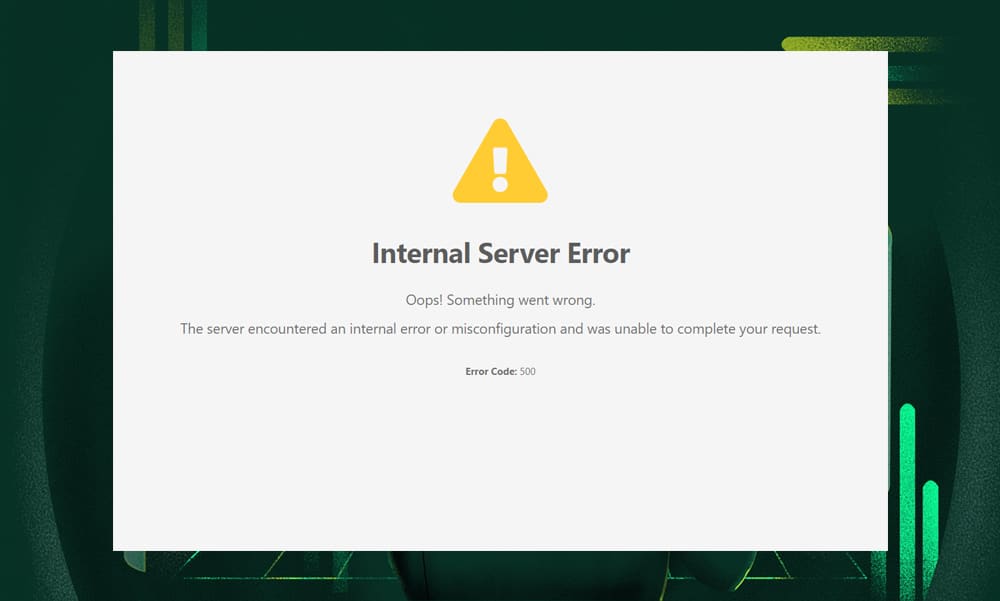
Yes, HTTP 500 errors are often server-related issues. They indicate that the server encountered an unexpected condition. Causes include misconfigurations, resource limits, or corrupted files. Checking server logs can help identify the specific problem. Solutions involve server adjustments, file repairs, or increasing resource limits.
Conclusion
Facing an HTTP 500 error in WordPress can be stressful. Yet, it’s common and fixable. Start by checking server issues or plugin conflicts. Also, ensure your WordPress version is updated. Simple steps often solve the problem. Remember, patience and methodical troubleshooting are key.
This error might seem daunting, but solutions are close at hand. Keep your WordPress site healthy and running smoothly. With time, identifying and resolving these errors becomes easier. Stay proactive in maintaining your website. A little vigilance goes a long way in avoiding future errors.


