
Have you ever wondered where WordPress stores your media files? Maybe you’re looking to organize your uploads or need to find specific images, videos, or documents quickly.
Understanding where WordPress keeps these files can simplify your workflow and enhance your site management skills. This knowledge can empower you to make more informed decisions about file organization and backups. We’ll dive into the exact location of your media files within WordPress and explore why knowing this can be a game-changer for your website management.
Get ready to unlock the secrets of your WordPress media library and take control of your site’s content like never before!
WordPress Media Library
Media files in WordPress are stored in the uploads folder. This folder is found inside the wp-content directory. Images, videos, and documents go here when uploaded. Every file gets organized by year and month. This makes it easy to find media files later. The system creates folders automatically for each year and month. This helps keep the media library tidy and organized.
The uploads folder is important for managing files. It keeps everything in one place. Users can access files from the WordPress dashboard. This is done through the media library section. The media library lets users view, edit, and delete files. Everything is stored safely in the uploads folder.

Credit: qodeinteractive.com
Default Media Storage Location
WordPress keeps all media files in a special folder. This folder is called wp-content/uploads. It is inside your WordPress website. Inside this folder, you find many more folders. Each of these folders is named by year and month. So, if you add a photo in March 2023, it goes into the 2023/03 folder. This makes it easy to find files later. You do not have to search everywhere. Files are neatly arranged.
The uploads folder is very important. It stores images, videos, and more. All your media stays safe here. Always back up this folder. It protects your files from being lost. Keeping your media organized helps your website run smoothly.
Accessing Media Files Via File Manager
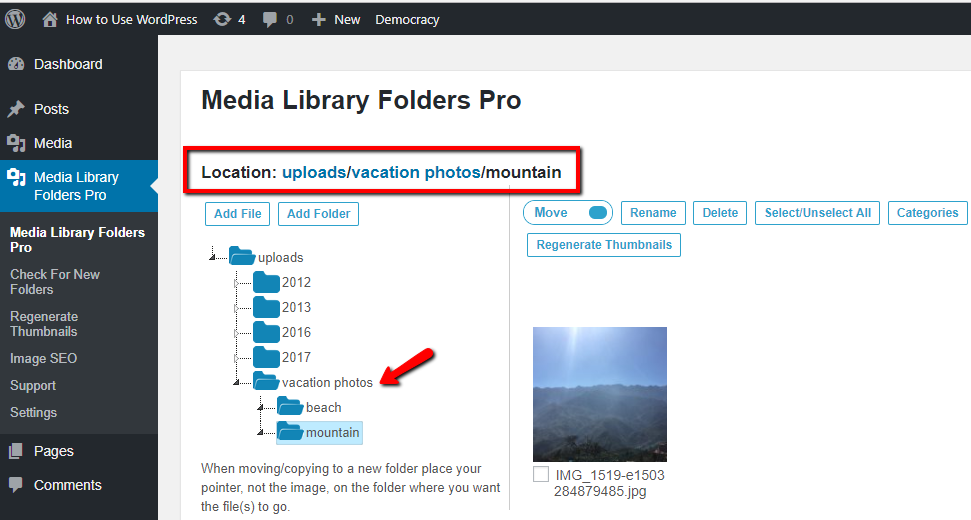
To find your media files in WordPress, open the File Manager. This tool is usually found in your hosting account. Look for the “wp-content” folder. Inside, you will see another folder named “uploads”. This is where all your media files are stored. Each year and month has its own folder inside “uploads”. This helps keep your files organized.
You can view images, videos, and other files here. Always be careful when handling these files. Deleting them by mistake can cause issues on your site. Make sure to back up your files regularly. This keeps your data safe.
Credit: maxgalleria.com
Changing Default Uploads Directory
WordPress stores media files in the uploads folder. This folder is inside the wp-content directory. You can change this folder if needed. First, you need to access your WordPress dashboard. Then, go to the Settings menu. Click on Media. Look for the option to change the folder. Type in the new folder path. Save your changes when done. Make sure the folder exists on your server. If not, create it first. This helps keep your files organized.
Always ensure proper permissions for the new folder. This allows WordPress to store files correctly. It also avoids any errors during uploads. Organizing files helps find them quickly. Keep an eye on file sizes too. Large files may slow down your site. Regular checks are important. They keep your site running smoothly.
Organizing Media Files
WordPress organizes media files in a neat way. It uses year and month based folders. This helps you find files easily. Each month has its own folder. This keeps everything tidy. If you upload in January, it goes in the January folder. If you upload in February, it goes in the February folder. This continues for each month.
Every year has a separate folder. Inside, there are monthly folders. You can find files quickly. It keeps your media files organized. It’s simple to understand. This structure saves time.
Some people like custom folders. WordPress allows this. You can change the folder structure. Use plugins for custom folders. These plugins are easy to use. They help you organize files your way. Choose a structure that fits your need. Custom folders can be helpful. They make finding files easier.

Credit: wordpress.stackexchange.com
Managing Media Files With Plugins
Plugins can help manage media files. They make it easy to organize. Some plugins let you sort files by type or date. This keeps your media library neat. Organized files mean less time searching. Some plugins even resize images automatically. This saves space on your server. They can also create folders. Folders help you find files faster. Some plugins offer drag-and-drop features. This makes moving files simple.
Remember to choose plugins wisely. Not all plugins are the same. Check reviews before installing. Good plugins will have positive feedback. They should be easy to use. Some plugins are free. Others may charge a fee. Always back up your files. This keeps them safe if something goes wrong.
Common Issues And Troubleshooting
Media files in WordPress are stored in the “wp-content/uploads” folder. Users often face issues locating this directory. Knowing this path helps in troubleshooting problems related to missing or inaccessible images and files.
Broken Media Links
Media files might not load properly. This can confuse your readers. Broken links often happen after moving your site. They also occur if files are deleted. Always check the URL paths of your media files. These should point to the correct folder. Ensure your uploads are in the right directory. Use the WordPress media library to verify files.
To fix broken links, update the URLs. Use a plugin for bulk updates. Consider a backup before making changes. This prevents data loss.
File Permission Errors
File permissions control access to your media. Incorrect settings can block uploads. This can make files invisible. Ensure the folder permissions are set to 755. Files inside should be 644. These settings allow WordPress to read and write files. If permissions are wrong, change them in your hosting control panel.
Ask your host for help if unsure. They can guide you. Keep your site secure by using the right settings.
Frequently Asked Questions
Where Does WordPress Store Media Files?
WordPress stores media files in the “wp-content/uploads” folder by default. This directory organizes files based on the year and month of upload. Users can change this default location through settings or plugins. It’s crucial to maintain proper file permissions for security and accessibility.
How To Access WordPress Media Folder?
Access the WordPress media folder via your hosting control panel or FTP client. Navigate to “wp-content/uploads” within your site’s directory. Ensure you have appropriate permissions to modify or download files. Understanding the folder structure helps in managing media efficiently.
Can I Change Media Storage Location In WordPress?
Yes, you can change the media storage location in WordPress. Use plugins or custom code to modify the upload directory. Ensure the new folder has correct permissions. Changing locations can help organize files better but requires technical knowledge for setup.
What Is The Default Path For WordPress Uploads?
The default path for WordPress uploads is “wp-content/uploads”. This folder organizes files by year and month. It’s essential for storing images, videos, and other media files. Proper permissions ensure file accessibility and security. Users can modify the path through settings or plugins.
Conclusion
Understanding where WordPress stores media files is crucial. It helps manage and organize your website’s content. Media files usually go into the “uploads” folder. This folder is inside the “wp-content” directory. Knowing this saves time and reduces confusion. You can access and edit files easily.
This knowledge enhances your WordPress experience. It also keeps your site running smoothly. Stay organized and keep your media files in check. A little knowledge goes a long way. Now you know where to find your media files in WordPress.


