
Curiosity about the WordPress backend might just be the spark that propels your website to the next level. Imagine being able to navigate effortlessly through your website’s control room, making updates and tweaks with confidence.
You’re not alone if you’ve wondered what lies behind the curtain of your WordPress site. What does it actually look like? And more importantly, how can mastering it benefit you? This article is your gateway to understanding the WordPress backend.
We’ll peel back the layers and give you a sneak peek into its inner workings. Whether you’re a blogger, entrepreneur, or just someone eager to know more, this is where you’ll find the answers. Ready to uncover the secrets that could make managing your website a breeze? Let’s dive in and explore the power at your fingertips.
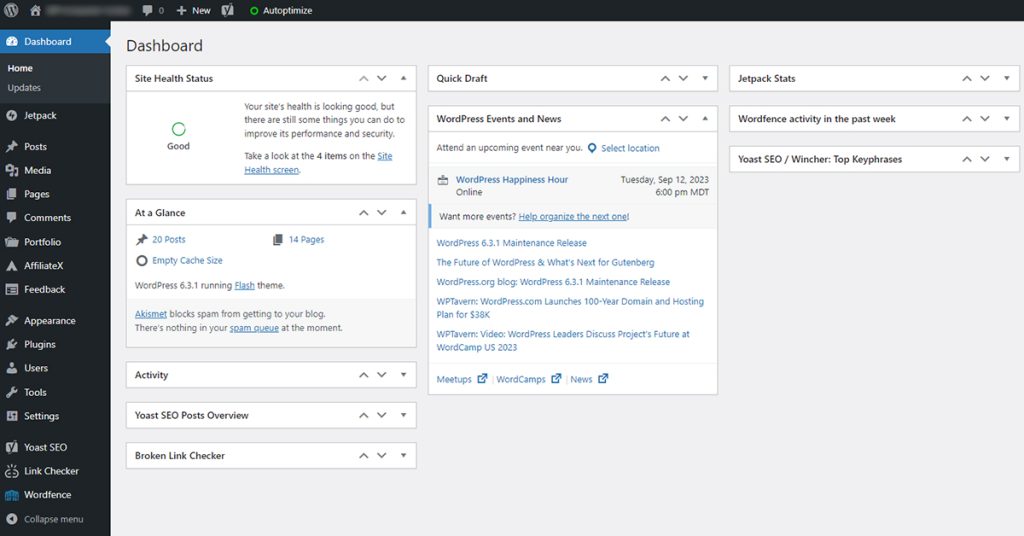
Credit: www.greengeeks.com
Dashboard Overview
The WordPress dashboard is simple and clean. It is the first screen after login. Here, you see various tools and options. The dashboard helps manage your site. You can find recent activities and updates. This area lets you customize your site. It shows site statistics and quick links. You can access posts, pages, and comments. The left-side menu is important. It holds all the main features. You can edit settings or add new content easily. The dashboard is a command center for your website. It makes managing a website easy and fun.
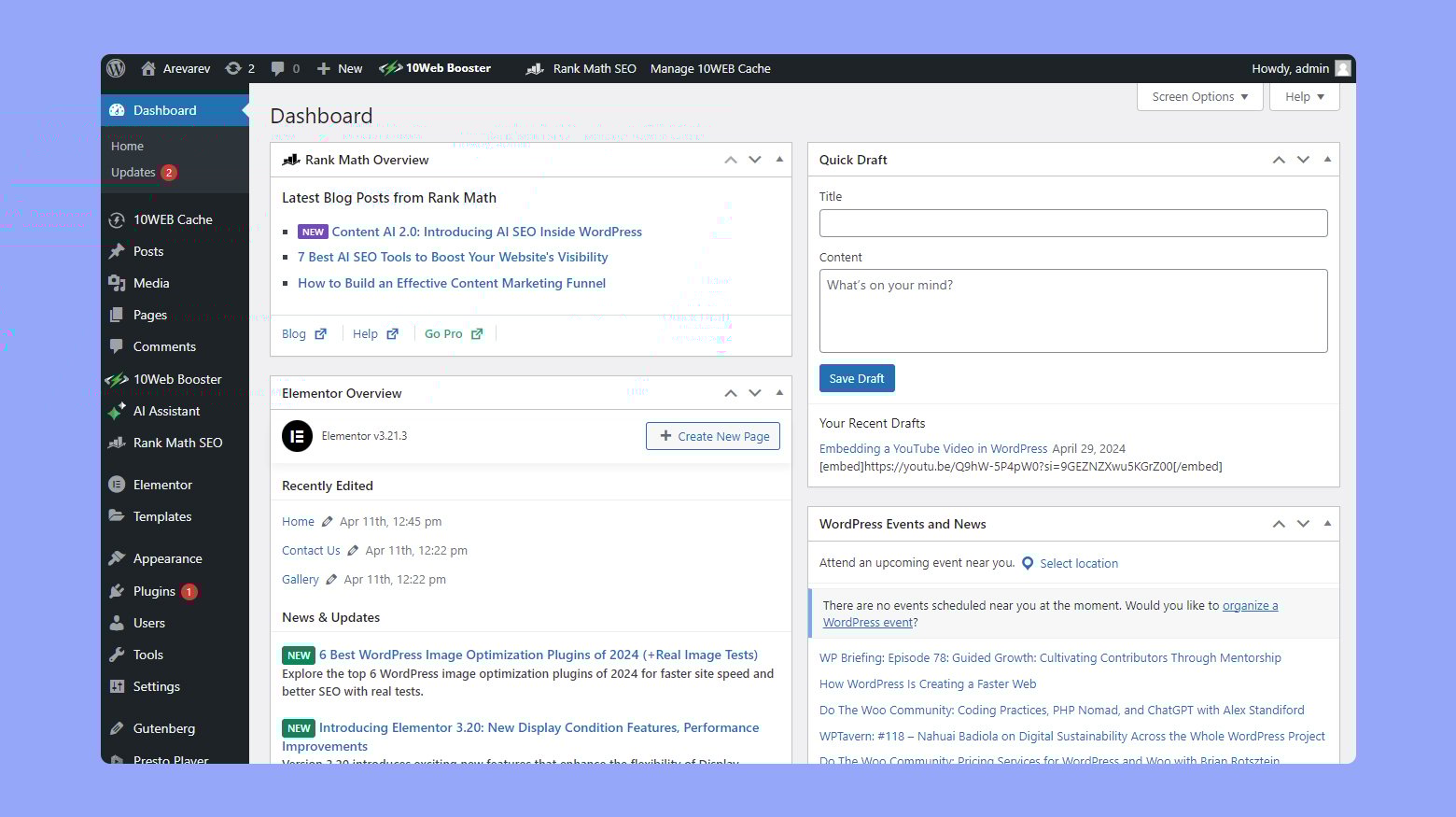
Credit: 10web.io
Navigation Menu
The WordPress backend is simple. The main menu is on the left. It helps you navigate through different sections. The main items include Dashboard, Posts, Media, Pages, and Comments. Each item leads to a new page. You can manage your site easily. The menu is always visible. It makes finding things fast and easy.
Each main item has a submenu. The submenu shows more options. For example, under Posts, you see All Posts, Add New, and Categories. This helps in organizing content. The submenu is clear and simple. It helps you find detailed options. You can customize your site with these features.
Content Management
Creating a post is like writing a story. You can add text, pictures, and links. Each post has a title and a body. Pages are more static. They hold important info like the “About Us” page. You can also add contact details. Both have a simple editor. Click, type, and save.
The media library stores your images and videos. It’s like a big folder. You can upload new files with a click. All media can be used in posts or pages. Just drag and drop. Files are easy to find. Use the search bar to help. Clean and organized.
Appearance Customization
Themes give your website its unique look. You can choose from many free themes. You can also buy special themes. Each theme has a different layout. Some have two columns. Others might have three. You can change your theme anytime. This changes the website’s style. But your content stays the same. Always pick a theme that fits your brand. This keeps your site looking professional.
Widgets add small features to your site. These could be a search bar or a calendar. You place widgets in sidebars or footers. This makes your site useful. Menus help visitors find important pages. You can add menus to the top or side. Drop-down menus can show more links. Keep menus simple. This makes navigation easy for visitors.
Plugin Management
To add a plugin, click on “Plugins” in the sidebar. Search for the plugin you want. Click “Install Now” next to it. Wait for the installation to finish. Click “Activate” to start using the plugin.
View active plugins by clicking “Installed Plugins.” Each plugin shows status and options. You can deactivate by clicking “Deactivate.” Remove a plugin by clicking “Delete.” Update plugins regularly for best performance. Check for updates in the plugin list.
User Management
Exploring the WordPress backend reveals an intuitive user management system. Navigate to the dashboard for easy access to user roles. Assign, edit, and manage users with straightforward controls.
Roles And Permissions
WordPress gives users different roles. Each role has specific permissions. An Administrator can do everything. They manage the whole site. Editors can write and publish posts. They can edit other people’s posts too. Authors can write and publish only their posts. Contributors can write but not publish. Their posts need approval. Subscribers can only read and comment. They cannot write posts. Choosing the right role is important. It keeps the site safe.
Adding And Editing Users
Adding a new user is simple. Go to the Users section. Click on Add New. Fill in the user’s details. Choose a role for them. Click Save. Editing users is easy too. Go to the Users list. Click on a user’s name. Change their details if needed. Click Update to save changes. Always check their role. Make sure it’s correct.
Settings And Configuration
The WordPress backend offers a user-friendly interface with clear menus on the left side. Users can easily manage posts, pages, and settings. This intuitive layout helps in efficiently customizing website elements.
General Settings
The General Settings in WordPress are very important. They let you set your site name and tagline. You can also choose your timezone and language. This is where you set your email address too. The email helps you get updates and alerts. These settings are easy to change. Just click and type in the boxes.
Permalinks And Seo
Permalinks decide how your website URLs look. They are important for SEO. A good URL is easy to read. It helps people find your content. WordPress lets you choose different permalink styles. Pick one that fits your needs. This makes your website better for search engines. Easy URLs are good for users too.
Tools And Utilities
WordPress makes moving data easy. You can import and export posts, pages, and comments. This helps to keep your content safe. Use the import tool to bring in data from other sites. The export tool helps you download your site’s data. It’s simple and saves time. These tools are found in the Tools menu. They are very handy. Ensure you have the right permissions. Not everyone can import or export.
The Site Health Check tool is important. It shows how well your site runs. Find it in the Tools menu. It checks for updates and problems. You get a score based on performance. It also gives tips to improve your site. Security advice is provided too. Always aim for a high score. Fix issues quickly for a better site. This keeps your site safe and fast.
Updates And Maintenance
WordPress backend features a user-friendly dashboard. It offers easy navigation with menus for posts, pages, and settings. Regular updates and maintenance ensure smooth performance and security.
Core Updates
WordPress has a special part for updates. It keeps your site safe. Updates fix bugs and add new features. They come out often. You must check for them. A simple click updates the site. Always use the latest version. This makes your site run better. It also protects against hackers.
Backup And Security
Backing up your site is very important. Backups save all your data. You can restore your site if things go wrong. Use plugins for easy backups. They do it automatically. Security is key too. Keep your site safe from bad people. Use strong passwords. Install security plugins. They keep hackers away. Regular checks help keep your site secure.
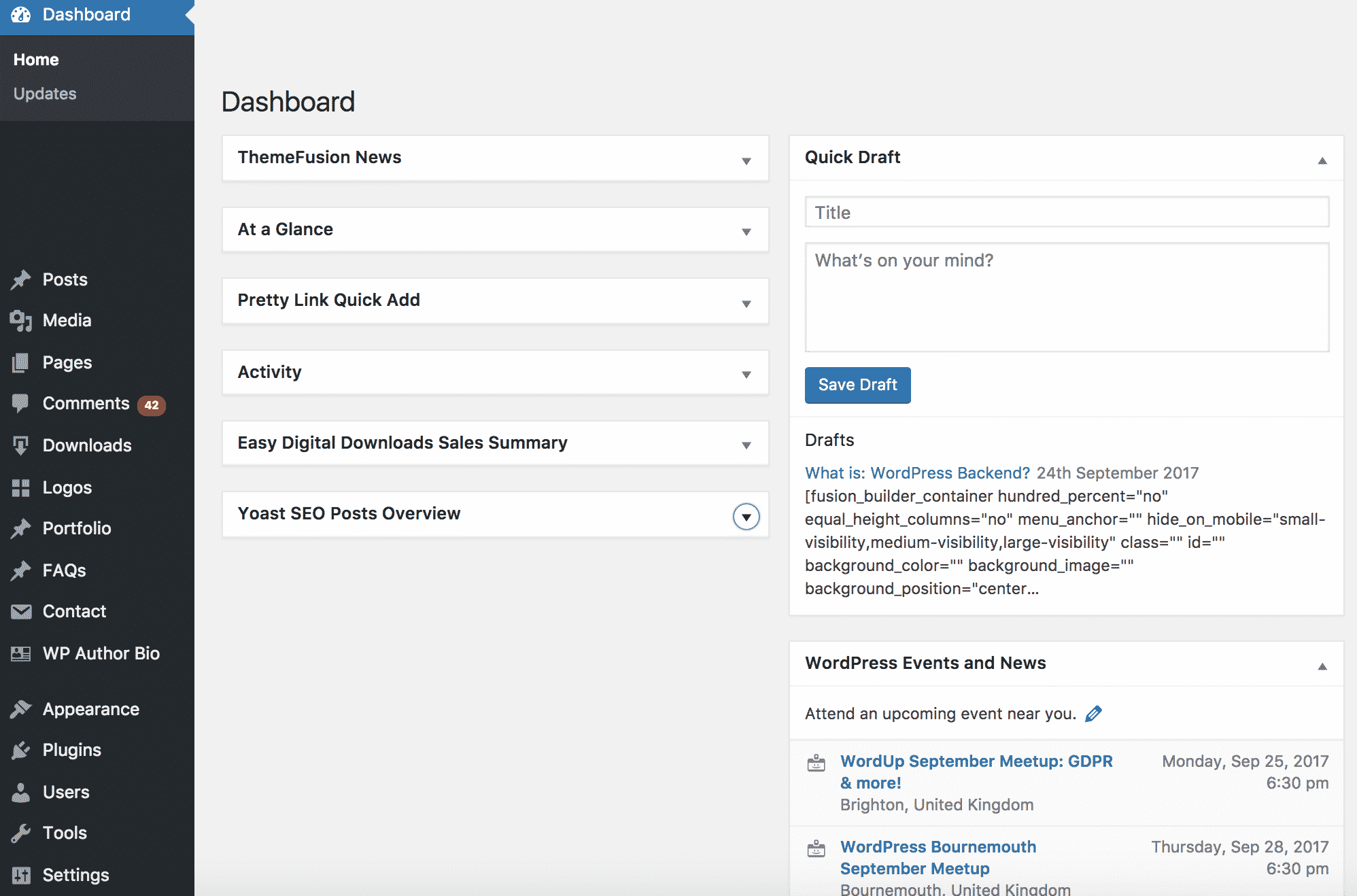
Credit: solvid.co.uk
Frequently Asked Questions
What Is The WordPress Backend?
The WordPress backend, often called the admin dashboard, is where you manage your site. It offers tools for editing content, customizing themes, installing plugins, and managing users. This area is accessible only to admins and authorized users, ensuring security and control over site operations.
How Do I Access The WordPress Backend?
To access the WordPress backend, log in to your site using your admin credentials. Typically, you add “/wp-admin” to your site’s URL. After logging in, you’ll be directed to the dashboard, where you can manage your site’s settings, content, and functionalities.
What Features Are Available In The WordPress Backend?
The WordPress backend includes features like content management, theme customization, plugin installation, and user management. You can also monitor site performance, configure SEO settings, and access various tools. These features help streamline site maintenance and enhance user experience.
Can I Customize The WordPress Backend?
Yes, you can customize the WordPress backend using plugins and themes. Admin themes allow for visual changes, while plugins enhance functionality. Customization helps improve navigation and efficiency, tailoring the backend to better suit your needs and preferences.
Conclusion
Exploring the WordPress backend is eye-opening for beginners. It’s simple yet powerful. Menus guide you through various options. Customizing themes is straightforward. Plugins extend functionality with ease. Navigating settings becomes second nature over time. The dashboard offers a clear overview of your site.
Managing posts and pages feels intuitive. The user interface is designed for easy learning. Experiment with features to gain confidence. Dive into WordPress to build your site. Understanding its backend boosts your control. The more you explore, the more you learn.
Your journey with WordPress starts here. Embrace it for a smoother web experience.


