
Have you ever tried to build a WordPress site and found yourself lost in a maze of unfamiliar terms? You’re not alone.
Understanding the different sections of a WordPress site can feel like learning a new language. Yet, it’s crucial for transforming your vision into a stunning and functional website. Imagine the satisfaction of effortlessly navigating your WordPress dashboard, making confident decisions about your site’s layout and design.
This article is your guide to demystifying those sections, empowering you to take control of your website with ease. Stick with us, and you’ll soon master the art of WordPress terminology.
Credit: jetformbuilder.com
Homepage Elements
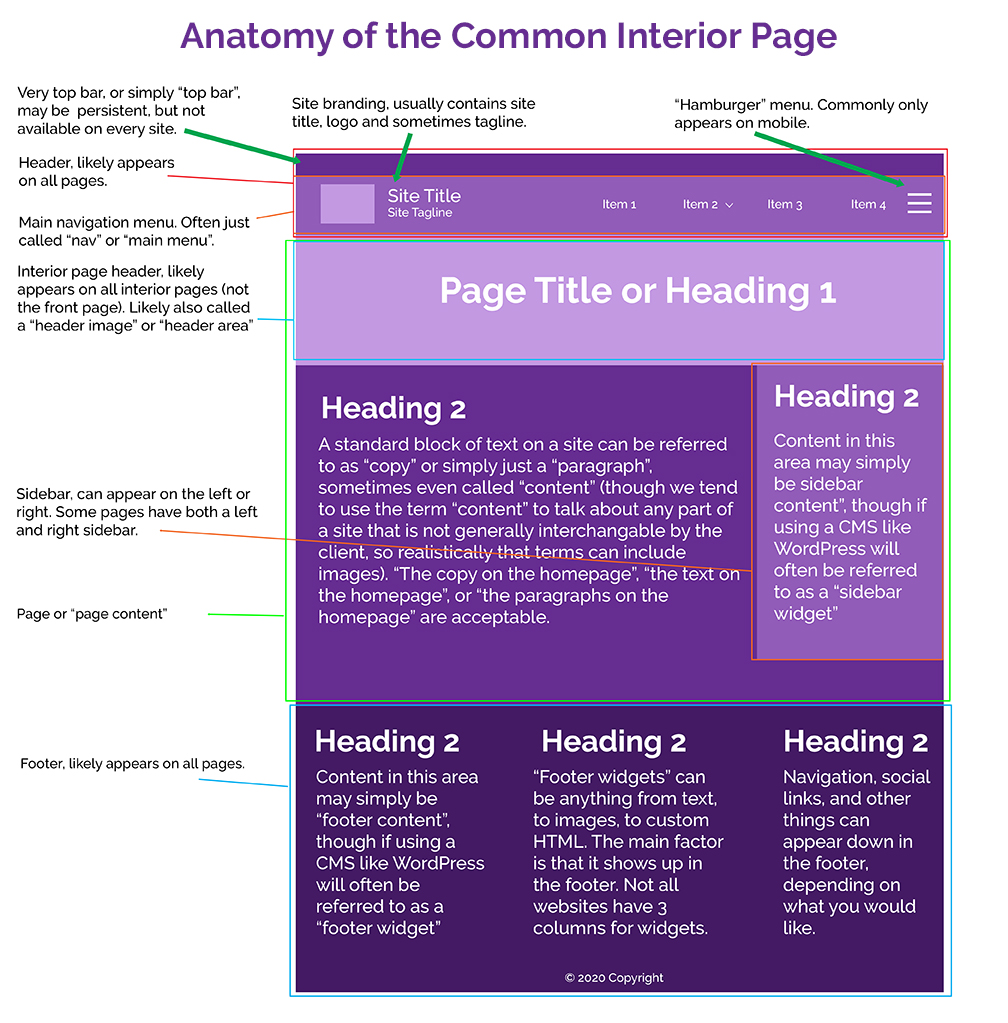
The header is the top part of the webpage. It usually shows the logo or name of the site. Important links might be here. It helps visitors know where they are.
The navigation menu guides users through the site. It often has links to main pages like “About” or “Contact”. These links make it easy to find information quickly.
The hero section grabs attention first. It often includes a large image or video. Sometimes, there is text like a tagline or call-to-action. This section aims to engage visitors.
Featured content highlights key posts or products. This section is often below the hero section. It might show blog posts or special offers. Helps visitors see the best the site offers.
Content Pages
Blog posts are parts of a WordPress site. They are like articles. Readers learn from them. Blog posts have dates and authors. People can comment on them. They share stories, news, and tips. Updating posts is easy. Posts keep your site fresh.
Static pages are always the same. They do not change often. Examples are the “About” page or “Contact” page. No dates on these pages. People find important info here. They help guide visitors. Static pages build trust with readers.
Categories help organize posts. They group them by topic. Tags are like labels. They give more details. Tags make it easy to find posts. Both help with site navigation. Readers find what they want quickly. They keep content tidy.
Archives show older posts. They are sorted by date. Readers can see past content. Archives show your site’s history. They help when searching for old posts. Archives keep your site organized. They are useful for research.
Sidebar Components
Widgets are small tools in the sidebar. They make the site better. Users can add different widgets. Some show posts or images. Others show videos or lists. Widgets make the site look nice. They also help users find things easily. Easy to add and remove.
The search bar is a simple tool. Users type words in it. It helps find content on the site. Fast and easy. People use it to find posts. Or to find pages quickly. It is often at the top of the sidebar. Helps users save time.
Recent posts show new content. They appear in a list. This list is in the sidebar. Helps users see the latest updates. They click titles to read more. Keeps users engaged on the site. Simple and effective.
Advertisements can be in the sidebar. They show ads to users. These ads can be images or text. Helps site owners earn money. Ads can be about products or services. Important for business growth. Easy to spot in the sidebar.

Credit: w3layouts.com
Footer Details
The footer often shows copyright information. It tells who owns the site. This is important for protecting content. It might also show the year the site was made. It gives users a sense of trust.
Many sites include social media links in the footer. These links connect to sites like Facebook and Twitter. Users click them to find more content. It helps sites connect with their audience.
The footer can have additional navigation. It might show links to pages like Privacy or Terms. These links are useful for users looking for more details. They help visitors find important information.
User Interaction Areas
The comments section is where users share thoughts. They can ask questions or give feedback. This area helps connect people. It makes the site feel lively. Moderators check comments to keep them nice. It’s fun to read what others think.
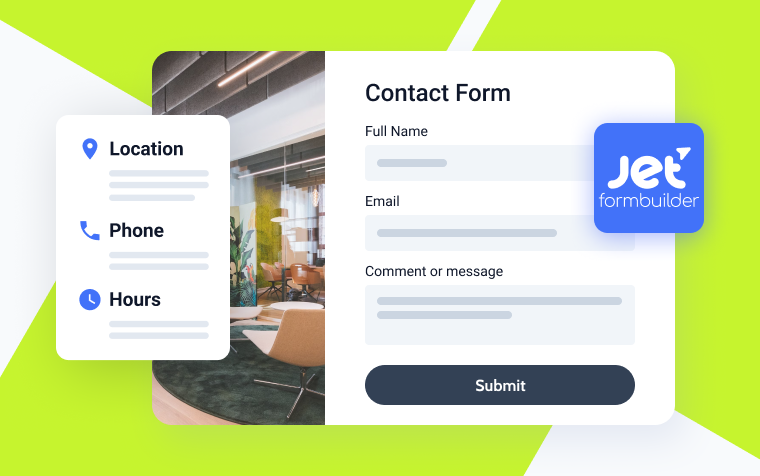
Contact forms let visitors talk to the site owner. They can ask for help or give suggestions. It’s like sending an email but easier. Personal details stay safe here. Visitors just fill in blanks. Then, they hit send. Simple and fast.
Subscription boxes help users get updates. They sign up with an email. This brings new posts right to them. No need to visit often. It’s like a friendly reminder. Users feel part of a community. It keeps them in the loop.
Credit: www.hasoptimization.com
Special Sections
Landing pages catch your eye. They grab attention fast. They show key information. Their goal is clear. Convert visitors into customers. They often have a call to action. They guide users to act. Buy, sign up, or learn more. These pages are unique. They focus on one goal. No distractions allowed. They keep it simple. Effective and direct.
Portfolio galleries show off work. They display art, photos, or projects. Every piece tells a story. These galleries are organized. Easy to view and explore. They help visitors see skills. Showcase talent clearly. Images speak loudly here. Quality matters a lot. They attract clients or fans. They make a lasting impression.
Testimonials build trust. They highlight customer opinions. They show real experiences. These sections are important. Help in decision-making. Positive words are powerful. They influence choices. They add credibility. People like seeing reviews. They matter for business. They boost confidence in services. Testimonials are key to success.
Frequently Asked Questions
What Are The Main Sections Of A WordPress Site?
A WordPress site typically includes sections like the header, footer, sidebar, and content area. The header often contains the site title and navigation menu. The footer includes additional links and information. The sidebar may feature widgets, and the content area displays the main articles or pages.
How Do You Customize WordPress Sections?
To customize WordPress sections, you can use the WordPress Customizer. It allows you to modify the header, footer, sidebar, and more. Additionally, many themes offer specific options for customization. You can also use plugins to add extra functionality and design elements to your site’s sections.
What Is The Purpose Of The WordPress Footer?
The WordPress footer serves as a space for additional information and links. It’s commonly used for copyright notices, contact details, and social media links. Many websites also use the footer to include site navigation and quick links to important pages, enhancing user experience and accessibility.
How Can I Add Widgets To A WordPress Sidebar?
To add widgets to a WordPress sidebar, navigate to the “Appearance” menu in your dashboard. Select “Widgets” and drag your chosen widgets to the sidebar area. This process allows you to customize your sidebar with features like recent posts, search bars, and social media feeds.
Conclusion
Exploring WordPress sections helps you understand your site better. Each section has a unique role. Headers guide visitors. Footers provide essential links. Sidebars offer quick access to important content. Page sections break up information, making it easy to digest. Knowing these sections boosts your website management skills.
Keep experimenting with different layouts. This will enhance user experience. A well-organized site keeps visitors engaged. Stay curious and explore new possibilities. Your WordPress site can always improve with a little attention to detail. Happy building!


