
Imagine waking up one morning, ready to check your WordPress site, only to find that it’s gone—vanished into the digital abyss. Scary, right?
That’s where backup files come to the rescue. But what do these mysterious files actually look like? If you’re not sure, you’re not alone. Many site owners overlook the importance of knowing their backup files, only to regret it later when disaster strikes.
Understanding what your WordPress backup files look like is crucial for ensuring your site’s safety and peace of mind. We’ll dive into the nuts and bolts of WordPress backup files, demystifying their structure and showing you exactly what you need to look for. You’ll discover how these files serve as your ultimate safety net, ready to restore your site in case of any mishaps. So, are you ready to empower yourself and protect your digital presence? Let’s unravel the mystery together!
Types Of WordPress Backup Files
Database backups save your site’s content. This includes posts, pages, and comments. All are stored in a MySQL database. These files are often in a .sql format. They are essential for keeping your site data safe. Without them, you might lose important site content.
File backups include all WordPress files. These are themes, plugins, and uploads. Files are usually in .zip format. They make restoring your site easier. File backups help you return to a previous state. Keep them safe to protect your site’s look and functionality.
Complete backups have both database and file backups. They offer full protection for your site. You can restore everything if needed. These are often in .tar or .zip format. Complete backups are the best choice for full security.

Credit: learnwoo.com
Database Backup Structure
WordPress stores data in tables. Each table has a special task. Posts, comments, and users all have their own tables. The backup file keeps all data safe. This means posts won’t disappear. Each table has rows and columns. Rows are like lists. Columns are like headers. Backups copy everything from each table. This helps keep the website working.
Backup files come in different formats. ZIP files are very common. They compress data to save space. SQL files hold database information. These are text files. They can be opened easily. XML files store data in structured format. They are used for exporting content. Knowing these formats helps in managing backups.
SQL files are crucial for database backups. They contain all the queries. These queries rebuild the database. Without SQL files, restoring data is hard. They ensure every table and row returns to its place. This is important for site functionality. SQL files are easy to read. They help in understanding database structure. Their role in backups is vital.
File Backup Components
Themes give websites their unique look. They contain code and style files. Plugins add special features. They are like little helpers. Both are stored in the wp-content folder. Backing them up is important. Losing them can change how a site works. Always keep copies of themes and plugins. Updates can sometimes go wrong. Having backups helps fix problems fast.
Photos, videos, and audio files are media files. They make websites interesting. These files are saved in the wp-content/uploads folder. They can be big. Always back them up. Media files take time to collect. Losing them can be sad. Keeping backups ensures you won’t lose them. It saves time and effort later.
Configuration files tell WordPress how to work. They include wp-config.php. This file is very important. It contains database details. The .htaccess file helps with links. Backing them up is crucial. Mistakes here can break a site. Always store copies safely. It keeps everything running smoothly.
Common Backup File Formats
ZIP archives are common for WordPress backups. They bundle files together. This makes them easy to store. You can open them with many tools. This format is easy to use. It keeps files safe. Backup files can be large. ZIP makes them smaller.
TAR archives are also used for backups. They gather files into one. But they do not compress them. TAR files are useful for keeping file order. They are often used with GZ. Together, they save space.
GZ files make TAR archives smaller. They use compression. This saves space on your computer. GZ is helpful for large backups. You can open them with special tools. This makes storing backups easier.
Backup Storage Locations
Local storage is a popular choice. You can store backup files on your computer. Files can be in folders or zip files. Keep them in a safe place. Always check if there’s enough space on your computer. A full disk can cause problems. Backups can become large over time. Cleaning up old files can help.
Many use cloud storage for backups. Services like Google Drive or Dropbox are easy to use. They keep files safe from computer problems. You can access files from anywhere. Always ensure you have a good internet connection. Cloud storage often offers extra security. Make sure to choose a trusted service.
An external hard drive is a handy tool. Connect it to your computer to save files. It’s easy to use and move around. A good choice for keeping backups safe. Remember to check the drive’s health. Broken drives can lose your files. Regular checks can prevent data loss.
Tools For Creating Backups
There are many plugins for WordPress backups. UpdraftPlus and BackupBuddy are popular ones. They save your site’s data safely. Plugins make the backup process easy. Users can schedule backups automatically. This ensures your data is always safe. These tools offer one-click restore options too. It’s useful when things go wrong.
Some users prefer manual backups. They use cPanel or FTP to download files. This method requires a bit more work. But it gives you full control. You decide what to backup and when. This method is good for small sites. It might be tricky for beginners, though.
Third-party services like VaultPress and BlogVault are reliable. They handle backups externally. These services store data off-site. They provide extra security for your files. Many offer daily backup options. Some even provide real-time backups. This ensures your data is up-to-date.
Best Practices For Managing Backups
Regular Backup Schedules help keep your data safe. Set a schedule to back up files. Choose a time when your site is not busy. This helps in reducing any interruptions. Backups should happen daily or weekly. It depends on how often you update your site. Always keep multiple copies. Store them in different places. This ensures you can recover your data if needed.
Testing and Verification of backups is important. Check your backup files often. Make sure they work correctly. Test restoring a file once in a while. This helps in knowing if the backup is good. If something is wrong, fix it quickly. Regular testing ensures your data is safe.
Security and Encryption protect your backup files. Use passwords to keep files safe. Encrypt your backups so others can’t read them. Only trusted people should access the backups. Keep backup files in secure places. This keeps your data private and safe from hackers.
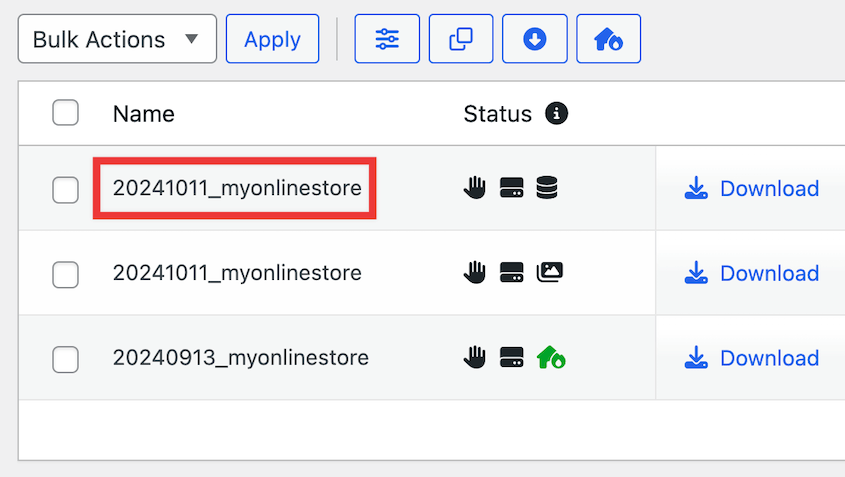
Credit: duplicator.com
Credit: duplicator.com
Frequently Asked Questions
What Do WordPress Backup Files Contain?
WordPress backup files contain essential data such as your website’s database, themes, plugins, and media uploads. They ensure your site can be restored if needed. Typically, these files are stored in formats like. zip or. tar, making them easy to download and manage.
How Often Should I Backup My WordPress Site?
Backing up your WordPress site should be done regularly. Ideally, perform backups weekly or monthly, depending on your site’s activity. Regular backups prevent data loss and ensure you can restore your site quickly after any issues.
Can WordPress Backups Be Automated?
Yes, WordPress backups can be automated using plugins like UpdraftPlus or BackupBuddy. These tools schedule backups at regular intervals. Automation helps maintain consistent backups without manual intervention, ensuring your site’s safety and data integrity.
Where Are WordPress Backup Files Stored?
WordPress backup files are typically stored in cloud storage services like Google Drive or Dropbox. Alternatively, they can be saved on your server or local computer. Cloud storage is recommended for easy access and reliable security.
Conclusion
Understanding WordPress backup files is essential for website safety. These files include databases and content, crucial for recovery. Regularly save your backups to prevent data loss. Use plugins or manual methods, whichever suits you. Always verify your backup files for completeness.
This practice ensures you can restore your site easily. Protect your work and data from unexpected issues. Remember, backups are your safety net. Keep them updated and secure. With the right approach, you safeguard your online presence. Stay proactive and maintain peace of mind.
Your website’s health depends on it.


