
Are you building a website with WordPress and find yourself confused about the difference between posts and pages? You’re not alone.
Many people new to WordPress find themselves puzzled by these two essential components. Understanding what WordPress pages are and how they function is crucial for creating a well-organized, professional-looking site. Imagine having a sleek, user-friendly website where visitors can easily find the information they need.
That’s exactly what you can achieve by mastering the use of WordPress pages. We’ll unravel the mystery of WordPress pages, explaining their purpose and how they can enhance your website’s structure and functionality. Get ready to transform your website into a more efficient and engaging platform for your audience!
WordPress Pages Basics
WordPress Pages are static web pages. They do not change often. Think of them as permanent. Pages are for content like “About Us” or “Contact”. They hold essential information. Content on Pages stays in one place. It is not time-based. This makes them different from Posts. Pages do not have tags or categories. They are good for timeless content. Use them for important messages.
Posts are for news and updates. They appear in order by date. New posts come first. Posts are part of a blog. They have tags and categories. This helps organize them. Pages do not have this feature. Pages remain constant. Posts change often. Posts can have comments. Pages usually do not have comments. Both are important. Each serves a different need.

Credit: wordpress.org
Creating WordPress Pages
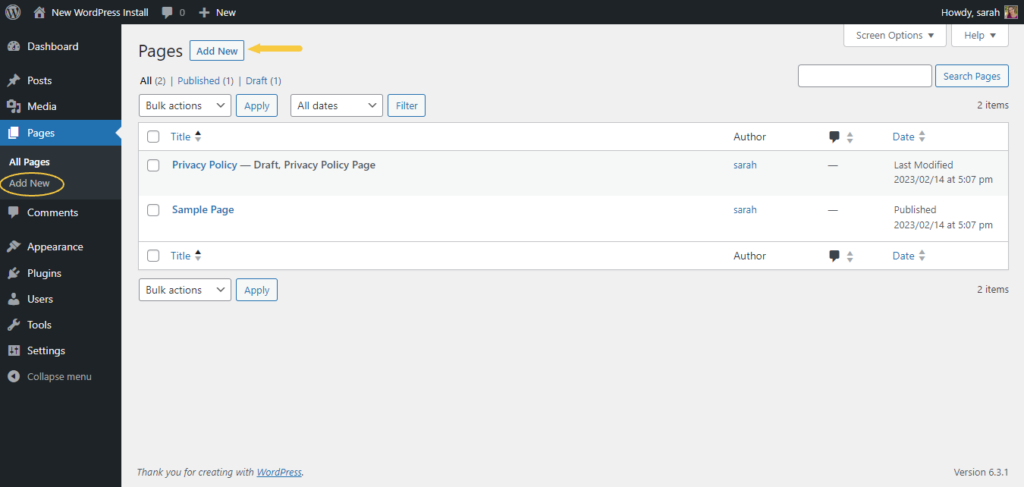
Begin by logging into your WordPress dashboard. Find the Pages tab on the left. Click it. Choose “Add New” to start. A blank page appears. Enter a title at the top. Write content in the large box below. Use simple words. Add images if needed. Look on the right side. Choose page attributes. Set a parent page if needed. Publish the page when ready. Your new page is now live.
Every page needs a title. This tells visitors what the page is about. Use a clear heading. Write content in a simple way. Add relevant images. These make the page look nice. Check the SEO settings. This helps people find your page. Make sure to preview before publishing. Fix any mistakes.
Customizing WordPress Pages
WordPress pages can look different. Use page templates to change the design. Choose a template to make your page unique. Templates can make your page simple or fancy. They help you to match your website’s style. Try different templates to see what looks best.
Plugins add extra features to your pages. They can add forms, galleries, or sliders. Find plugins in the WordPress Plugin Directory. Install a plugin, then activate it. Manage your plugins from the dashboard. Keep them updated for best performance. Plugins can make your website more fun and useful.
Widgets are small tools for your pages. Add them to sidebars or footers. They can show a calendar or recent posts. Find widgets in the Appearance menu. Drag and drop them to where you want. Rearrange them easily. Widgets make your pages more interactive. Experiment to find the right mix for your site.
Seo For WordPress Pages
Choose easy words for your page. Short sentences work best. Kids can read them. Use keywords people search for. Place them at the start. Google likes this. Write in a clear way. Avoid complex ideas. Keep paragraphs short. It helps people read faster. Use headings to break up content. This keeps readers interested.
SEO plugins can help. They improve page rank. Install one on WordPress. Follow plugin tips. They guide you well. Check for keyword usage. It should be natural. Look for broken links. Fix them quickly. Plugins often find these issues. They save time. Always update plugins. They need to be secure.
Common Uses Of WordPress Pages
WordPress pages often hold important info. The About Page tells visitors who you are. It shares your story and mission. This page builds trust. The Contact Page helps users reach you easily. It includes your email, phone, or a contact form. Simple but important.
Service Pages showcase what you offer. They describe your skills or services clearly. Product Pages present items you sell. They include prices and details. These pages help users understand your offerings. Make them clear and informative.
Managing WordPress Pages
WordPress pages can be organized with a parent-child structure. This makes your site easy to navigate. A parent page is the main page. Child pages are linked to it. They show more details about a topic. This helps users find what they need fast. It’s like a book with chapters. Each chapter has sections. A clean structure helps users and search engines. Always plan your structure well.
Keep your pages simple and clear. Use short titles. They should tell users what to expect. Update your pages often. Fresh content is important. It keeps users engaged. Avoid clutter. Too much information can confuse users. Use bullet points if needed. This makes reading easy. Ensure links work. Broken links can frustrate users. A well-managed page helps everyone.
Troubleshooting WordPress Pages
Users face many problems with WordPress pages. Sometimes, pages might not load. This can be because of plugin conflicts. A page not found error can occur. This is often due to broken links or wrong URL settings.
To fix plugin conflicts, deactivate all plugins. Activate them one by one. This helps find the faulty plugin. Check for broken links using a link checker tool. Update permalinks under settings. This can fix URL issues. Always keep WordPress updated. Regular updates fix bugs and improve security. Clear your cache often. This ensures the latest version of a page loads.
Credit: solidwp.com

Credit: www.youtube.com
Frequently Asked Questions
What Are WordPress Pages Used For?
WordPress Pages are used for static content like About Us, Contact, and Privacy Policy. They provide a more permanent structure compared to posts. Unlike posts, pages don’t appear in chronological order. They are ideal for timeless information that doesn’t change frequently.
Pages can have a hierarchical structure, allowing for parent and child relationships.
How Do Pages Differ From Posts?
Pages are static and timeless, while posts are dynamic and time-sensitive. Posts appear in reverse chronological order on your blog. Pages are hierarchical and can be organized in a parent-child manner. Posts are categorized and tagged for easy navigation. Pages are best for essential site information, while posts are for regular updates.
Can Pages Have Comments In WordPress?
Yes, Pages can have comments enabled or disabled. By default, comments are disabled on Pages, but you can enable them in the Discussion settings. Allowing comments on Pages can encourage user interaction and feedback. However, comments are more commonly used on posts than pages for engagement.
Are WordPress Pages Seo Friendly?
Yes, WordPress Pages are SEO friendly with proper optimization. Use SEO plugins like Yoast SEO to enhance page visibility. Optimize titles, meta descriptions, and headings for better search engine rankings. Pages can also be linked internally to improve site structure.
Regular updates and relevant content improve SEO performance.
Conclusion
WordPress pages are key for structuring websites. They provide static content. Examples include About Us and Contact pages. Understanding their role is crucial for effective site management. Pages help organize information. They improve user experience. Unlike posts, pages don’t have dates.
They remain constant. This makes them perfect for timeless content. Easy navigation enhances visitor engagement. They often appear in menus. This guides users directly to important information. Creating and editing pages is simple. WordPress offers a user-friendly interface. This makes it accessible to beginners.
Use pages wisely. They shape your website’s structure and accessibility.


