
Have you ever wondered what those mysterious “pingbacks” on your WordPress site are all about? If you’re diving into the world of blogging or website management, understanding pingbacks is crucial for enhancing your site’s connectivity and engagement.
Imagine having a tool that effortlessly links your content with others, expanding your reach and boosting your site’s visibility. This isn’t just a dream—pingbacks can make it a reality. By the end of this article, you’ll grasp how to use pingbacks to your advantage, transforming your WordPress experience and unlocking new opportunities for growth.
Stay with us to uncover the secrets of pingbacks and how they can elevate your online presence.
Pingback Definition
A pingback is a special type of comment. It shows up in your blog. It happens when someone links to your post. The pingback lets you know. It tells you that someone linked to you. This helps in tracking links to your site.
Pingbacks help connect blogs. They create a web of links. This is good for SEO. It helps with visibility. You can approve or delete them. They are useful but can be spammy.
Some blogs use them often. Others do not. It’s up to the blog owner. Pingbacks can be helpful. They show your post is valuable. But sometimes they are not useful. Choose wisely.
How Pingbacks Work
Pingbacks are like a digital handshake between blogs. They show a connection. When you link to another blog, it sends a signal. This signal is the pingback. The other blog gets a notice. It tells them someone linked to them. This is helpful for both parties. It builds a web of links. These links can help boost traffic. It also helps discover new content. Readers can find related posts. They can explore more topics. This makes reading fun and interesting.
Setting up pingbacks is easy. WordPress does it automatically. No special skills needed. Just link to another blog. WordPress takes care of the rest. But, both blogs must allow pingbacks. It’s a simple and effective tool for bloggers.
Setting Up Pingbacks
Pingbacks help connect blogs. They notify you when someone links to your post. To enable pingbacks, go to your WordPress dashboard. Click on Settings, then Discussion. Find the option that says “Allow link notifications from other blogs”. Check the box next to it. This will turn on pingbacks for your site.
Notifications help keep you updated. They tell you when a pingback happens. Go to the same Discussion settings. Look for “Email me whenever” options. Check the box for “Anyone posts a comment”. This way, you will get an email alert. It will help you manage pingbacks better. Stay informed and keep your blog active.
-3.jpeg?width=650&name=What%20Is%20a%20WordPress%20Pingback%3F%20%5B+%20How%20to%20Disable%20Them%5D%20(freelancer%20-%20Colin)-3.jpeg)
Credit: blog.hubspot.com
Benefits Of Pingbacks
Pingbacks can help boost your blog’s SEO. They create natural backlinks. Search engines love these. Backlinks show your blog is trusted. They can improve your search ranking. More visitors will find your site. This means more readers for your blog.
Pingbacks help connect bloggers. When a blogger links to you, a pingback is sent. This builds a friendly network. You can discover new blogs. Other bloggers may notice your work. This can lead to collaborations. Sharing ideas is easier. Your blog can grow with these connections.
Managing Pingbacks
Pingbacks on WordPress are notifications that alert you when another blog links to your content. They help connect related blog posts across different sites, fostering interaction and engagement. Managing pingbacks ensures you stay informed about who mentions your content, offering a way to track and participate in broader conversations.
Moderating Pingbacks
Pingbacks are alerts when someone links to your post. They can be helpful, but not all are good. Moderating them is important. Check each pingback carefully. Some might be spam or irrelevant. You need to decide if they add value. Approve the ones that do. Reject the ones that don’t. Keep your site clean and relevant. Use tools on WordPress for this.
Blocking Unwanted Pingbacks
Too many pingbacks can be annoying. Blocking them can help. You want to keep your site neat. WordPress has settings to stop unwanted pingbacks. Go to the discussion settings. You can turn off pingbacks there. This keeps your site tidy. It stops spam from cluttering your site. Choose wisely which pingbacks to allow.
Pingbacks Vs Trackbacks
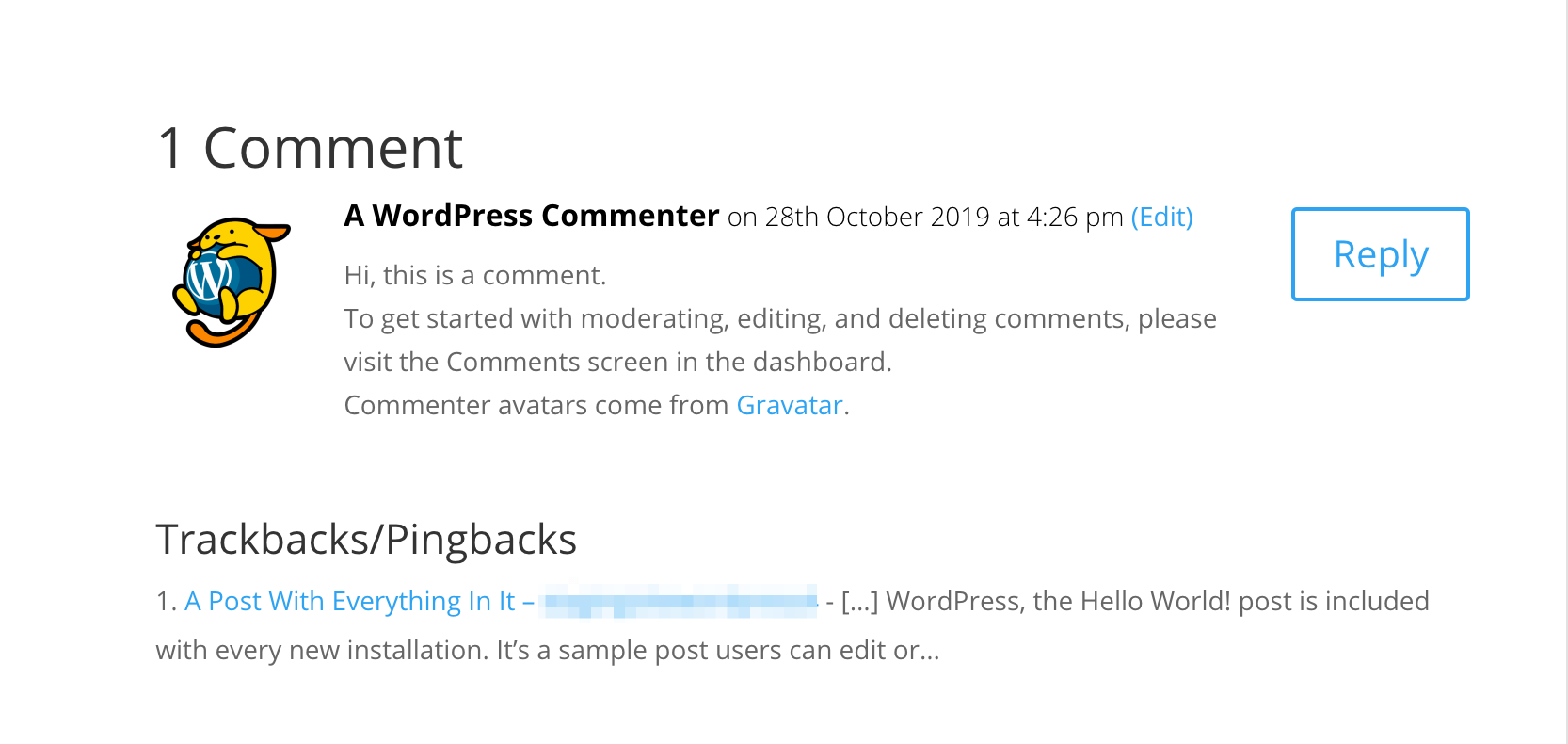
Pingbacks are automatic links. They notify when someone links to your post. Trackbacks need manual approval. They send a request to notify. Both connect blogs but work differently. Pingbacks are easier. Trackbacks need more control.
Pingbacks are good for simplicity. They save time. Trackbacks offer more control. They need checking before approval. Choose based on needs. Automatic vs. manual. Consider your blog’s interaction style. Decide what suits best.
Common Issues With Pingbacks
Pingbacks can attract unwanted attention. Spam is a common issue. Many sites send fake notifications. These can clutter your dashboard. Filtering spam is important. Use plugins to manage spam. Plugins help to block fake alerts. They protect your site. Keep your site clean and organized.
Pingbacks sometimes face errors. Links might break. This causes trouble for users. Fixing errors is necessary. Check links regularly. Ensure they are active. Broken links hurt your website’s reputation. Use tools to monitor link health. Regular checks prevent issues. Keep your site professional. Make sure everything works smoothly.
Credit: www.wpbeginner.com
Best Practices For Using Pingbacks
Respect is crucial when using pingbacks. Always give credit to original authors. Never copy content without permission. Pingbacks should add value to the conversation. Engage with meaningful comments. Avoid spam or irrelevant links. This builds trust and relationships. Use pingbacks wisely. They are a tool for connection. Proper etiquette helps maintain a positive online community.
Keep an eye on your pingbacks. Check them regularly. Make sure they are working correctly. Look for any broken links. Fix them quickly. This keeps your site healthy. Monitor incoming pingbacks too. Ensure they are relevant and useful. Protect your site from spam. Quality matters more than quantity. Regular monitoring helps maintain a professional appearance. It shows you care about your content.
Credit: managewp.com
Frequently Asked Questions
What Is A Pingback In WordPress?
A pingback is a notification system in WordPress. It alerts you when another blog links to your content. This helps in tracking backlinks and engaging with other bloggers. Pingbacks can be moderated through WordPress settings to prevent spam.
How Do Pingbacks Benefit My Blog?
Pingbacks enhance your blog’s visibility and networking. They help you monitor who links to your content. Engaging with these links can boost traffic and build relationships. Pingbacks also improve SEO by showing search engines your blog’s connectivity.
How Can I Enable Pingbacks On WordPress?
To enable pingbacks, go to your WordPress settings. Navigate to “Discussion” settings and check the box for pingbacks. This allows your blog to receive notifications when linked. You can also moderate pingbacks to control spam.
Can I Disable Pingbacks On My Site?
Yes, you can disable pingbacks in WordPress settings. Go to “Discussion” and uncheck the option for pingbacks. This stops notifications from other blogs linking to yours. Disabling may help reduce spam but limits backlink tracking.
Conclusion
Pingbacks on WordPress connect content across websites. They enhance interaction by notifying authors about links. This boosts engagement and strengthens community ties. Managing pingbacks is simple with WordPress settings. Users can choose to allow or block them. It’s crucial to monitor pingbacks for quality and relevance.
They add value by linking related posts. This encourages readers to explore more content. Understanding pingbacks helps optimize your WordPress site. It ensures effective communication and networking. So, consider using pingbacks wisely. They can enrich your blog’s experience and build connections.


