
Have you ever wondered about the nuts and bolts that power your WordPress site? Knowing your database connection details is crucial for maintaining and troubleshooting your website.
Whether you’re tweaking settings, backing up data, or solving unexpected issues, having this information at your fingertips can be a lifesaver. But where do you find these elusive details, and why are they so important? We’ll guide you through the process of locating and understanding your WordPress database connection details.
We’ll simplify what might seem like a daunting task and empower you with knowledge that can keep your website running smoothly. Let’s dive in and unveil the secrets behind your WordPress database connection!
Credit: www.godaddy.com
Locating Database Configuration File
Start by logging into your hosting account. Go to the control panel. Find the File Manager option. Click to open it. This will show all files. Look for the folder called public_html. Open this folder. You will find all your WordPress files here.
Inside the public_html folder, search for a file named wp-config.php. This file contains your database connection details. It’s very important. Do not delete it. Open it carefully. You will see database name, username, and password. Keep these details safe. They are important for your WordPress site.
Understanding Wp-config.php
The wp-config.php file is vital for your WordPress site. It stores important settings. These settings help connect your site to the database. Without this file, your site won’t work. It also contains security keys. These keys protect user data. They keep your site safe. The file is located in your site’s root directory. It’s crucial to keep it secure. Never share it publicly.
The database settings are crucial. They define how WordPress accesses your database. The DB_NAME tells the name of your database. The DB_USER defines the username. The DB_PASSWORD secures the database. The DB_HOST specifies the server. These settings must be correct. If they’re wrong, your site may fail. Always double-check them.
Extracting Database Connection Details
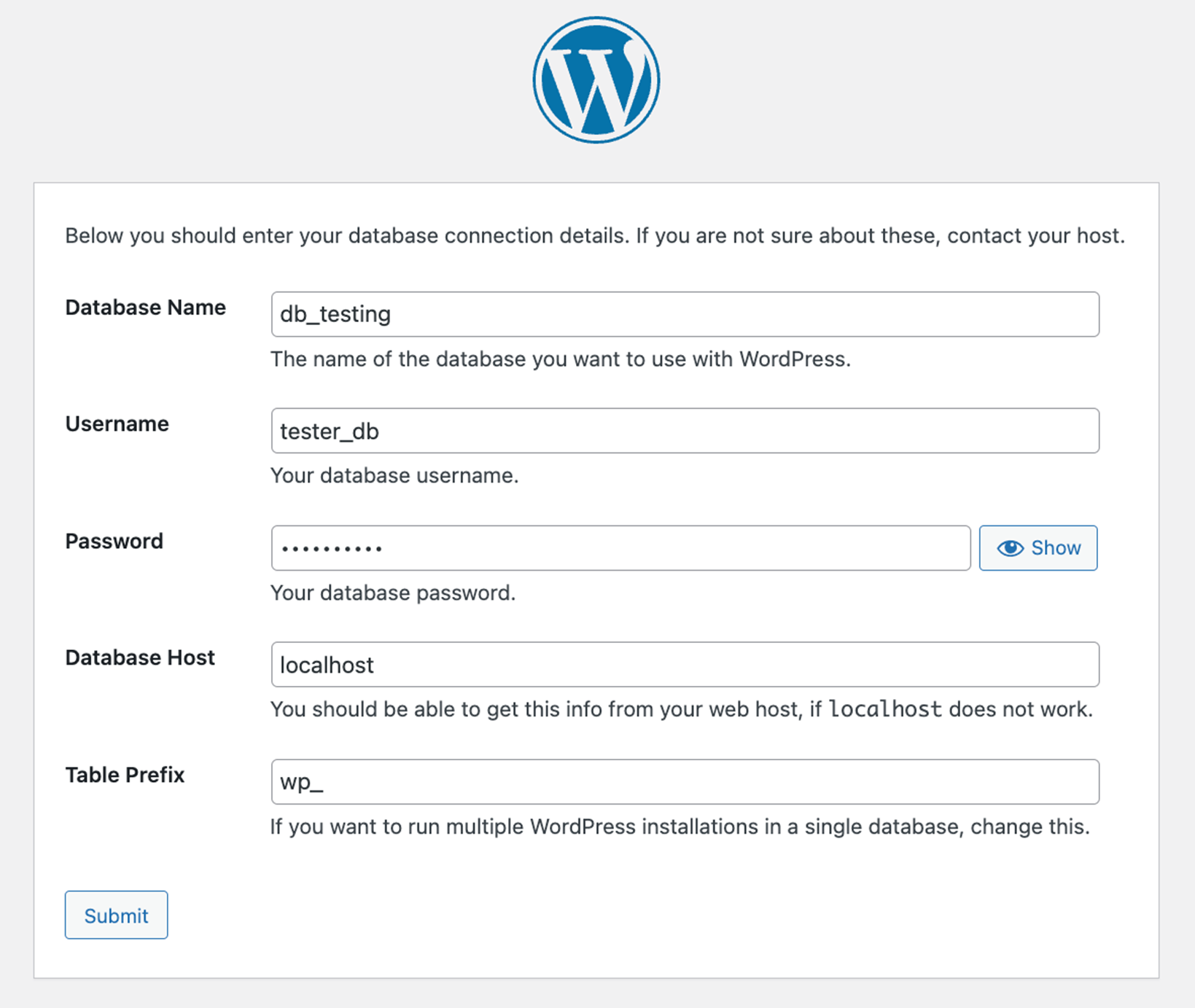
The database name tells WordPress where to find your data. It is stored in a file called wp-config.php. This file is in your WordPress folder. To find it, log into your hosting account. Use a file manager or FTP tool to open it.
The database user is like a key to your database. It controls who can see or change the data. You can find this information in the same wp-config.php file. Look for the line that says DB_USER.
The database password keeps your data safe. It works with the database user to protect your site. In the wp-config.php file, look for DB_PASSWORD. Keep this password secret.
The database host is like the address of your database. It tells WordPress where the database is stored. Usually, it is localhost, but sometimes it is different. Check the wp-config.php file for DB_HOST.

Credit: learn.wordpress.org
Using Cpanel To Find Details
Navigate to the Databases section in cPanel. Look for the icon with databases. Click on it. This opens the databases page. Here, you manage your databases.
Navigating To Databases Section
Find the MySQL Databases option. Click it. You will see a list. This list shows all databases. It includes names and sizes. You need these details to connect.
Locating Mysql Databases
Check the User Privileges. Look under each database name. You will see users with access. Make sure you have the right privileges. It helps to keep data safe.
Verifying User Privileges
Ensure that users have correct permissions. Check what each user can do. It may include read or write access. This ensures your site functions well.
Troubleshooting Connection Issues
Sometimes, database connection errors can stop your website. Check the error message first. It might say “Error Establishing a Database Connection.” This means your site cannot talk to the database. Try checking the database settings in your wp-config.php file. Fixing these settings can often solve the problem.
Confirm your database host and port. They are usually ‘localhost’ and ‘3306’ for WordPress. If you changed them, check if they are correct. Wrong host or port details can stop the database connection. Always make sure these details match your hosting provider’s info.
Ensure your database username and password are correct. They must match the details in your wp-config.php file. Wrong credentials can block access to the database. Double-check these details for any typos or mistakes. If unsure, reset the password from your hosting control panel.
Securing Database Credentials
The wp-config.php file holds your database details. It’s very important. Never share this file with anyone. Hackers can steal your data. Move the file one level up. This adds an extra layer of security. It becomes harder to find. Always check file permissions. Set them to read-only. This means others cannot edit the file.
Storing database details in the code is risky. Instead, use environment variables. They keep sensitive information safe. Create a .env file in your server. Store your details there. Your code will read from this file. It’s safer than hardcoding credentials. Keep your .env file private. Do not upload it online. Environment variables are a smart choice.

Credit: community.wd.com
Frequently Asked Questions
How Do I Find My WordPress Database Connection Details?
To find your WordPress database connection details, access the wp-config. php file. This file is located in the root directory of your WordPress installation. Open it to view your database name, username, password, and host information. These details are essential for connecting WordPress to your database.
Where Is The WordPress Wp-config.php File Located?
The wp-config. php file is located in the root directory of your WordPress installation. You can access it via FTP or your web hosting file manager. This file contains critical configuration settings, including database connection details, security keys, and debugging options.
What Information Is In Wp-config.php For Database Connection?
The wp-config. php file contains crucial database connection details. You’ll find the database name, username, password, and host information. These are necessary for WordPress to communicate with your database effectively. Ensure these details are correct to prevent connection issues.
Can I Change My Database Connection Details In WordPress?
Yes, you can change database connection details in WordPress by editing the wp-config. php file. Locate the file in your root directory and update the database name, username, password, or host as needed. Be cautious when changing these settings to avoid breaking your site.
Conclusion
Understanding your WordPress database connection details is crucial. It ensures smooth site performance. These details help in troubleshooting issues. Knowing them can save time and effort. Keep them secure and accessible. Regular backups are beneficial. Always verify settings after updates.
Check your hosting provider’s resources. They often provide helpful guides. Stay informed about WordPress developments. They can affect your database settings. Learning about databases enhances WordPress management. It provides more control over your website. Embrace the knowledge. It empowers you in handling WordPress challenges.
Happy blogging!


