
Are you looking to enhance your WordPress site and make navigation a breeze for your visitors? Custom links might just be the tool you need.
Imagine having the power to direct your audience exactly where you want them to go, with just a simple click. Custom links in WordPress give you that control, transforming your site from a simple blog or webpage into a dynamic and interactive experience.
Picture this: a visitor lands on your site, intrigued by your content. They’re curious and want to explore more. With custom links, you can guide them seamlessly through your best work, ensuring they don’t miss a thing. This not only keeps them engaged but also builds a deeper connection with your brand. By the end of this article, you’ll understand how to create and use custom links to boost your site’s functionality and user experience. Get ready to unlock the potential of your WordPress site and keep your visitors coming back for more.
Custom Links In WordPress
Custom links are special links. They take users to specific pages. These links can lead to other websites. WordPress allows creating these links easily. Users can add them in menus. This helps visitors find information quickly. Custom links can also point to internal pages. This keeps users on your site longer. Using them improves website navigation. They make websites user-friendly.
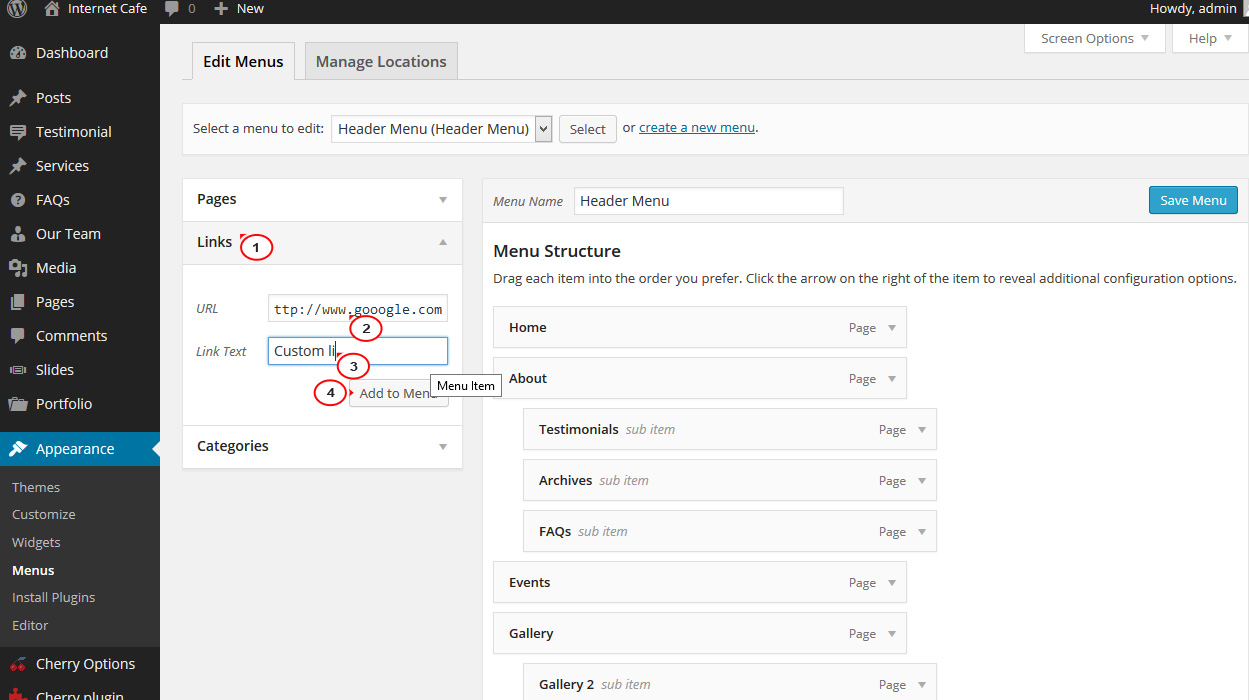
Adding custom links is simple. First, go to the dashboard. Find the menu section. Here, you can create a new link. Type the web address. Give it a label. Click save. Your custom link is ready. It’s now part of the menu. These links enhance user experience. They are important for any website.
Credit: www.templatemonster.com
Benefits Of Using Custom Links
Custom links make it easier to find information. Users can go where they want quickly. This makes them happy. A happy user stays longer on the site. They will come back again.
Search engines like clear paths. Custom links help in this. They make it easy for search engines to read your site. Better reading means better rankings. More people will find your site.
Custom links let you change paths. You can make links go anywhere. This gives you more control. Control is good for making changes fast. Your site can grow with your needs.
Creating Custom Links
First, go to your WordPress dashboard. Locate the Appearance menu. Click on Menus. This will take you to the Menu Editor. Here, you can see all your menus. Select the menu you want to edit. It’s easy to find your way around.
On the left side, you will see Custom Links. Click on it. You need to enter the URL in the URL box. Write the link text in the Link Text box. This is the name that will appear on your site. After filling these, click Add to Menu. Your link will now be in the menu.
After adding a link, you might want to set attributes. Click the small arrow next to the link. You will see options like Navigation Label and Title Attribute. The Navigation Label changes the link name. The Title Attribute shows extra info when users hover. Remember to save changes by clicking Save Menu.
Best Practices For Custom Links
Custom links in WordPress are user-defined URLs that enhance site navigation and SEO. These links direct visitors to specific pages, posts, or external websites, improving user experience. Properly managing custom links involves ensuring they are descriptive, functional, and relevant to your content, helping to maintain an organized and accessible website.
Keep Urls Simple
Simple URLs are easy to read. Users remember them well. Avoid using long or complex URLs. They can confuse visitors. Make URLs short and clear. Use words that relate to the content. This helps search engines understand your page.
Use Descriptive Anchor Text
Anchor text should tell what the link is about. Use words that match the linked page content. Avoid using “click here.” It does not give information. Descriptive text improves user experience. It also helps with SEO.
Regularly Update Links
Links can break over time. Check links often to ensure they work. Update or remove broken links. This keeps your website healthy. It also helps users find what they need. Regular updates show you care about your site.
Troubleshooting Common Issues
Custom links in WordPress let users create unique URLs for better navigation. They help in organizing content efficiently. Troubleshooting involves fixing broken links, incorrect URLs, and ensuring proper redirection.
Broken Links
Broken links can confuse visitors. Ensure every link works. Use tools to check links. Fix any broken ones quickly. Broken links harm user experience. They can also affect SEO. Always check links after updates.
Incorrect Redirects
Incorrect redirects lead users to wrong pages. Check each redirect carefully. Ensure they point to correct pages. Incorrect redirects can frustrate users. They can also lower trust in your site. Regular checks help maintain correct redirects.
Permission Errors
Permission errors prevent users from accessing pages. Verify permissions settings. Ensure users have access they need. Incorrect permissions can block important content. This may reduce site usability. Correct permissions improve user experience.

Credit: wordpress.org
Tools And Plugins For Custom Links
Custom links in WordPress let users personalize URL paths to enhance navigation and user experience. Tools and plugins make creating these links straightforward, ensuring consistent branding and improved site structure. They offer easy-to-use features, transforming link management into a hassle-free process.
Link Management Plugins
WordPress offers various plugins for managing links. These plugins make link management easy and effective. Pretty Links is popular for creating clean and simple URLs. It helps track how many people click on your links. Another useful plugin is ThirstyAffiliates. It is designed for affiliate marketers. It cloaks affiliate links and makes them look more professional.
Link Manager is helpful for organizing and categorizing links. It offers a simple way to keep links tidy. Simple URLs is another tool that helps manage URLs efficiently. It adds a custom post type for links and tracks link clicks.
Seo Optimization Tools
SEO tools improve link visibility. Yoast SEO is very popular. It helps optimize links for search engines. This plugin checks your content readability. SEOPress offers features to enhance link SEO. It provides analytics and insights. Another tool is All in One SEO. It optimizes links for better ranking.
These tools ensure links are easy to find. They improve link performance. They help boost your site’s SEO.
Real-world Applications
Custom Links in WordPress allow users to personalize navigation menus. They simplify linking to external sites or specific pages. These links enhance user experience by guiding visitors seamlessly.
E-commerce Websites
E-commerce websites use custom links to connect products with pages. These links help users find items fast. Custom links also make checkout easier. They guide shoppers from product to cart. This boosts the buying experience. Store owners can also use them for special promotions. This way, they attract more buyers and increase sales.
Blogs And Content Sites
Blogs use custom links to connect related posts. This keeps readers on the site longer. Custom links also help in organizing important content. Bloggers can link to guides or special articles. This makes finding information easy. It’s like a map for readers. Readers will enjoy visiting the site more often.
Portfolio And Personal Websites
Portfolio sites use custom links to show work samples. This helps visitors see projects quickly. Personal sites link to social media profiles. This helps build connections. Custom links also guide visitors to contact pages. This makes reaching out simple. It helps in building a strong online presence.

Credit: docs.presscustomizr.com
Frequently Asked Questions
What Are Custom Links In WordPress?
Custom Links in WordPress allow users to create personalized URLs. These links can lead to external websites or specific pages within your site. They are especially useful for navigation menus, helping visitors easily access important content. Custom Links enhance user experience by providing direct paths to desired information.
How Do I Create Custom Links?
To create Custom Links, go to your WordPress Dashboard. Navigate to Appearance, then Menus. In the Menus section, you’ll find the Custom Links option. Enter the desired URL and link text, then click Add to Menu. Finally, save your changes to implement the new link.
Can Custom Links Improve Seo?
Yes, Custom Links can improve SEO by enhancing site navigation. They help search engines understand your site’s structure and prioritize important content. Effective linking can boost page authority and organic traffic. Ensure your links are descriptive and relevant to maximize SEO benefits.
Are Custom Links Mobile-friendly?
Yes, Custom Links are mobile-friendly when implemented properly. WordPress themes are generally responsive, ensuring links display correctly on mobile devices. However, always test your site on various devices to confirm the links function as intended. Proper mobile optimization enhances user experience and improves SEO rankings.
Conclusion
Custom links in WordPress offer flexibility and control. They help tailor website navigation. Easy to create, they enhance user experience. Visitors find what they need quickly. This simplicity boosts engagement and satisfaction. Plus, custom links improve website organization. They guide visitors efficiently.
An organized site keeps users coming back. Simple tools like these make a big difference. So, use custom links to improve your WordPress site. It’s an easy way to enhance your online presence. With practice, you’ll become more skilled. Your site will look and function better.
Enjoy the benefits of this useful feature!


